Loading documentation
Open Candidates to begin with Application review, the queue for applications at the initial review stage. This includes applications submitted by candidates and records your team has added when their current stage is application review. Entry method and request delivery are separate from the hiring stage.
Find the applications to review
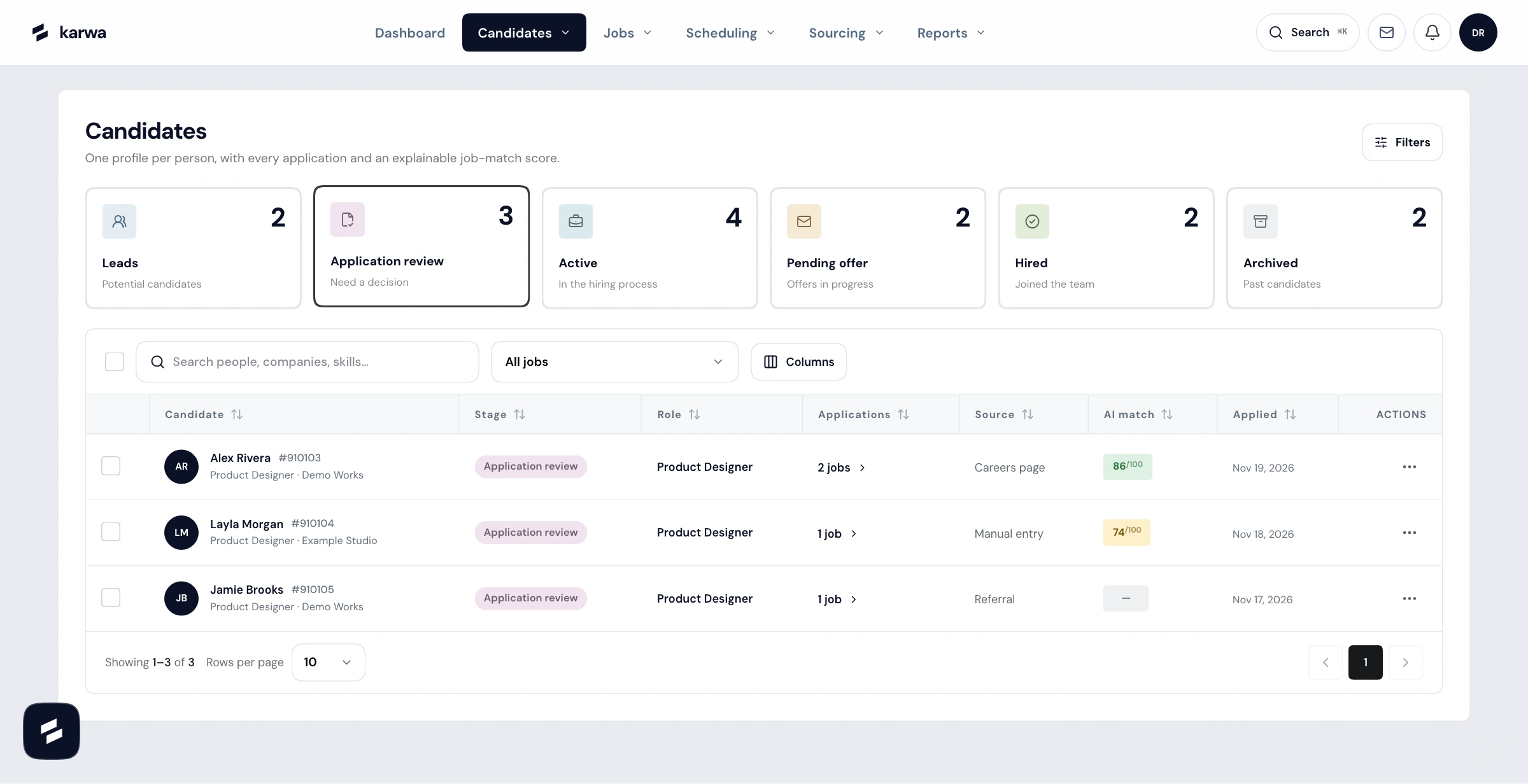
Choose the relevant job in All jobs, enter a search if needed and press Enter, or open Filters. Review the complete filter reference in Search, filter, and revisit candidates. Filters remain selected when you switch status tabs, so clear unwanted filters if an expected application is missing.
A person can have applications for several jobs. Confirm the Role on the row before reviewing or contacting them. The Applications column opens their application history. The stage is shown as one badge; candidate details request delivery is not an additional hiring stage.
Open the review workspace
Open the row's Actions menu and select Review application to open that application's full review workspace. Open candidate, or selecting the candidate's name, opens their details instead. The available actions depend on the application and your access.
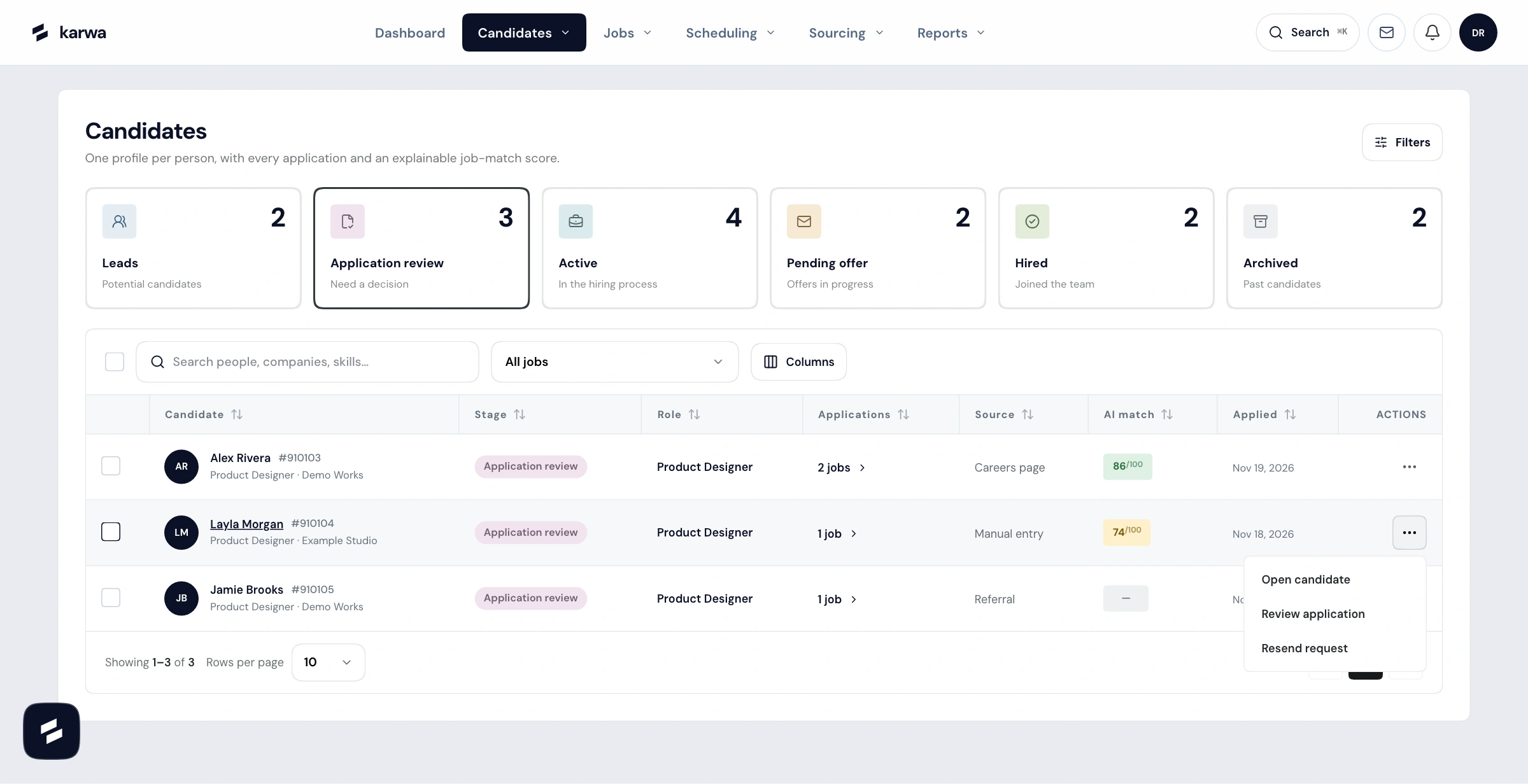
If a candidate completion request still needs to be sent again, Resend request is in Actions when eligible. Choosing it opens a confirmation showing the candidate and role. Review the stored contact details before confirming. Cancel sends nothing. See Manage your hiring pipeline for resend eligibility and the full action reference.
Check evidence against the role
Read the role requirements before comparing candidates. Inspect the available resume, answers, work history, and relevant evidence. Check what remains incomplete. A missing keyword or an absent score does not establish that a candidate lacks the required experience.
AI match is the saved assessment for this particular role, out of 100. It is separate from the AI fit category and individual AI criteria results. Read Use AI-assisted screening for the bands, score components, fit categories, missing results, and limitations. Review the source material instead of using a score alone to make a decision.
Record the decision and next step
Use the application's review controls to take the appropriate next step. Before advancing, holding, or declining an application, make the job-related reason clear in the available notes or decision record. Separate evidence from assumptions. Review any messages or interview actions before sending them.
After an application moves beyond review, find it in Active and the relevant job's pipeline. Offer stages appear in Pending offer, hired applications in Hired, and archived or rejected applications in Archived. Clicking a status tab only changes the view; it does not move the application. Follow Manage your hiring pipeline for all six tabs and screenshots.
Keep the queue moving
Review incoming applications regularly and agree on the next action and owner for applications waiting on more information. If the role criteria change, revisit earlier assessments as appropriate. Communicate relevant next steps clearly, respect candidate opt-outs, and follow your organization's privacy and retention rules.
When ready to arrange a conversation, continue with Plan and schedule interviews. For manually added candidates and duplicate handling, see Add a candidate.
Continue in the full candidate workspace
For the full profile after application review, use Candidate profile. The dedicated records and checks guide explains application answers, resume versions, structured-history edits and evidence-based finding reviews. Candidate activities explains the normal Activity tab and its candidate-only work.