Loading documentation
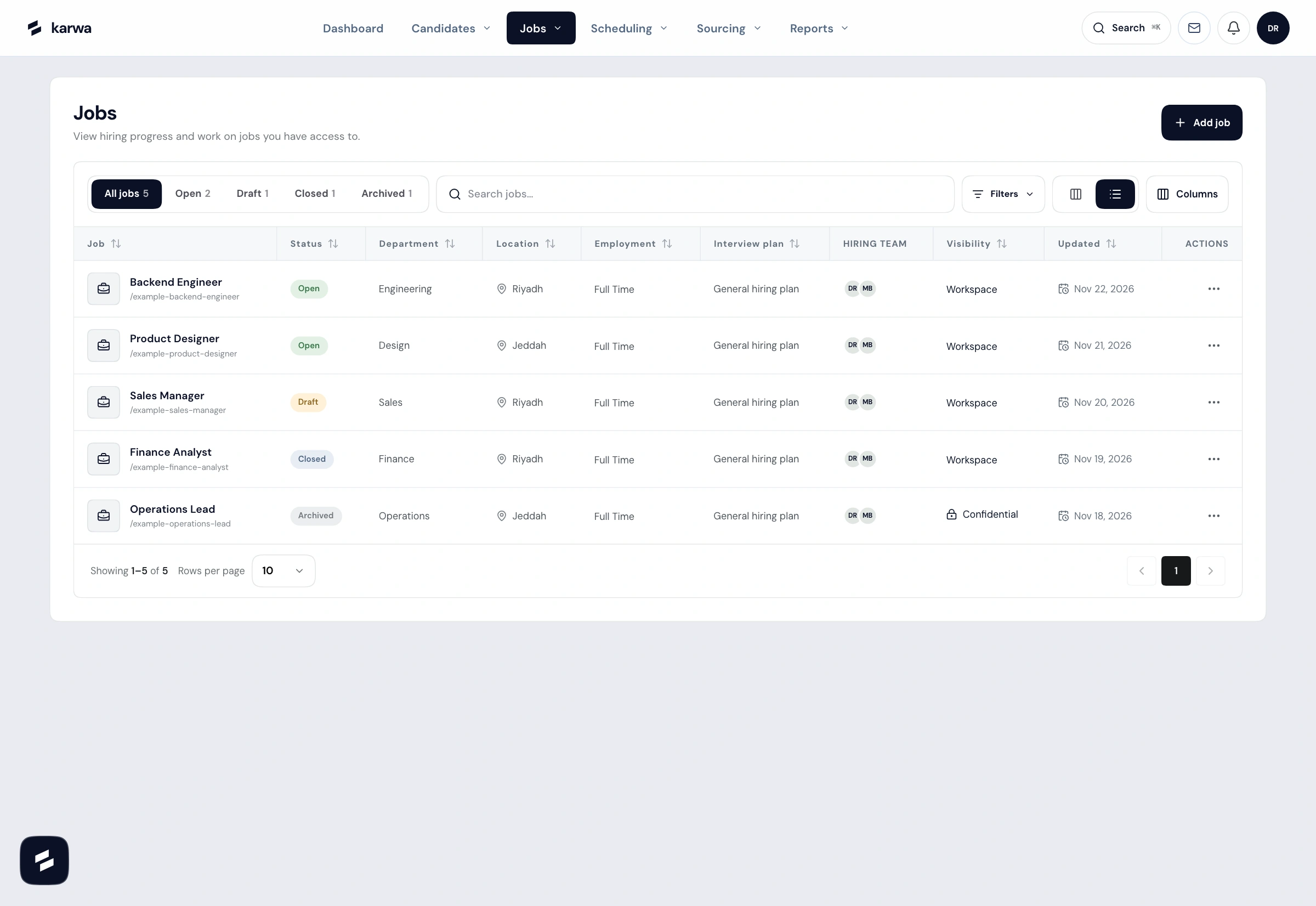
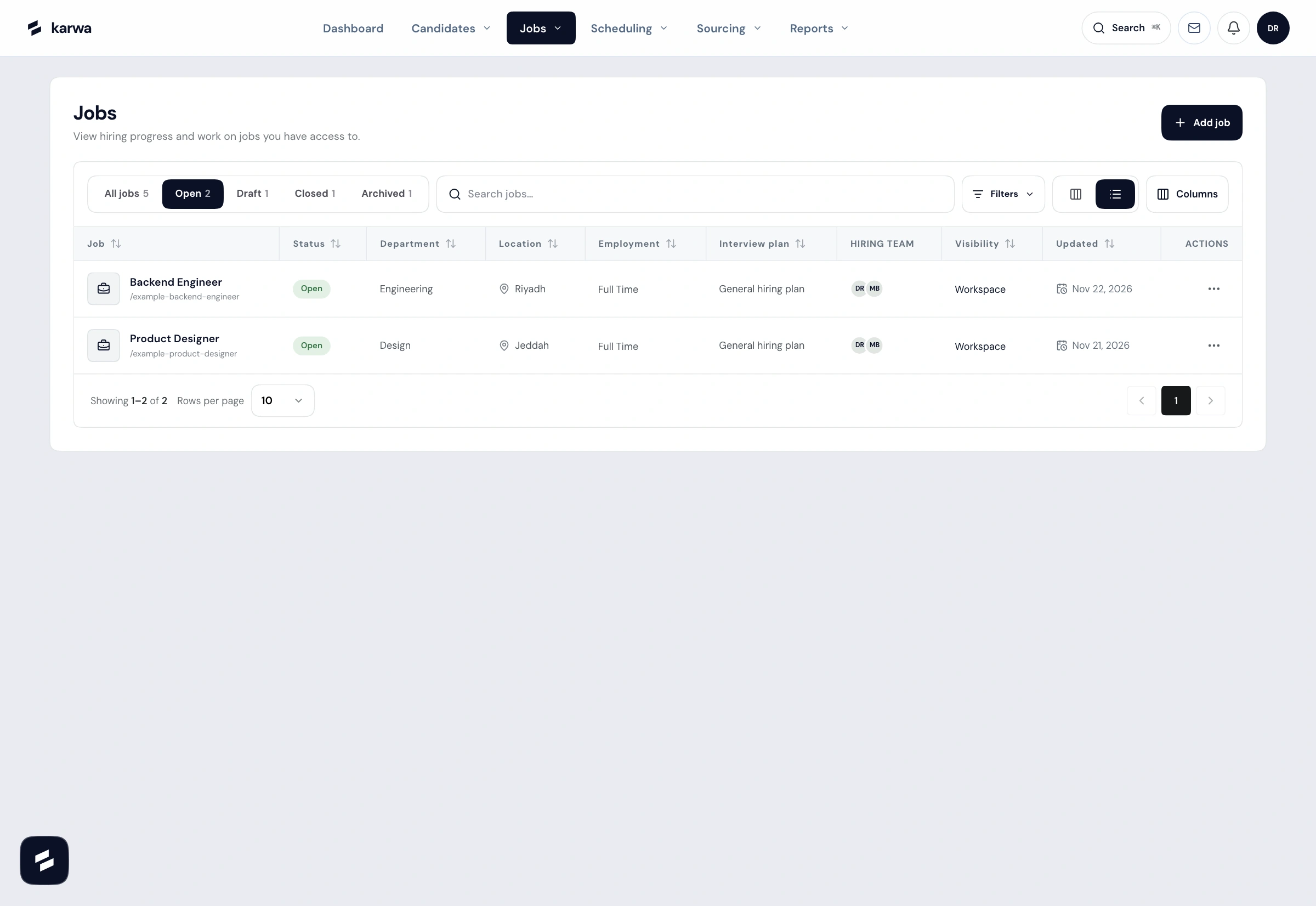
Open All jobs from Jobs to review the hiring roles you can access. Use the status tabs, search and filters to find a job, then open it or use its row actions. Jobs opens Open by default; /dashboard/jobs/all includes all five job statuses.
These screenshots show the real interface with fictional jobs, employees and counts. They are examples, not live workspace facts. Availability depends on workspace and job permissions, assignments, confidentiality and subscription access. A hidden job or denied request is not evidence that a role was deleted.
All five status tabs
| Tab | URL | Meaning |
|---|---|---|
| All jobs | /dashboard/jobs/all | Every accessible job, including Open, Draft, Closed and Archived. |
| Open | /dashboard/jobs/open | Jobs with status Open (active internally). An Open job is not automatically a published posting. |
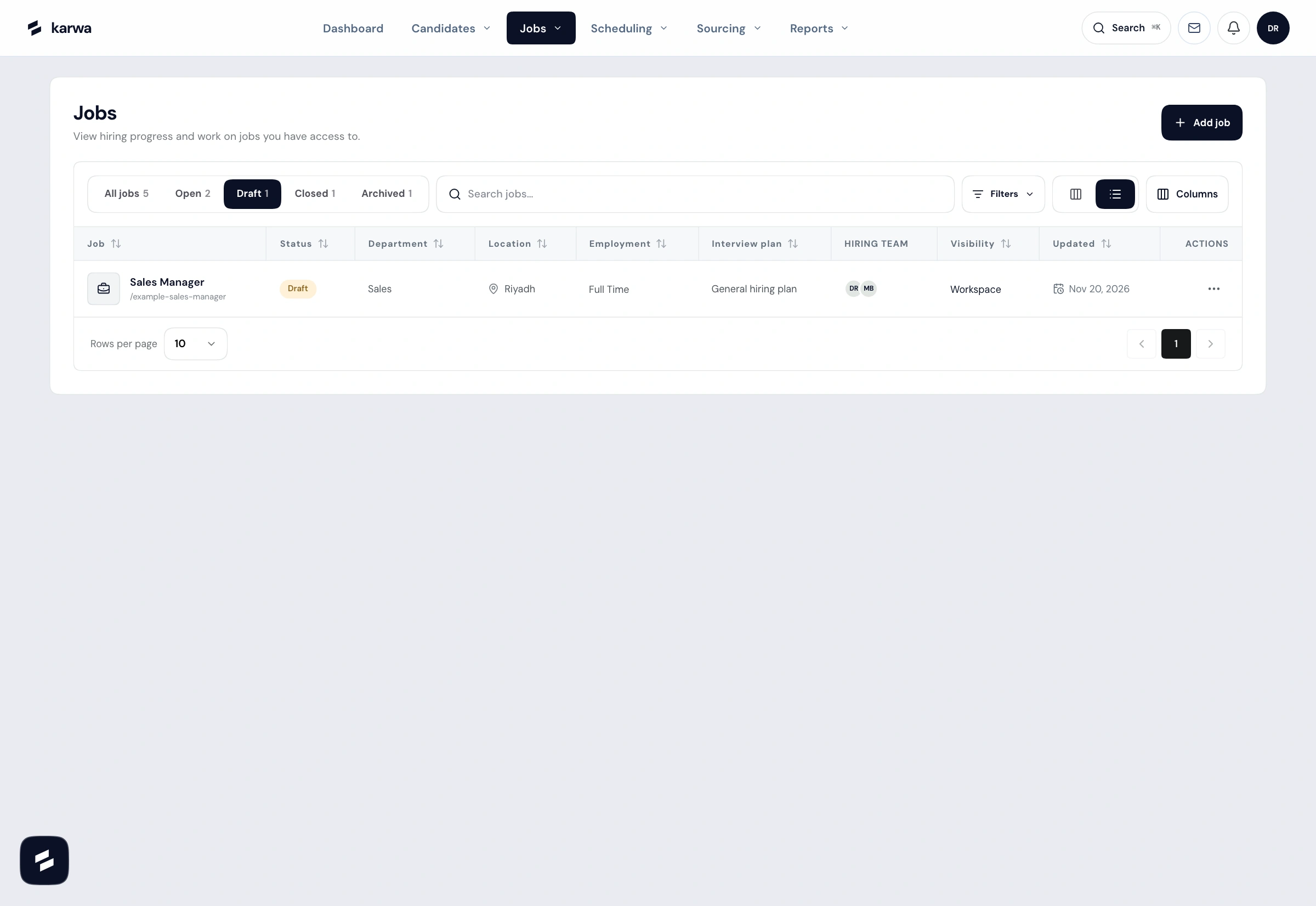
| Draft | /dashboard/jobs/draft | Saved internal roles still being prepared. This is separate from an unfinished Add job form kept in a browser tab. |
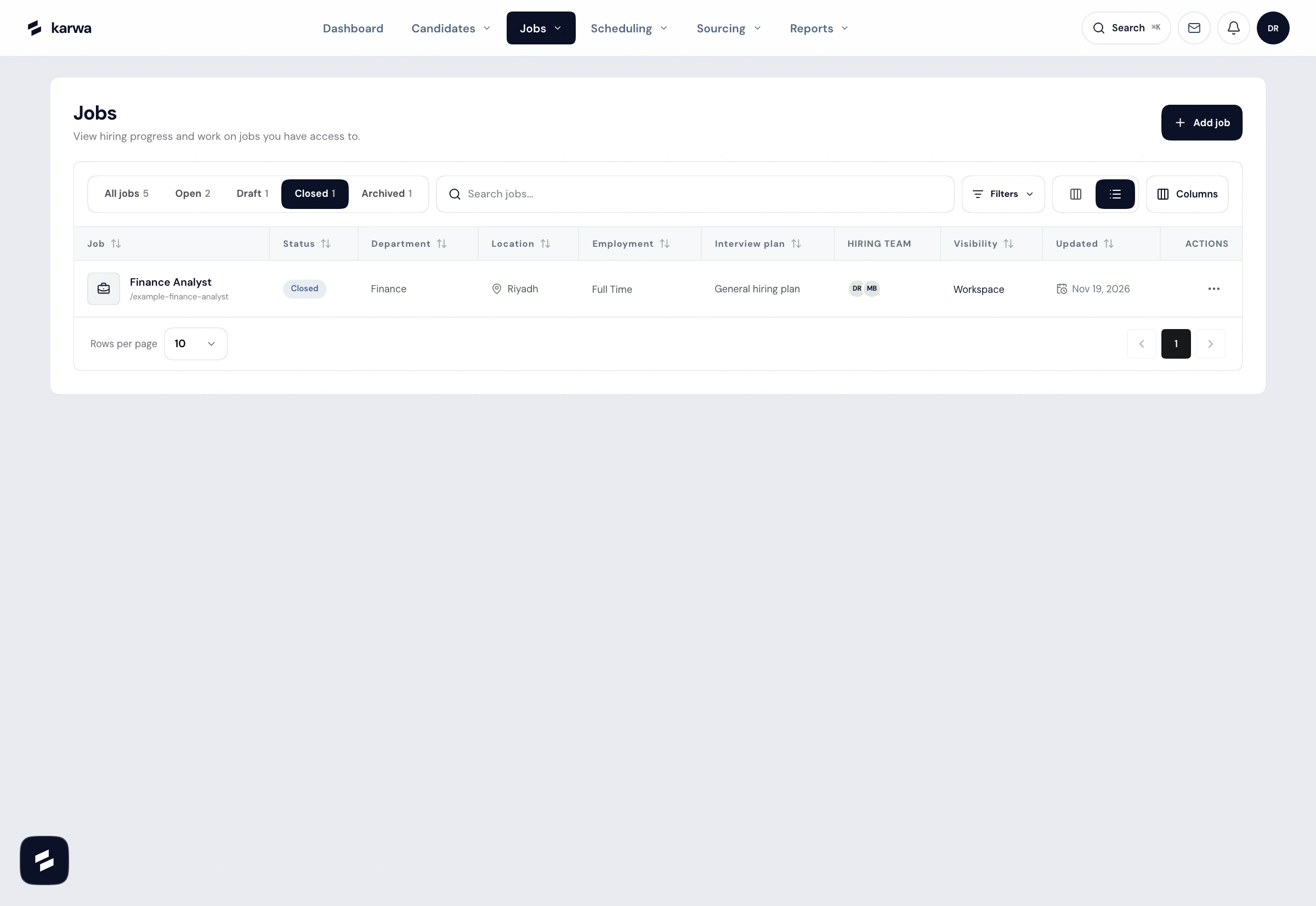
| Closed | /dashboard/jobs/closed | Roles closed to new applications; candidate records and hiring history remain. Review the recorded close reason. |
| Archived | /dashboard/jobs/archived | Retained historical roles. Candidate and job changes are blocked until a separately confirmed restore to Draft. |
The number beside each tab counts accessible jobs in that status before this page's search and advanced filters. It does not count positions to fill, public postings, applications or unique candidates. Search results can contain fewer rows than the tab count. A newly saved job appears under Draft and All jobs; archiving moves it to Archived and All jobs, rather than erasing it.
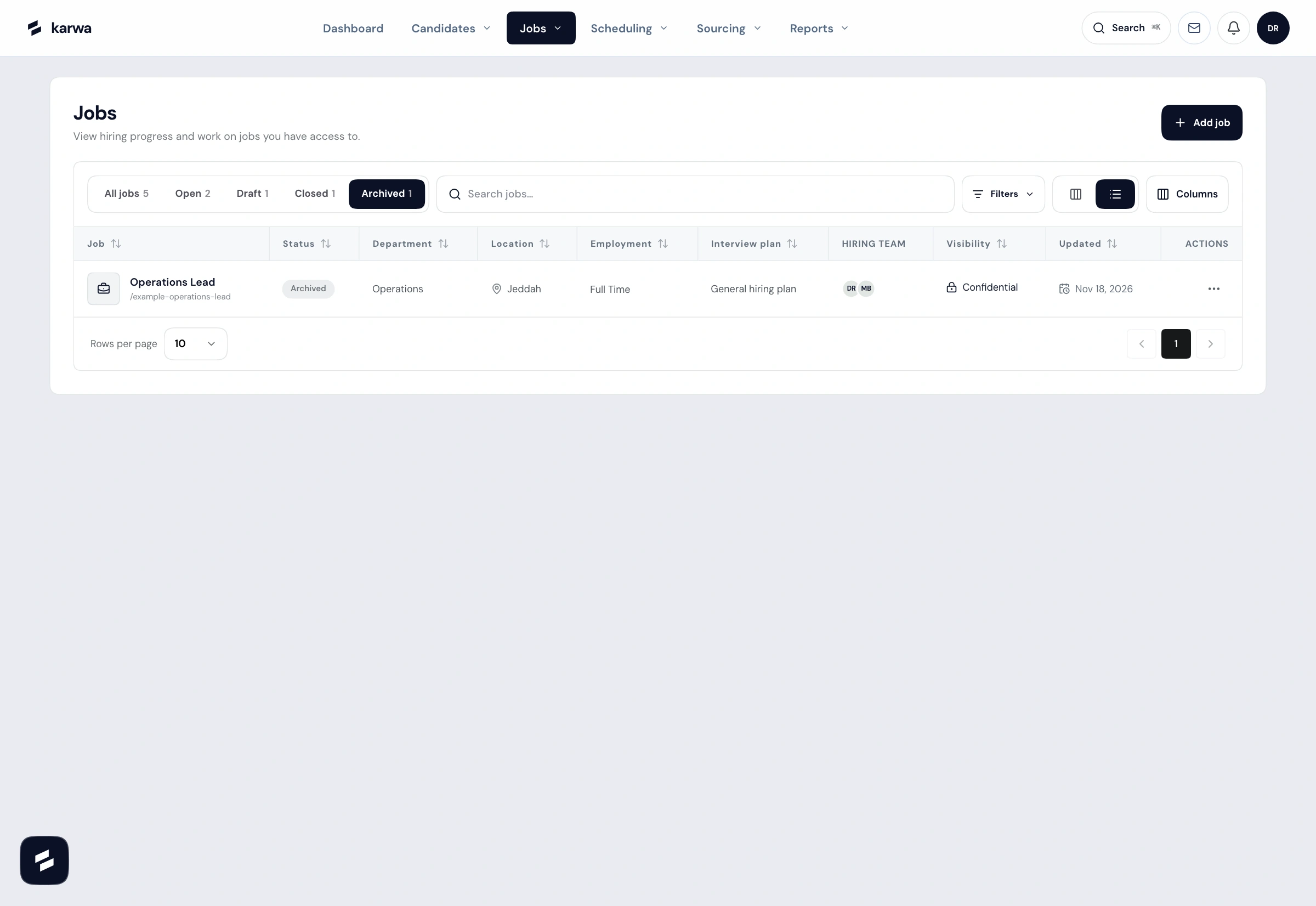
Search, sorting and pagination
Search jobs updates results as you type. It matches the internal title, department, location, stored employment type or workplace text, ignoring case. It does not search candidate names, posting descriptions or every field in the table. Clear the text to broaden results; Clear all in Filters does not clear a separate search.
The initial ordering is Recently updated. In Filters → Sort, choose Recently updated, Least recently updated, Newest created, Oldest created, or ascending/descending Job title, Department, Location, Employment type and Job status. A saved table-column sort can override this ordering in Table view; select the intended column or inspect its sort indicator when the order differs from Pipeline view. Sorting a view does not change job data.
Select a sortable table heading to sort that column. Use Rows per page (10, 25, 50 or 100) and page controls to navigate the table. Sorting, page size and visible-column preferences can be remembered in this browser. Search, advanced filter values and the view switch are separate page state; check them when revisiting or changing routes. The pipeline renders the matching jobs as cards instead of table pages.
Every advanced filter
Select Filters → + Add condition, choose a field and choose its value. Conditions combine with AND, together with the status tab and text search. Changes narrow the view immediately; Show closes Filters and shows the result count. Any removes a field's restriction. Remove a condition with its trash control, or use Clear all to remove advanced conditions. Clearing conditions keeps the status tab, search and chosen sort.
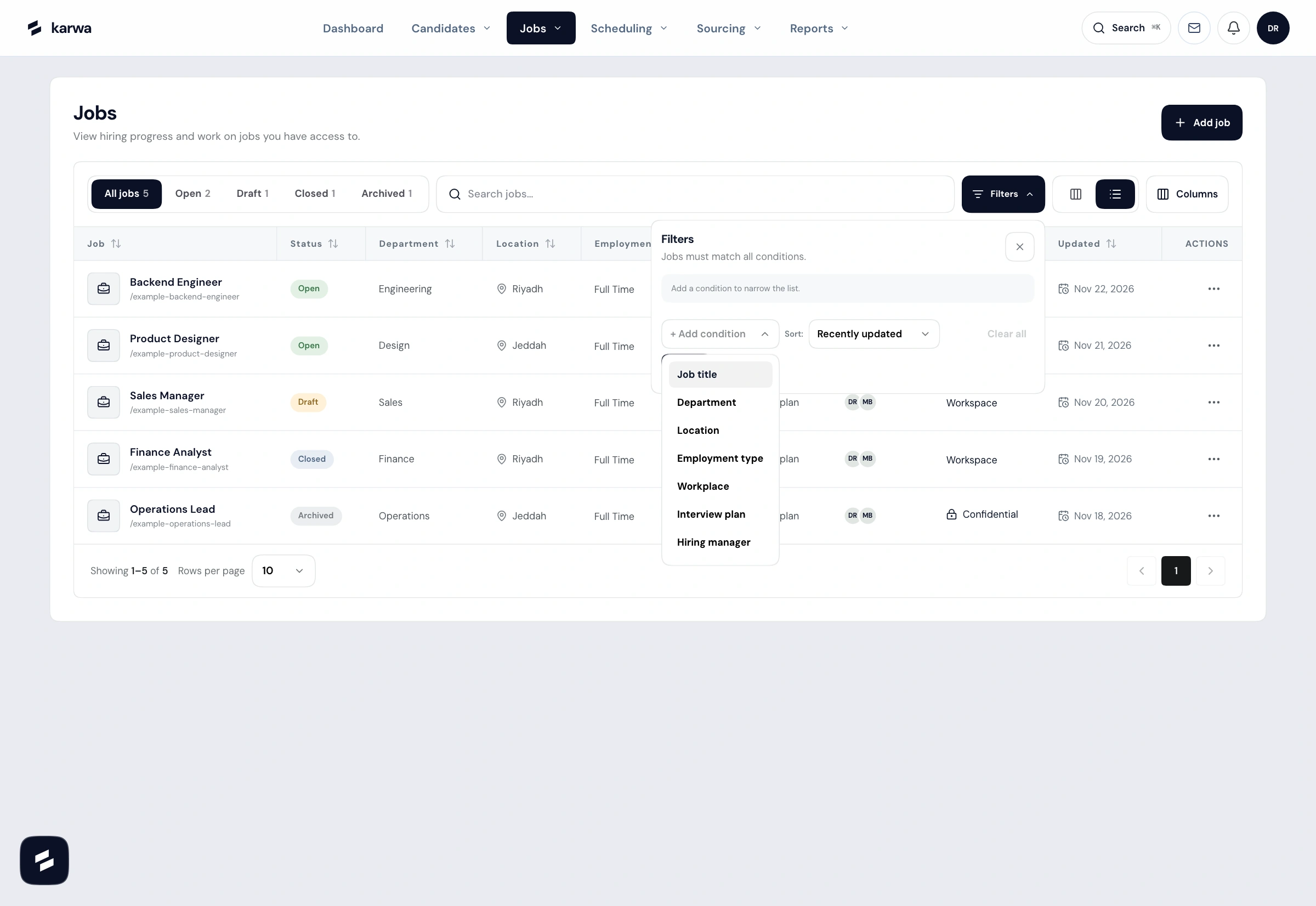
| Filter | What it matches |
|---|---|
| Job title | One exact title offered by the loaded accessible jobs. Use the search box for partial title text. |
| Department | The saved organizational department, such as Engineering; not the individual recruiter. Manage choices in Departments. |
| Location | The saved job location. Workplace is a separate condition. |
| Employment type | The stored arrangement, such as Full time or Contract. |
| Workplace | Onsite, Hybrid or Remote where set. Remote does not by itself mean worldwide eligibility. |
| Interview plan | The selected plan name. This does not schedule an interview. |
| Hiring manager | A person assigned the Hiring Manager responsibility, matched by their actual email. |
| Recruiter | A person assigned the Recruiter responsibility, matched by their actual email. |
| Visibility | Workspace or Confidential, based on job confidentiality. Workspace is not a promise of public visibility; posting Listed/Unlisted and publication are separate. |
Choices are drawn from loaded accessible jobs across statuses, so a valid choice can still return no matches in the current tab. Missing department or plan values are not proof that no such workspace resource exists.
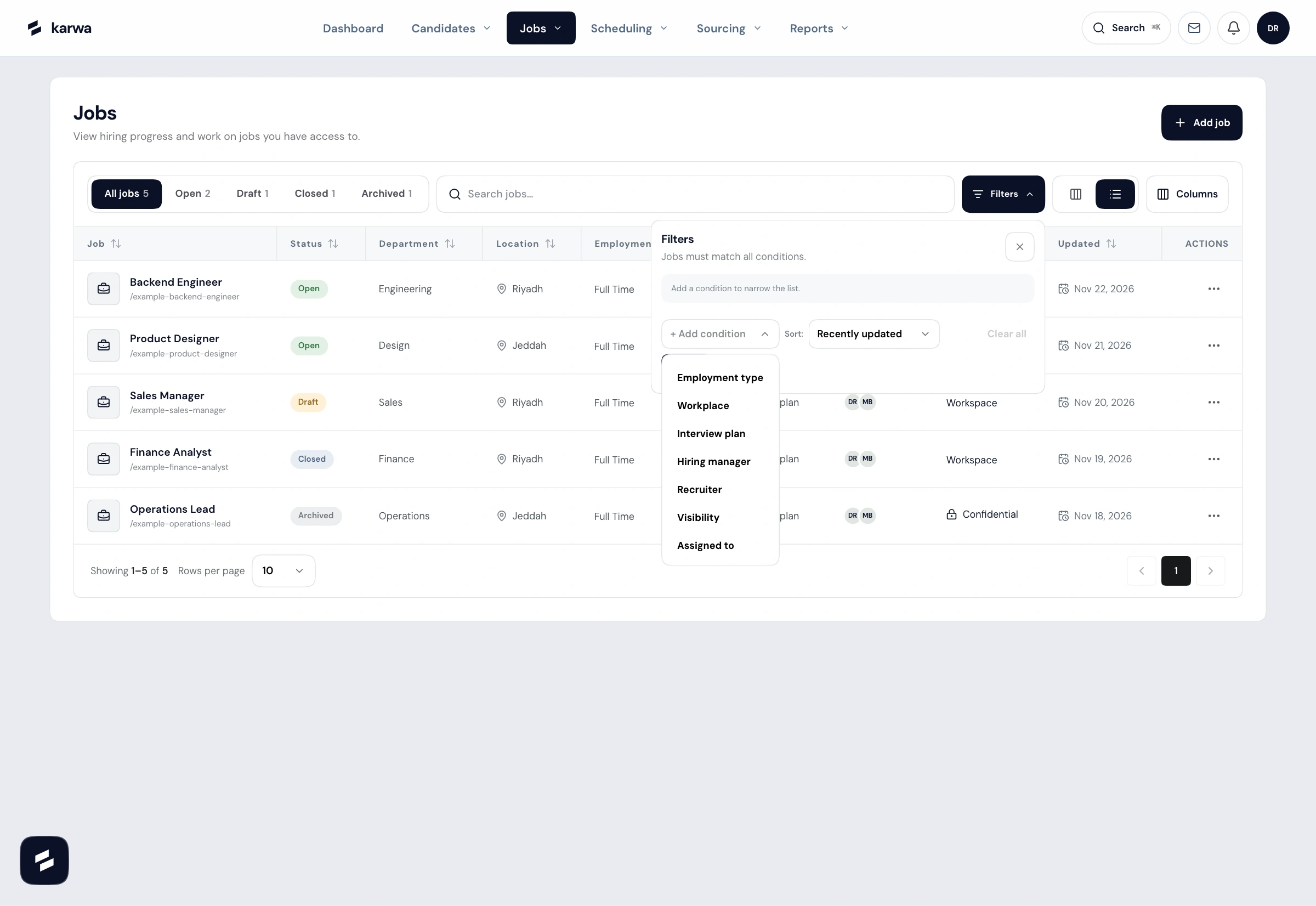
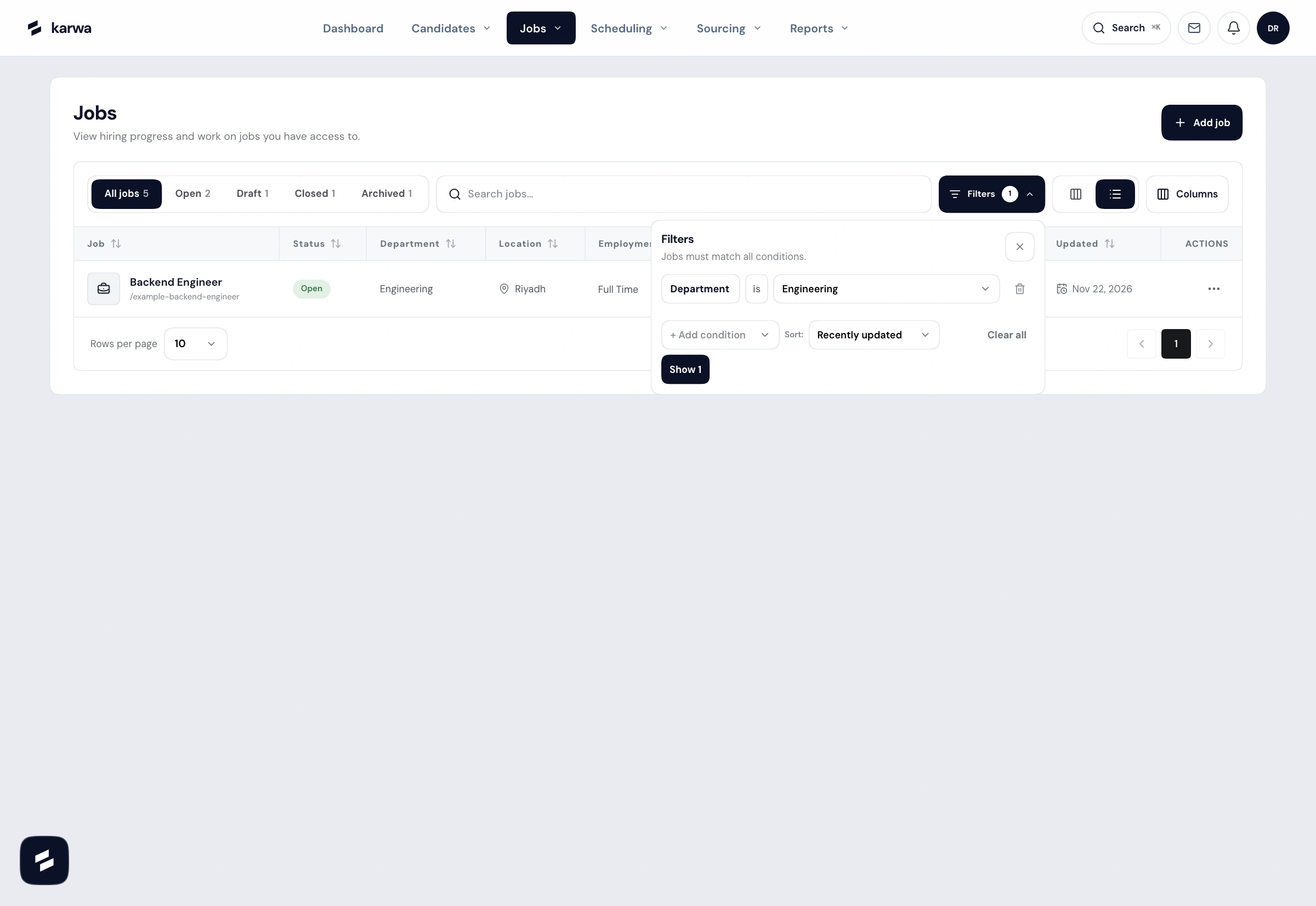
Table columns and row actions
The table includes Job, Status, Department, Location, Employment, Interview plan, Hiring team, Visibility, Updated and Actions. Job shows the internal title and slug; the slug shown below the title is not itself proof of a public application URL. Hiring-team avatars show up to four people with name/responsibility on hover. A dash means no team is displayed. Updated is a date, not the date of the latest candidate application.
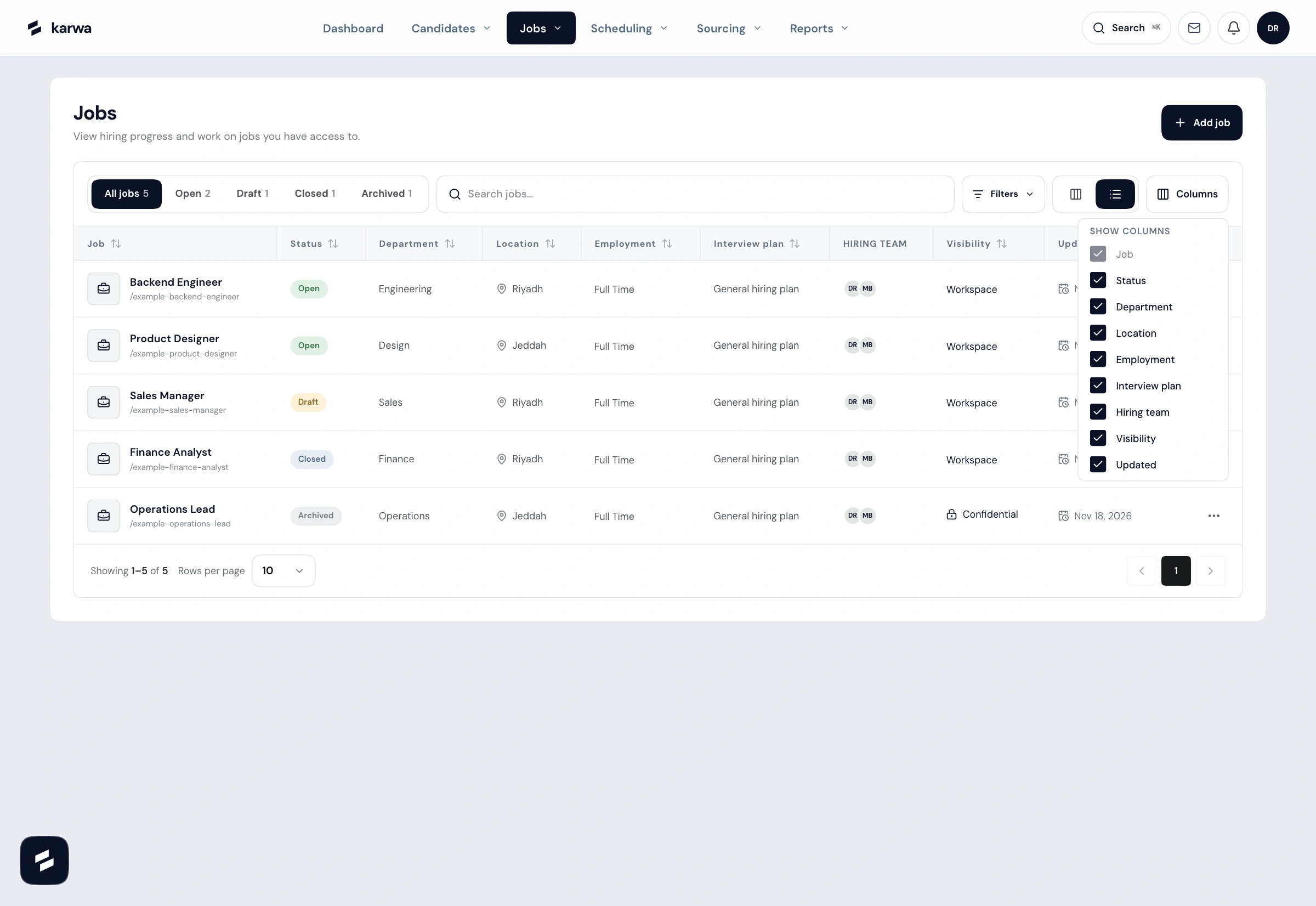
Use Columns to hide or show optional fields. Job and Actions remain available. On narrow screens, scroll the table horizontally to reach its right-hand fields and Actions. Changing columns only changes your table presentation.
Open the three-dot Actions for [job title] menu:
| Action | Availability and result |
|---|---|
| Open job | Navigates into that role. This label is navigation, not a command to change the status to Open. Its destination is explained below. |
| Job postings | Shown for a job manager when Open job would go to the candidate pipeline. Opens /dashboard/jobs/{job-reference}/job-postings. |
| Edit settings | Shown when this job grants Manage jobs. Opens /dashboard/jobs/{job-reference}/settings; edit, review and select Save changes separately. Opening settings does not save anything. |
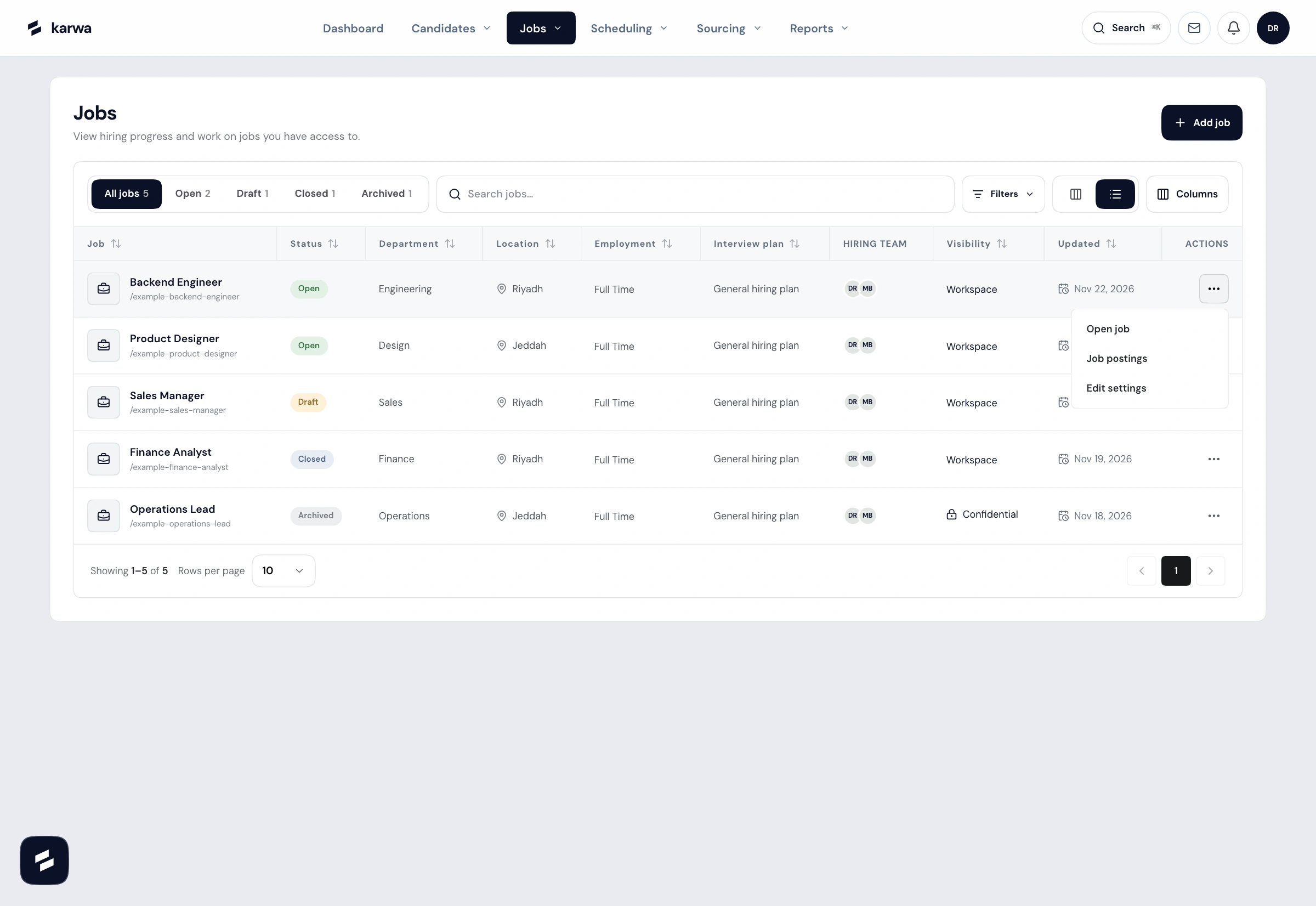
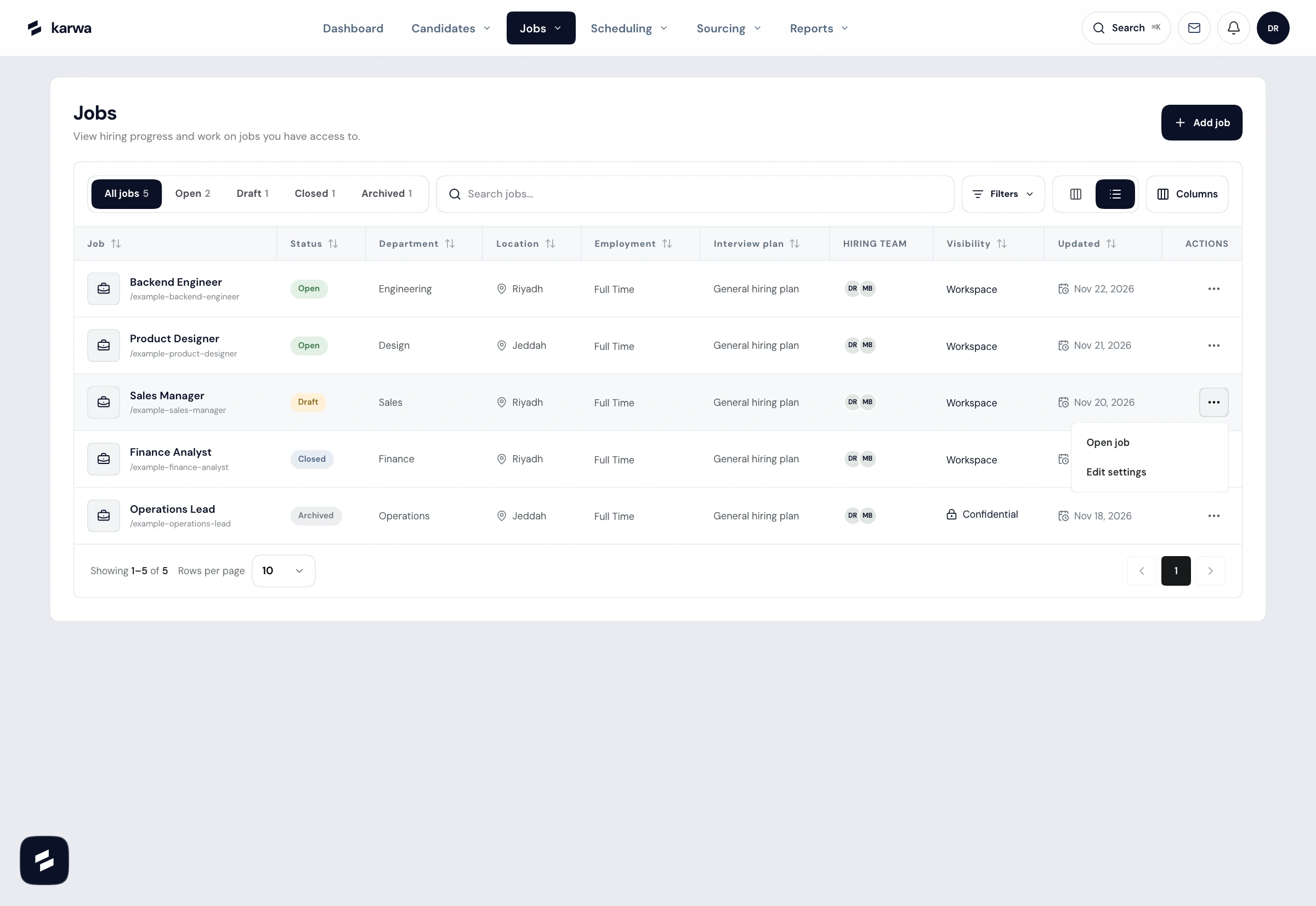
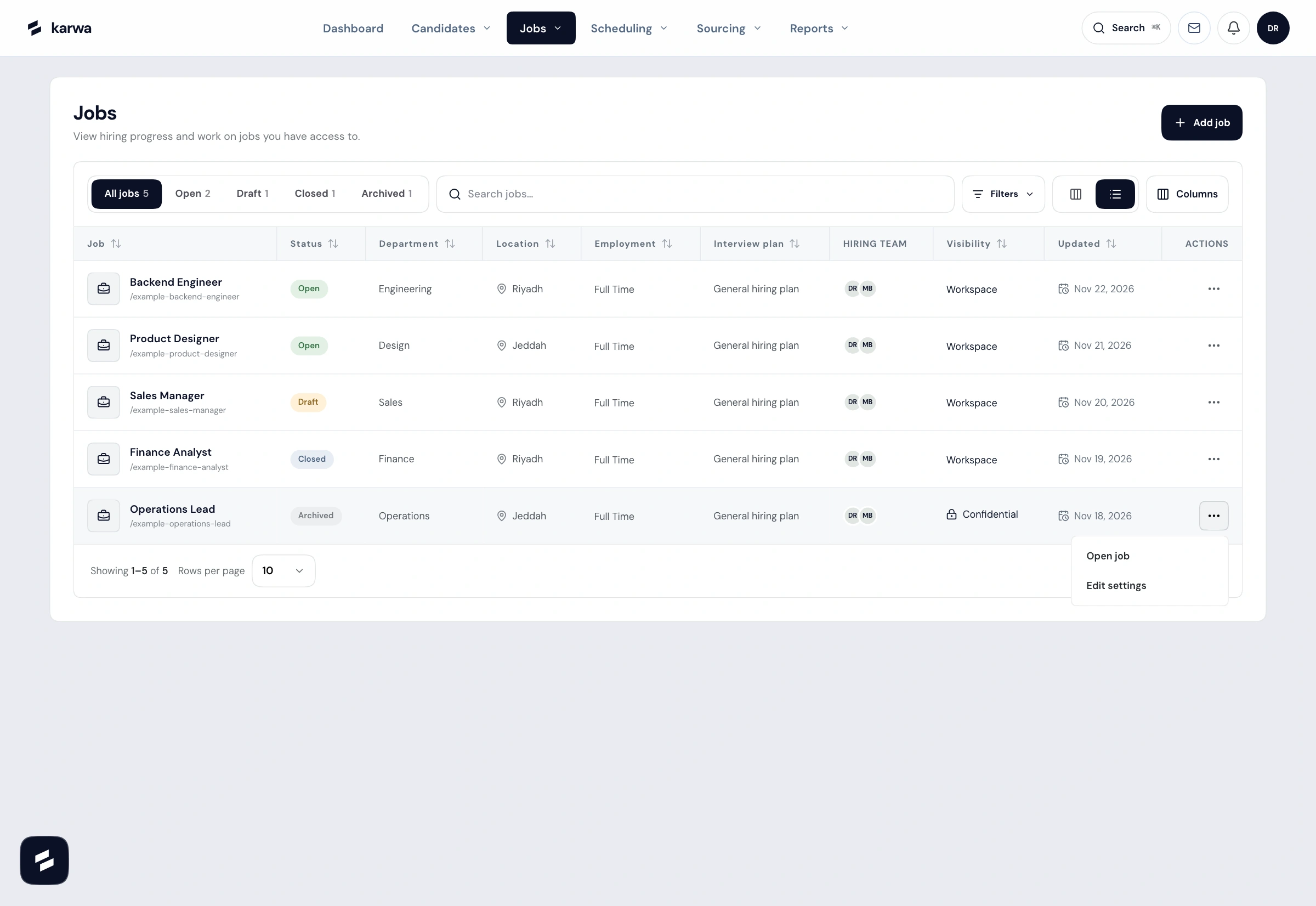
Where does Open job or clicking a row go? If the job is Open and has at least one posting marked Published, it opens Candidate Pipeline. If you can manage the job and it lacks that combination, it opens Job Postings to continue setup. Without job-management permission, it opens Candidate Pipeline. The same rule applies to the job-title link in Pipeline view. Opening a confidential or archived role does not publish, restore or change it. The menu does not duplicate Job postings when Open job already leads there.
The current Jobs list has no bulk-selection toolbar, inline row editing, Duplicate job or permanent Delete job action. Do not confuse duplicating a posting with duplicating the internal job. Use the actual settings and lifecycle controls described below for changes.
Pipeline view
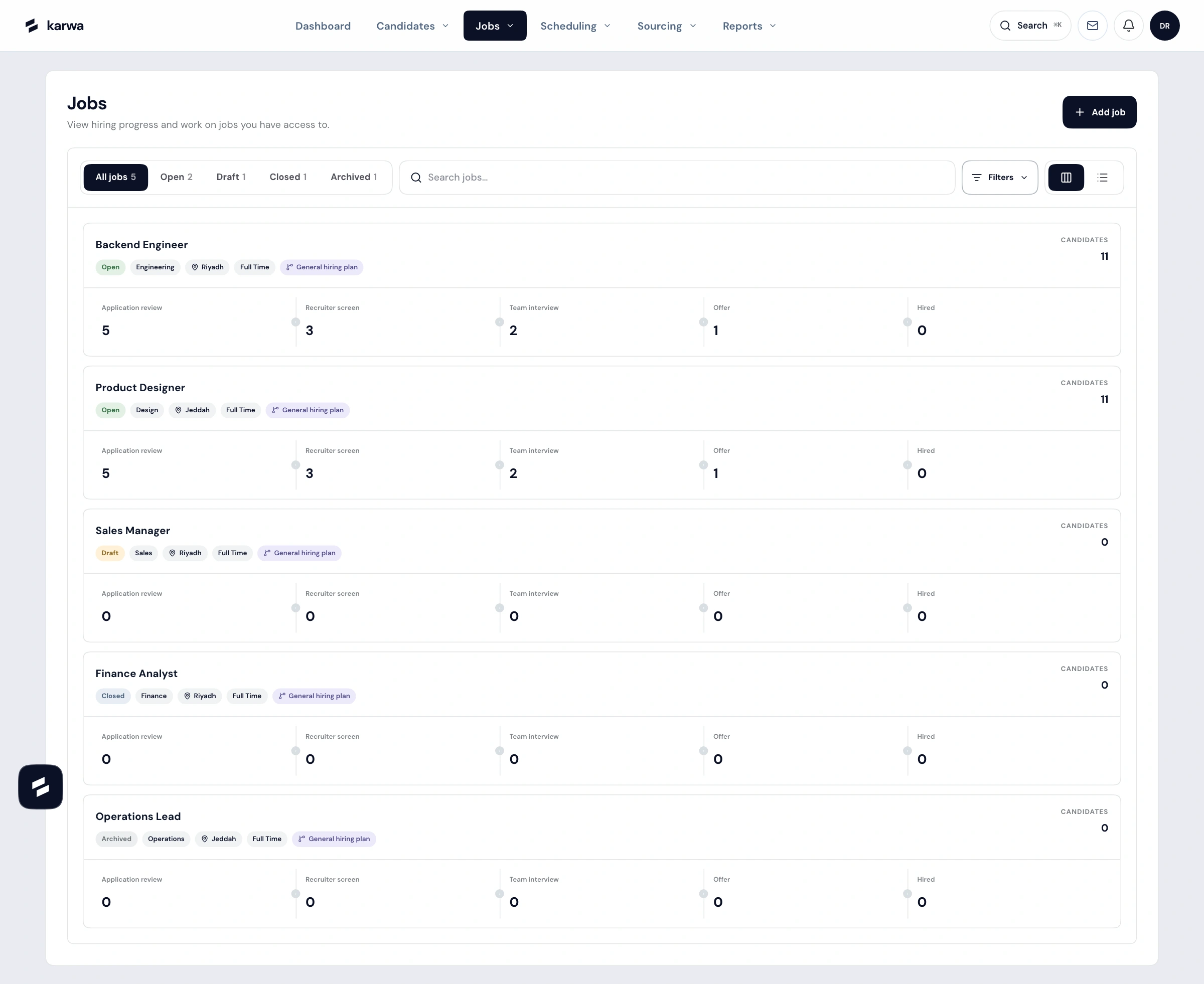
Use Pipeline view beside Filters to show the matching jobs as stage cards; Table view returns to rows and exposes Columns. Each card shows the job title, status, department, location, employment type, selected plan and the stages available for that job. Counts are the supplied candidate_count values for those stages; Candidates is their sum. These figures are job-stage counts, not a deduplicated workspace-wide count of people, posting views or number of openings.
The stage strip scrolls horizontally when needed. These overview stages are not draggable candidate cards, and selecting a view does not move candidates or change the interview plan. Select the job title to enter its workspace. If no named stages are available, No interview plan is assigned to this job provides Choose plan → to the job's Interview Plan page; permissions and actual saved setup still apply.
Edit a job and review all settings tabs
- In Table view choose the job's Actions → Edit settings. You can also open the job and select Settings in its navigation.
- Review the five settings tabs below. Change only the intended fields. An internal description differs from the description in Job Postings.
- Select Save changes. The button stays unavailable without changes, while saving or when required title, department, location, plan, valid AI criteria or a new close reason are missing. A valid openings count is a whole number from 1 to 1,000. Read service errors; permission, profile, approval or subscription requirements can still prevent a requested change.
- Confirm the saved result and recheck the list or actual posting as appropriate. Opening an editor, typing or switching tabs is not a saved change.
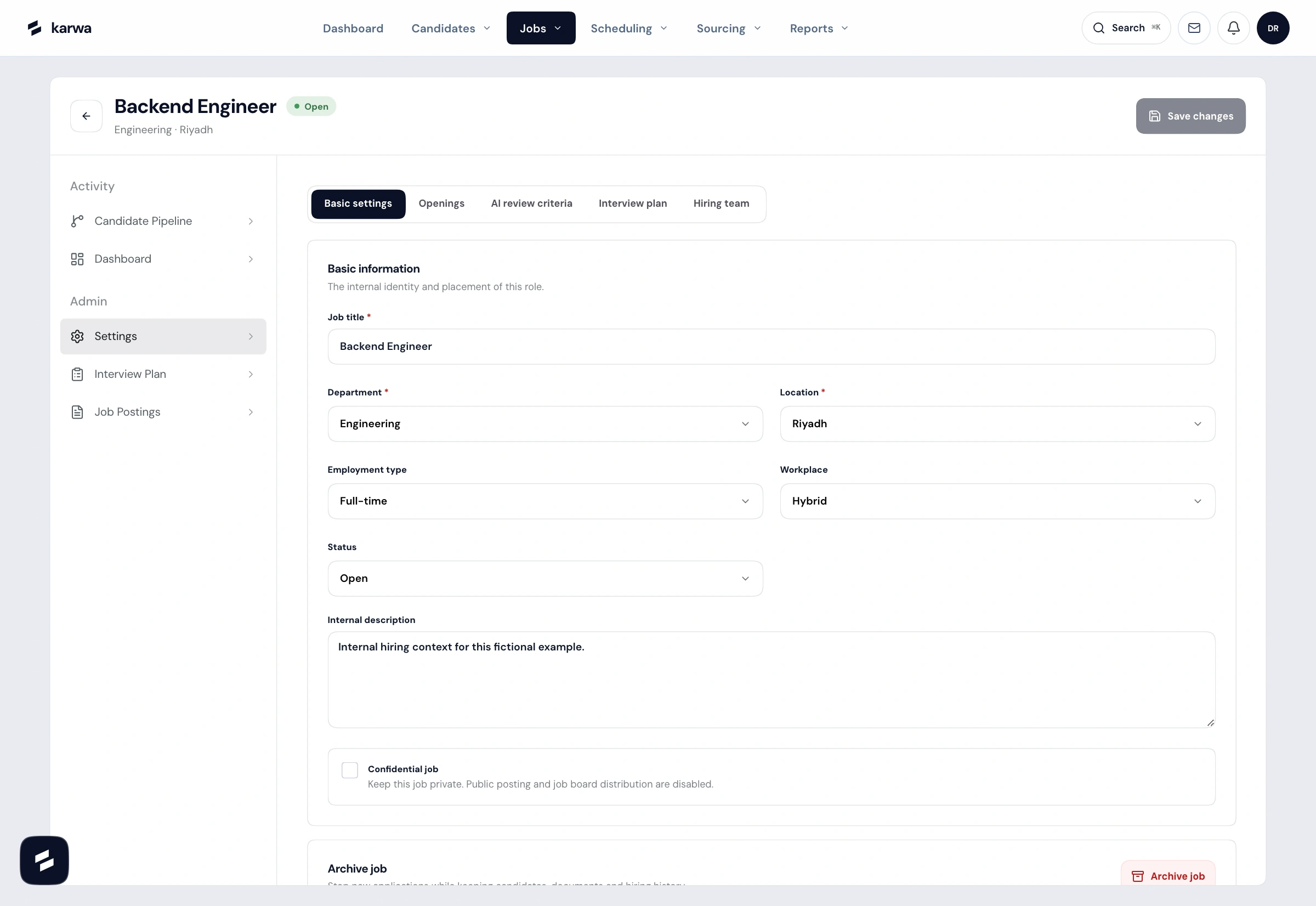
| Settings tab | What belongs here |
|---|---|
| Basic settings | Internal identity, employer brand when offered, department, location, employment, workplace, status, internal description, confidentiality/access, source job template and lifecycle controls. |
| Openings | Positions to fill, linked headcount position and automatic closure when filled. A headcount position is separate from a job or application. |
| AI review criteria | Criteria titles/prompts for résumé review. Saving criteria is not proof that evaluation ran or credits were spent. |
| Interview plan | Selected active/current plan, application-review mode and confirmation template. Stage/activity editing has its own Interview Plan page. |
| Hiring team | Actual people, their responsibilities and hiring access. Department choice does not automatically assign recruiters or interviewers. |
For every setting and screenshots of all five tabs, use Job workspace: pipeline, dashboard and settings. Use Interview plans for stage/activity owners and automation, and Job postings for candidate-facing content, questions, compensation, preview and publication.
Change status, close or reopen
Under Settings → Basic settings → Status, a nonarchived job offers Draft, Open and Closed. Select the intended state and Save changes. This is the status change; the list menu's Open job only navigates. Opening/reopening can require Manage/Publish jobs permissions, complete profiles, a valid plan, billing/capacity and applicable approvals. It does not automatically publish a posting.
Changing a job to Closed requires a Close job reason before saving. Configure eligible choices in Settings → Close job reasons; see Close job reasons. Close-job reasons differ from archive-job reasons and candidate rejection reasons.
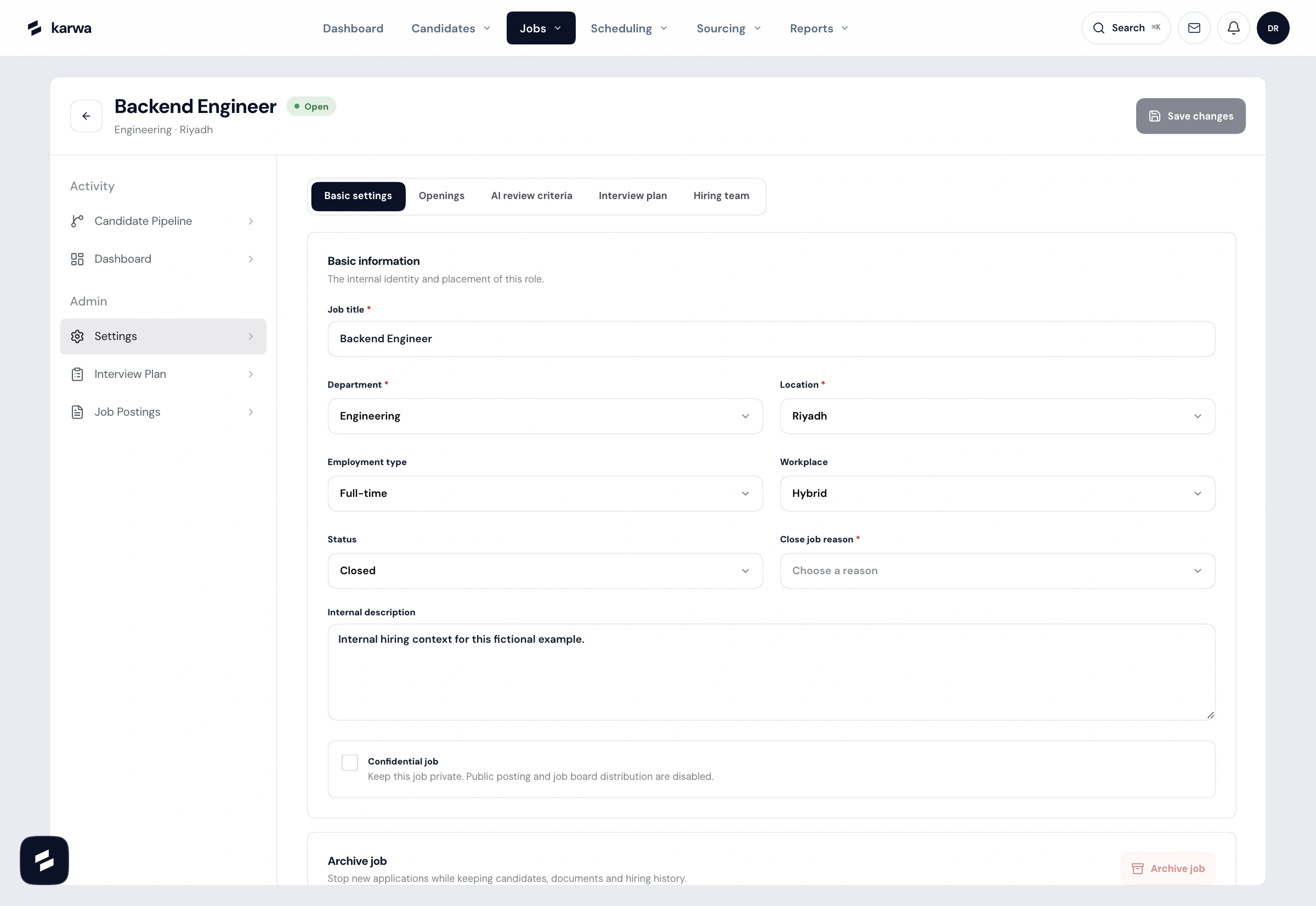
Closing stops new applications and turns live or active-link postings back into drafts. Existing candidates, stages and history remain. Reopening a Closed role does not republish its old postings: review each posting and explicitly publish or enable its application link again. See Job postings.
Archive a job
From Edit settings → Basic settings, find Archive job. The control requires the job's archive/delete permission as well as management access. Save pending edits first; unsaved changes disable archive/restore controls.
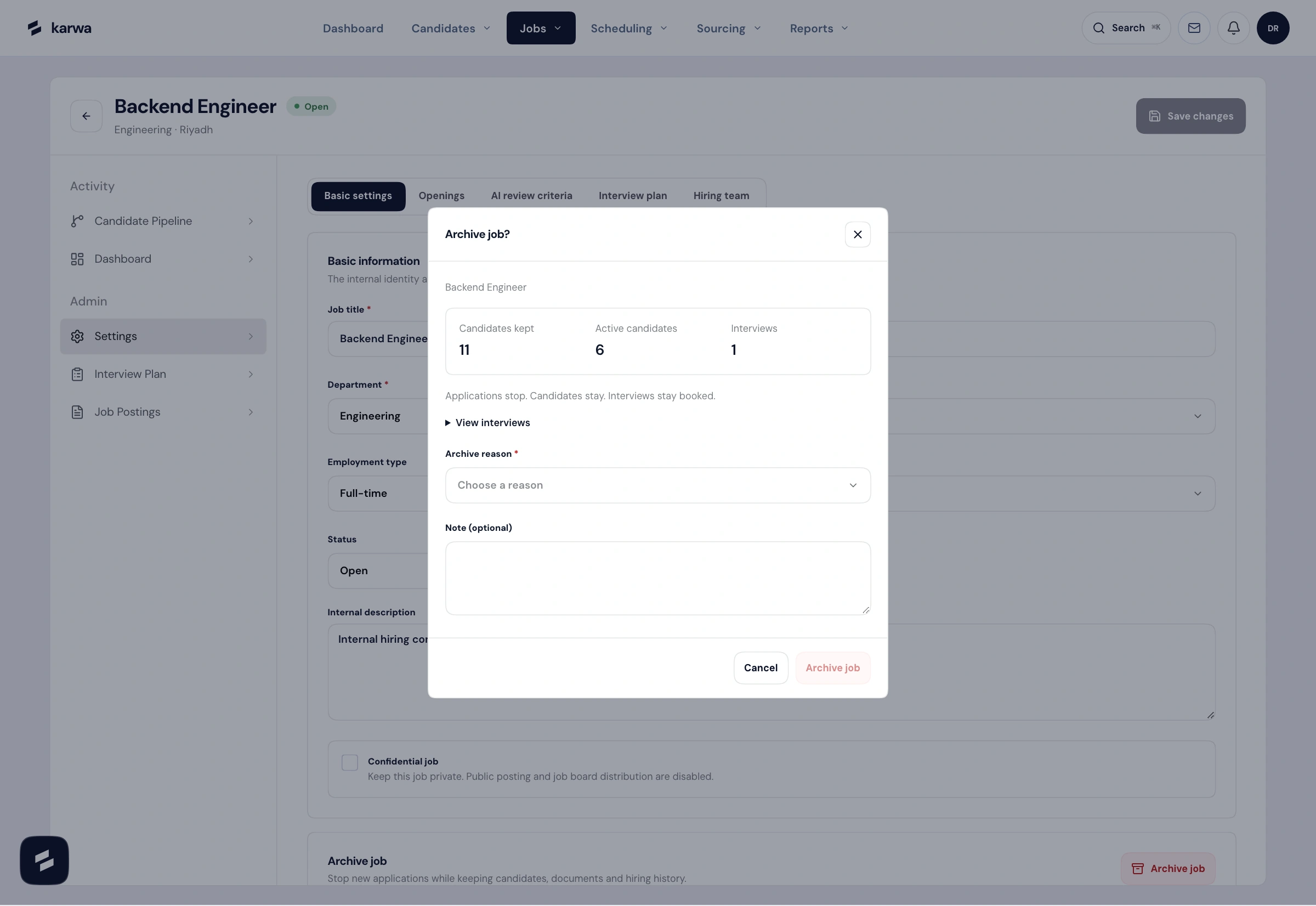
- Select Archive job. Wait for the current summary: Candidates kept, Active candidates and Interviews. Use View interviews to inspect booked items when present; long lists show the first 50.
- Choose an Archive reason: Hiring completed, Hiring paused, Role cancelled, Duplicate or Other. A note is optional except for Other, which requires it; the note allows up to 2,000 characters.
- Review the impact: Applications stop. Candidates stay. Interviews stay booked. Cancel if you do not intend to archive. Confirming Archive job saves the change; merely opening the dialog does not.
- If the job/candidate snapshot changed, review the refreshed summary before confirming again. If loading fails, use Retry summary; unavailable counts are not zero.
Archiving retains candidates, stages, documents and history and stops accepting new applications. It does not cancel booked interviews or erase candidate records. The role is retained in Archived and All jobs, and archive history records the actor, time, reason and note. Handle interview cancellation, candidate communications and retention requests separately through their supported workflows.
Restore an archived job
Find the role under Archived or All jobs, then choose Edit settings → Basic settings → Restore job. Review Restore job to Draft?, then confirm Restore to Draft. Cancel leaves the archived role unchanged.
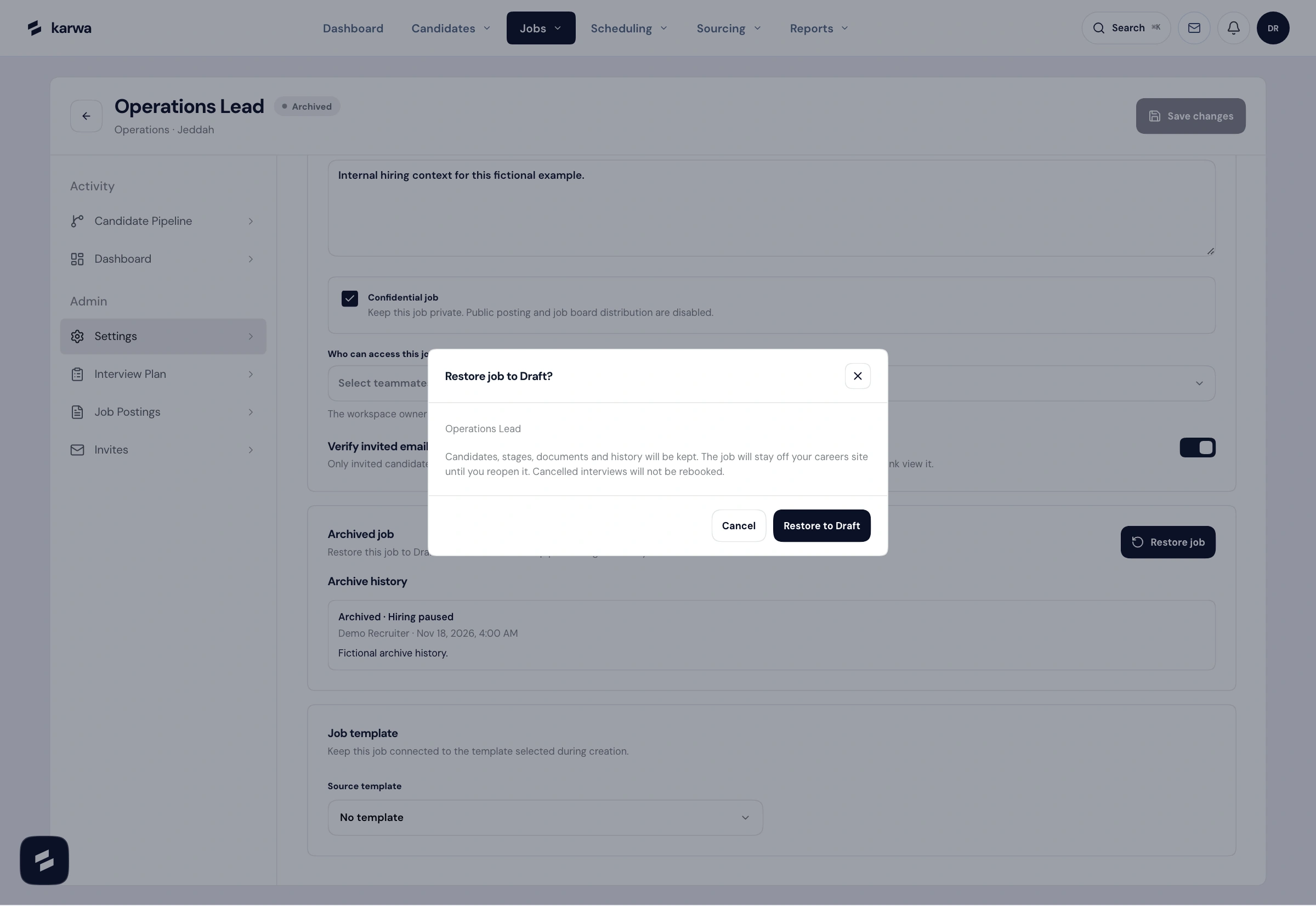
Restoring keeps candidates, stages, documents and history, returns the job to Draft and records the restore event. It does not reopen the role, republish postings, send invitations or rebook cancelled interviews. Review the role, open it when authorized, then review/publish its postings separately. Archived job and candidate records remain read-only until restoration; seeing Edit settings does not authorize editing archived content or bypassing a server rejection.
Add job, errors and missing results
Add job opens Create job when your workspace permission allows it. Follow Create and publish a job for all three steps, required inputs, job templates, Clear draft and post-save setup. Saving a new role creates a Draft; it does not create a live public vacancy by itself.
| Situation | What to check |
|---|---|
| No jobs yet | No accessible roles were loaded successfully. Managers can use Add job; other users should check assignment/access with an administrator. |
| No jobs match this view | Check the tab, text search and every advanced condition. Clear conditions and search separately. |
| Jobs could not be loaded | Read the error and use Try again. Do not treat a failed request as zero jobs. |
| Edit settings or Job postings missing | Check per-job Manage jobs permission; the list can show jobs you can view but not edit. |
| Archive or Restore missing/disabled | Check archive permission and save pending edits. Read the confirmation/service error. |
| Open job goes to postings | For a manager, an incomplete/unpublished role routes to posting setup. The navigation action did not change status. |
| Open role absent from careers site | Check that an appropriate posting is actually Published and Listed, has valid setup and deadline, and is not blocked by confidentiality. |
| Archived role cannot be edited | Restore to Draft through its separate confirmed action when intended and authorized. |
Ask Karwa about Jobs
Ask about these tabs, counts, views, filters, row actions, editing, closing, archiving and restoration. Ask Karwa can read this same guide with product_guide(topic=jobs-list). Existing action guidance uses job-management, job-list, job-basic and job-lifecycle.
Current accessible roles and complete filtered results require authorized jobs_summary reads with actual requested filters and pagination. Read the exact job and job_archive_preview for changes. Use real IDs, people and configured close reasons; do not invent inaccessible jobs or use fictional screenshot values as live facts. Permission is checked again when applying a change. A chat explanation or prepared review does not save, open, close, archive, restore, publish or send anything. Existing action-review and approval requirements remain in force.