Loading documentation
Open a candidate in the job's Candidate Pipeline, then select Activity. This is where you manage interviews, forms, emails and other tasks for that application.
Job plan or one candidate?
| Where you add the activity | Who it applies to |
|---|---|
| Job → Interview Plan → a stage | The job's process. Candidate coverage and triggers determine which current or future applications receive it. |
| Candidate → Activity → New | The selected candidate's application to this job. It does not add the same task to every candidate. |
| Reusable interview plan library | A reusable process. Changes can affect linked jobs according to the plan's save and coverage rules. |
For example, add Collect feedback to the job plan when everyone entering the technical stage should receive that review. Add it inside one candidate's Activity tab when only that person needs an extra review.
The editors share controls and saved resources. Selecting a saved form or email template for one candidate does not change the job plan. A link such as Edit questions opens the shared resource editor, however: treat changes there as a separate library edit. See Interview plans for job-wide changes.
The three choices under New
| Choice | What opens |
|---|---|
| New interview | Interview setup for this application. Finish or cancel an existing open interview or scheduling request before creating another. |
| AI screening | Screening setup for this application. Invitation links are available; new phone-call selection is marked Coming soon. |
| New activity | The full activity picker below. Select a type to open its editor. |
New is unavailable while details load or the application is closed. Permissions determine which choices you see. Opening a menu does not send a message; a later save or send action may do so according to the selected type and delivery settings.
Choose an activity type
| Type | Use it for | Detailed guide |
|---|---|---|
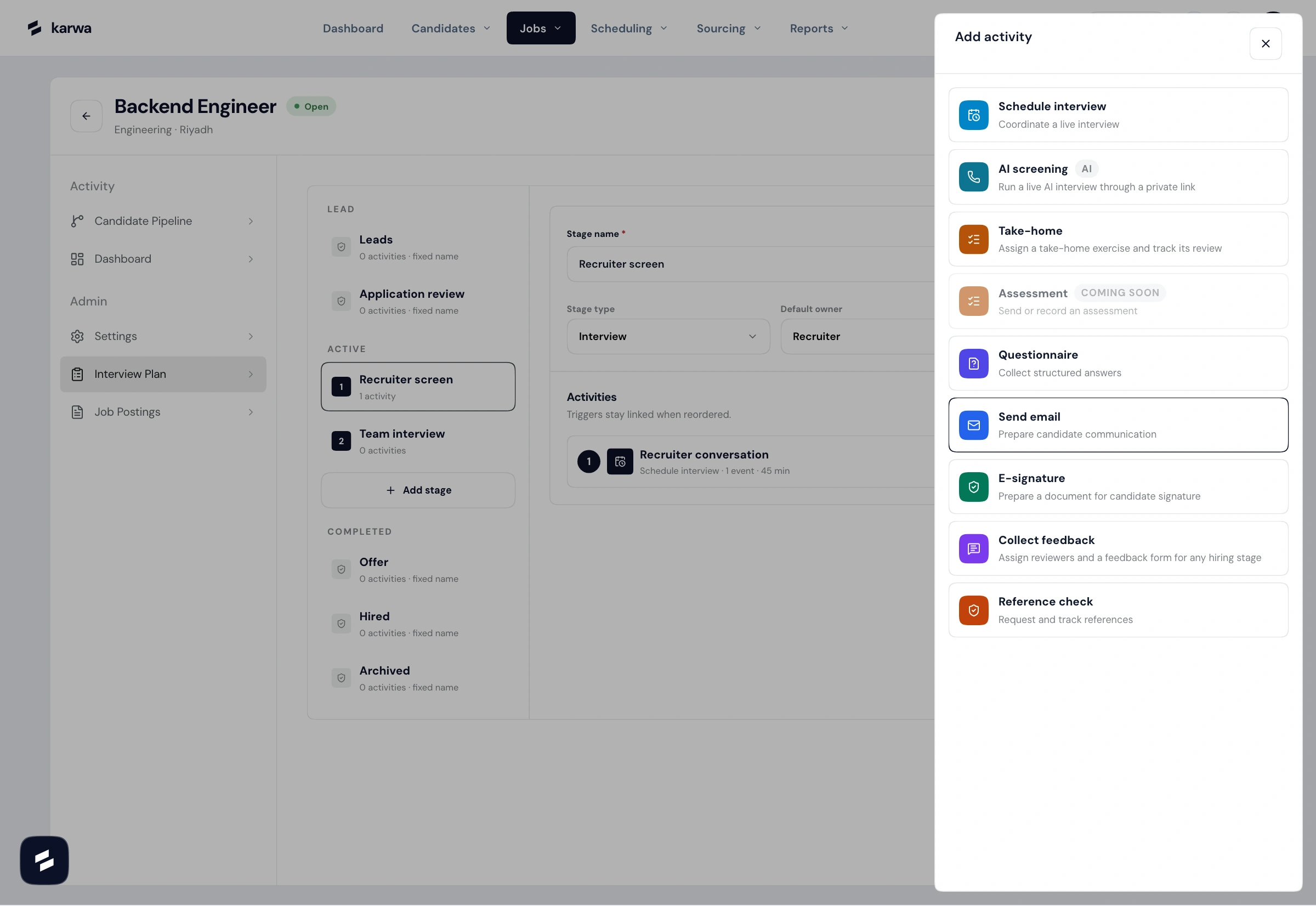
| Schedule interview | A live interview and its scheduling request. | Candidate interviews |
| AI screening | A configured screening, using the available invitation-link format. | Candidate AI screening |
| Take-home | An exercise with instructions, a deadline and submission review. | Take-home assignments |
| Assessment | Shown as Coming soon and disabled in the picker. | Use an available activity type for current work. |
| Questionnaire | Structured questions sent to the candidate. | Candidate questionnaires |
| Send email | A message with the selected manual or automatic delivery settings. |
The shared activity picker is also used in the job plan. This existing screenshot shows that plan picker, not a candidate's private Activity tab; the candidate picker also includes Debrief.
Configure and save
Give the activity a clear name. Complete the required fields and check its owner, reviewers, delivery settings and any completion requirement. Candidate-level editors do not offer the job-wide Current and future or Future only recipient choice.
Use Save activity to create it or Save changes to update it. Read type-specific wording: a new reference check uses Save and send request, and questionnaire On save delivery can send as part of saving. A saved email may wait for manual sending or a configured trigger. A saved signature activity waits for separate review and sending.
If you follow Create questionnaire, Create template or another settings link, finish that separate resource, return, and check that the correct item is selected before saving the candidate activity.
Read the activity cards
The icon and title identify the activity type. Read the written status, such as Awaiting submission, Submitted, Cancelled or Completed, rather than relying on color alone. Required and follow-up labels describe extra conditions, not a completed action.
The header names the task and shows its status. The body contains the relevant details or next step. The action buttons and history control belong to that card. Read the card title before opening its menu, especially when several activities use the same saved form or template.
Current activities and Resolved activities
Current activities is a task view, not every historical event. It mainly shows unresolved work for the current stage, with relevant exceptions such as open questionnaires. A task missing from this group may belong to another stage, be resolved, or appear in a different history view.
Resolved activities includes finished or closed work returned for the application. Read each card's status: completed, cancelled, expired and skipped do not mean the same thing. Use Load more where offered to retrieve older activity records.
Each card has controls for its own type and state. The card menu is separate from the header's More actions menu. History shows recorded changes when available. Mark complete appears only for supported tasks; interviews, questionnaires, signatures and other structured activities use their dedicated completion or review controls.
Cancel, remove or reopen
Cancel stops the selected workflow according to its confirmation and reason. Remove activity, when offered, has its own confirmation and eligibility checks. Neither action should be assumed to recall an email, cancel a calendar event, or erase an external signed document unless the relevant workflow confirms that result.
Use a dedicated reopen action where available, such as Reopen debrief. Reopening a task does not itself move the candidate's hiring stage. If an action is disabled, check the card's explanation, your access and any pending send or review before trying again.
Records, privacy and deletion
An activity can contain responses, files, reviewer decisions, delivery information and recorded changes. Removing a task is different from deleting every associated record. Deleting a shared form or template does not confirm deletion of candidate copies. Cancelling a signature request does not itself revoke a signed agreement, and cancelling an activity does not automatically withdraw the application.
Check the confirmation and resulting status. Use the relevant interview, offer or privacy workflow for any separate action. For an erasure request, use Protect candidate data, not repeated activity removal. Handle exported files and copies already shared with others under your organization's retention rules.
Read Candidate activity terms, Activity privacy details, Candidate privacy notice and Data Processing Terms for responsibilities, recipients, correction and deletion handling.