Loading documentation
Open Job templates under Jobs & applications in workspace settings. A template stores defaults for future jobs: the role and team, compensation, hiring team, interview setup, and a draft posting. It saves repetitive setup; choosing one does not publish a job. You can still review and change the new job before creating it.
Coming from Add job? Select Create new beside Template, complete this setup and save to return with the template selected. For the surrounding steps and the related department/location setup, read Add job: templates, departments and locations. Creating a template saves reusable workspace defaults; you still create the job separately.
Find and manage templates
The list shows Template, Status, Department, Location, Employment, and Updated. Use search to find a title, department, location, employment type, or interview plan. The Statuses filter shows active or inactive templates; Departments narrows the list to a department or No department. The optional Interview plan column is available through the table's column controls. Select a template name to edit it if you have manage access, or open its row actions for Edit template, Activate or Deactivate, and, if permitted, Delete template.
Only Active templates appear in the Template selector when creating a job. An inactive template remains in this settings list so you can finish it before making it available. The settings list requires View job templates permission; creating, editing, activating and AI drafting require Manage job templates. Deleting requires Delete job templates. Creating an actual job has its separate Manage jobs permission.
Create a template
- Select + Create job template. A drawer opens with Settings, Interview plan, and Job postings tabs.
- On Settings, enter a Template title of at least two characters. It is the only required field for an otherwise empty template. Set the optional defaults described below.
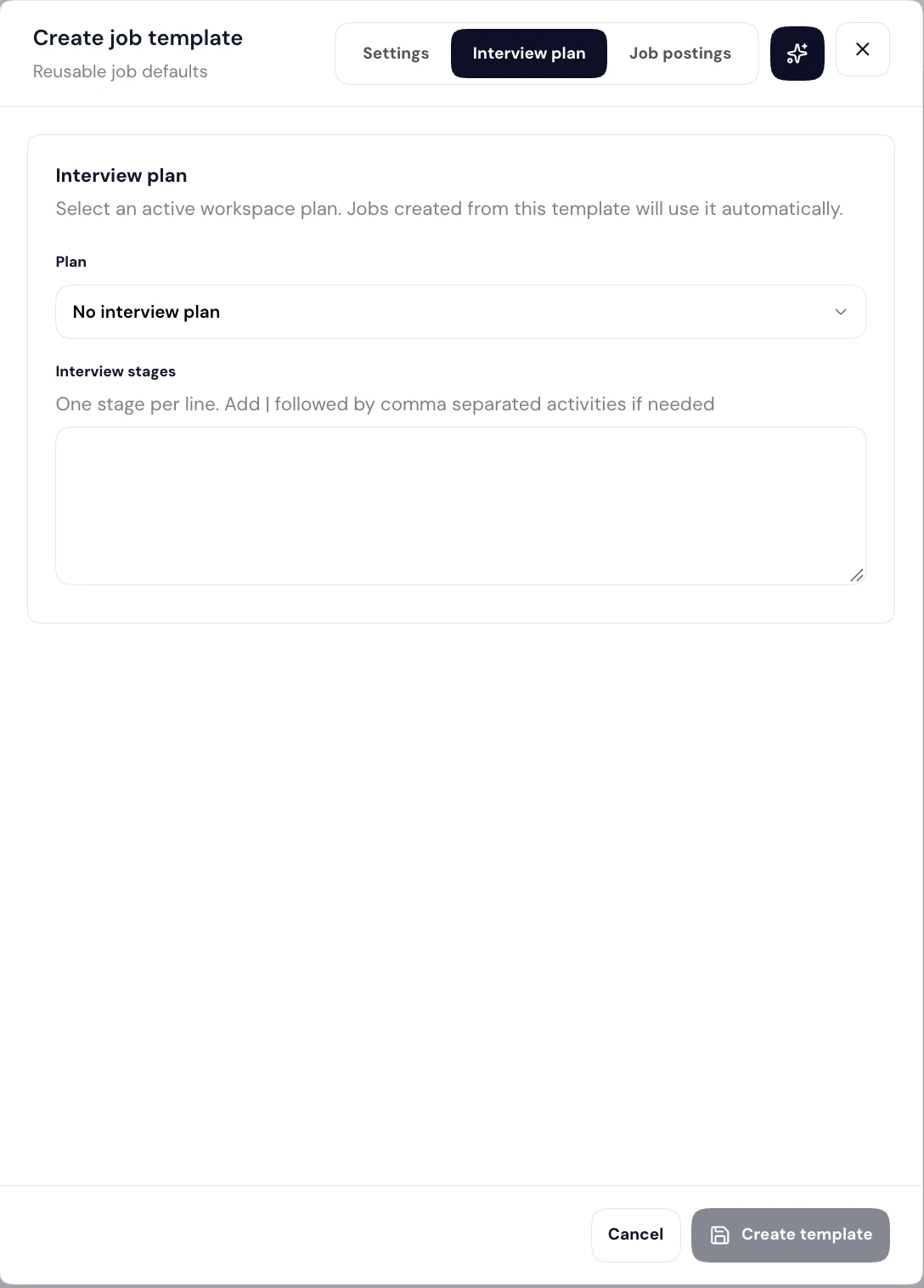
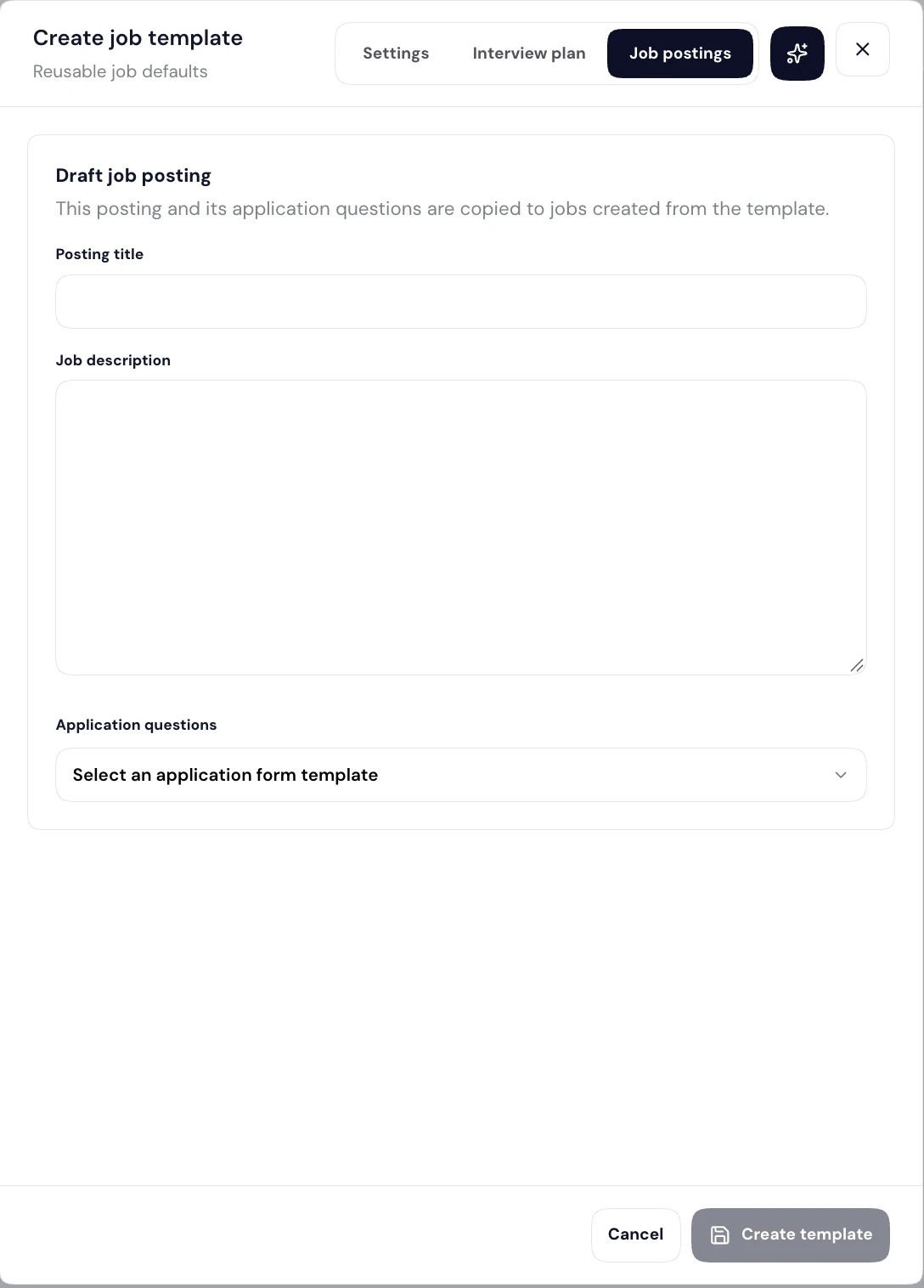
- On Interview plan, choose an active plan or enter your own stage names. On Job postings, add a posting title or description and choose application questions if needed.
- Select Create template. You can close the drawer without saving if you are not ready.
A template created directly from this settings page starts Inactive. Open it and turn on Template status, or use Activate in its row actions, when it is ready for new jobs. If you came here through Create new on the new-job form, the saved template is activated and you return to that form with it selected. The Back to job link returns without creating a template.
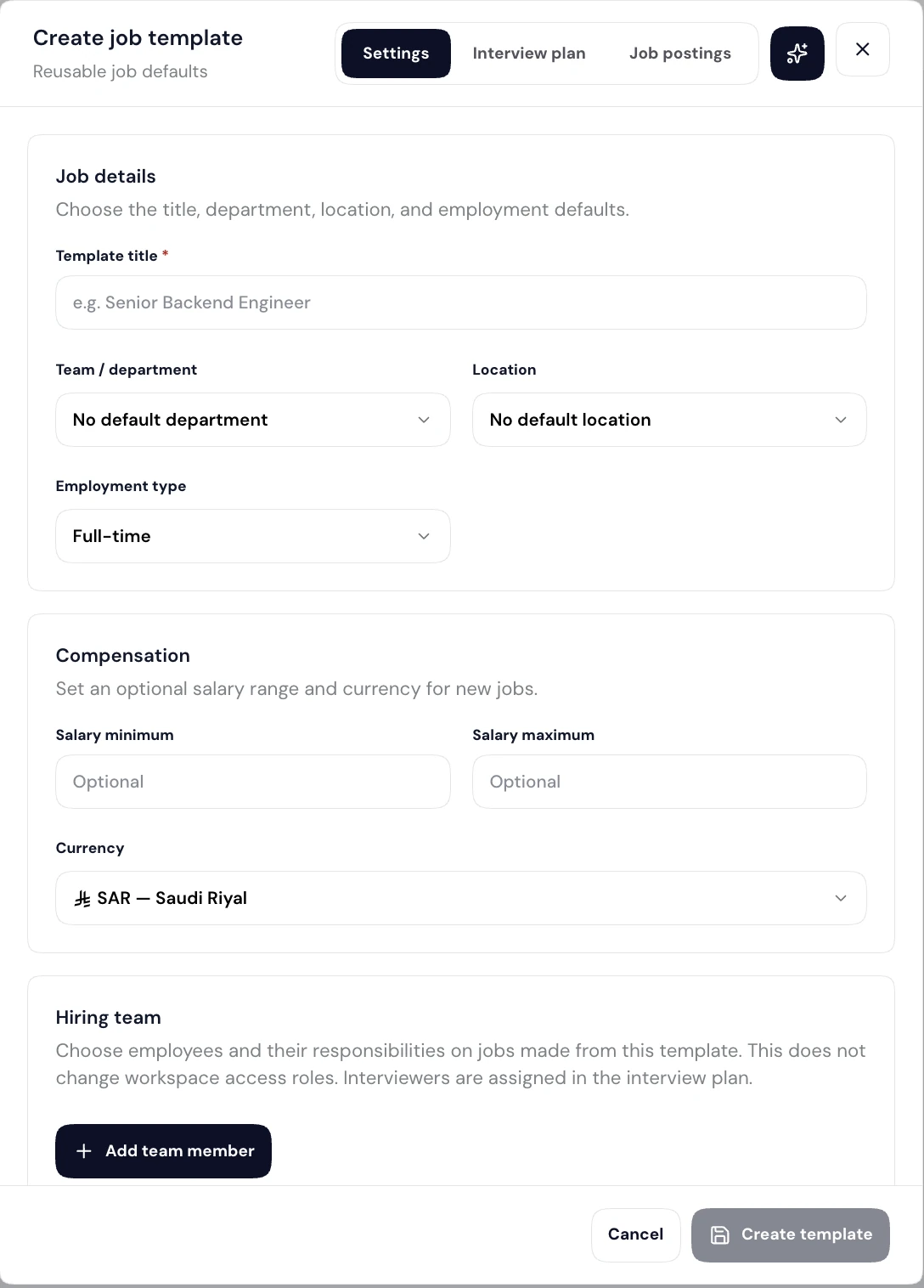
Set job defaults
- Template title names the reusable role and supplies the new job's starting title.
- Team / department and Location are optional template defaults. Pick from the workspace lists in Departments and Locations. The new-job form still requires both before you create the job.
- Employment type starts as Full-time and can be changed to Part-time, Contract, Temporary, or Internship.
- Salary minimum, Salary maximum, and Currency store compensation defaults. Currency starts from the company's default currency when available. Review the amount and currency for each new role.
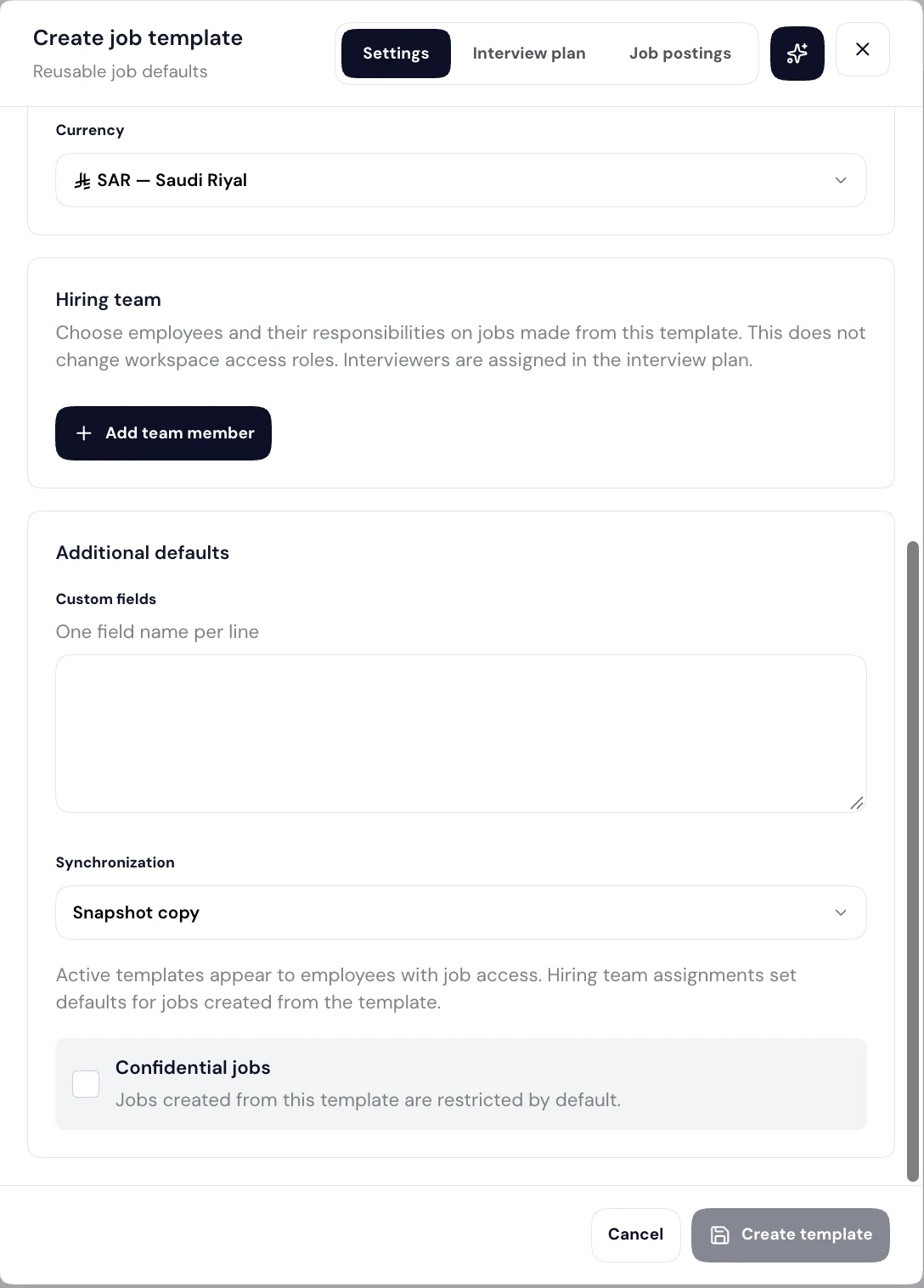
- Hiring team assigns active employees to Hiring manager, Recruiter, Recruiting coordinator, or Sourcer responsibilities. Choose both an employee and a responsibility for each row; the same employee cannot have the same responsibility twice. These assignments do not change workspace access roles. Interviewers belong in the interview plan.
- Custom fields accepts one field name per line. These are saved as template job fields; manage workspace candidate profile fields separately in Custom fields.
- Synchronization chooses Snapshot copy or Linked updates for jobs made from the template. Read the update behavior below before choosing linked updates.
- Confidential jobs makes jobs created from the template confidential by default. Review access and posting visibility before opening the job.
Configure interviews and the draft posting
On Interview plan, choose an active workspace Plan. The drawer previews its stages and activity counts; jobs made from the template start with that plan. Manage reusable plans in Interview plans. If you choose No interview plan, enter Interview stages one per line. You can add | followed by comma-separated activities after a stage name. The new-job form still requires a valid active interview plan before it creates a job, so review that step even when you entered stage text here.
On Job postings, enter a Posting title and Job description for the draft posting. If either text field is filled, Application questions must select an active application form template before saving. If no forms are available, create one in Application forms first, or leave the posting text empty for now. The posting and its form choice are stored when you enter posting text, then copied to jobs created from this template. Selecting a form alone, without either posting text field, does not create a draft posting. Review the copied description and questions before publishing.
Optional AI and library starting points
When creating a new template, Create with AI opens a Role brief input. Describe the role, work, seniority and intended interview approach in 15–2,000 characters. Review the displayed credit cost and balance before selecting Generate draft. Availability and sufficient credits are required. Generation uses your company profile, saved company knowledge, departments, locations, interview plans, forms and employee directory. It fills an unsaved draft; it does not save a template or publish a job. Replacing an existing unsaved title or description asks for confirmation.
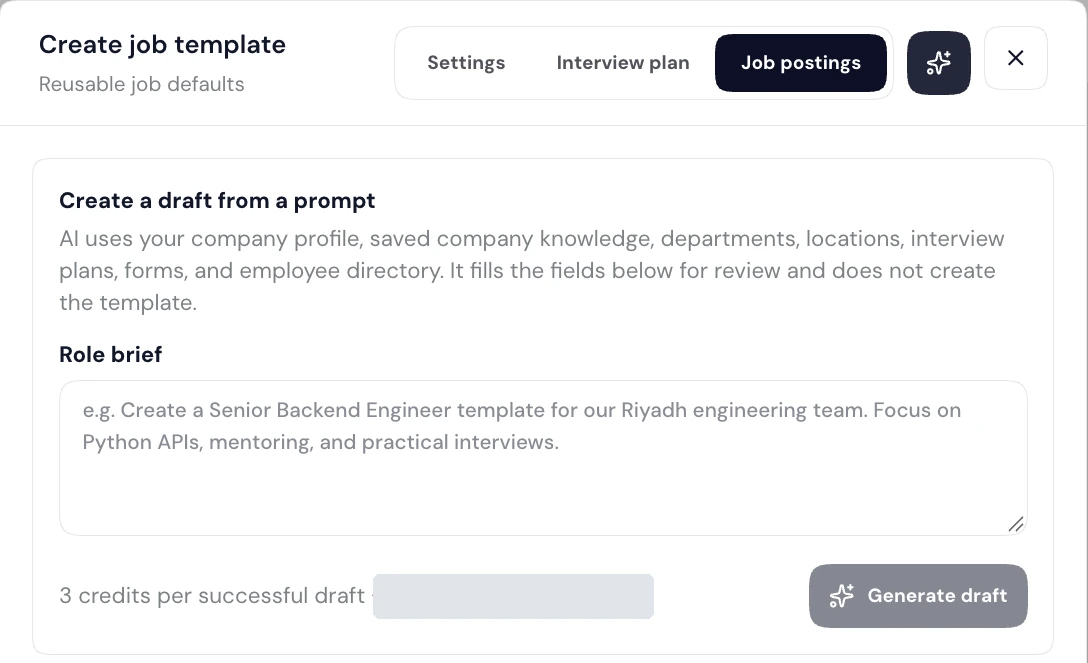
Review all three tabs after generation, including team assignments, pay, location, confidentiality, plan and application questions. Do not include candidate personal data, credentials or unnecessary confidential information in the brief. AI can invent or misinterpret details and does not certify legal compliance. Where a platform template library is available, choosing a library item also fills unsaved starting values; check what it replaces before saving. Library options can vary.
Use a template while creating a job
- Open Create a job and find Template in the first step. Choose an active template, or select Start from scratch.
- Selecting a template fills the available Job title, Team / department, Location, Employment type, Confidential setting, matching interview plan, and active hiring team members. If a saved department, location, plan, or employee is no longer available, select a current choice in the form.
- Review each step, fill required fields, and create the job as a draft. The saved draft posting, if present, is copied into the new job. You can then review the job and publish it when its requirements are met.
Start from scratch removes the template selection but does not clear fields that it already filled. Use Clear draft on the job form for a reset. Template defaults do not fill every new-job input: review employer brand, workplace, internal description, position link and confidential access separately. Choosing or editing a template is not an approval or a guarantee that the resulting posting is accurate or lawful. See Job publishing responsibilities.
To make a template while you are on the job form, select Create new beside Template. Save the template in settings; Karwa returns to the job form with that template selected. From an existing template opened through this route, Use in new job returns with it selected if it is active. The job title, department, and location must be present for the new draft, and you must select an active interview plan. Publishing also requires complete personal and company profiles and a current subscription. See Create and publish a job for the full job workflow.
Understand snapshot and linked updates
Snapshot copy saves the template's values on the new job at creation time. Later template edits do not update that job. Use this when each role should be able to diverge independently.
Linked updates keeps a template snapshot attached to a job. When the template is edited, the saved snapshot is refreshed for jobs that were created with linked synchronization. For linked jobs still in Draft or Active status, the template's nonempty department, location, and employment type are also updated on the job record. Other job fields, such as its title and published description, are not automatically overwritten by the edit. Review affected jobs after changing a linked template. Changing a template to linked does not turn earlier snapshot jobs into linked jobs.
Edit, activate, or delete
Select a template name or Edit template, change fields across the three tabs, and select Save changes. Use the Template status switch in the editor, or Activate/Deactivate in the list, to control whether it appears in new-job creation. Deactivation does not remove jobs already created from it.
If you have Delete job resources permission, use Delete template and confirm. Deletion removes the template from the library and future job creation. Existing jobs remain; snapshot jobs keep their copied values, and linked jobs stop receiving future template updates. Deletion also requires you to be the template creator or workspace owner. If you only need to pause reuse, deactivate the template instead.
Create a draft with AI
On a new template, select Create with AI, describe the role in at least 15 characters, and select Generate draft when AI is available and your workspace has enough credits. The drawer shows the credit cost and remaining balance. AI uses company profile and saved company knowledge, plus workspace departments, locations, interview plans, forms, and employees, to fill the fields. If you already entered a title or description, confirm before replacing the unsaved draft. Review all three tabs: generation fills the form but does not save a template. Credits are charged for a successful draft; select Create template to save it. AI availability and credit balance depend on the workspace's current setup and billing.
Frequently asked questions
Why is my new template missing from Create a job?
Templates created from settings start inactive. Activate it using the status switch or row action, then refresh the new-job form. Only active, undeleted templates appear there. A template created through Create new on the job form is activated for immediate use.
Can I save a template without a department, location, or posting?
Yes. Only the title is required in the drawer, with at least two characters. A new job still needs a title, department, location, and active interview plan before it can be created.
Does a template publish a job or application form?
No. It stores defaults and an optional draft posting. Creating a job from it starts a draft; review the posting and application questions before publishing.
Does changing a template update existing jobs?
Snapshot jobs stay as they were. Linked jobs receive an updated stored template snapshot, and draft or active linked jobs also receive nonempty department, location, and employment type changes. Other job fields are not automatically overwritten.
Why did my interview plan or hiring team member not carry over?
The new-job form matches a saved plan by name and employees by active directory email. If a plan or employee is no longer available, choose a current one. The form requires an active interview plan before job creation.
Why were my application questions not copied?
The template needs a draft posting to store the form choice. Enter a posting title or description on Job postings, choose an active form, and save. Review the copied questions on the new job.
What happens if I deactivate or delete a template?
Deactivation hides it from new-job creation but leaves it in the settings list and does not remove existing jobs. Deletion removes it from the library; existing jobs remain, but linked jobs stop receiving template updates.
Why can't I create, edit, or delete a template?
Viewing needs View jobs; creating, editing, and changing status need Manage jobs. Deletion also needs Delete job resources and is limited to the creator or workspace owner. Ask an administrator to review Roles & permissions. A current workspace subscription is required for changes.
Does Create with AI save the template automatically?
No. It fills an unsaved draft for review. Confirm the generated details and select Create template. The button requires AI availability, enough credits, and a role brief of at least 15 characters.