Loading documentation
Open Create a job. Job setup has three steps: Job information, Interview plan, and Hiring team. Create draft job saves the role in your workspace. Review its posting separately before making it public.
The screenshots show the current light-mode interface with fictional example data. No live job was created or published for these examples. Available brands, templates, positions and plans depend on your workspace and permissions.
Quick checklist: required or optional?
To save the job: enter a valid job title, select a department and location, then select one active interview plan. Employment type starts as Full-time. Review these defaults; department, location and the first hiring-team member may already be selected.
Optional during creation: job template, workplace, internal description, position link, confidentiality and its eligible access list, additional hiring-team assignments and recruiting agencies. Employer brand appears only when multiple brands exist; review the chosen brand. Compensation, public description, application questions and publication are configured in Job postings, not in the internal-description field.
To accept public applications: you must add or review a job posting, complete its required setup, open the job and publish the posting. Creating a draft job alone produces no live application page. A template may supply a draft posting; review that existing draft instead of creating a duplicate.
Before you start
You need Manage jobs permission and current workspace billing access to create a job. Prepare a department, location and active interview plan. You can create missing setup items through the links in the form if your permissions allow it. Incomplete personal or company profiles can be completed after saving a draft.
Check your profiles before publishing
You can create a draft job before your profiles are complete. Opening or publishing the job requires your full name and job title in Profile & account, plus a complete Company profile. The company profile must include a logo, legal company name, company size, industry, headquarters country, timezone, expected hires, main hiring goal, careers page slug, registration country and number, and registered address line 1, city, and country. Ask a workspace administrator to finish company details if you cannot edit them.
If anything is missing, Karwa shows a reminder when you create or try to open the job. Save it as a draft, complete the missing details, then return to open or publish it. An active subscription is also required for a live job.
Add templates, departments and locations from this form
You can create missing setup while adding a job. Use Create new beside the matching field in Job information. Save the new item, return to the same job form, and review the selected value before continuing. These are shared workspace settings, so creating one does not create or publish the job itself.
| Add job field | Read the full instructions | What to do and how you return |
|---|---|---|
| Job template | Create and use job templates | Select Create new beside Job template. Complete Settings, Interview plan and, if needed, Job postings; select Create template. A template created through this route is active and selected when you return to the job. Check the values it fills. |
| Team / department | Add a department | Select Create new beside Team / department. Enter the department name and any parent or candidate-facing name, then select Create department. Return with the new department selected. |
| Location | Add a location or region | Select Create new beside Location. Create a location, enter its name and relevant address/type details, then save. Return with that location selected. A region only groups locations and cannot be selected as the job location. |
The linked guides explain every setup field and how to edit, activate or archive the saved item. Your role needs the corresponding management permission. If you cannot create a department or location, ask an administrator; their Create new links are hidden without that permission. Template creation also requires permission to manage job templates.
Use the Create new links in the job form for the return-and-select flow. Opening a settings page independently does not automatically select an item in an already open job form. Keep the same browser tab so your unfinished job fields can be restored. Returning without saving does not create an item. After saving a department or location, choose an appropriate interview plan; neither replaces the plan required in step 2.
Step 1: Job information
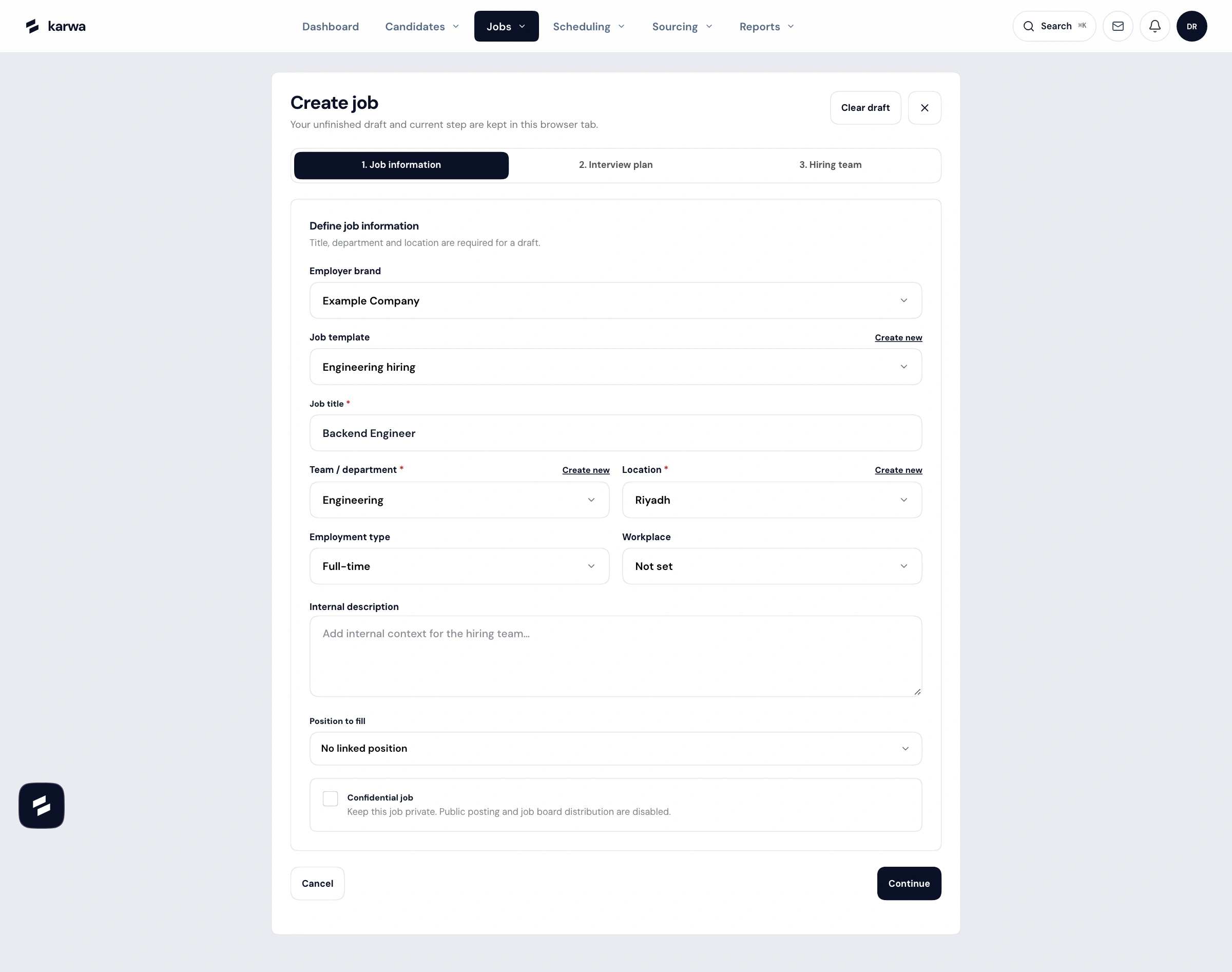
| Input | What it means and what to enter |
|---|---|
| Employer brand | Appears when more than one careers brand is available. Choose the primary or separate careers site for this role. Confirm the responsible employer and your right to use its branding. |
| Job template | Choose an active saved set of job defaults, or Start from scratch. This is optional. Create new opens template settings and returns you to the job form after saving. See Job templates and the template explanation below. |
| Job title | Required, 2–160 characters. Enter a clear role name, for example Senior Backend Engineer. This identifies the internal job; review the candidate-facing posting title separately. |
| Team / department | Required. Select the responsible department. Create new opens department setup and returns with the new department selected. See Departments. |
| Location | Required. Select the workspace location for the role. Create new opens location setup. A location and a workplace arrangement describe different aspects of the job. See Locations. |
What does Team / department mean? This is the organizational team the role belongs to, such as Engineering, Sales or Finance. Its choices come from active departments in Settings → Organization setup → Departments (/dashboard/settings/departments). The selection is saved on the job and supports job-list filtering and reporting; a configured department default can recommend an interview plan in step 2. It does not choose the recruiters or interviewers. Assign the actual people and their responsibilities in step 3, Hiring team, and configure interview-activity owners separately. To add a missing team, use Create new beside this field, save the department, and return with it selected. See Departments: all fields and management.
Select Continue after completing title, department and location. Required fields are checked before you can proceed. Review preselected department and location values rather than assuming they match the new role.
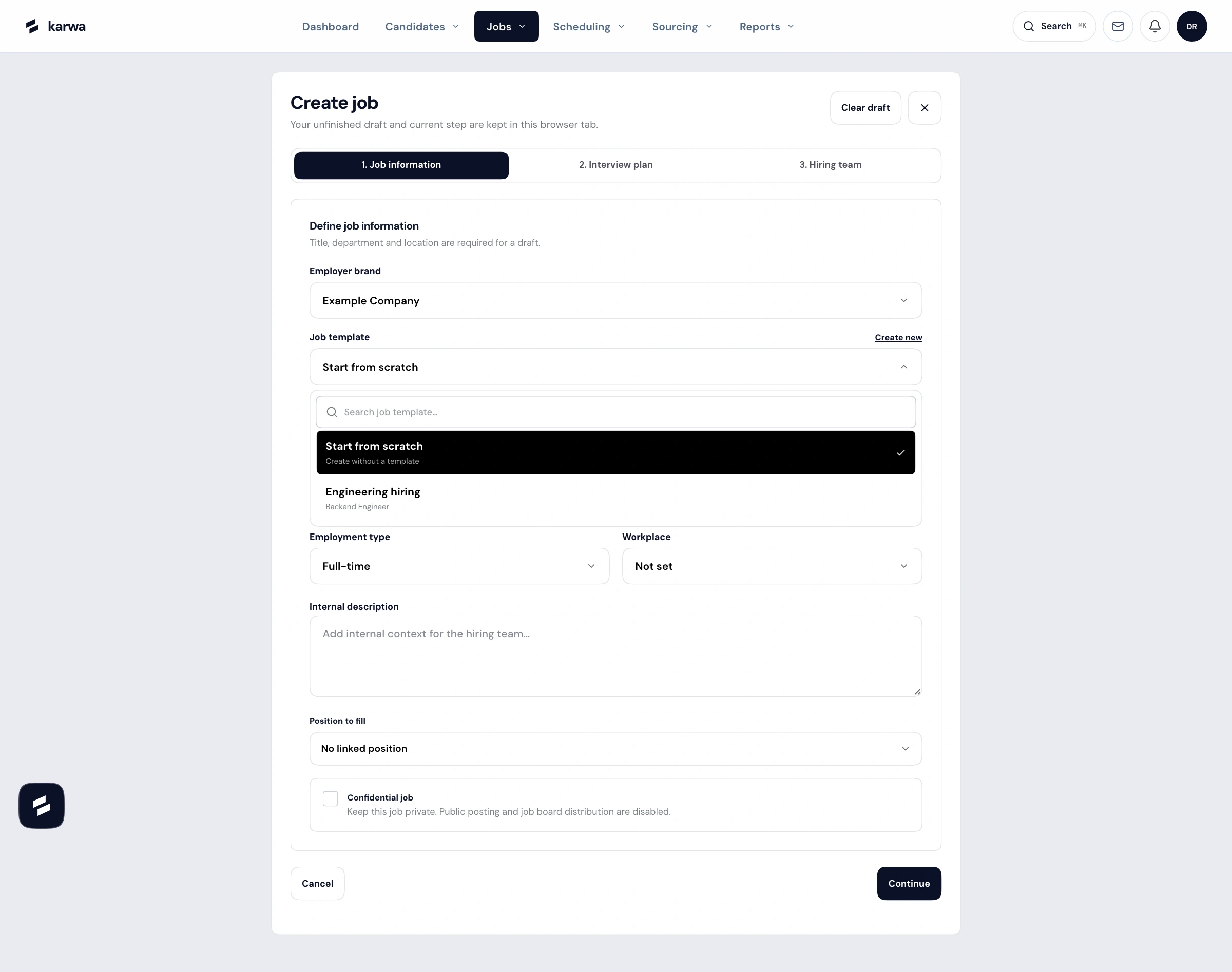
What a job template means
A job template is reusable setup for similar roles. It differs from an interview plan, which defines hiring stages and activities, and an application form template, which defines questions candidates answer. A position tracks the headcount the job is intended to fill.
Selecting a job template fills available title, department, location, employment type, confidentiality, a matching interview plan and available hiring-team members. Missing or unavailable defaults leave current values in place. Check every field and step. Workplace, employer-brand selection, internal description and position link still need their own review. The template can also supply a draft posting when the job is saved.
Choosing Start from scratch removes the template selection but keeps values already filled in the form. It is not a reset button. Use Clear draft if you intend to discard the unfinished form, then review the default values again.
Manage reusable templates at Settings → Job templates (/dashboard/settings/job-templates). To start a template directly, open New job template (/dashboard/settings/job-templates/new). The Create new link beside Job template uses the return-and-select route: /dashboard/settings/job-templates?create=true&returnTo=%2Fdashboard%2Fjobs%2Fadd-job.
To build reusable defaults, select Create new beside Job template. In the drawer, use Settings for role details, compensation and team; Interview plan for interview setup; and Job postings for the draft description and application questions. Review and save, then return with the template selected. For every input, activation rules, AI drafting and synchronization, read Job templates.
Confidential jobs and position access
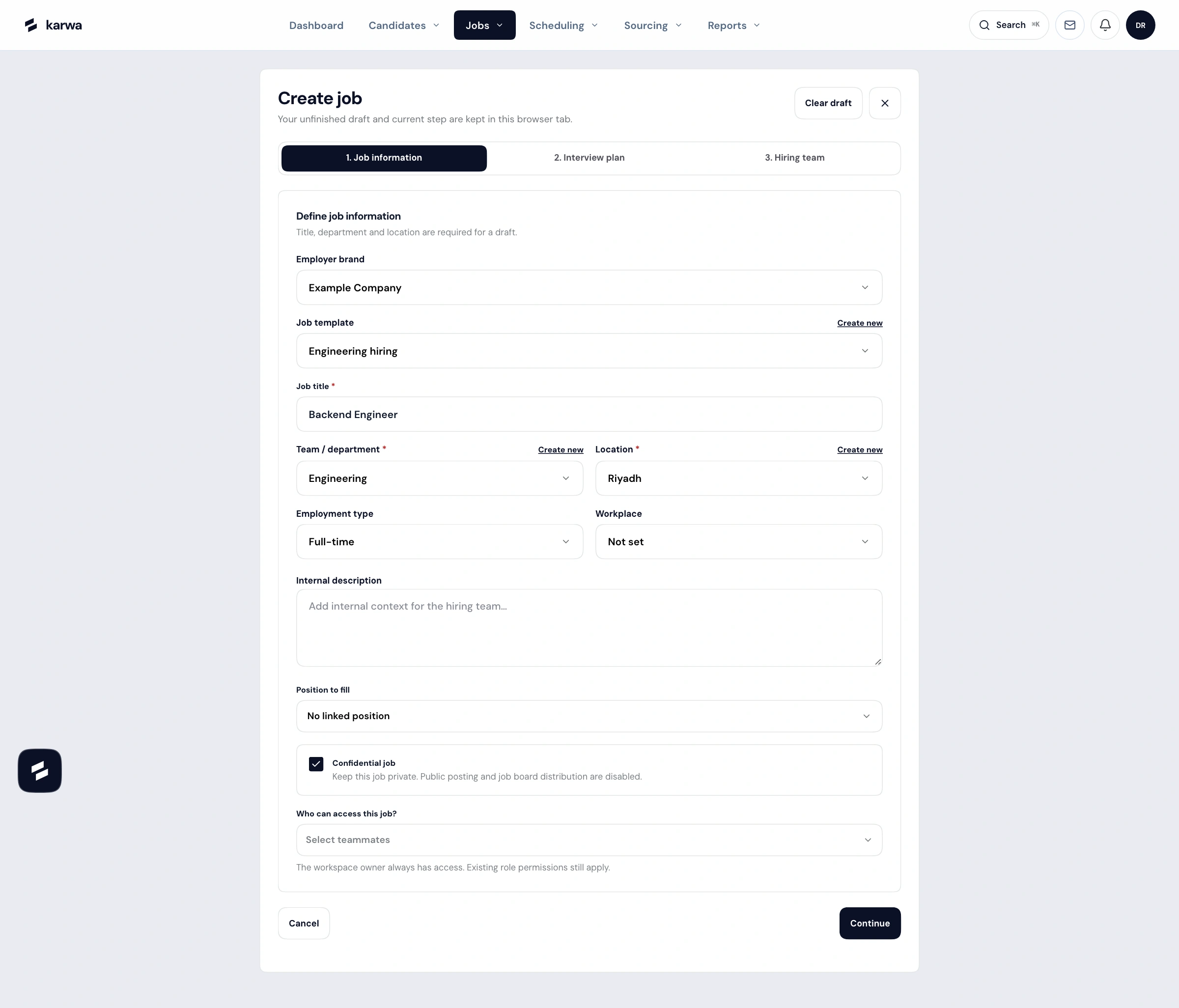
Turn on Confidential job and use Who can access this job? to choose eligible teammates. The workspace owner always has access, and the creator is retained in the saved access list. Role permissions still apply; selecting a person does not grant every job-management permission.
A linked confidential position adds its own access restriction. A teammate needs the relevant position access as well as job access. Turning off the job checkbox does not remove confidentiality inherited from the position. Confidential jobs cannot be publicly posted or distributed to job boards. Review the saved job's access before inviting others or sharing information.
Confidentiality controls do not recall downloaded files, screenshots or information already sent elsewhere. Keep private notes, candidate data and confidential business details out of public posting content.
Step 2: Interview plan
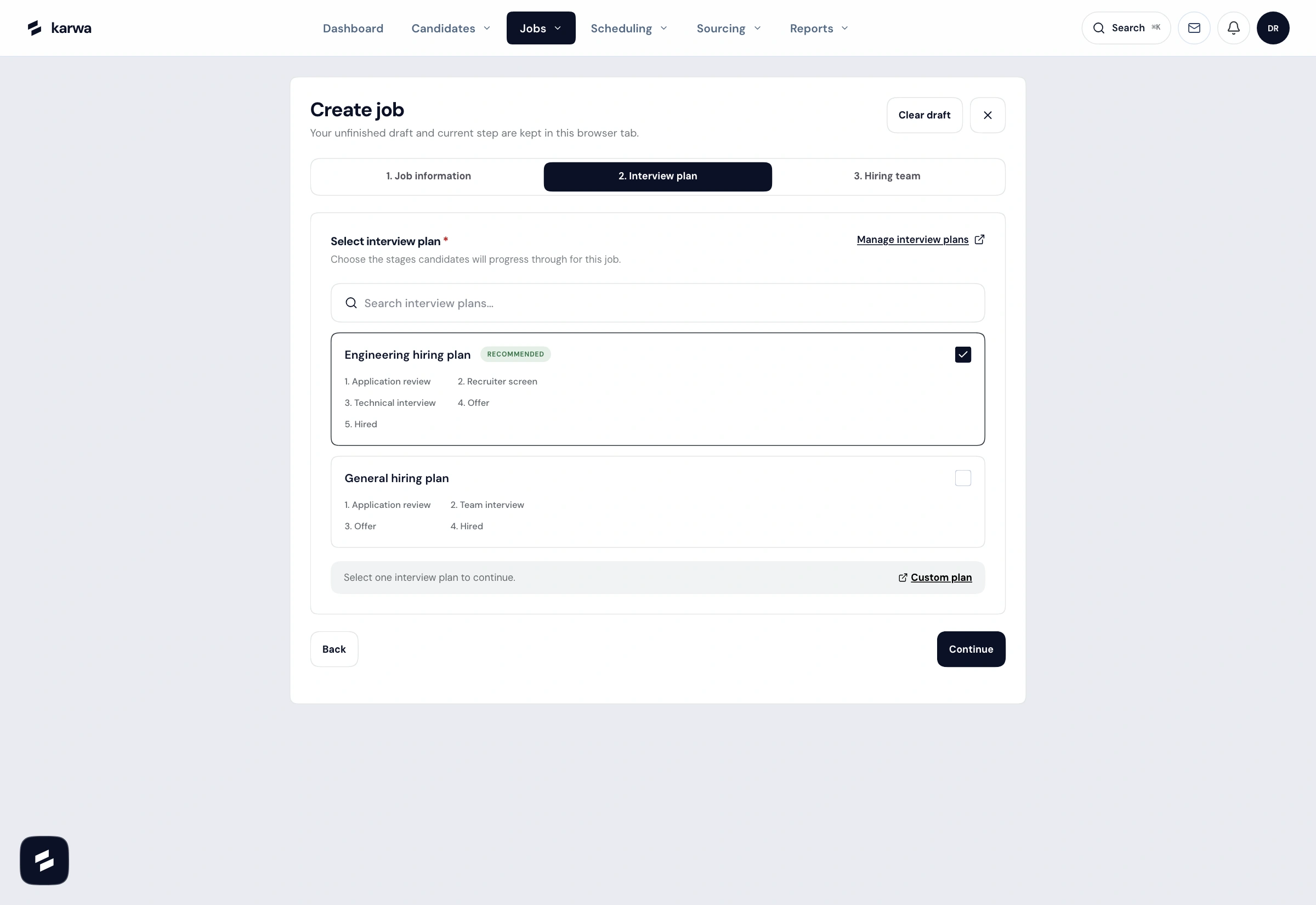
- Search by plan name and read the numbered stage preview.
- Select one plan. Although each card has a checkbox, this is a single selection; selecting the same plan again clears it.
- If a Recommended badge appears, it means the plan is configured as the selected department's default. It is not an AI score or compliance endorsement. A department default may be preselected when you continue from step 1.
- Use Manage interview plans to maintain plans, or Custom plan for a job-specific plan. Publish the plan so it becomes active, then return to this form and confirm the selection.
- Select Continue. A plan is required even if you started with a template.
Only active plans available for this job appear. A custom plan already attached to another job cannot be reused. If search shows no results, clear the search or ask an administrator to publish an appropriate plan. See Interview plans.
Step 3: Hiring team and recruiting agencies
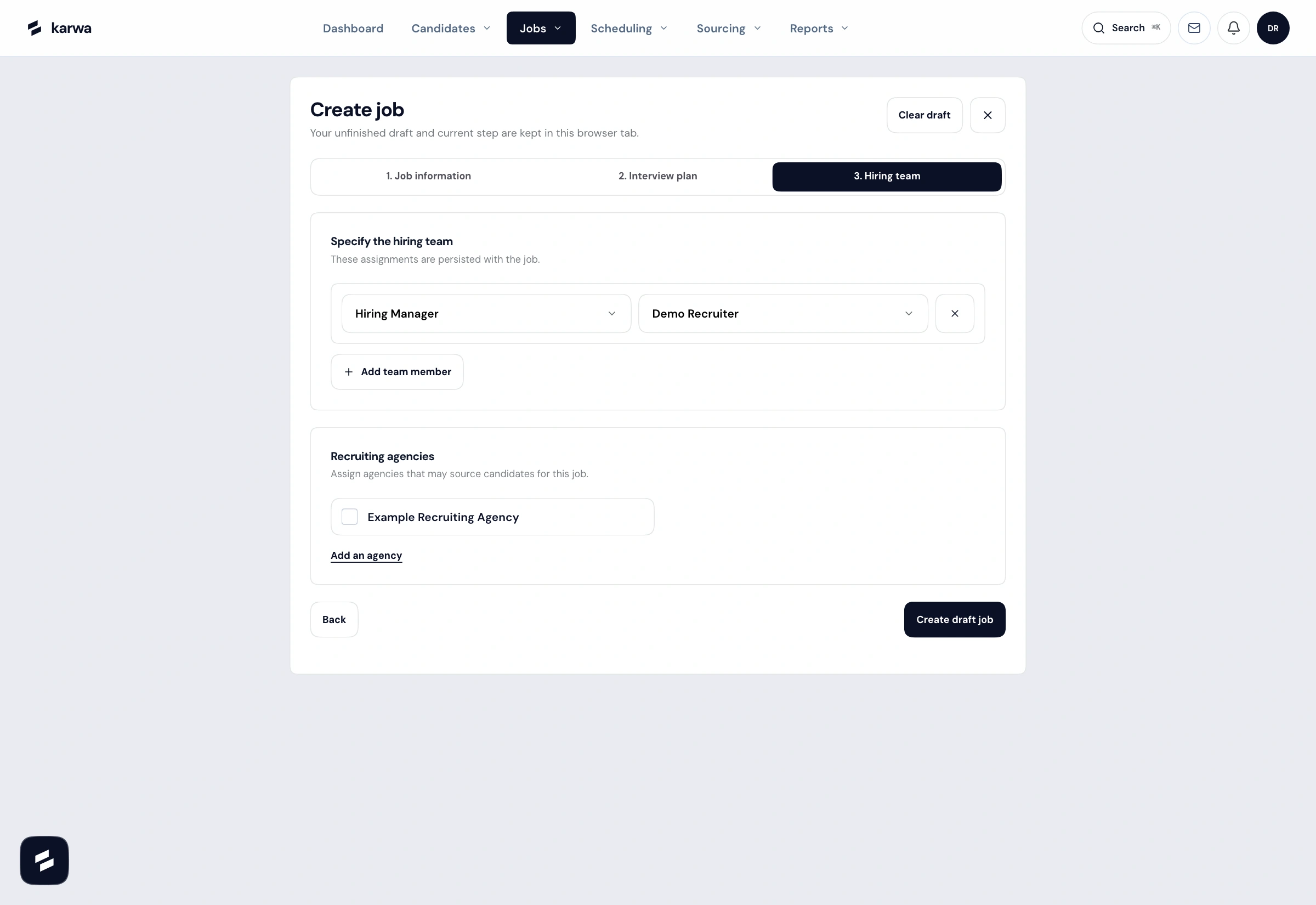
| Control | What it does |
|---|---|
| Responsibility selector | Choose Hiring Manager, Recruiter, Recruiting Coordinator, or Sourcer for that assignment. |
| Employee selector | Choose an available workspace member. Check the initial assignment and any team copied from a template. |
| Add team member | Adds another responsibility-and-person row. |
| Remove | Removes that row from the unsaved form. Review the saved team because the creator is included when the job is created. |
| Recruiting agencies | If you can view agencies, select active agencies allowed to source for this job. The section can show No active agencies yet. |
| Add an agency | If you can manage agencies, opens agency setup with a return to the job form. |
Hiring-team responsibilities are distinct from workspace access roles, confidential access and interview-activity assignments. Review each separately. Agency selection records a job assignment; it does not create a fee agreement, pay a commission or certify an agency's authority to share candidate information.
Save progress, go back or clear the form
Back returns to the previous step. Step tabs also validate earlier required information before allowing you forward. Cancel on the first step or the top-right close control leaves setup.
Your unfinished fields, selected step, hiring team and agency choices are kept in this browser tab and can be restored when you return in that tab. This is browser storage, not a server-saved job or a cross-device backup. Closing the tab or clearing browser data can lose it. Avoid leaving confidential information on a shared device.
Clear draft immediately discards the unfinished form across all three steps; there is no confirmation dialog. It clears the title, job-template selection, employer-brand selection, position link, internal description, workplace, confidentiality/access list, selected interview plan and agency choices. It returns to Job information, restores Full-time, selects the first available department and location, and restores the first available member as Hiring Manager (or no member if none is available). Check these defaults before starting again.
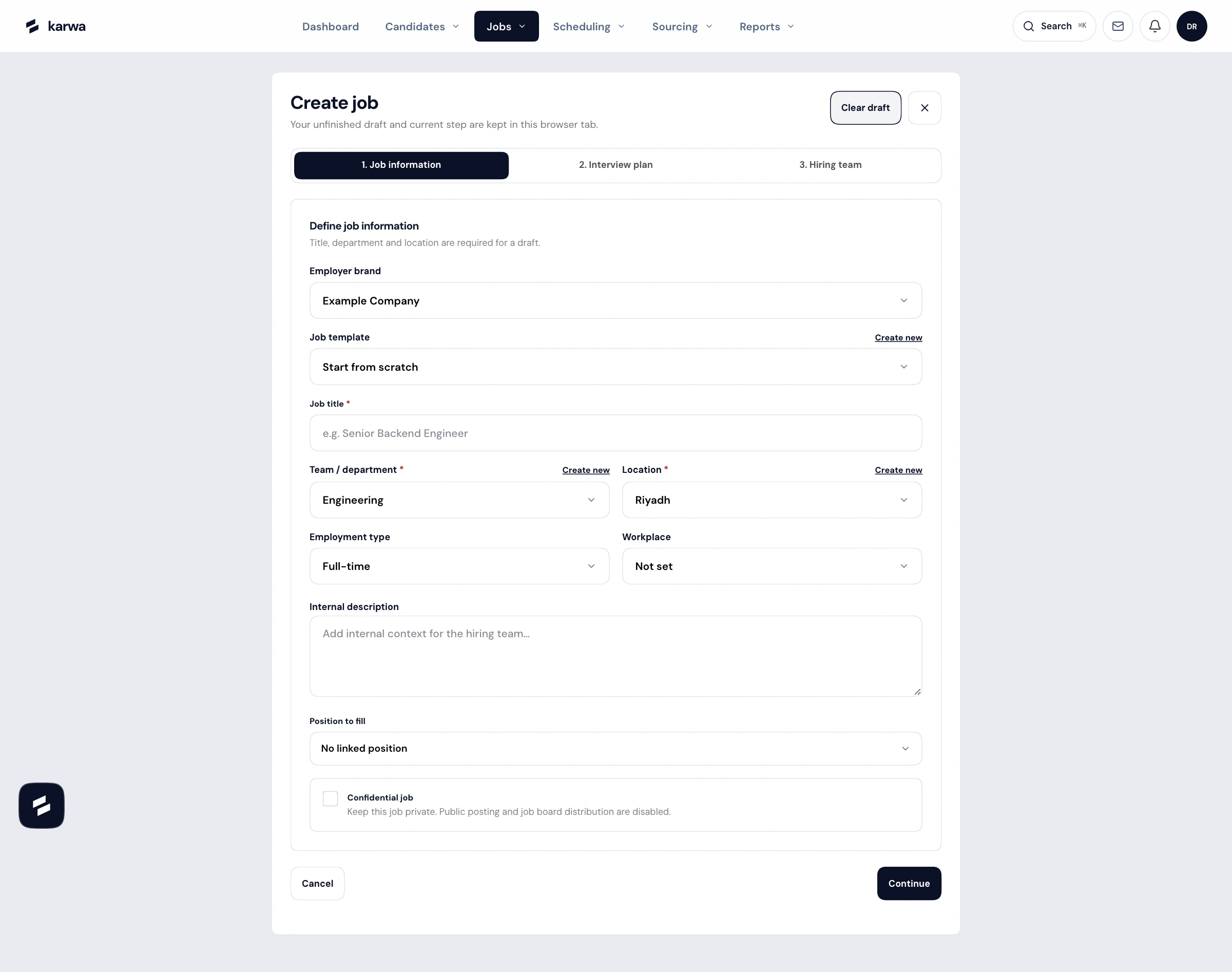
Clearing the form does not delete an already saved workspace job. A successful Create draft job clears the browser draft and opens the saved job's setup result. If saving fails, read the message and correct the issue before retrying; check the jobs list if you are unsure whether a request succeeded.
After Create draft job
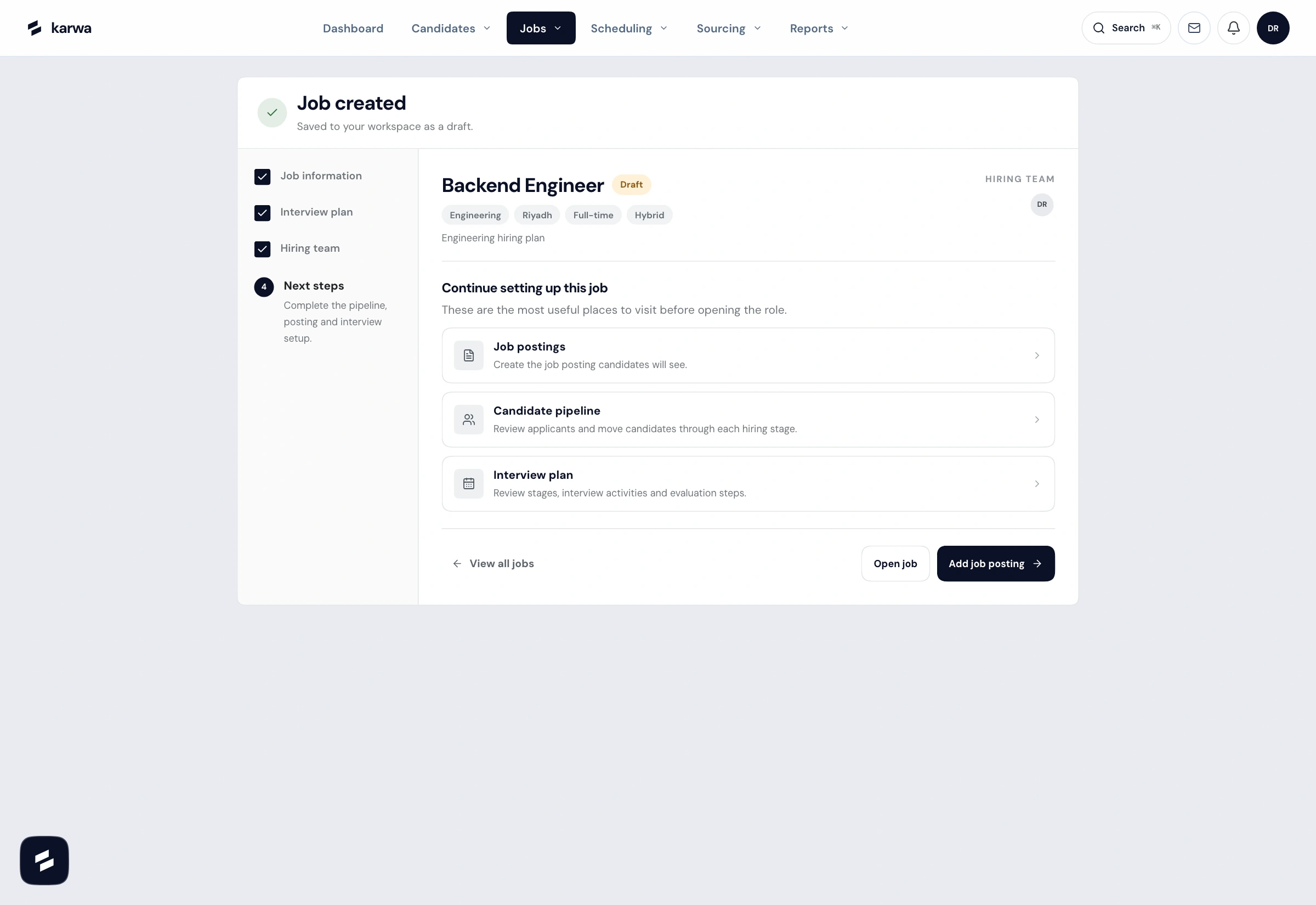
The Job created result confirms a server-saved Draft and shows the role, plan and hiring team. Use View all jobs to return to the list. The setup links lead to:
- Job postings: create or review the title, description and application form candidates will see, including any posting copied from the template.
- Candidate pipeline: review applicants and the hiring stages.
- Interview plan: review activities, interviewers and evaluation setup before use.
If job approvals are enabled, Request approval, Request again or Approved reflects that workflow. An internal approval is not legal or platform verification. Open job changes the job's status when publishing requirements and permissions are satisfied. Add job posting opens posting setup. Opening the job and publishing a posting are separate actions; check the actual posting and public page before sharing it.
Add the candidate-facing job posting
- From Job created, select Add job posting, or open the saved job → Job Postings. The route is
/dashboard/jobs/{job-reference}/job-postings; replace the reference with the saved job's actual reference, not its title. - If a template already supplied a posting, open and review that draft. Otherwise add a posting. Creating the internal job is not enough: each public application opportunity needs its own configured posting.
- Review all five posting tabs. Description contains the candidate-facing title and role content. Details covers posting identity, visibility and location/deadline settings. Application questions selects the active application form and questions. Automation controls confirmation/rejection behavior. Compensation controls salary, currency, pay period and what is shown. See Job postings: every field and tab for the full current editor and screenshots.
- Review the preview and active application form, required profiles, billing/capacity, interview plan and any job/posting approvals. Open the job when allowed, then publish the posting through its own controls. Confidential jobs cannot have public postings.
- Open the published application URL and check exactly what candidates see before sharing it. Saving a posting, opening a job and selecting a distribution destination do not by themselves prove that a posting is published or externally distributed.
All pages available after saving
Open the saved role from Jobs. The job navigation contains the following pages; permissions and confidentiality can affect availability.
| Page / tab | What to review next |
|---|---|
| Candidate Pipeline | Leads, Application Review, Active, Pending Offer, Hired and Archived for this job. Applications are separate from unique people. |
| Dashboard | This job's reporting cohort, stage progress, pending work, sources and AI match summaries. A newly saved role can have empty charts. |
| Settings → Basic settings | Internal title and description, brand, department/location, workplace, source template and access. |
| Settings → Openings | Number of positions, linked headcount position and automatic closure when filled. |
| Settings → AI review criteria | The criteria used for résumé review; saving criteria does not run an evaluation. |
| Settings → Interview plan | Selected plan, application-review mode and confirmation-template settings. |
| Settings → Hiring team | Responsibilities, people and hiring access. Interview activity owners are configured separately. |
| Interview Plan | The role's stages, activities, interviewers and triggers. |
| Job Postings | Candidate-facing postings and their five editor tabs; review publication separately. |
| Invites, when available | Invited access for confidential opportunities. |
Screenshots and field-by-field instructions for these pages are in Job workspace: pipeline, dashboard and all five settings tabs, Interview plans and activities and Job postings.
Review before opening or publishing
Confirm the actual employer, your authority to recruit, brand/logo rights, title, responsibilities, employment type, pay and currency where applicable, location and remote/hybrid eligibility, hours, closing date, lawful essential requirements and accommodation contact. Include required pay-transparency, applicant privacy and other regional notices. Ask only necessary application questions and review screening rules, recording choices and enabled automations before candidates apply.
Templates and AI drafts need human review. Do not promise a role, salary, benefit or work arrangement you are not authorized to offer, publish discriminatory requirements or request candidate payments or credentials. A completed profile, paid subscription or approval badge does not independently verify the job.
For a public role, review the posting preview and its selected form, publish through the available controls, then open the public URL to check candidate-visible details. External services, where enabled, apply their own rules and can delay indexing, distribution or removal. Close or update obsolete opportunities and handle candidate records under the applicable retention rules; unpublishing is not erasure.
Read Job publishing responsibilities, Job setup privacy, Acceptable use, and Candidate privacy.
Common setup questions
| Issue | What to check |
|---|---|
| Template is missing | It must be active and not deleted. Ask a job manager to activate it. |
| Old values remain after changing templates | Only available supplied defaults replace values. Review all steps, or use Clear draft for a fresh form. |
| Cannot continue | Step 1 needs title, department and location; step 2 needs one active interview plan. |
| Cannot create the draft | Check Manage jobs permission, current billing access, selected resources and any message returned by the service. |
| Cannot open or publish | Complete personal/company profiles and check billing, plan limits, approvals, permissions and interview setup. Confidential jobs block public posting. |
| Job is saved but no public application page is ready | Open Job postings and review its publication state and application form. Saving a job does not publish its posting. |
Next: Review incoming applications.
Continue in the job workspace
After saving the job, use Job workspace: pipeline, dashboard and settings for its five settings tabs, reporting metrics and confidential access. Use Job postings for every posting field, application-form and email creation link, preview, approval, publishing and application-link controls. Interview plans includes screenshots of creating a reusable plan and configuring job activities, owners, triggers and current/future candidate coverage.