Loading documentation
Open Add candidate from the Candidates menu. Add the person's basic contact details and choose a role. Karwa sends a secure link so the candidate can complete the remaining information.
The Add candidate form
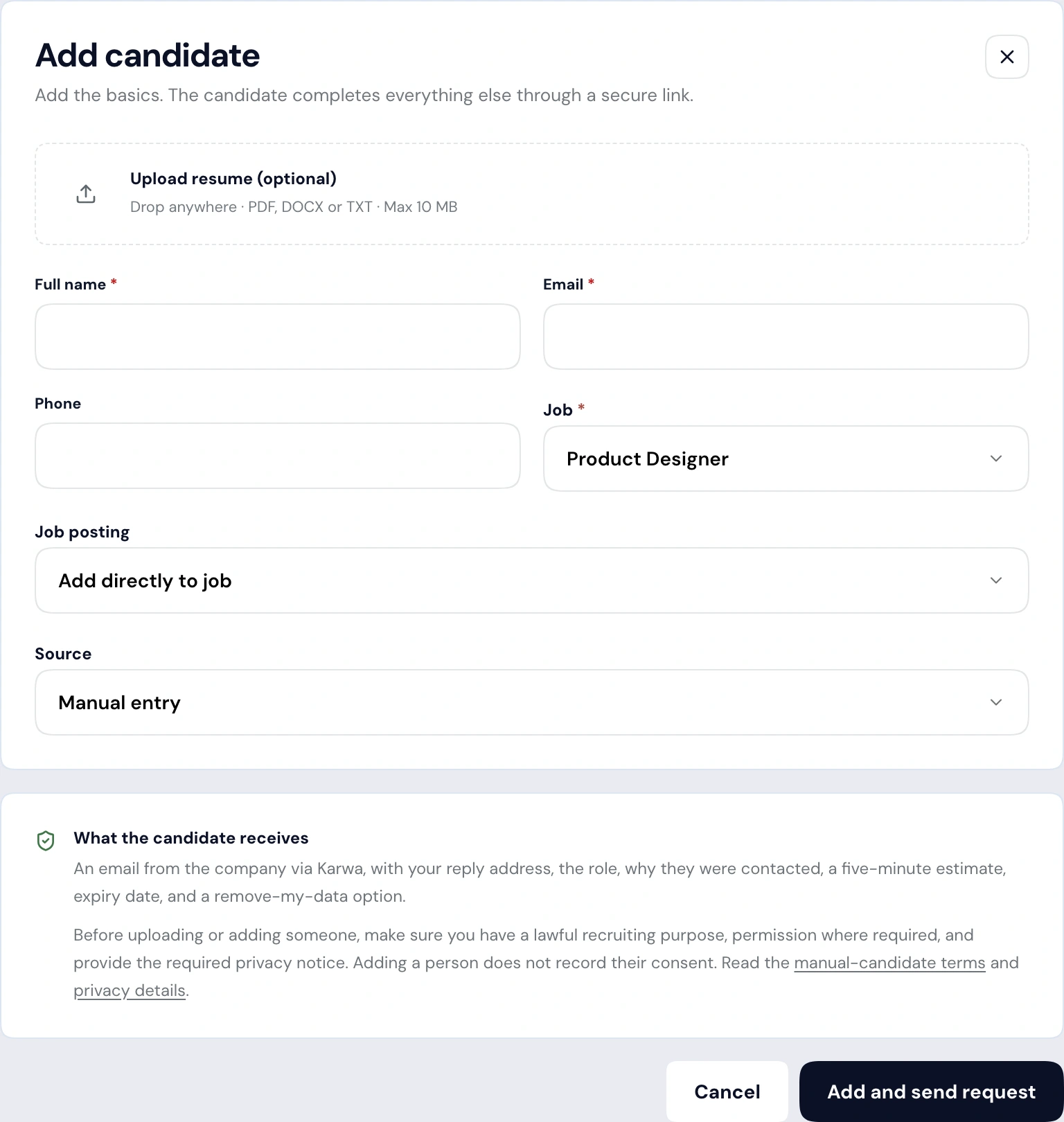
The screenshot uses a fictional job and shows the complete form before entering a candidate's personal information. Open the full-size screenshot to inspect the controls. Your available jobs and postings depend on your workspace and permissions.
Choose the job and posting
Select the Job you want to add the candidate to. The list includes active and draft jobs you can manage. The Job posting selector appears only when the selected job has postings. Choose the relevant posting, or leave Add directly to job selected. Check the job even if the page has selected one automatically. Opening the form from a job can preselect that job; changing the job clears the posting selection.
Choose the job before uploading a resume so Karwa can read the file in that role's context. Changing the job or posting while a resume is selected reads it again for the new selection; wait for that to finish before submitting.
Upload a resume or enter the details
Select Upload resume (optional) or drop a file anywhere on the page. Use one PDF, DOCX, or TXT file, up to 10 MB. Uploading is optional; you can enter the contact details yourself.
Karwa reads the resume and fills the name, email, and phone when available. Review the results and correct anything missing or inaccurate. Fields you edit yourself are preserved while the file is being read. Wait until the upload finishes before continuing.
- Full name is required and must contain at least two characters (maximum 160).
- Email must be a valid email address. It is required and receives the candidate's secure completion request.
- Phone is optional. Include the country code when available.
If a file cannot be read, check the app notification and use Retry upload, choose a replacement file, or select Remove resume and continue manually. A selected file that has not uploaded successfully blocks submission. Removing the file keeps the contact fields, so review any details previously filled from the resume.
The resume preview uploads and processes the file before you submit the form. It does not create the candidate intake or send the invitation. Processing can use AI credits; do not assume that reading the file is free or that extracted details or scores are verified facts.
Record the source
Choose Manual entry, Referral, Sourcing, Agency, or Event in Source. For Referral, also select the employee in Referred by. See Manage referrals to understand attribution and links. Choosing Referral does not guarantee referral credit: a candidate already known to the workspace may be recorded as Already known, not credited.
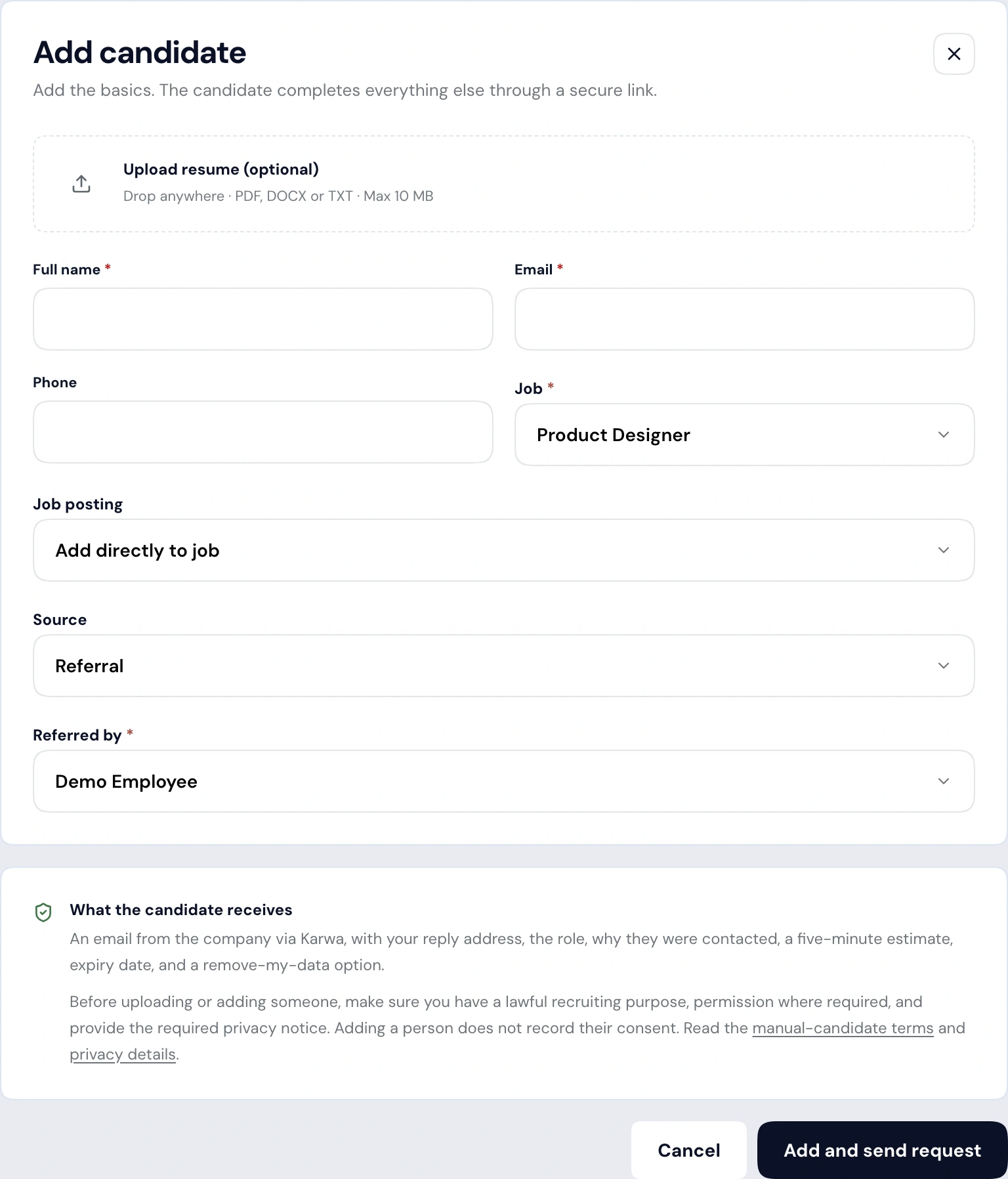
This example uses a fictional referring employee. The Referred by selector is required for Referral and depends on available employee records.
Before uploading or adding someone
The What the candidate receives panel also explains your responsibility for the information. Have a lawful recruiting purpose, permission where required, and provide the required privacy notice before uploading or adding someone. Adding a person does not record their consent. Read the manual-candidate terms and privacy details linked on the form.
Add and send the request
Review the contact details, job, posting, and source, then select Add and send request. This action checks for existing candidates and creates the intake together. Typing contact details or uploading a resume does not run a separate duplicate check.
The email comes from the company via Karwa and includes your reply address, the role, why the candidate was contacted, an estimated five minutes to complete the form, the expiry date, and a remove-my-data option. Check the recipient's email carefully before sending. The request link currently expires 14 days after creation. Its actual expiry appears in the request; this page does not offer an expiry selector.
Submitting creates a new application at initial review, or reopens an eligible existing application after explicit reconsideration, and requests delivery of the secure form. Candidate added and Invitation sent do not prove inbox delivery, that the candidate opened or completed the form, or consent. Check the application's email/activity and request status when following up. The candidate can provide missing details and a resume through their private link.
Sending requires an active candidate-details-request email template. If Karwa asks you to choose an active template, review Email templates before retrying. Correct any other reported permission, upload or delivery issue rather than repeatedly adding the same person.
If the candidate already exists
Karwa checks email or phone against candidates in the same workspace when you submit. A matching candidate who is active for the same role, or has already been hired or merged for it, cannot be added again. The app notification explains the conflict, including the role. Open the existing profile from Candidates to continue working with that application.
If the previous application for the same role was rejected, archived, or withdrawn, a Reconsider candidate? dialog asks for an explicit decision. Select Reconsider candidate, then select Add and send request again to continue. Cancel the dialog if you do not want to reconsider the candidate. Confirmed reconsideration reopens the existing application for review and records the prior status; it does not erase the previous decision or create a second application for the same role.
A match for another role does not by itself mean the person is already applying for this role. Review the candidate's existing history before proceeding. Submission and upload failures appear in app notifications; correct the reported issue before retrying.
Add another candidate
After a successful submission, the Candidate added confirmation shows the recipient and role. Select View candidates to return to the list, or Add another candidate to reopen the form.
Add another candidate clears the previous person's contact details and resume and places the cursor in Full name. It keeps the job, posting, source, and referring employee selected so you can continue in the same context. Review those selections for each new person.
If you cannot continue
Make sure a job is selected, the required contact details are valid, and the resume has finished processing. Add and send request is unavailable while uploading or submitting, if a selected file has failed, if a same-role duplicate is blocked, or while reconsideration still needs a decision. A browser validation prompt can also require you to correct the name or email. Referral entries also need a referring employee. If the job list is empty or an action is unavailable, ask an administrator to check your candidate-management access for the role in Roles & permissions.
Use Cancel or the close button to leave the form without sending the request.
Use Add candidate in Ask Karwa
Ask Karwa can explain every field using this guide. Try “How do I add a candidate?”, “Why is Add and send request disabled?” or “What happens if the candidate already exists?” Product help does not add anyone or send a message.
If you ask to fill in the form, Ask Karwa can open the shared Add candidate form. In chat its primary button is Review candidate: review the candidate, email, exact job, posting, source and resume before confirming the prepared action. A prepared review is not a saved application or a sent invitation.
For attached resumes, Ask Karwa supports a separate import workflow for up to ten PDF, DOCX or TXT resumes, up to 10 MB each. The standalone page accepts one resume at a time. Ask Karwa must resolve the correct authorized job, ask about ambiguous same-title roles and missing contact details, and prepare a review before adding anyone. It must not invent an email, silently create a missing job or assume permission to reconsider a rejected candidate. Existing records and delivery status require authorized workspace reads; examples in the docs are not live candidate facts.