Loading documentation
Open Candidates to see people across your workspace's jobs. The page opens on Application review. Use the six status cards to switch queues, All jobs to focus on one role, and Filters to narrow the results.
Screenshots show the current interface as reviewed on November 22, 2026. All candidate names, jobs, companies, dates and counts in these screenshots are fictional examples. Each of the six status cards was selected in the actual Candidates page. Your records, counts and available actions depend on your workspace and permissions.
One person, separate applications
A person can apply to more than one job. Karwa brings those applications together in a candidate profile, while each application keeps its own role, stage, source, assessment, and application date. Table rows and status counts represent applications, so the same person can appear in more than one row or status group. Applications shows how many different jobs the person is linked to.
Candidate status tabs
Selecting a status card changes the queue; it does not move candidates or send messages. The selected card has an outline. Your search, job choice, and filters remain in place when switching tabs.
| Tab | What it means | What to do next |
|---|---|---|
| Leads | Potential candidates in lead or outreach stages, including new leads, reached out, and replied. | Review the profile and outreach history before contacting or moving the application. |
| Application review | Applications at the initial review stage that need a decision. This is the default view. | Open the profile or choose Review application from Actions. |
| Active | Applications beyond initial review, in the job's working stages such as screening, assignments, and interviews. | Use the board to review progress and open the relevant candidate or job. |
| Pending offer | Applications currently in an offer stage. | Open the candidate to check the offer and next action. This tab alone does not prove an offer was sent or signed. |
| Hired | Applications marked hired in the workspace. | Review the candidate's record and your team's follow-up process. This stage label does not verify that employment has started. |
| Archived | Applications currently archived or rejected. | Open the existing record to understand the decision before considering the person again. Archiving retains the record; it does not erase candidate data. |
Leads
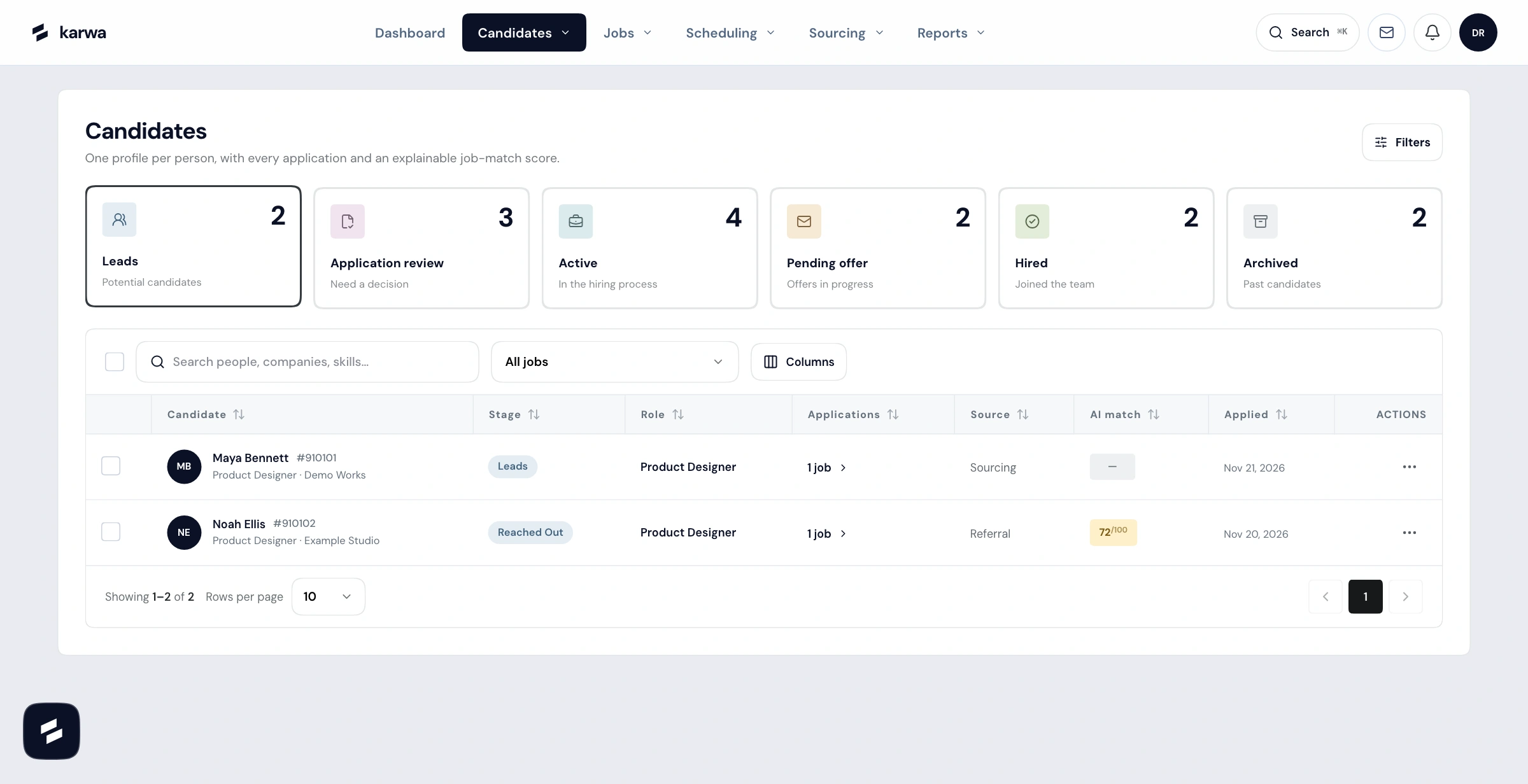
Open Leads for potential candidates. The example shows Leads and Reached Out as separate application stages within the Leads queue. A lead is not automatically an incoming application or a completed candidate-details request. Read the existing outreach history before contacting them. An empty table means no applications match that status and your current search. It does not mean the whole workspace has no candidates. For sourcing and search, see Search, filter, and revisit candidates.
Application review
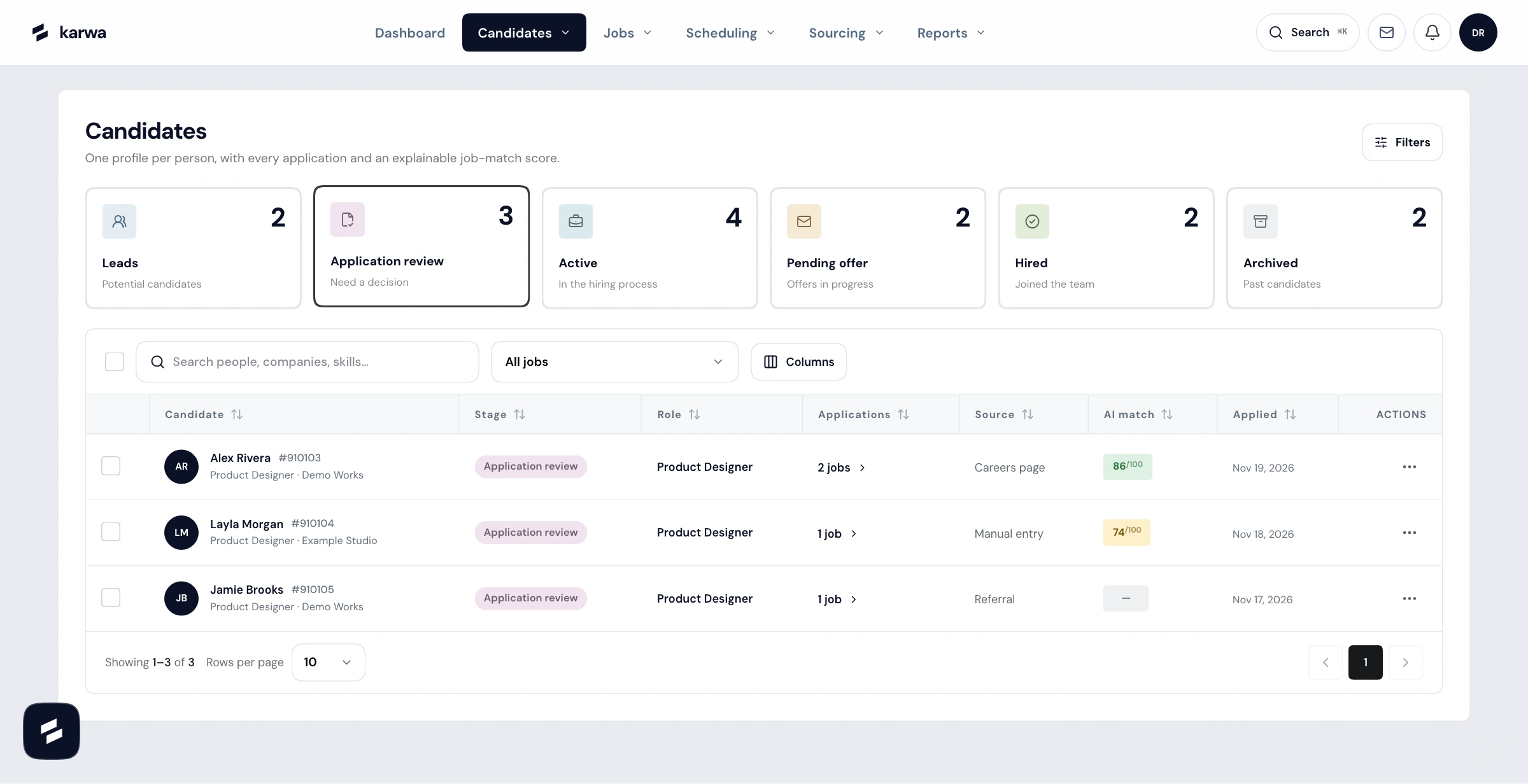
Open Application review for new applications awaiting review. Each row has one Stage badge. Request delivery details and Resend are not extra badges under the stage. Use the row's Actions menu for available next steps.
Active
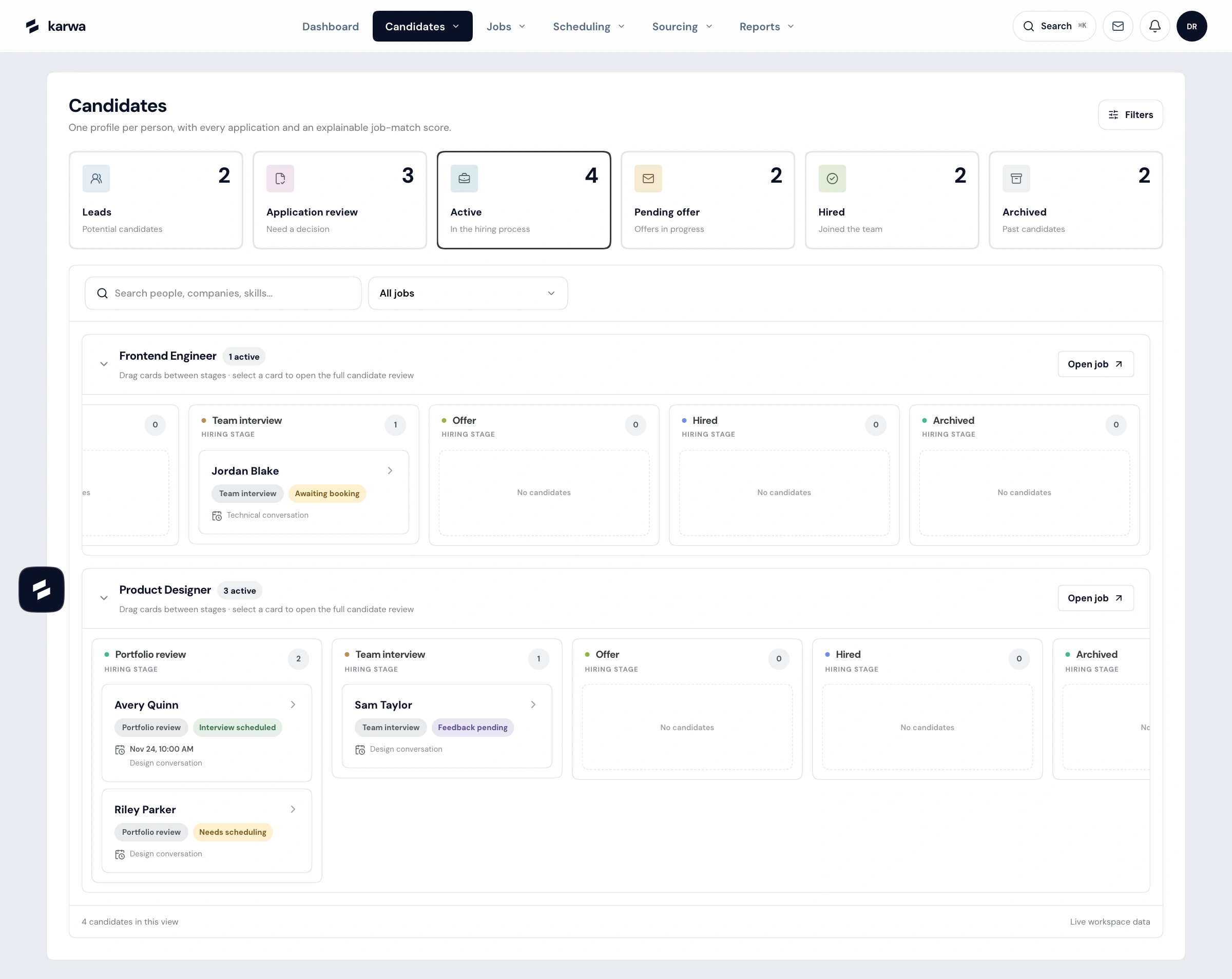
Open Active to see active applications on a board grouped by job. Expand a job heading to view all configured stages, including leads, application review, interviews, offers, hired, and archived. The cards shown belong to the Active queue; other stages remain available as drop targets. Use Open job to open that job's pipeline, or select a candidate card to open their full review. Stage names and order follow the job's configured process.
Cards can show an interview status, date, and title when available. These are interview details within the application's hiring stage. A completed interview does not itself mark the application hired. Columns have their own counts. When a stage has more cards than the compact view shows, use its show-more control; scroll horizontally to see additional columns.
To change stages, drag a candidate card directly to another stage in the same job. Move the pointer near the board's left or right edge while dragging to scroll to more stages. There is no selection checkbox or bulk-action picker in Active. Stage movement requires candidate-management permission, and cards cannot be dropped into another job.
Moving backwards opens Move candidate back?. Confirm Move candidate, or Cancel without changing the application. Later-stage interviews may be cancelled. Dropping into Archived opens the existing archive drawer: review pending activities, choose an archive reason, and confirm Archive candidate. Archiving also requires archive permission. Required interviews, reviews, and other server checks still apply; if a move fails, the card stays in its current stage.
A successful move updates the application and records the move. Moving into leads, application review, pending offer, hired, or archived removes the card from Active and updates its status-card count. Open the corresponding tab to find it.
Pending offer
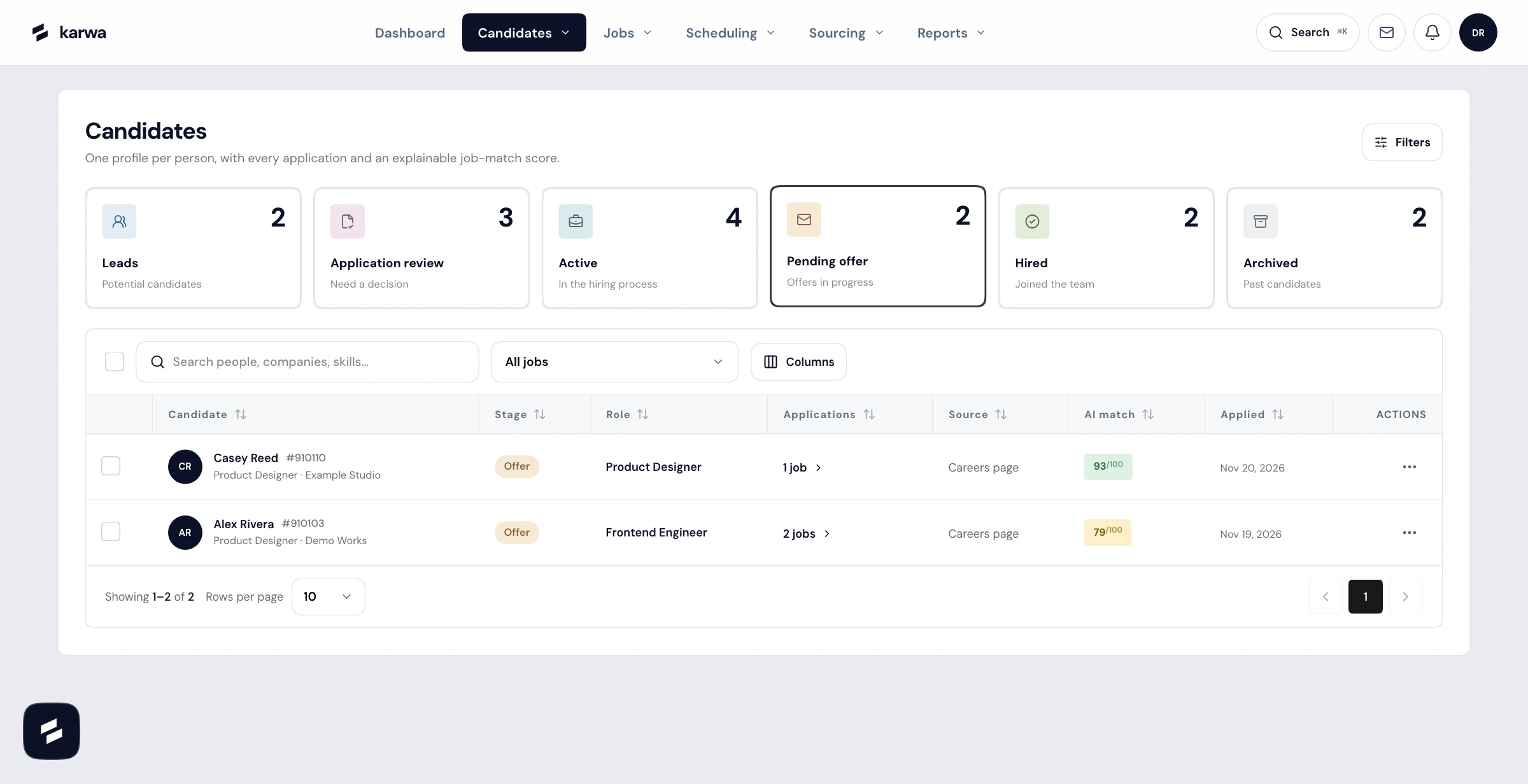
Open Pending offer for applications in offer stages. Review the actual offer record to confirm whether it is a draft, sent, accepted, or otherwise needs attention. Selecting this tab does not create an offer.
Hired
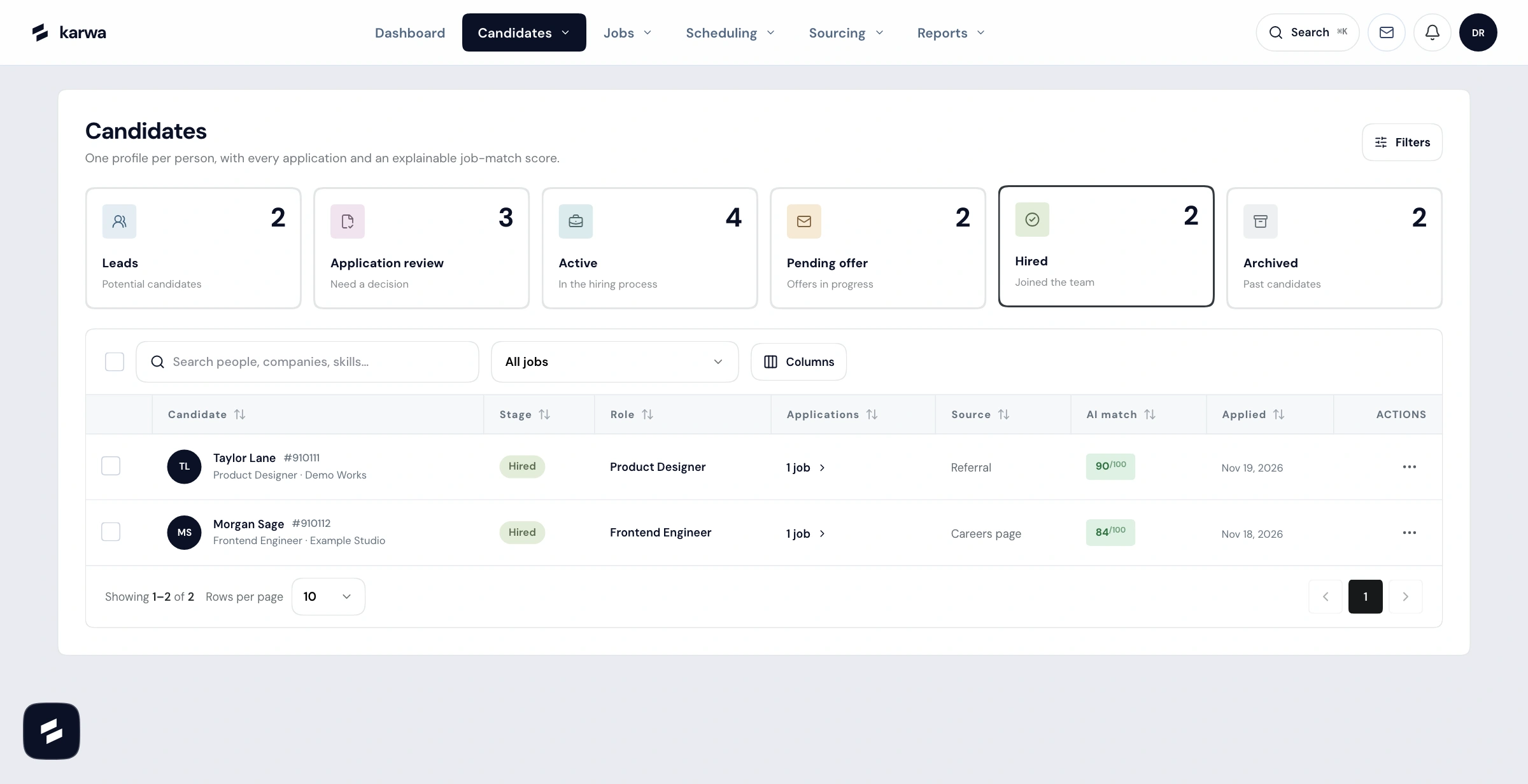
Open Hired for applications your team has marked hired. A candidate hired for one job can still have separate applications for other jobs with different statuses.
Archived
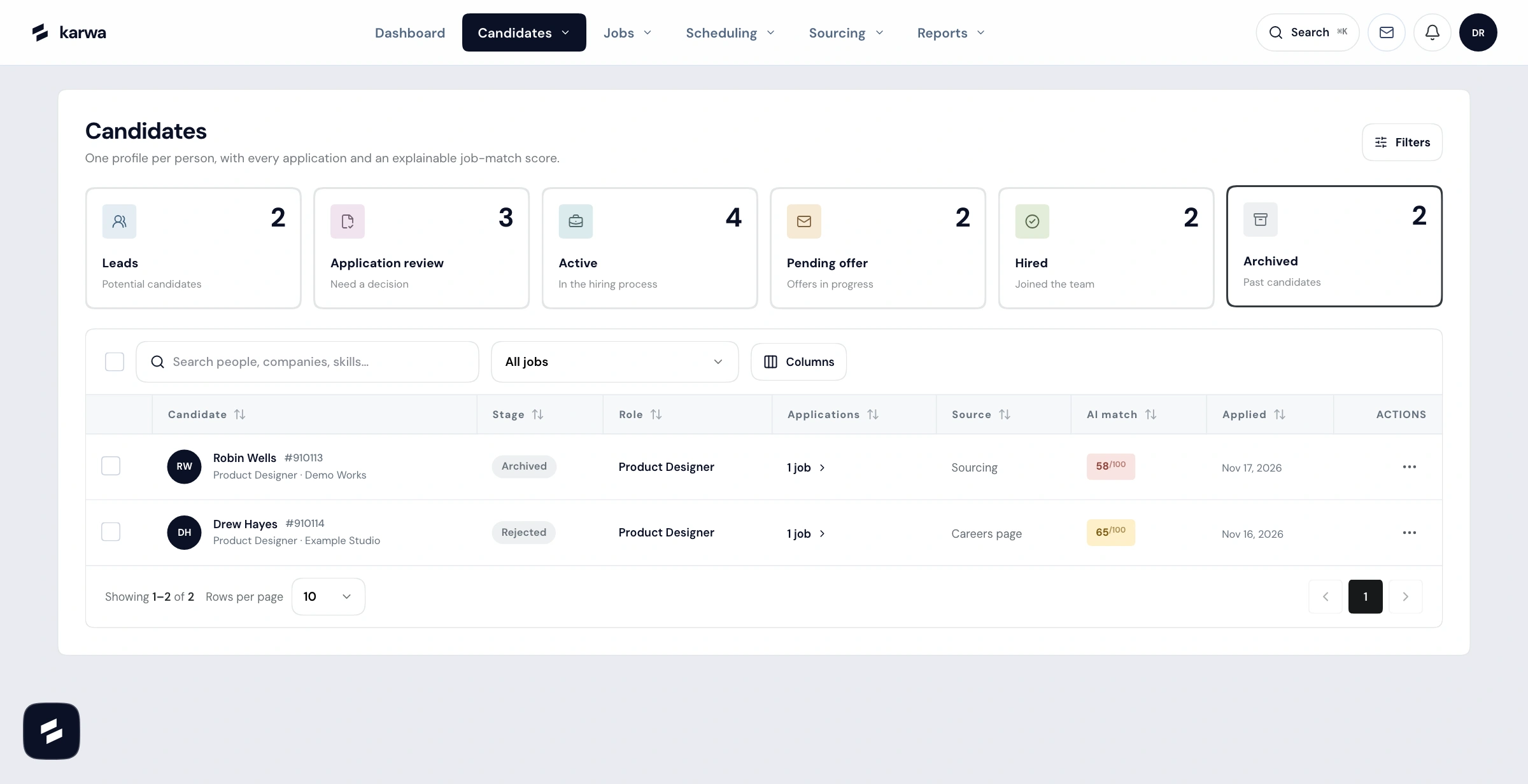
Open Archived for archived and rejected applications. Read the earlier decision before reconsidering or contacting a candidate. See Add a candidate for what happens when the same person is submitted for a role again.
Read the table
| Column | What it shows |
|---|---|
| Candidate | The person's name and workspace reference, with their current title, company, or email when available. Select the name to open details. |
| Stage | The current hiring stage of this particular application. |
| Role | The job associated with this row. |
| Applications | The number of jobs linked to the person. Select it to inspect their applications. |
| Source | Where this application came from, such as a careers page, referral, sourcing, or manual entry. |
| AI match | The saved assessment for this application and role, out of 100. A dash means no score is available. See Use AI-assisted screening. |
| Applied | When the application record was created. |
| Actions | The ellipsis menu for the row's available actions. |
The initial list order is newest application first. Each table tab has its own Columns preferences. Use Columns to choose visible table columns. Select a sortable column heading to change table order. Rows per page and the page arrows control the visible page; scroll horizontally on smaller screens to reach the right-hand columns. Active uses the board instead of the table.
Actions and resending a request
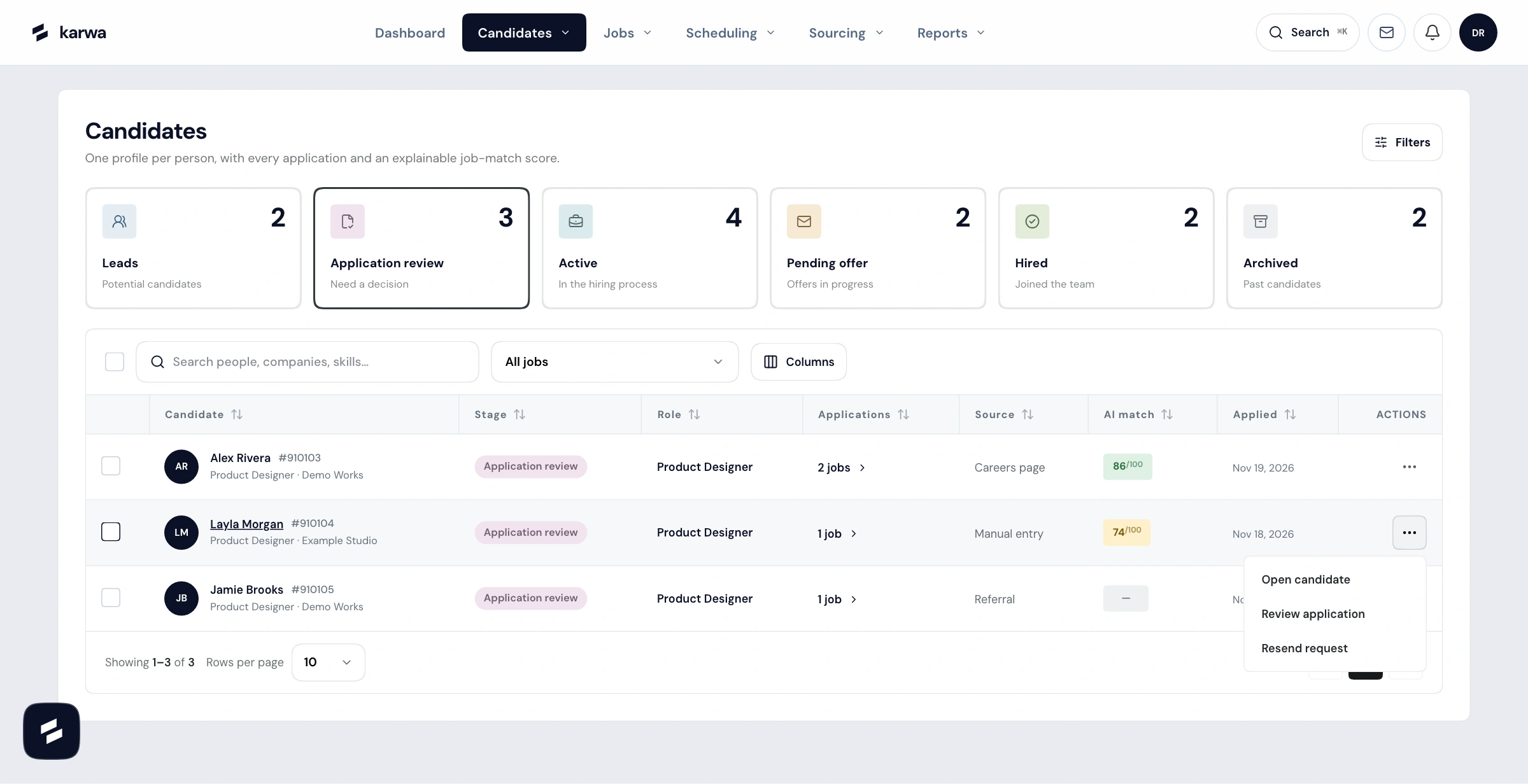
- Open candidate opens the person's details and application context.
- Review application is offered in Application review and opens the full review workspace for that application.
- Resend request is available for a candidate completion request that has not been completed or declined and has fewer than three recorded resends. Some applications have no completion request, so this action is absent.
Choose Resend request, then review the candidate and role in Resend candidate request?. Select Cancel to leave without sending, or Resend request to confirm. Opening the menu or dialog does not send the email. The confirmation is disabled while sending to prevent repeated submissions. Resending uses the candidate's stored email address; check contact details before confirming.
Select applications and apply bulk actions
In the table tabs (Leads, Application review, Pending offer, Hired, and Archived), if your role permits it, select row checkboxes or the selection control above the results. Active uses direct drag and drop instead of selection controls. Changing the tab, submitting a search, or changing a page filter clears the current selection. The top control selects up to 100 matching applications, rather than every application in the workspace. A person with several applications can be selected more than once through separate rows.
Available actions depend on permissions and context: Move stage, Add tag, Add to pool, and Send email. Move stage is offered when a specific job is selected and stages are available. Choose the action and its value, then Apply. Use Clear to remove the selection.
For email, choose a template and select Review email. Inspect the recipients, subjects, bodies, and any warnings before confirming Send to…. Where offered, explicitly choose to skip unavailable recipients. Review partial failures in the app notification; do not assume every selected application succeeded.
Counts, filters, and empty results
Status cards count applications for the selected job and returned candidate search. Basic filters such as AI score, source, applied date, or interview status narrow the visible results without recalculating every status-card total. A card can therefore show a count while the current table or board is empty.
When results are missing, check the selected tab, All jobs, the search box, and Filters. Switching tabs retains filters. A selection of Strong · 80+ will hide an unscored or lower-scoring application even if its status card has a count. Follow Search, filter, and revisit candidates for every filter, saved searches, and reset behavior.
Why the same person appears in different tabs
In the screenshots, Alex Rivera has an application in Application review for Product Designer and another in Pending offer for Frontend Engineer. The Applications column shows 2 jobs. This is one person with two independent applications, not two copies of the same application. Always check the row's Role before opening a review, sending email or changing a stage.
Use this page with Ask Karwa
Ask Karwa uses this same guide to explain the Candidates page. Try “What is the difference between Leads and Application review?”, “Why is Active a board?”, “What does Pending offer mean?”, “Why can the count be different from the table?” or “How do I resend a candidate request?”
For current workspace facts, Ask Karwa must use authorized candidate reads such as candidates_summary or candidate_counts, with the requested job, status group and filters. It must distinguish unique people from applications and use the full returned totals rather than counting a short preview. The example names and counts in these screenshots are not your live records. A missing or inaccessible result is not a confirmed zero.
Asking what a tab means, opening a tab, or reading an action description does not authorize a stage move, archive, resend or email. Supported changes still need their existing action review and the appropriate permissions. Candidate profile tabs such as Progress, Activity and Resume are separate from these six status queues; use the candidate profile guide for those controls.
Related guides
Continue with Review incoming applications, Add a candidate, Use AI-assisted screening, or Roles & permissions.
Pipeline inside a job
Open a job's Candidate Pipeline to focus on that role. See Job workspace for the job-specific queue screenshot, filters, dashboard metrics and settings. Configure the stage process through Interview plans, and candidate-facing applications through Job postings.
For cross-job interview work, open Scheduling → Interviews. Selecting an interview opens this job's pipeline with the relevant candidate and Activity selected when you have candidate access. Review the interview title and date before acting; opening the row does not join a meeting, send a message or submit feedback. Assigned participants without full candidate access can instead receive a restricted interview briefing.
Work inside one candidate profile
Open a candidate from the pipeline to use the candidate profile. Follow the separate guides for Progress and stage moves, Activity and its New menu, and notes, emails and follow-ups.
Activities added inside a candidate profile belong to that application. Activities added to the job's Interview Plan follow the plan's current/future coverage and trigger rules. Changing one candidate's task does not edit the plan for everyone.