Loading documentation
Open Interview plans under Interviews & scheduling in workspace settings. A plan defines the stages candidates move through when hiring for a job. Use this library to create a shared starting pipeline or a custom plan for one job. The job's own Interview plan page is where you configure detailed activities, interview scheduling, feedback, and candidate-specific work.
Find a plan
The list shows Plan, Type, Status, Jobs using, Candidates, Stages, and Updated. A plan name also shows its editable stage count and version. Search by plan name, type, or stage name; sort columns; or filter Type to Shared or Custom and Status to Draft, Published, or Archived. Select a plan name or Edit in its row actions to open it. Delete is also in the row actions and requires confirmation.
Jobs using counts jobs whose configuration points to that plan. The list's current Candidates value is not a live count of people in each plan; inspect the job pipeline for candidate counts. Published is the active status used for job selection. Draft and archived plans remain in this library but are not offered when creating a job.
Create and publish a plan
- Select Add interview plan. In Basic info, use Start from to choose Blank plan, Template library or Existing plan, or use the separate Create with AI button in the heading.
- For a library template, choose one of its suggested stage structures. For an existing plan, choose the source plan; this copies its editable stages into a new draft, without its configured activities. A blank plan starts empty. AI offers suggested starting stage structures for you to review.
- Enter a clear Plan name, then choose Shared plan for reuse across jobs or Custom job plan for a plan intended for one job.
- Optionally choose Team access departments and Default for team. No team selection means all teams in this form. The default department marks the plan Recommended for that department on the new-job form. At present, the new-job picker does not filter plans by the Team access selection, so do not treat it as an access permission.
- Under Interview stages, select Add stage for every editable step. Name it, choose its type, and use the up/down controls to set the order. You can add an internal description, a Days to decide target, or mark the stage Optional. Select Remove to discard an unwanted stage before saving.
- Select Save plan. A new plan is saved as Draft. Open it from the list, change Status to Published, and select Save changes so it can be chosen for a new job.
Add at least one named editable stage. Names reserved for system stages cannot be used for your own stage. Days to decide must be a whole number from 1 to 3,650 when entered. The editor offers stage types Interview, Assessment, Check, Decision, and Closed. Karwa adds New Lead, Application Review, Offer, Hired, and Archived system stages automatically; do not recreate them. A published plan needs at least one active editable stage, not only a Closed stage. The name field allows up to 200 characters in the editor, while the save API accepts at most 160, so keep the name within 160 characters.
Use AI as a starting point
Choose Create with AI, describe the role under What are you hiring for?, and select Generate draft. Karwa uses the company profile, active Memory, departments, and hiring locations as context. Select one of the suggested plans and edit its name and stages before saving. If AI generation is unavailable, Karwa can return local template suggestions instead. Generation requires a current paid workspace, available AI credits, and permission to manage jobs; successful AI generation consumes credits. A suggestion fills the editor but does not save or publish a plan.
Attach a published plan to a job
Go to Create job. After job information, open Select interview plan, search or review the listed stages, and select one published plan. The plan marked Recommended matches the job's department default. A job needs an active plan before creation. A custom plan already attached to another job cannot be reused for a new job. You can return to this library with Manage interview plans or create a plan from the job form; publish a new draft before returning to select it.
You can also choose an active plan in a Job template. When that template fills a new job form, review the selected plan and choose an active one if the saved plan is no longer available.
After creating the job, open that job from Jobs and select its Interview plan tab. Add or edit job stages and activities there, then Save plan. Saving changes to a shared plan from the job editor creates a job-specific copy, so the shared starting plan remains reusable. Later edits to a shared plan can affect jobs still directly using it; check Jobs using before changing a published shared plan. The job editor protects system stages and checks before removing a stage that contains activities or candidates.
Configure the job's activities
In the job's Interview plan, select a stage and Add activity to build the actual work for that job. Use Schedule interview for interview invitations and interviewer assignment; the Interview defaults, Interviewer briefing, Interviewer pools, Scheduling defaults, and Meeting room pools pages provide reusable scheduling and interviewer settings.
Use a Questionnaire for candidate follow-up questions, a Take-home assignment for candidate work, and Feedback forms to collect structured interviewer feedback. A Send email activity can use an Email template. The Assessment option currently shows Coming soon in the activity picker; enabled integrations do not by themselves make every activity available. An E-signature activity uses a PDF from Signing documents, and the system Offer stage can create a private offer draft using Offer letter templates. Configure each activity's delivery, assignees, and triggers in the job editor and save the job plan. Creating a library plan alone does not send invitations or attach any of these resources to candidates.
As candidates apply or enter a stage, their job pipeline and candidate profile show the relevant stages and activities. Move candidates through the job's pipeline and check their activity cards for pending work, delivery, feedback, and results. See Plan and schedule interviews for interviewing practice.
Edit, archive, or delete
Open a plan and use Plan details to change its name, status, type, team selection, or default department. Use Interview stages to add, remove, rename, or reorder editable stages. Select Save changes to record a new version. Use the back or close controls and review any unsaved-changes prompt before leaving. The Current plan starting point resets the draft; choosing a template, existing plan, or AI suggestion can replace the editor's unsaved name and stages, so review before saving.
To stop offering a plan for new jobs, change Status to Archived and save. Set it back to Published if it should be selectable again. Archiving does not delete jobs or candidate records already associated with it. Use Delete only for a plan that has never been attached to a job. Deletion permanently removes the plan and its version history, requires Delete jobs permission in addition to Manage jobs, and cannot be used once a job references the plan. Archive an attached plan instead.
Create interview plan: the two tabs
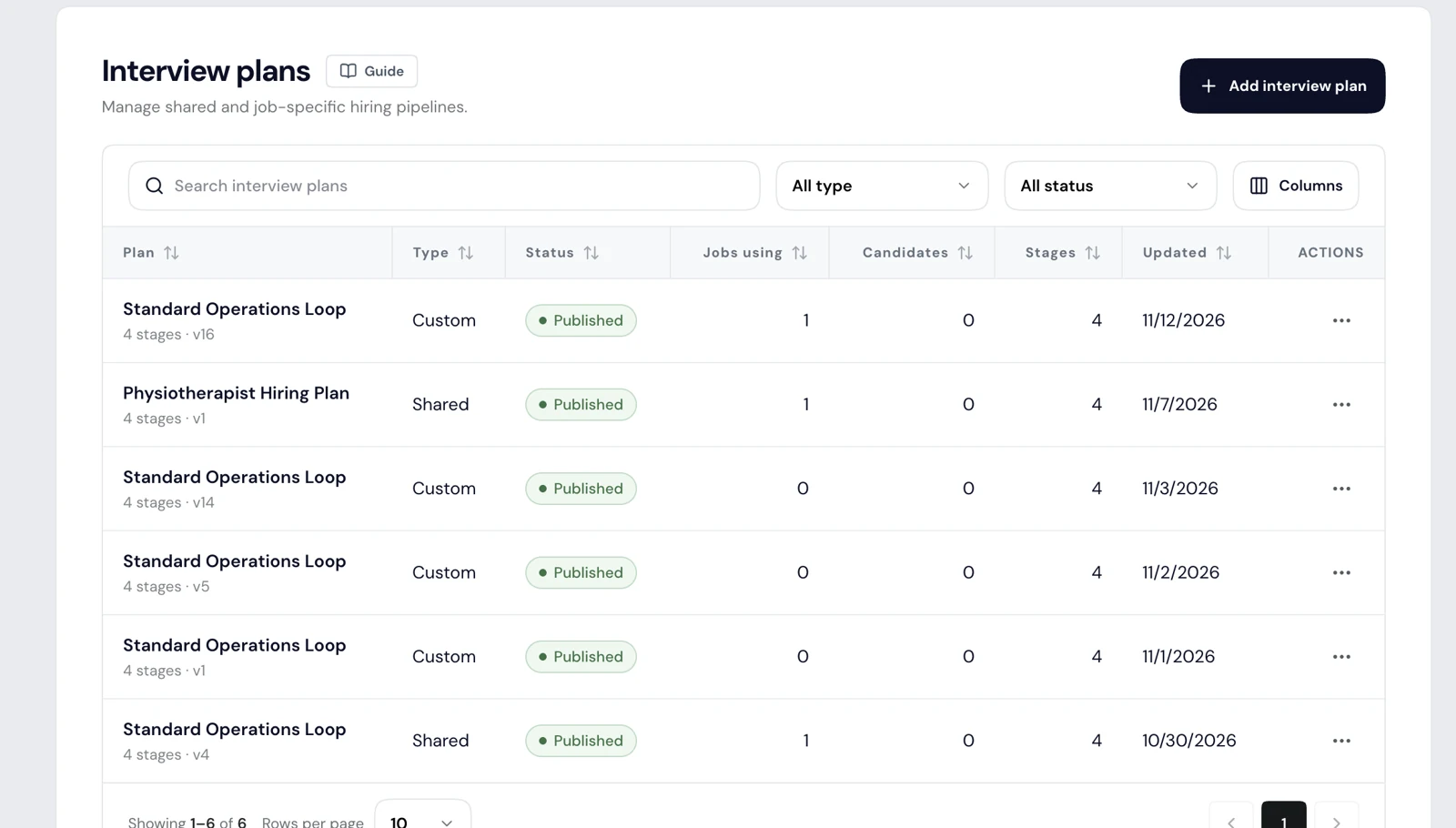
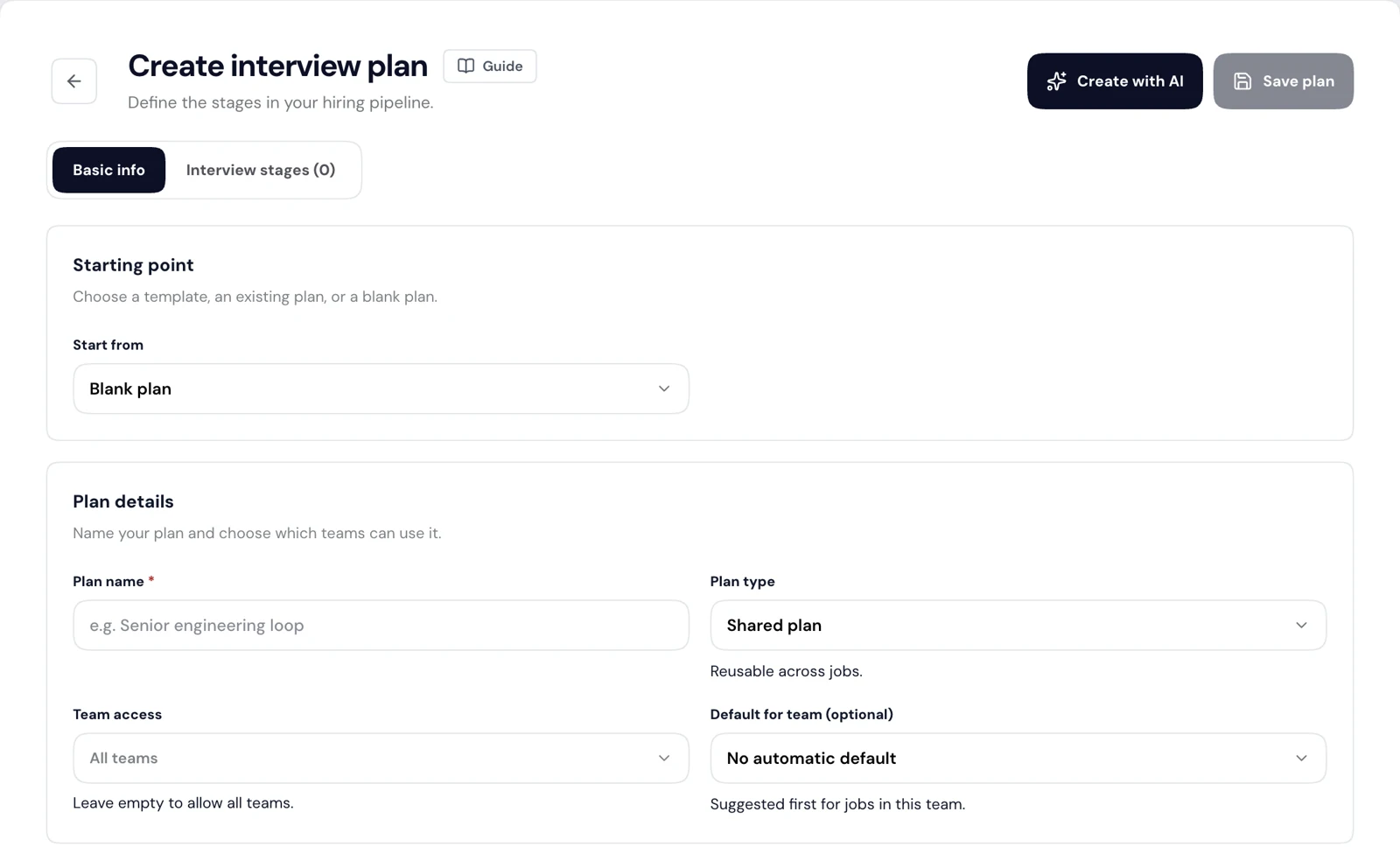
Open Create interview plan directly or select Add interview plan in the library. Basic info holds the starting point, name, plan type, Team access and Default for team. Interview stages holds the ordered editable stages. Create with AI is a separate button in the heading, rather than an item inside Start from.
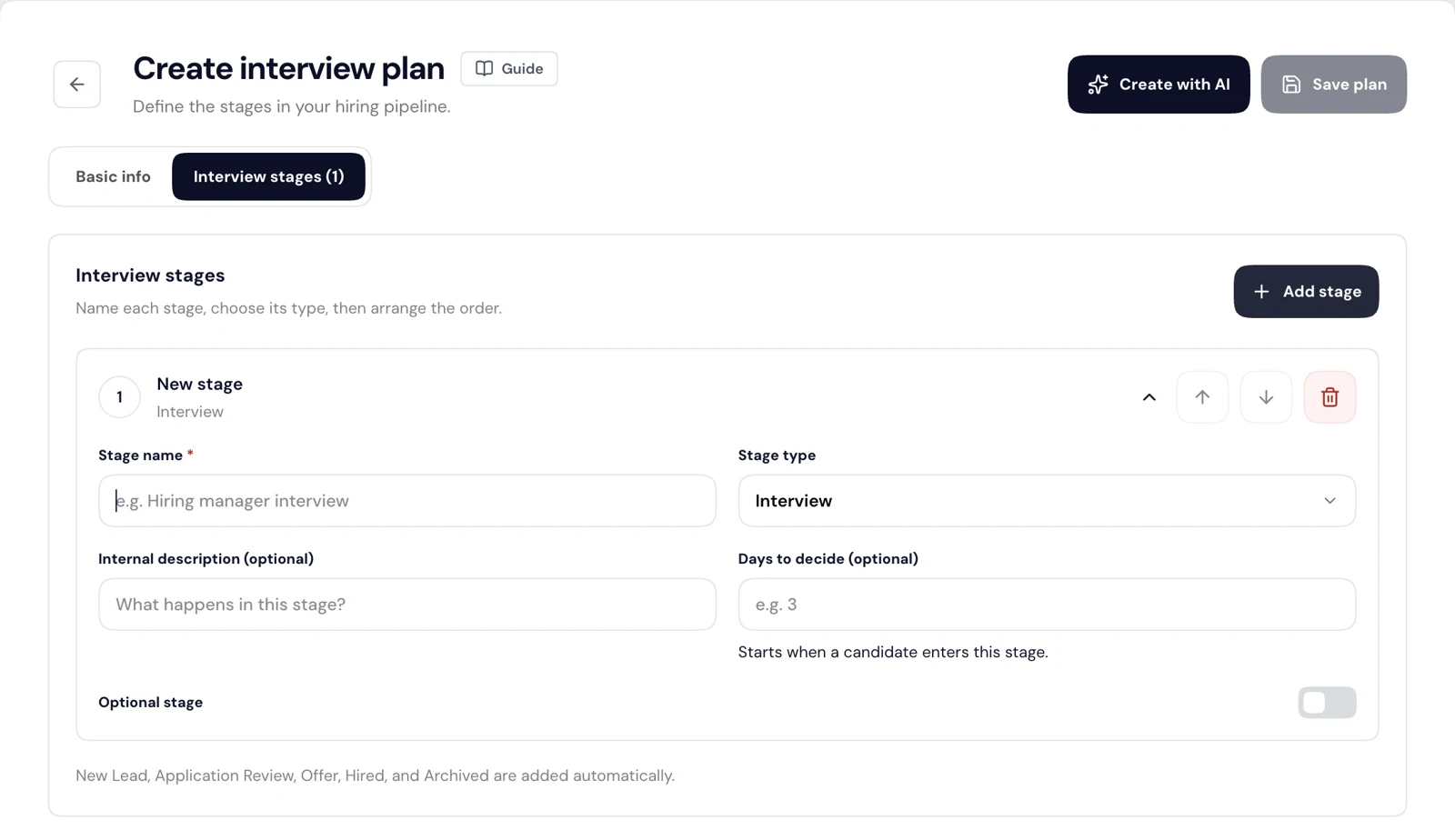
The screenshot shows one unsaved blank stage, not a published plan. Expand a stage to edit it. Days to decide starts when a candidate enters that stage; it is an internal target, not a guaranteed employer response date. Optional stage describes the process; it does not override a required activity check. Use the arrows to reorder and the trash control to remove an unsaved stage. Save plan needs a name and valid stages, then creates a Draft; open that draft, set Status to Published and save before selecting it for a job.
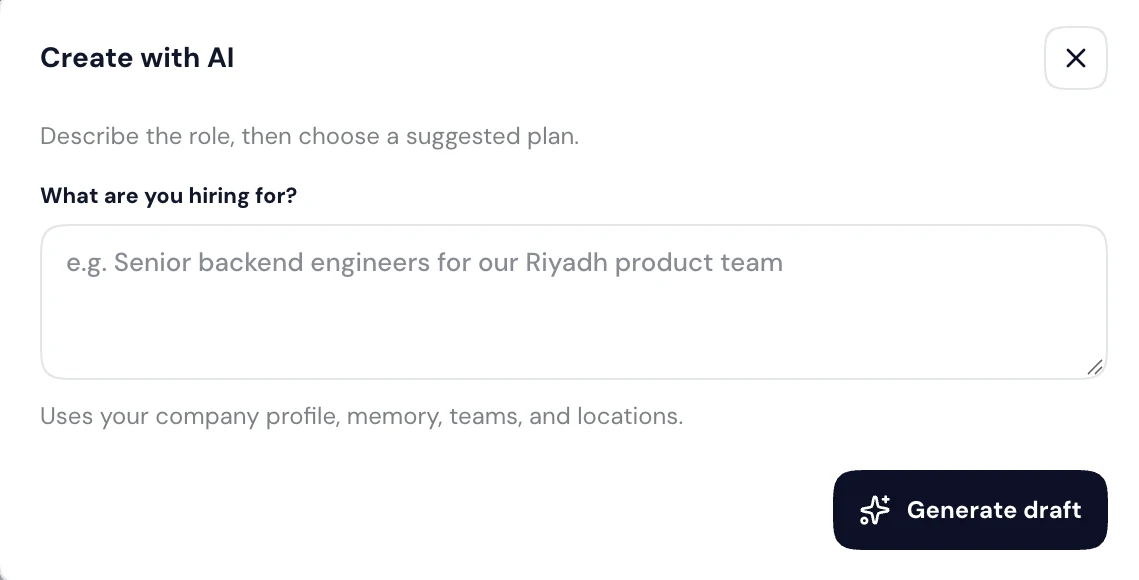
The AI dialog collects a role brief and returns proposed starting structures when generation is available. Check the displayed credit terms before generating. Choosing a suggestion fills an editable draft; it neither publishes a plan nor sends candidate communications. Keep private applicant data out of reusable plan names and role briefs.
Job Interview Plan: stages, owners and activities
Reviewed November 22, 2026. The job-level screenshots use fictional data in the actual interface. Nothing was saved or sent for these examples.
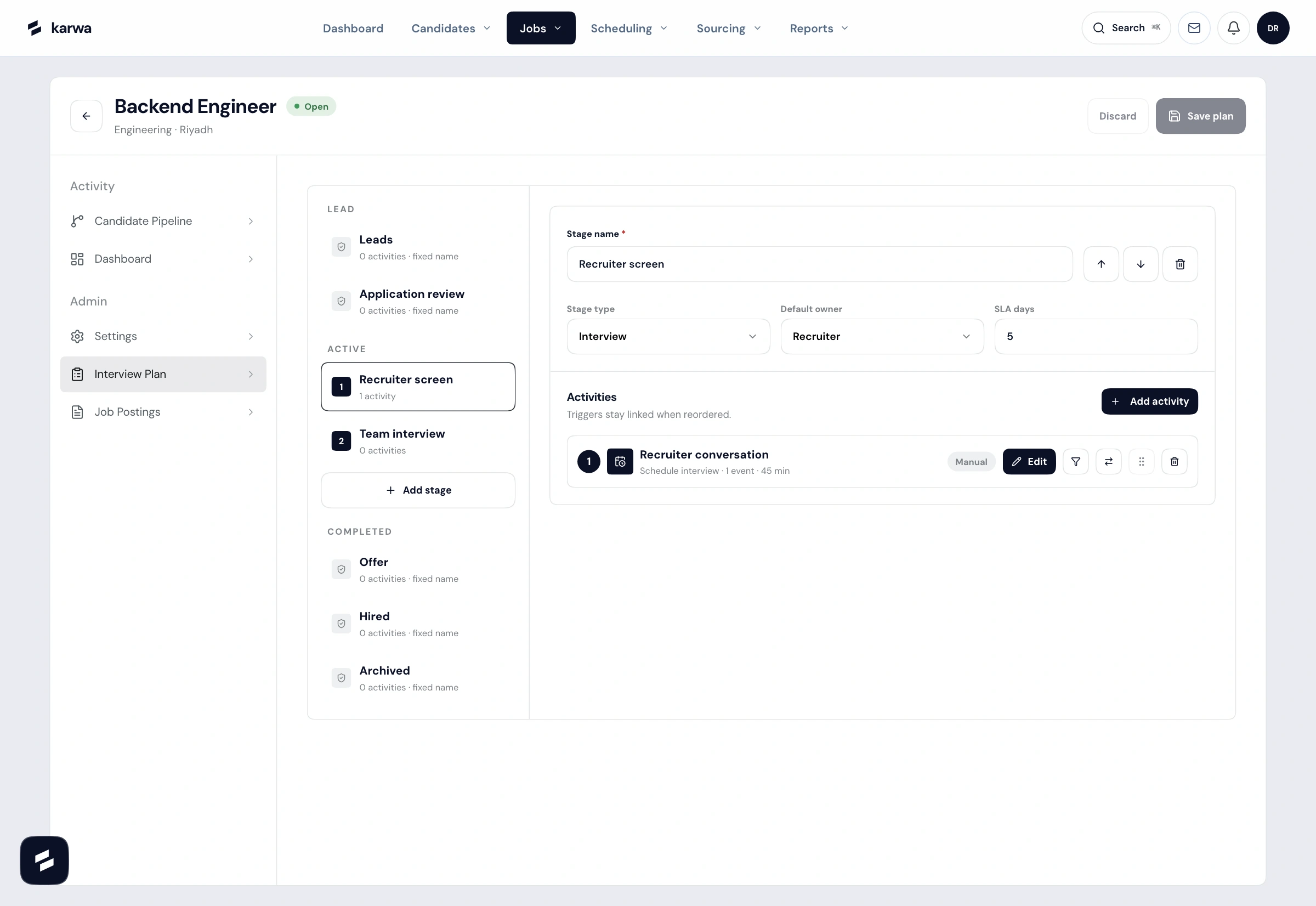
Open the job's Interview Plan page from its left navigation, or Settings → Interview plan → Edit stages and timing. This page configures that job's actual work. Select a stage in the left column to see its fields and activities. The stage selected in a shared URL is simply the stage to inspect; opening the URL does not move candidates.
Editable stages offer Stage name, Stage type, Default owner and SLA days, together with add, reorder and delete controls. Default ownership can resolve through a job responsibility such as Recruiter. If the responsibility is unassigned, follow the hiring-team setup link, save the assignment and return. Individual activity ownership can inherit the stage or use an available alternative. A named owner does not grant permissions that person otherwise lacks.
System stages are protected. Removing a stage or activity can be blocked by existing candidates, activities or dependent triggers; resolve the dependency first. Moving an activity changes its order or stage and may invalidate an “after activity” dependency. Review the resulting trigger chain before saving. Discard restores the last saved job plan. Save plan persists validated changes; editing a shared plan here creates a job-specific copy. An unsaved editor is not the running configuration.
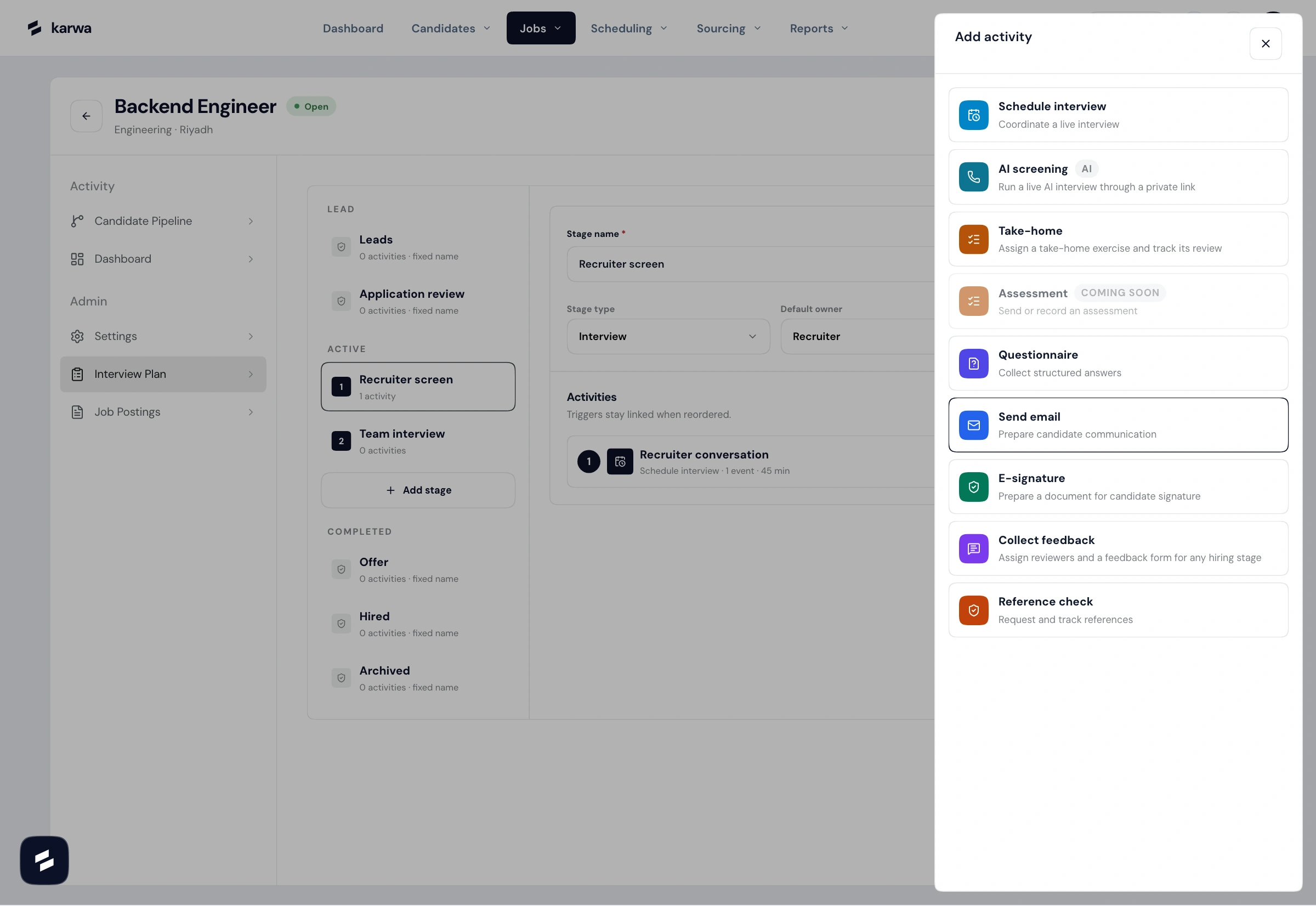
Choose Add activity for the selected stage. Availability depends on the stage, permissions, enabled integrations and subscription. The current catalog includes:
| Activity | What to configure and verify |
|---|---|
| Schedule interview | Interview name, duration, location or video provider, interviewers or pools, availability and booking rules, candidate messages, reminders and send timing. Check Schedule, Booking, Communication, Reminders and the separate Automation drawer. |
| AI screening | The available phone-call or shared interview-link screening flow. Review questions, disclosure, recording requirements, recipients and credits before enabling or sending. |
| Take-home | Template or task instructions, assets, response inputs, due time, delivery trigger, current/future coverage, reminders, late-submission policy, reviewers and any required-before-advancing rule. See Take-home assignments and Review submissions. |
| Assessment | Currently marked Coming soon in the picker. Do not assume every configured assessment integration can be added as an available stage activity. |
| Questionnaire | Saved questionnaire, candidate coverage, manual/stage-entry/after-activity delivery, prior-answer handling and candidate email. See Questionnaires. |
| Send email | Template or custom subject/body, sender, recipients, timing and any prerequisite activity. Check merge fields and rendered content before enabling. |
Review an activity's Required before advancing setting when offered. It is distinct from a stage being Optional. Required checks can prevent a candidate move until the configured work is resolved. A completed interview, submitted assignment, completed review and stage move are separate events.
Triggers, candidate coverage and sending
Some activities offer Current and future or Future candidates only. Choose deliberately: applying saved configuration to people already in a stage can create work for existing candidates. Delivery can be Manual, Stage entry, or After activity, depending on the activity. After-activity triggers must point to an appropriate earlier activity in that stage; some additionally require interview end, completed feedback or a qualifying rating.
Saving a library plan only stores the reusable structure. Saving a job plan can synchronize activities for the chosen coverage and make configured automation eligible to run. Entering a stage or completing a prerequisite can then create tasks, invitations or messages. Read the activity's timing and coverage before saving; do not assume “Save” is always free of workflow effects. Check the candidate's activity and delivery state afterwards. A queued request is not proof of delivery, completion or consent. Repeated sends need a current recruiting purpose and appropriate permissions.
For interviews, check calendar authorization, host/provider setup, time zones, interviewer availability, meeting rooms and booking rules. The Create new interview control within scheduling builds another event in that activity; it does not create another reusable library plan. Meeting organizers, assigned interviewers and the recorder can have separate roles. Recording needs the applicable notice and permission; a template, booking or plan selection is not recording consent. See Plan and schedule interviews.
Interview scheduling tabs
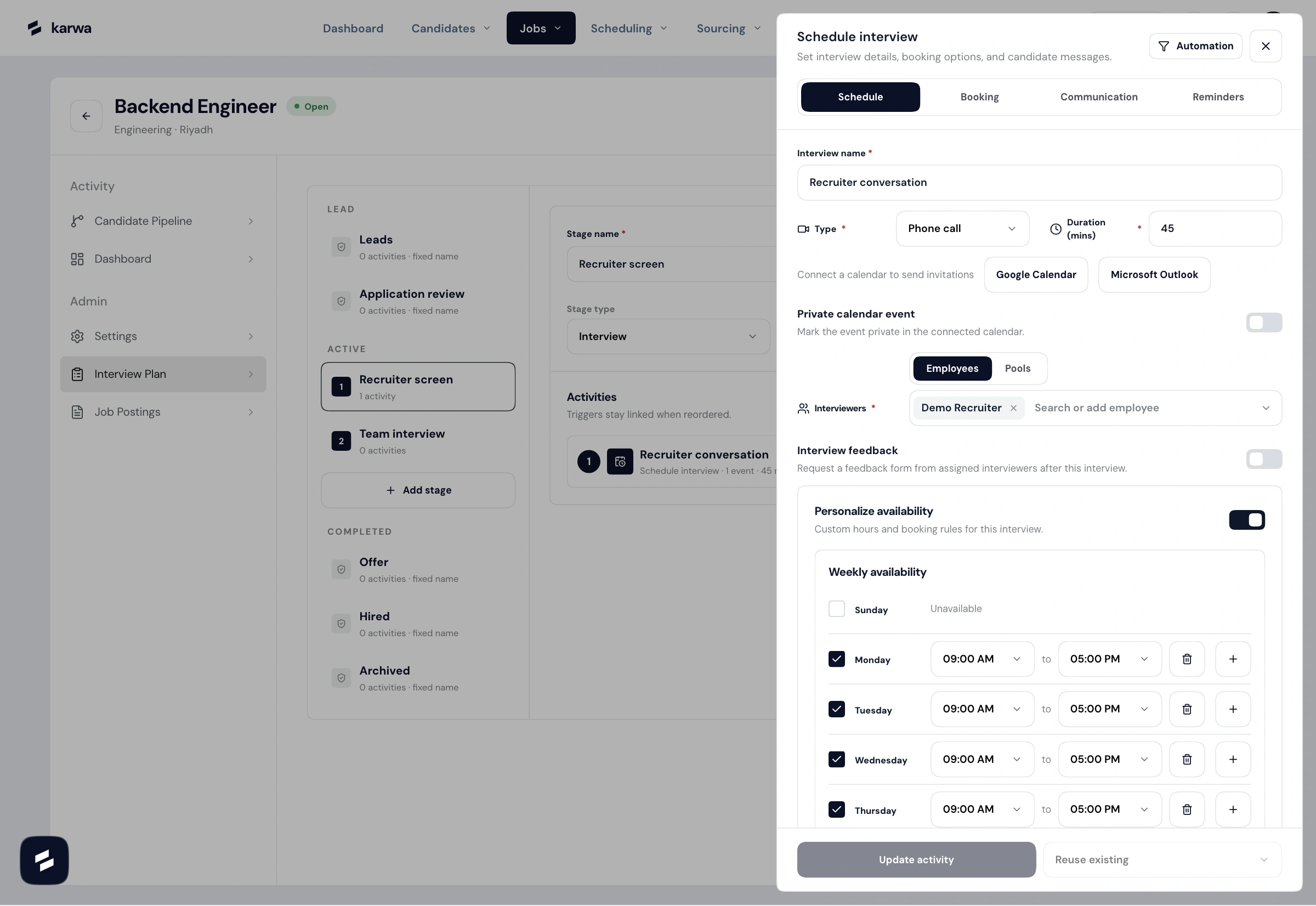
Schedule defines each event. Choose phone call, video or an available location, duration, interviewers or eligible pools, and feedback settings. A private calendar event requests privacy in the connected calendar; it does not hide the recruiting record from authorized reviewers or override the calendar provider's own behavior. Complete interviewer assignments before saving. Personalized availability uses the displayed weekly hours and booking rules rather than guaranteeing every listed slot is free.
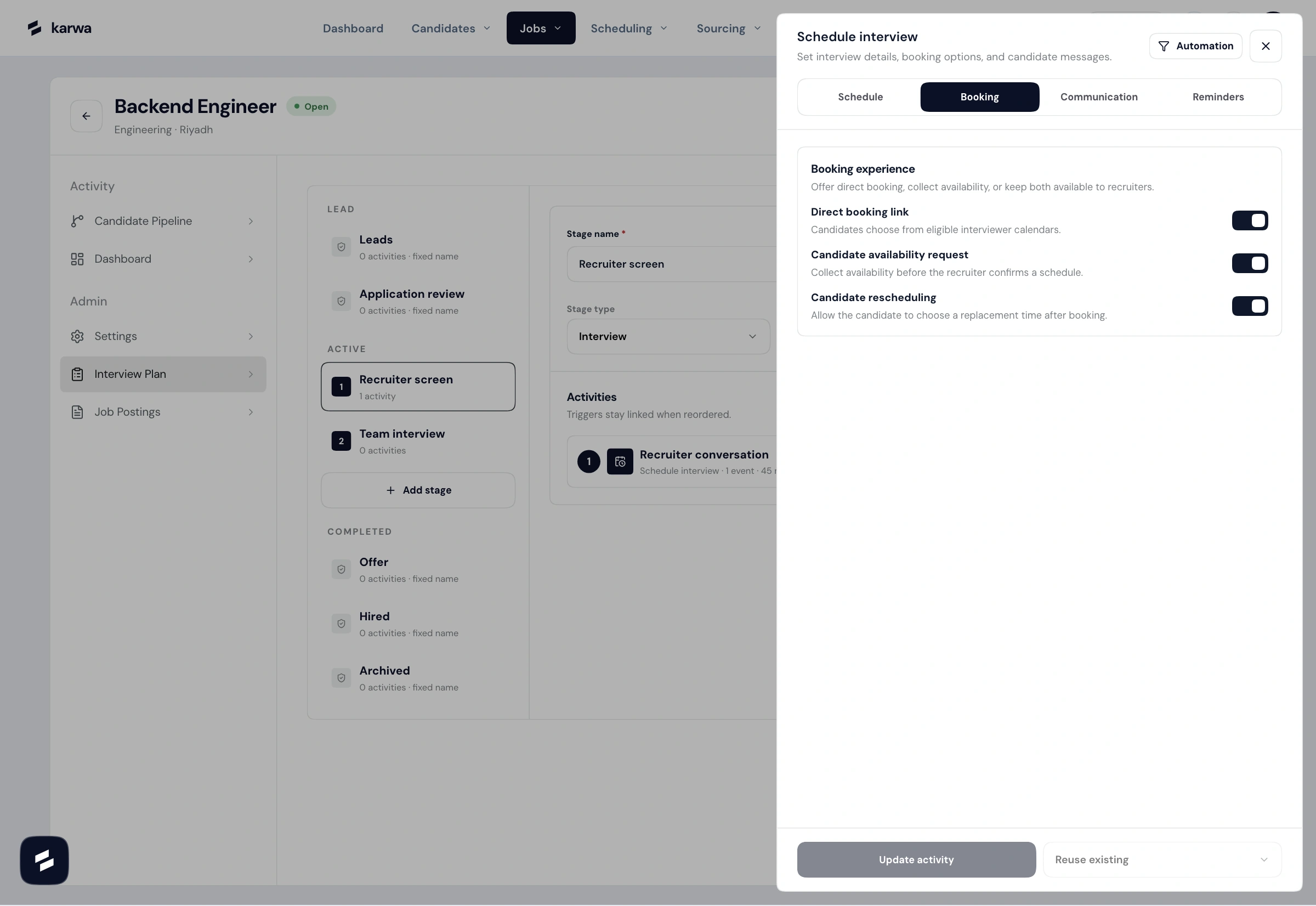
Booking controls direct booking, collection of candidate availability and candidate rescheduling. Direct booking presents eligible calendar slots. Collecting availability requires the recruiter to confirm the schedule; an availability response alone is not a booked meeting.
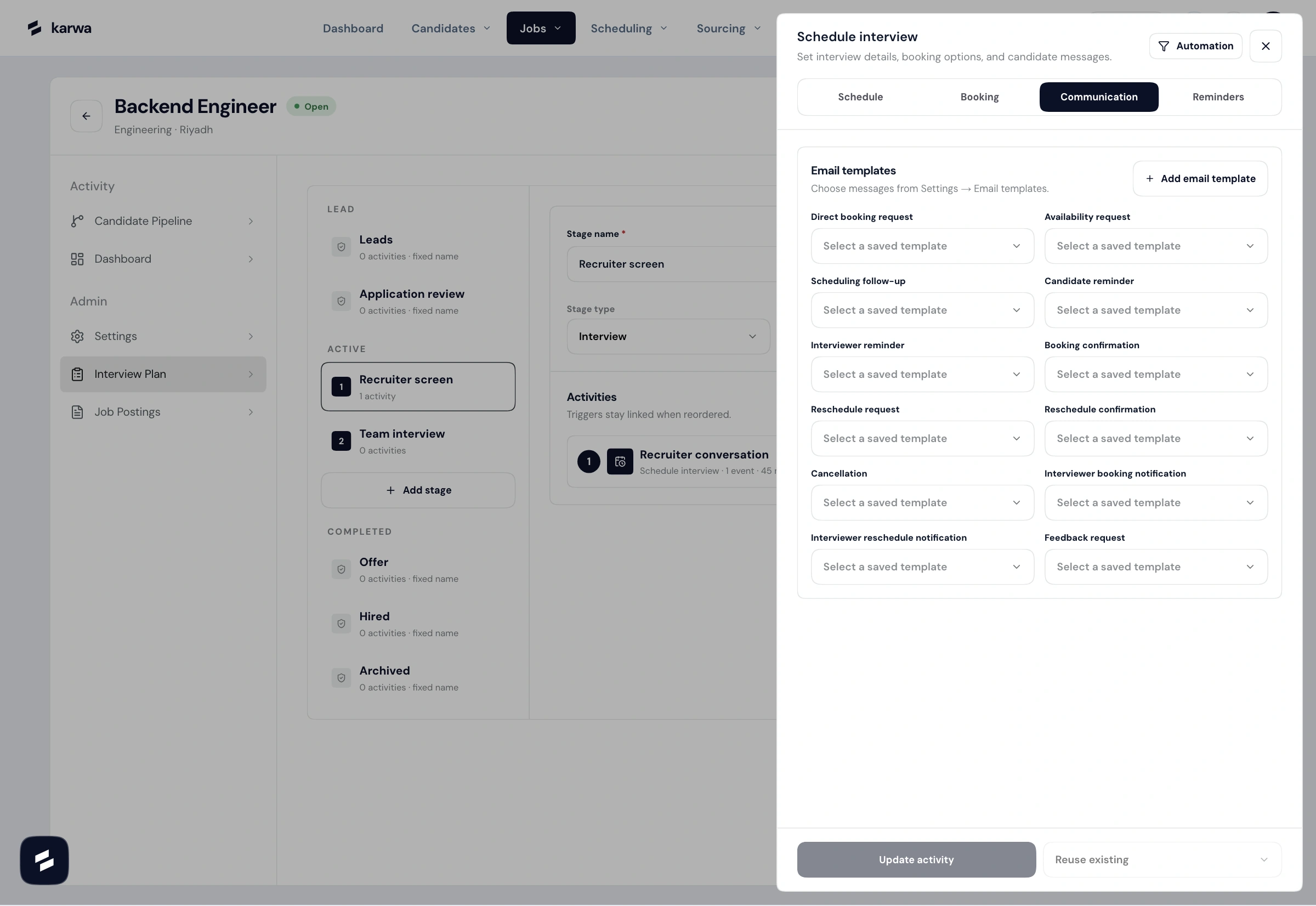
Communication selects templates for requests, follow-ups, reminders, confirmations, cancellations, interviewer notifications and feedback requests. Sending timing is under Automation. Add email template opens the reusable editor. Save the template, return, select it and inspect the applicable merge fields. Manual timing requires a separate candidate action; automatic timing depends on its configured trigger.
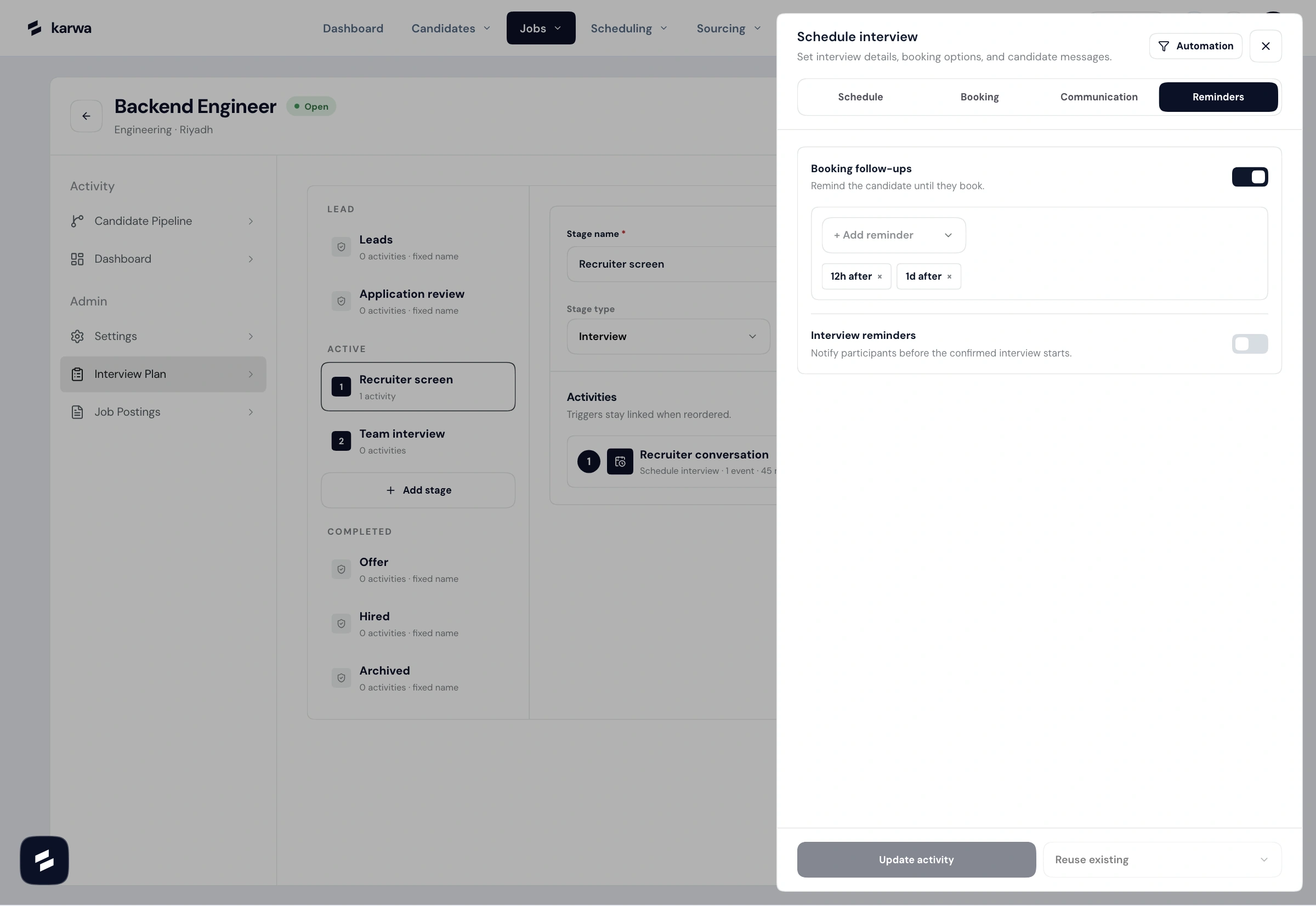
Reminders configures booking follow-ups and pre-interview reminders for candidates and interviewers. A displayed offset only applies when its control and workflow are enabled. Review recipients and timing before saving.
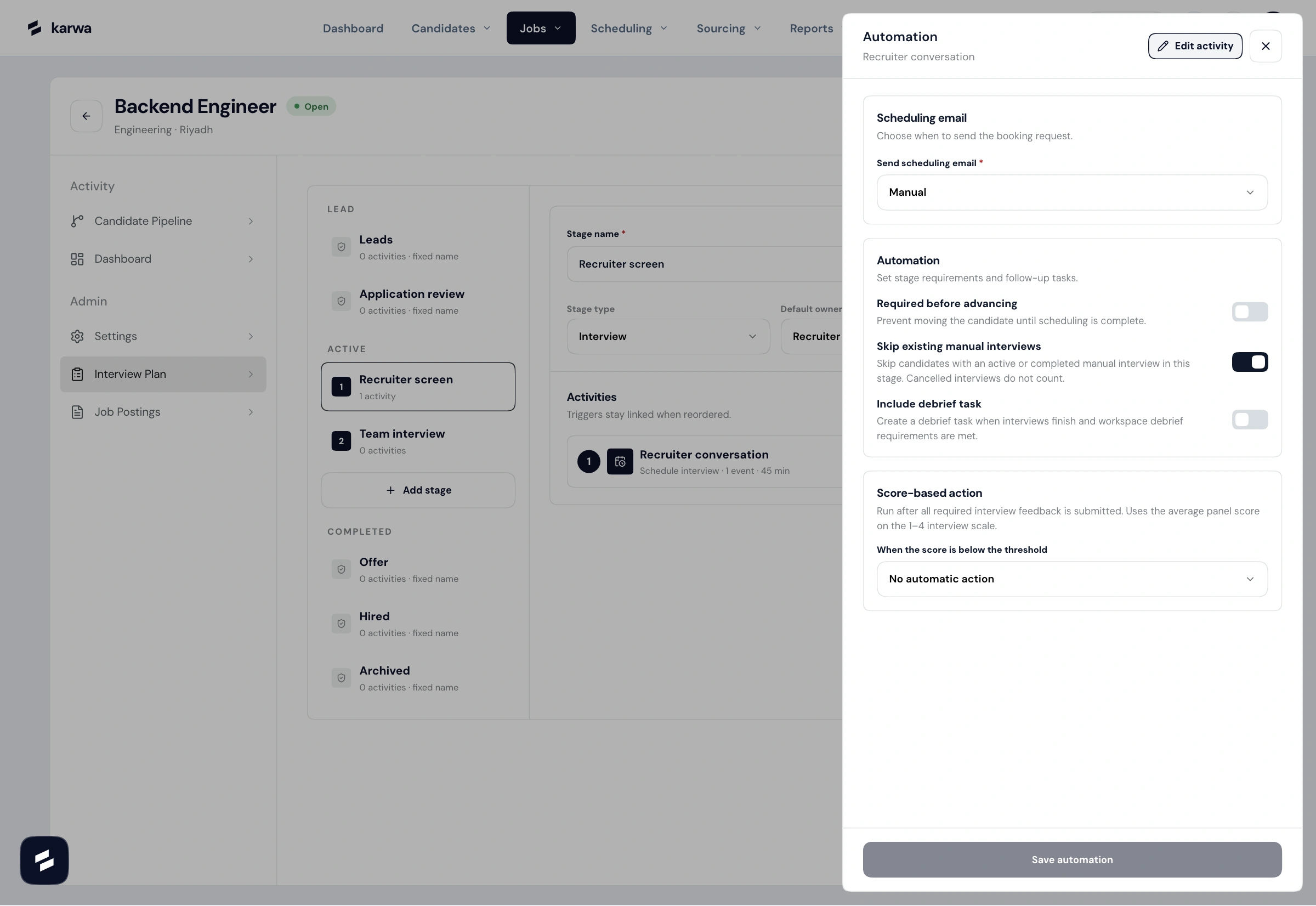
Open Automation for Send scheduling email (Automatic or Manual), the automatic Booking request, Required before advancing, Include debrief task and any score-based action. Required scheduling prevents advancement until scheduling is complete; it does not establish that every interview finished. Debrief tasks depend on interview completion and workspace debrief requirements. Save automation saves the current job plan.
Create and manage resources from activities
| Resource or link | Destination and return step |
|---|---|
| Create questionnaire / Question library | New questionnaire or Questions. Save the reusable questions and questionnaire, then return and select the intended questionnaire. |
| Manage feedback forms | Feedback forms. Create and save an active form, then select it and assign reviewers. See Feedback forms guide. |
| Take-home templates | Take-home assignments. Save a task template, return and review the copied task settings and assets. |
| Create new email / Edit template | Email templates. Choose the appropriate message type, save it, then select it and check merge fields and the message preview. |
| Manage offer templates | Offer letter templates. Save the intended template, return and review the offer activity. See . |
Many management links open a separate tab. Save each library resource there; return to the original job and select or refresh the intended resource after preserving unsaved activity changes. A newly saved template does not automatically prove the open activity uses its latest version. Inspect the selected record and effective settings before saving the job plan.
Stage-specific choices and activity editors
Create offer is available only in the fixed Offer stage. Offer and Hired allow Questionnaire, Send email, E-signature, Collect feedback and Reference check; Offer additionally allows Create offer. Archived accepts no new activities. Assessment remains marked Coming soon in the native catalog; a separately connected assessment integration can have its own entry. A stage type named Assessment does not enable a provider.
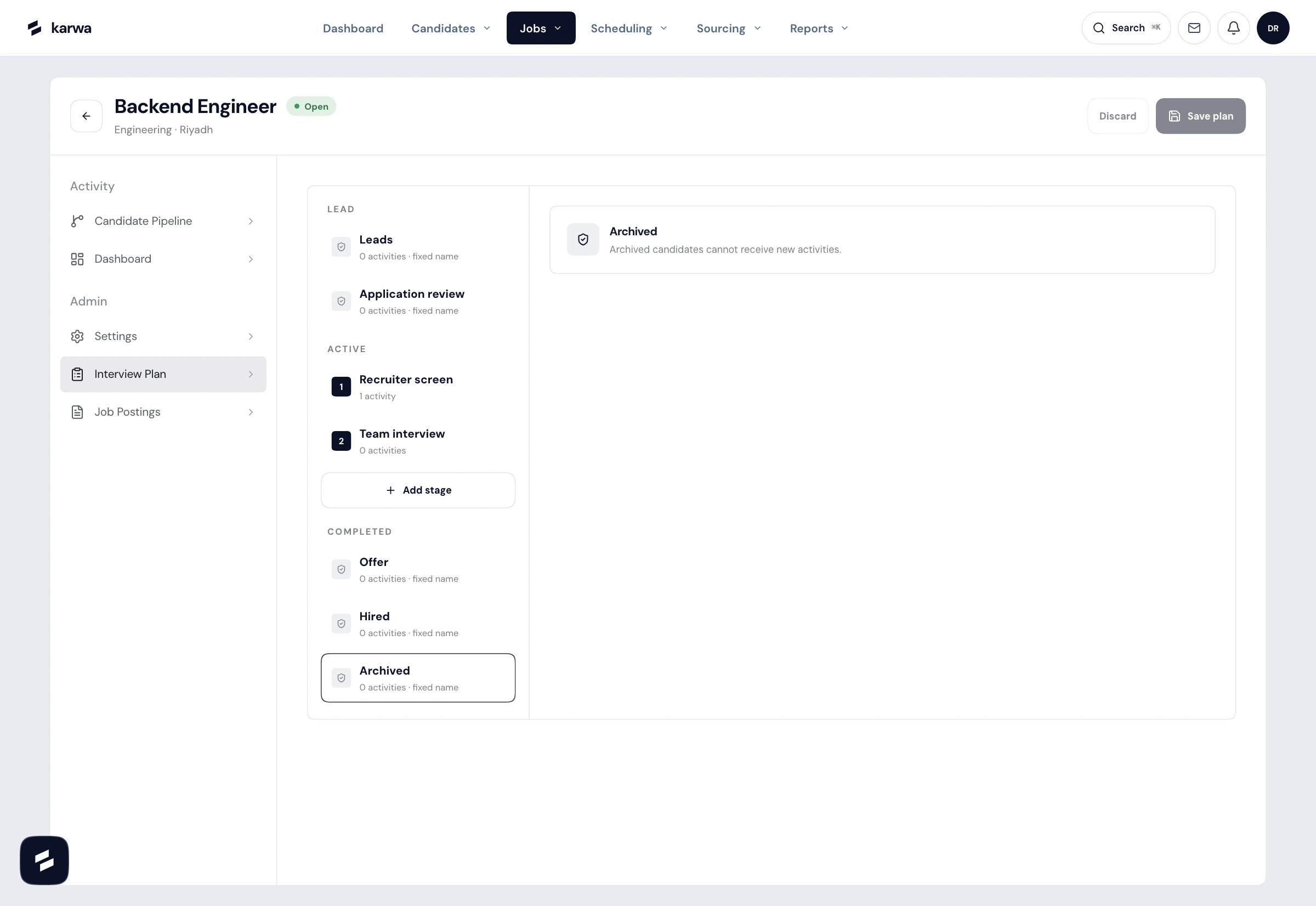
The activity row's Edit opens its content; the filter icon/Automation opens its workflow rules. These are separate parts of one activity. Moving an activity uses its stage selector; the arrows reorder stages. A dependent trigger must still reference a valid earlier activity. A blocked delete explains which dependency or existing work must be resolved. Changing the stage selected by ?stage= only selects the editor.
| Editor | Fields and decisions to review |
|---|---|
| Take-home: Create | Template or Custom assignment, assignment title/instructions, linked or uploaded resource, response inputs and any submission requirements. Copying a template does not send it. |
| Take-home: Settings / Automation | Due time, late submissions, reminders, reviewers/review method, required-before-advancing, candidate coverage and delivery mode/trigger. Use Review submissions for candidate work and reviews. |
| Questionnaire | Active saved questionnaire, prior-answer handling, current/future coverage and candidate message. Manual send, stage entry and after-activity delivery have different effects. Create the questionnaire in Questionnaires, return and select it. |
| Send email | Reusable template or custom subject/body, sender and merge fields. Automation chooses Recruiter draft, Stage entry or After activity, the earlier activity/condition, delay and any After sending candidate status change. Review rejection behavior separately. |
| E-signature | Document purpose (NDA/confidentiality, Agreement, Policy acknowledgement or Other legal document), instructions and required-before-advancing. The job plan prepares the request; add/review a PDF and signature fields, then send from the candidate profile. No signature request is sent from the job-plan activity. Use Signing documents for the library. |
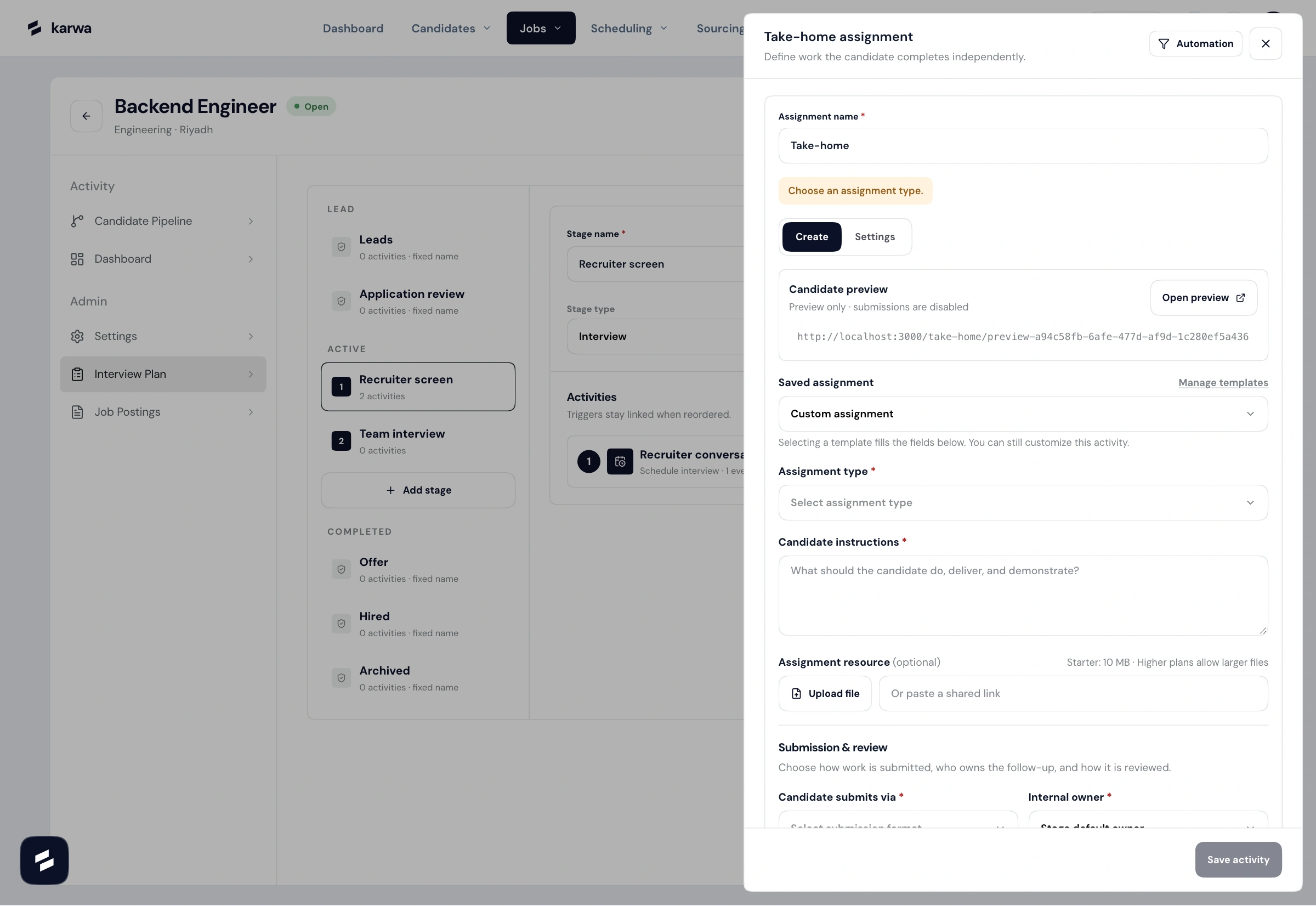
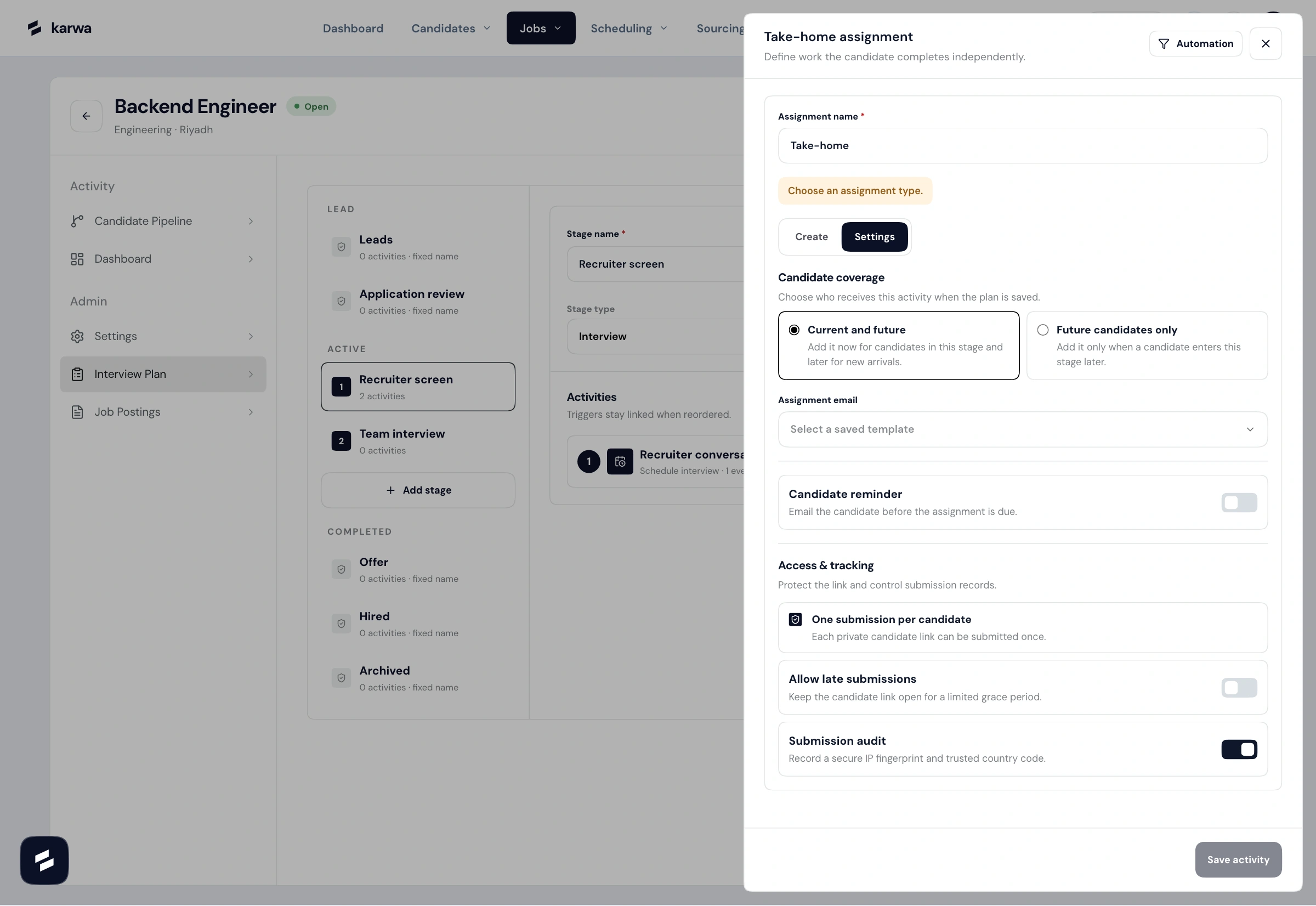
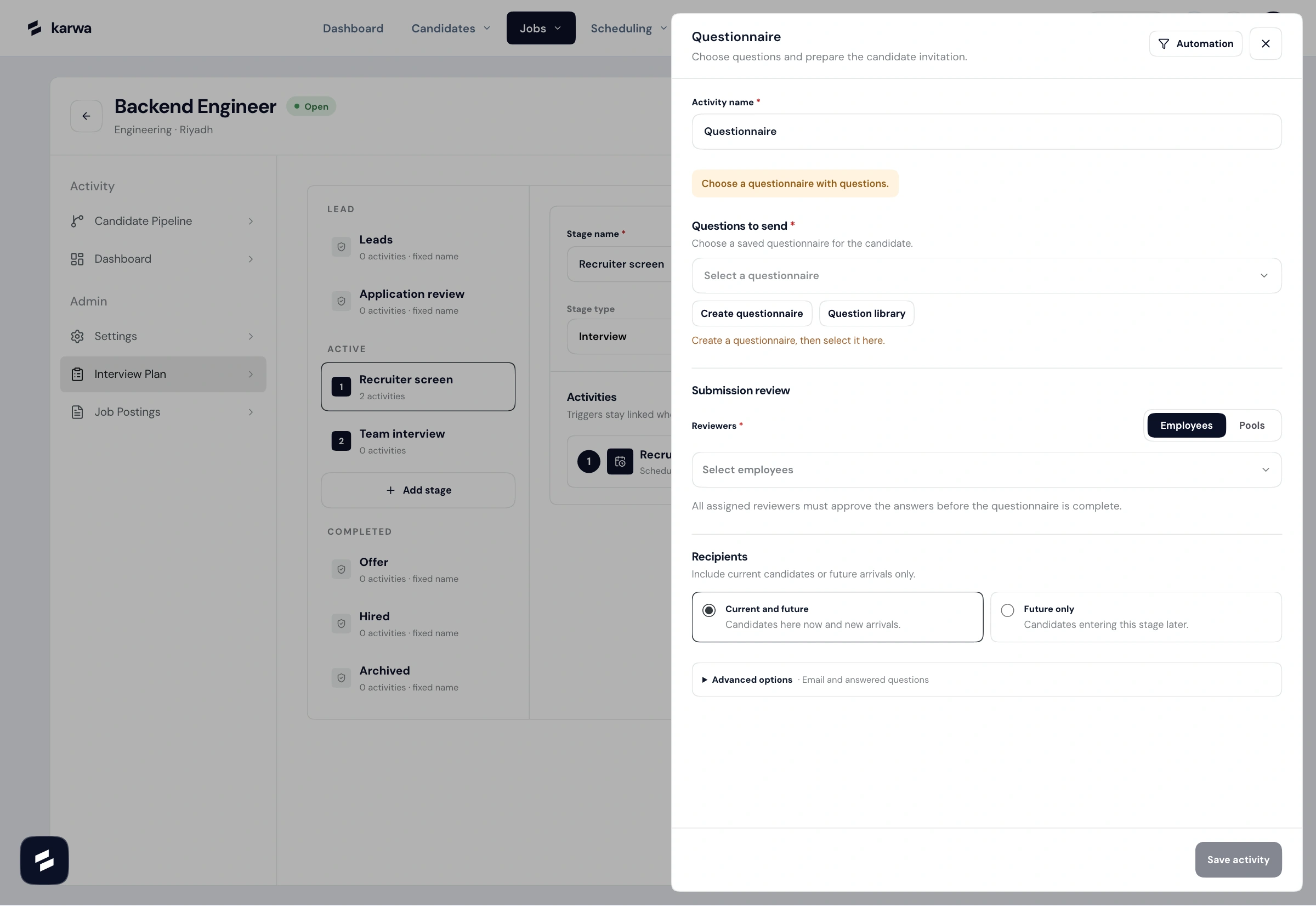
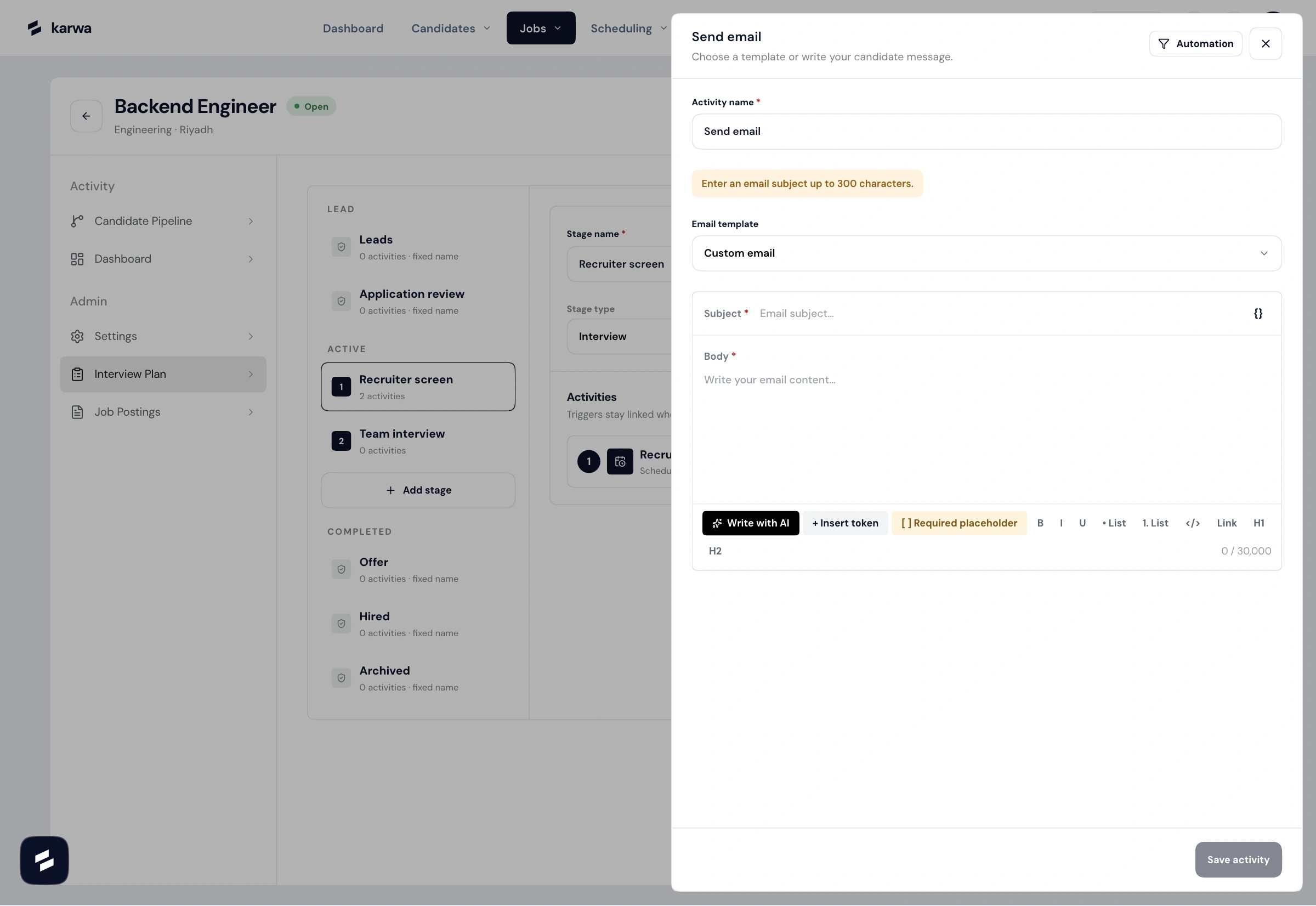
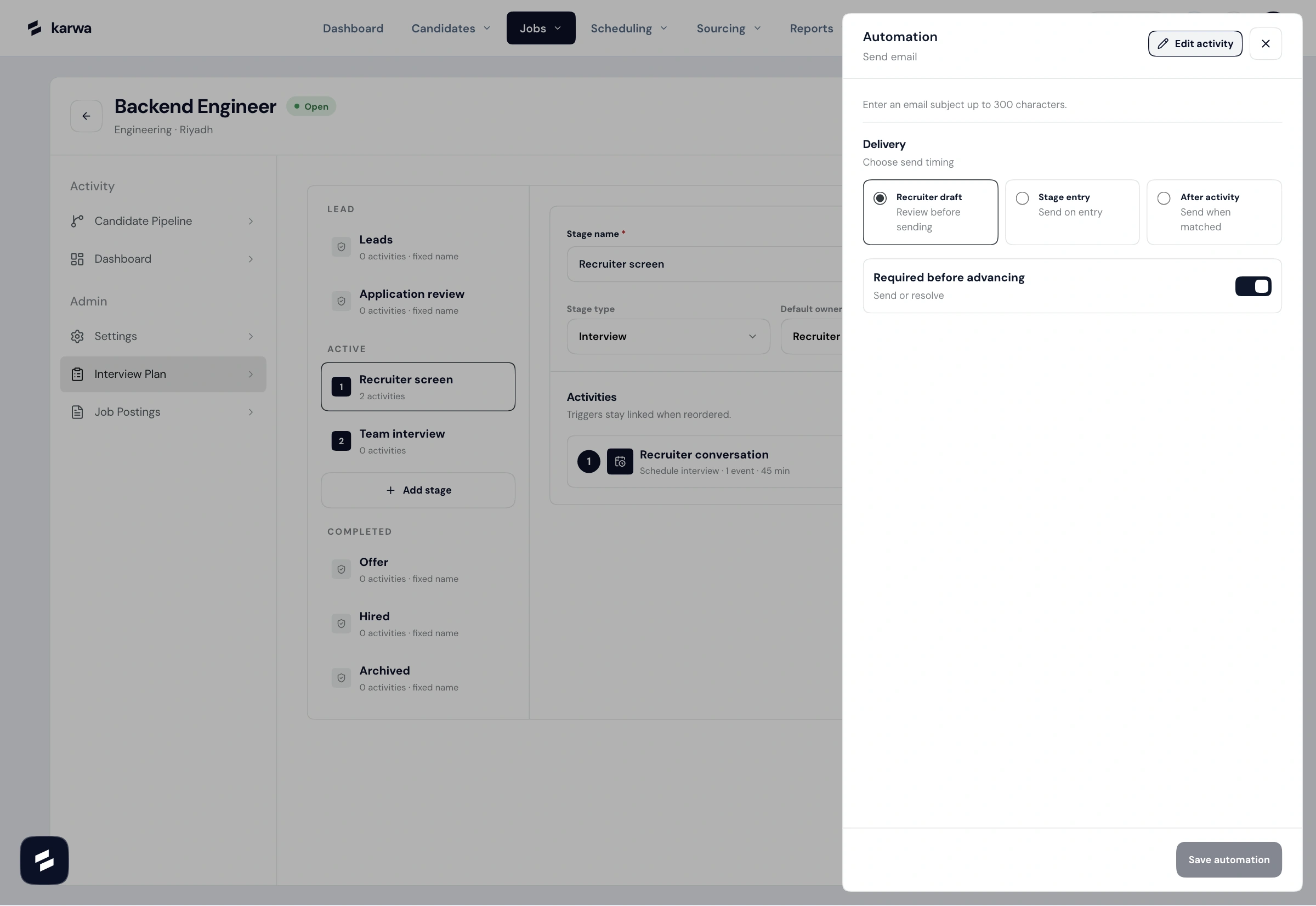
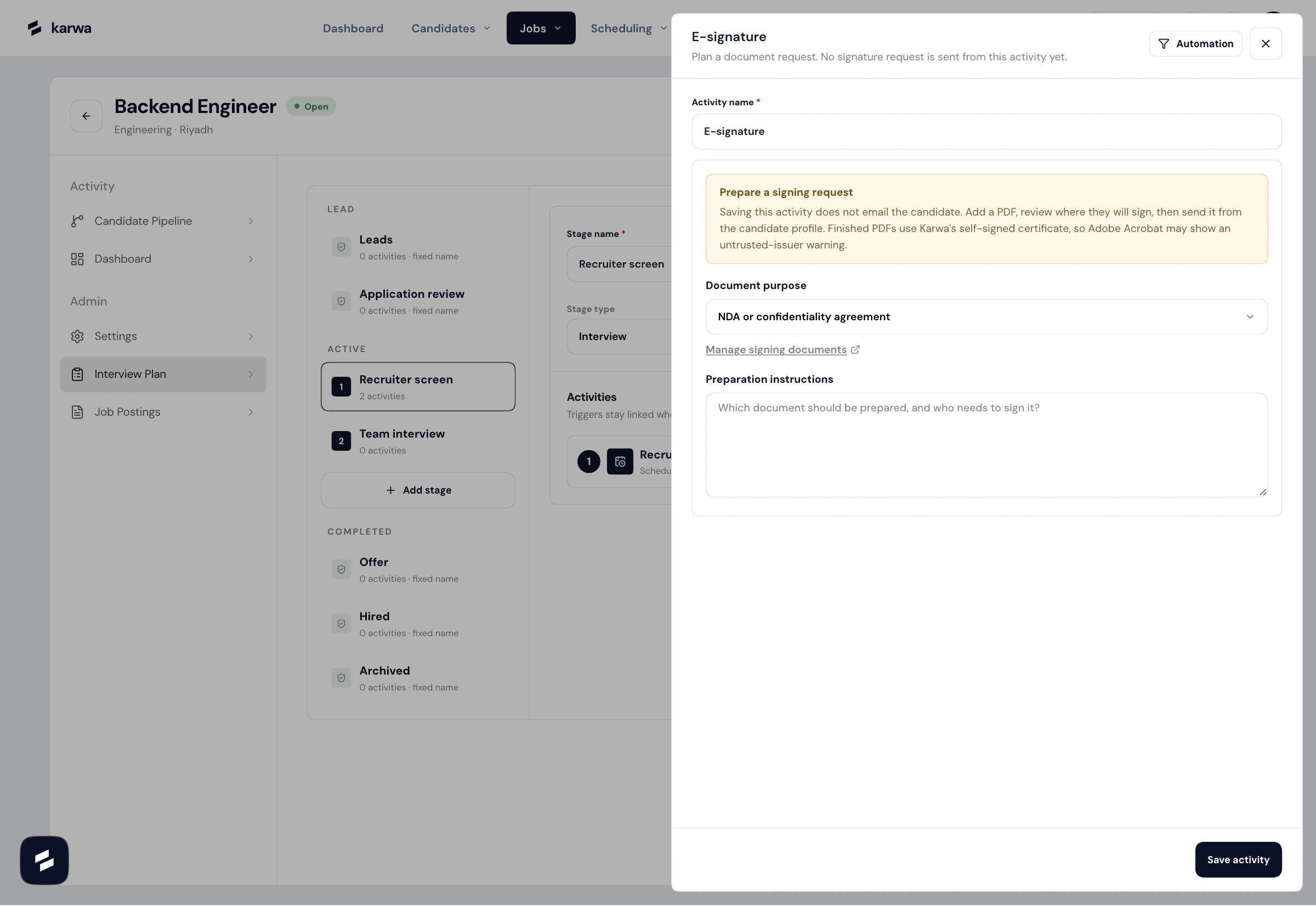
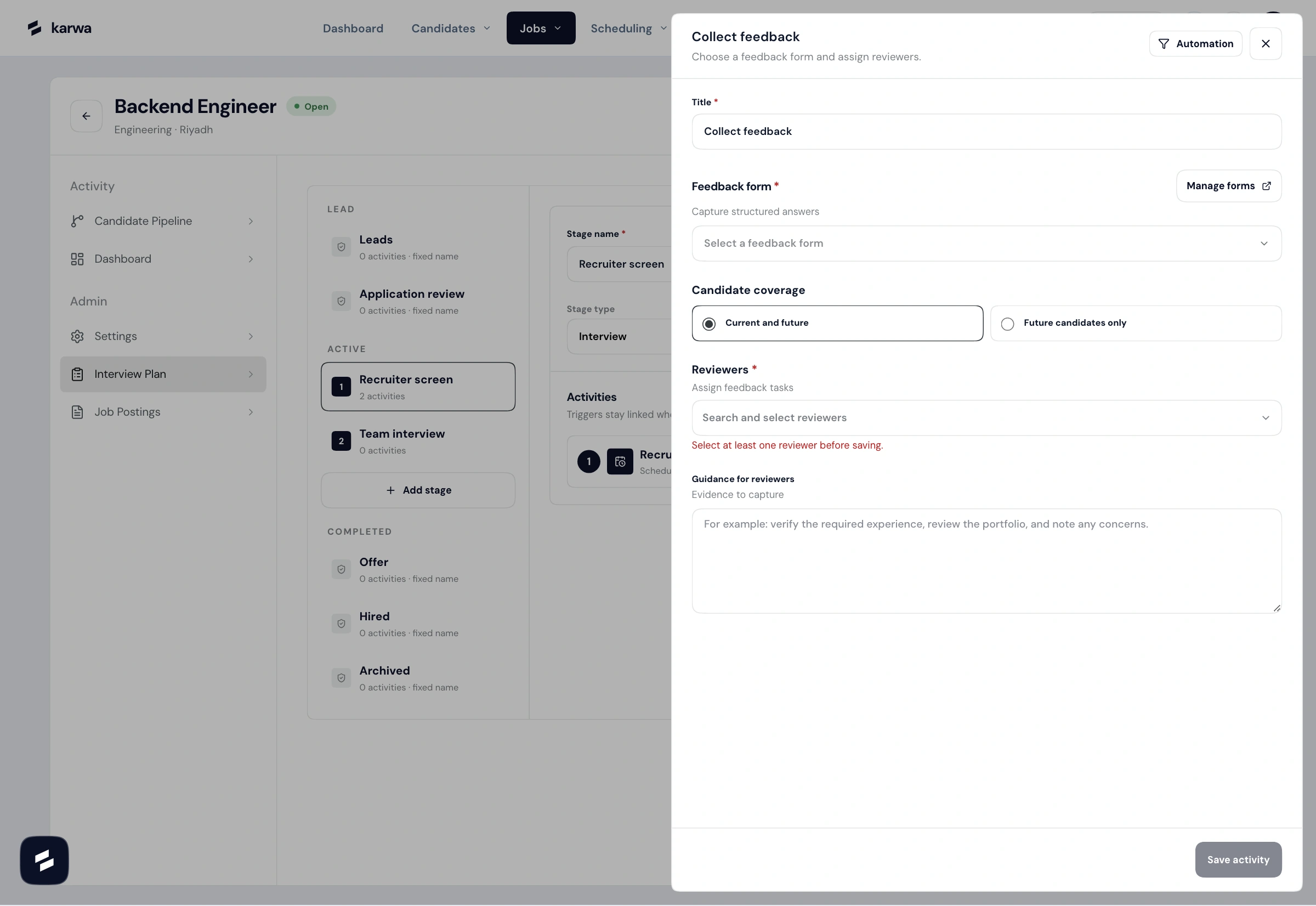
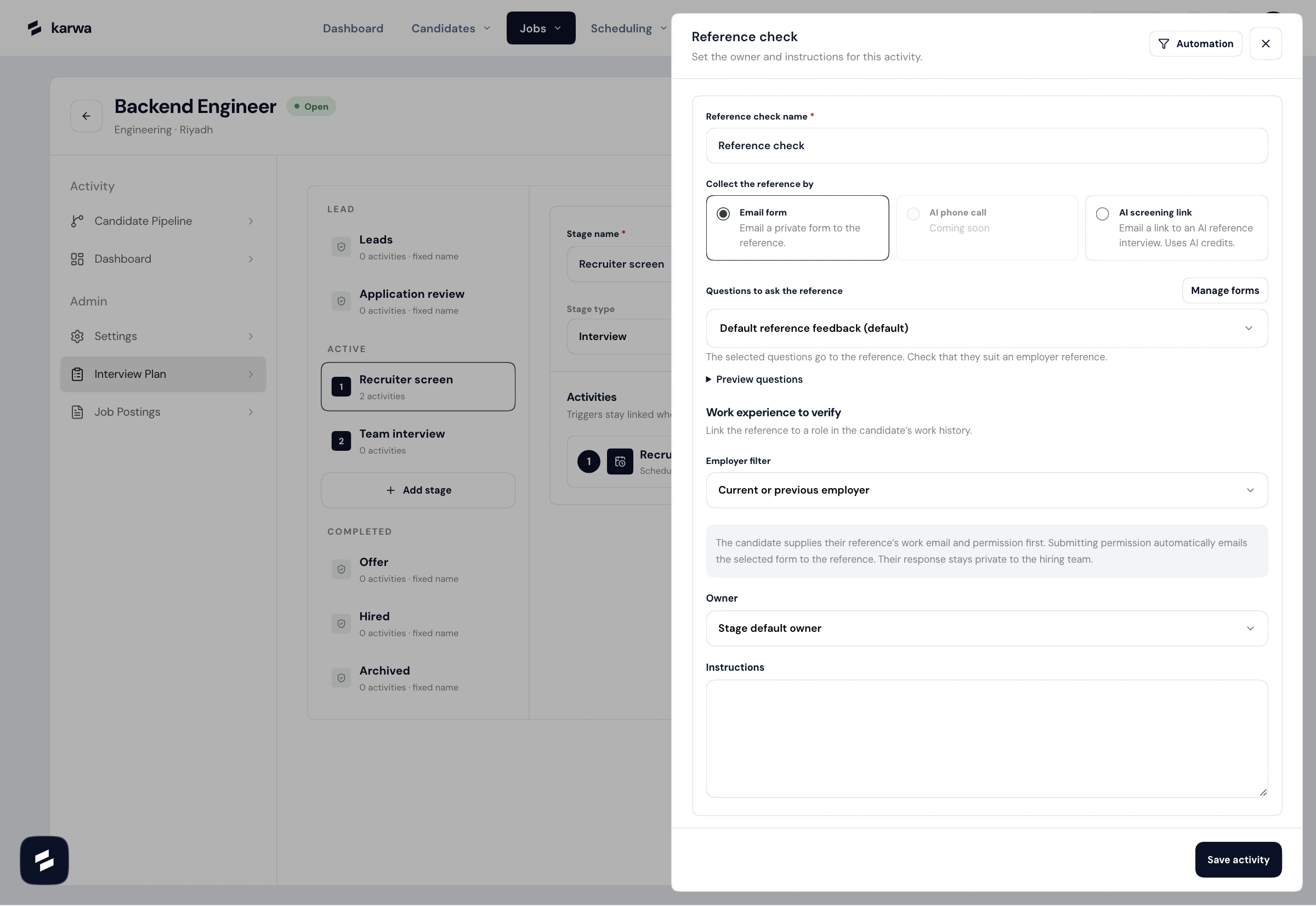
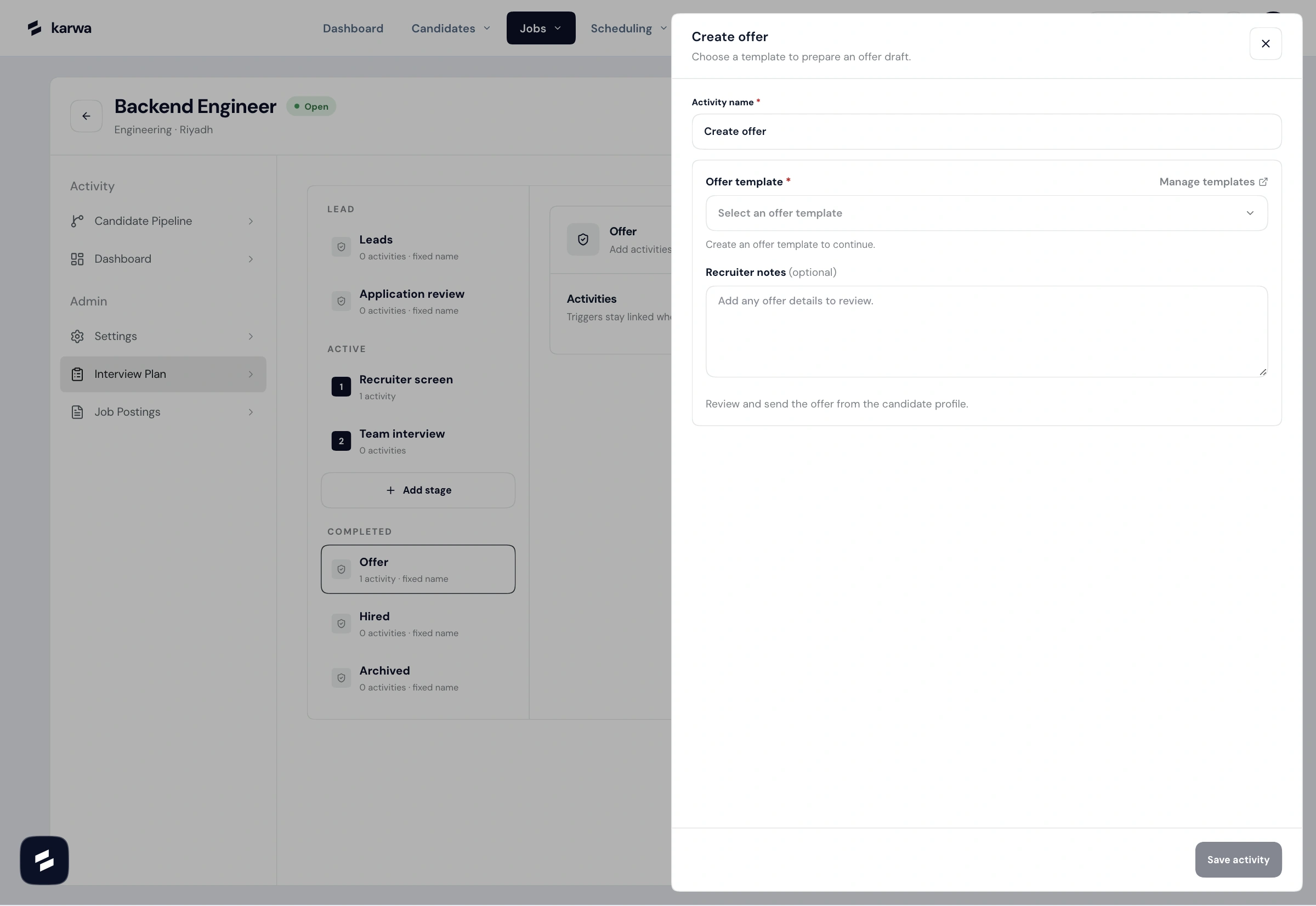
Activity drawers edit the working plan. Save activity, Update activity and Save automation call the job-plan save: they validate and persist the whole current plan, including other pending stage/activity edits. They are not local-only draft buttons. Closing a new unsaved activity removes it; closing a changed saved activity asks whether to discard its edits. Save plan in the page heading also persists the current plan. Discard restores the last saved plan. Saving can synchronize work for current candidates and enable configured triggers; verify coverage before saving. To run candidate-specific work or check a result, open the actual application and activity rather than interpreting a plan preview as completion.
Ask Karwa about the job plan
product_guide(topic=job-plan-page) shares the job-specific sections of this guide; interview-plans-library shares the reusable library sections. Existing job-activities and job-interview-plan retain action instructions. Ask about stage ownership, SLA, available activities, any scheduling tab, coverage, dependencies, messages or required work. Actual configuration needs the authorized job plan and actual reusable resources; candidate results require that application's activity records. Help text grants no permission to save, schedule, send, reject or spend credits.
Privacy and safe configuration
Use job-related stage names, prompts and criteria. Limit sensitive content in reusable templates, attachments and messages. Review workspace roles, job scope, confidential lists, hiring-team access and external-provider recipients separately. Team access on a reusable library plan is not currently an enforced new-job picker permission; it must not be used as a confidentiality barrier.
Stage movements, automation and shared-plan changes can affect people already in the hiring process. Notify them where required, correct wrong outcomes and preserve applicable human-review and accommodation routes. Removing an activity, changing a plan, closing a job or unpublishing a posting does not erase applications, messages, interview media or documents already retained. Use the appropriate retention and rights process. See Terms, Privacy, Candidate privacy and Data Processing Terms.
Continue with Job workspace for pipeline and reporting, or Job postings for public application setup.
FAQ
Why is my new plan missing from Create job?
New plans start as Draft. Open the plan, set Status to Published, and save. The job form lists active plans. A custom plan already attached to another job is not available for reuse.
What is the difference between Shared and Custom?
Shared plans are reusable starting pipelines across jobs. Custom plans are intended for one job; once a custom plan belongs to a job, another job cannot select it. Editing a shared plan from a job and saving creates a job-specific copy.
Does Team access prevent another department from choosing the plan?
The selection is saved on the plan, and Default for team controls the Recommended badge. The current new-job picker does not enforce Team access as a filter. Use Roles & permissions for workspace access control.
Why can't I save or publish a plan?
Enter a name and at least one editable stage, give every stage a name, avoid reserved system names, and use whole numbers from 1 to 3,650 for stage targets. Publishing also requires an active editable stage. Check your Manage jobs permission and current paid workspace if the API still rejects the save.
Does copying another plan copy its interviews and activities?
This settings editor copies the other plan's editable stage structure, but clears its stage activities. Open the job's Interview plan to configure scheduling, questionnaires, assessments, feedback, email, and signatures for that job.
Can I delete a plan used by a job?
No. The delete request is rejected for a plan attached to a job. Set its status to Archived instead. Removing a plan that has never been attached also requires the extra Delete jobs permission.
Will changing a plan email candidates or move them automatically?
Saving this library plan changes its stored pipeline. It does not send an invitation or move a candidate. Configure and save activities on the job's Interview plan, then use the job pipeline and candidate profile to manage each candidate.
Where do I see which candidates are in a stage?
Open the job from Jobs and view its pipeline. The library list's Candidates column currently shows zero rather than a live stage count.
Add an exception for one candidate
For an extra task needed by just one application, open that candidate's Activity → New menu. Choose New interview, AI screening or New activity. Follow Candidate activities for the complete picker and save/send behavior. This does not add the task to the job plan for other candidates.
Use the job plan when the step belongs in the shared process. Selecting a shared form or template is different from editing that resource in its settings page.