Loading documentation
Open Referrals from Candidates. Use Referrals to review candidates grouped by their attributed employee or owner; use Referral links to manage shareable URLs, QR codes and link performance. Add referral creates a candidate intake, while Create referral link creates a reusable source link. They perform different actions.
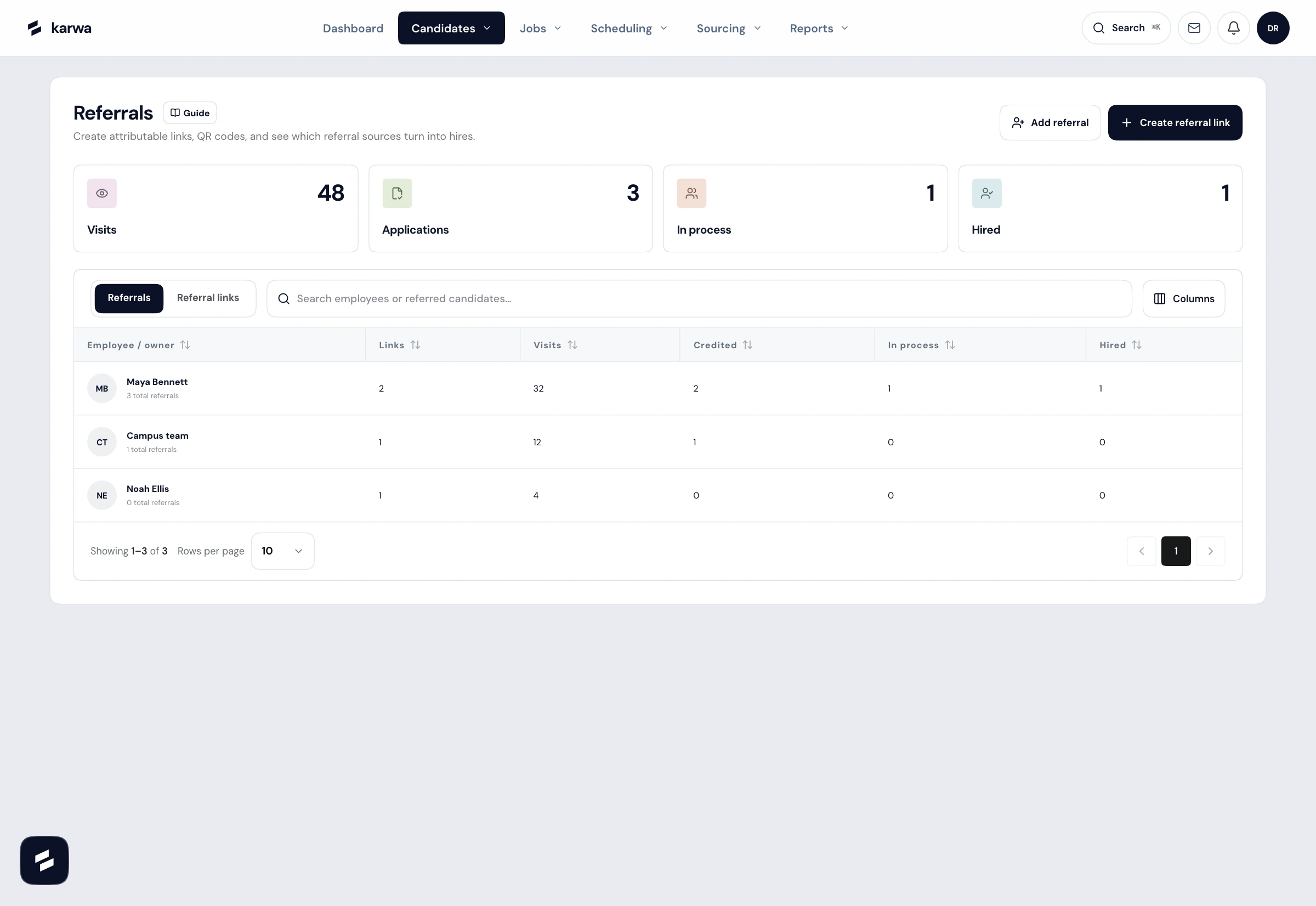
These screenshots show the actual interface with fictional employees, candidates and example.com links. The example has 48 visits, three credited applications, one in process and one hired. These are documentation examples, not your workspace records.
Understand the summary cards
The four cards total the loaded links across the workspace. Search, tab selection and table filters do not recalculate them. Revisit or reload the workspace to fetch new activity.
| Card | Meaning |
|---|---|
| Visits | Recorded short-link visits, including repeat visits; not unique people or confirmed readers. |
| Applications | Credited applications for ordinary employee, campaign and event links. Agency links use their linked applications. |
| In process | Those counted applications whose current status is neither New nor Rejected, Archived, Merged or Hired. This is a reporting count, separate from the Active candidates tab. |
| Hired | Counted applications whose current status is Hired. |
A visit does not create an application or guarantee credit. Manual referrals and repeat visitors can make the relationship between visits and applications differ from a simple funnel. Counts describe recorded applications and states, not proof of identity, candidate consent or bonus entitlement.
Referrals tab: find an owner and their candidates
The Employee / owner column shows the owner and total recorded referrals, including uncredited records. Links counts their links, Visits totals link visits, and Credited, In process and Hired count eligible credited applications. Owners can appear before anyone applies because they already have a link. Agency-linked candidates follow the agency workflow and are excluded from this owner candidate list, even when an agency link appears in the link table or summary totals.
Search by owner name, candidate name or candidate email. Select a column heading to sort, use Columns to show or hide fields, and use Rows per page and pagination for longer lists. Select an owner row to open their referral drawer. There is no advanced Filters control on this tab.
The drawer shows the owner's credited, in-process and hired totals and a card for each referred candidate. Each card includes candidate name and email, job, current hiring status, referred date, Credited or Not credited, any attribution note, and reward information. Select the candidate card to open the application. An owner with no candidates shows No candidates yet; this does not mean their link is missing or inactive.
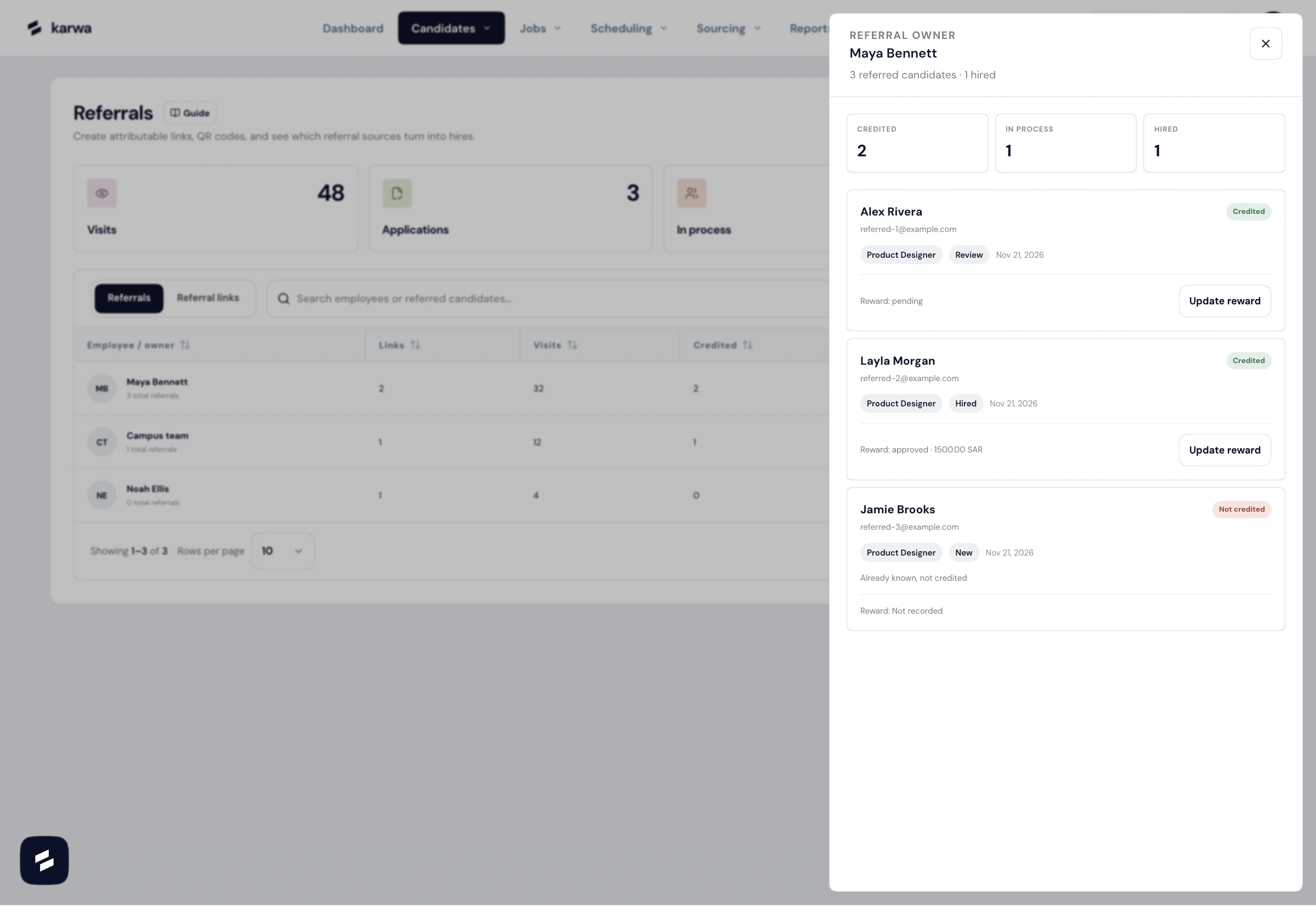
In this example, Maya has three recorded referrals but only two credited applications. The Already known, not credited candidate is still listed; their presence does not add to the Credited total. A recorded referral, credited application, hiring stage and reward status are different facts.
Add a referral directly
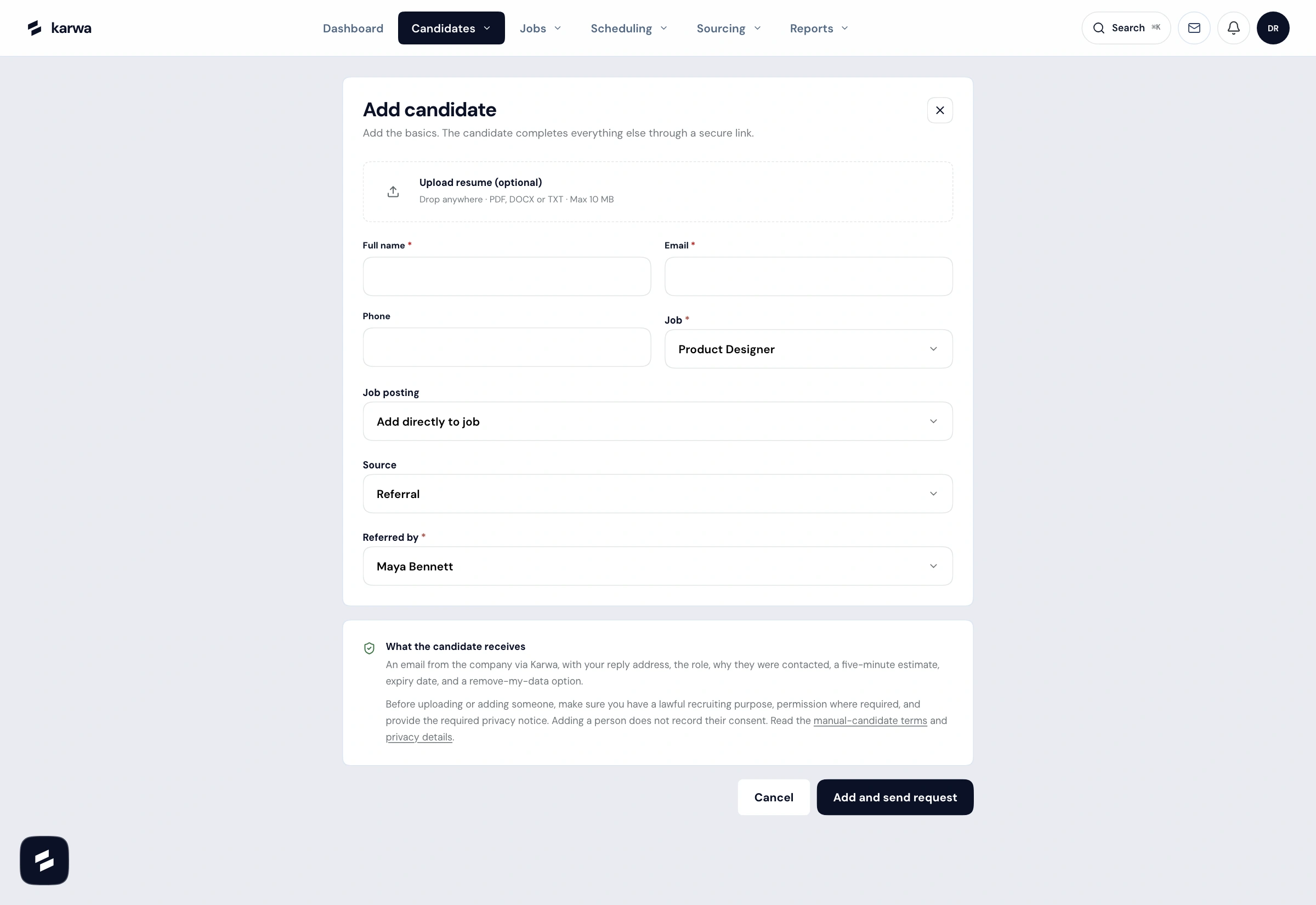
- Select Add referral, or open Add candidate with Referral selected. The form opens with Source: Referral already selected. This URL opens the form; it does not create or send anything by itself.
- Select the Job and, if applicable, a Job posting. Enter the candidate's full name and email; phone is optional. Confirm Referred by names the correct employee. The form can initially select the first available employee; it does not automatically identify the person who referred this candidate. A link's attributed owner and the person operating the form need not be the same person.
- Optionally upload one résumé: PDF, DOCX or TXT, up to 10 MB. Wait for processing and check extracted details. The upload can be stored and processed before the candidate is added. You can also add the candidate without a résumé and let them supply it in their form.
- Review the lawful-purpose and privacy notice, recipient, role and referrer, then select Add and send request. This creates or processes the candidate intake and queues the employer's invitation; it does not merely save an internal referral note.
- After success, use View candidates or Add another candidate. The latter resets the form for the next person.
The invitation directs the candidate to their private form. A successful request or invitation status does not prove inbox delivery or candidate agreement. Do not add someone or upload their résumé without a lawful recruiting purpose, authority to use the information and any notice or permission required. See Add a candidate manually.
Duplicate checks run during résumé processing and intake submission. An existing active application for the same role is blocked; an earlier rejected application can require explicit reconsideration. Already-known candidates may be associated with a referrer without new credit. Read the app notification and attribution note rather than changing contact details to bypass a match. A manual referral can still be recorded when referral links are paused; its eligibility is checked separately.
Referral links tab: table, search and columns
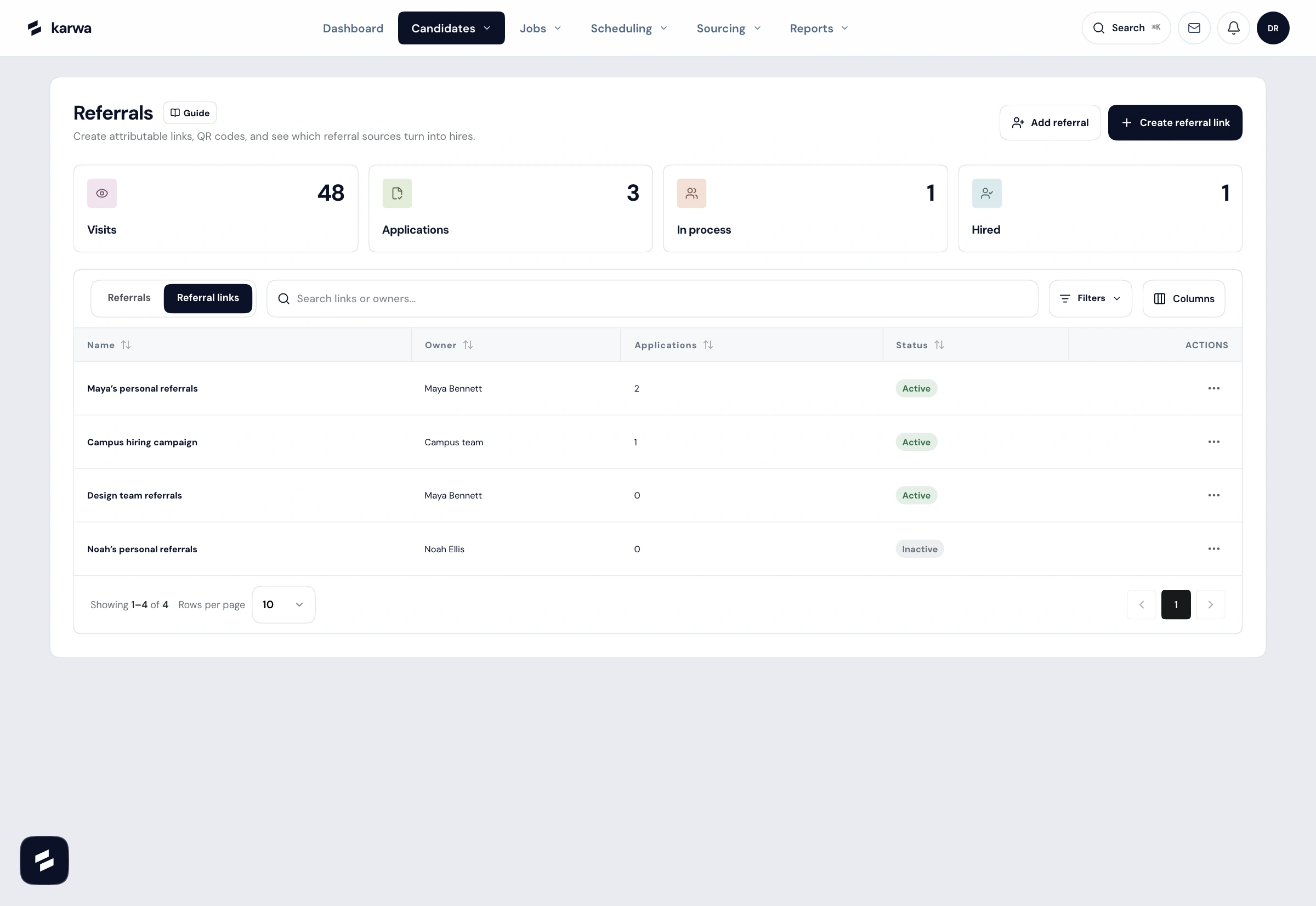
The initial columns are Name, Owner, Applications, Status and Actions. Open Columns for Type, Scope, Visits, In process, Hired, Conversion and Created. Created includes the creator name. Select sortable column headings to change ordering; before a saved sort is applied, the list starts with most applications first. There is no separate Most applications or Best conversion sort menu in the current table.
Search matches link name, owner name or the short-link identifier. Use page controls and Rows per page to navigate. Table columns, sort, page size and filters can be remembered in this browser separately for the two tabs; search is local to the current table. If a record seems missing, clear search and filters and inspect your column choices.
Active is the individual link switch, not a guarantee that the link can currently be used. Workspace pauses, expiry and job availability or scope can still prevent a visit or credited application. The current table does not impose an Active-only filter by default; an earlier saved Status filter can narrow it.
Use every referral-link filter
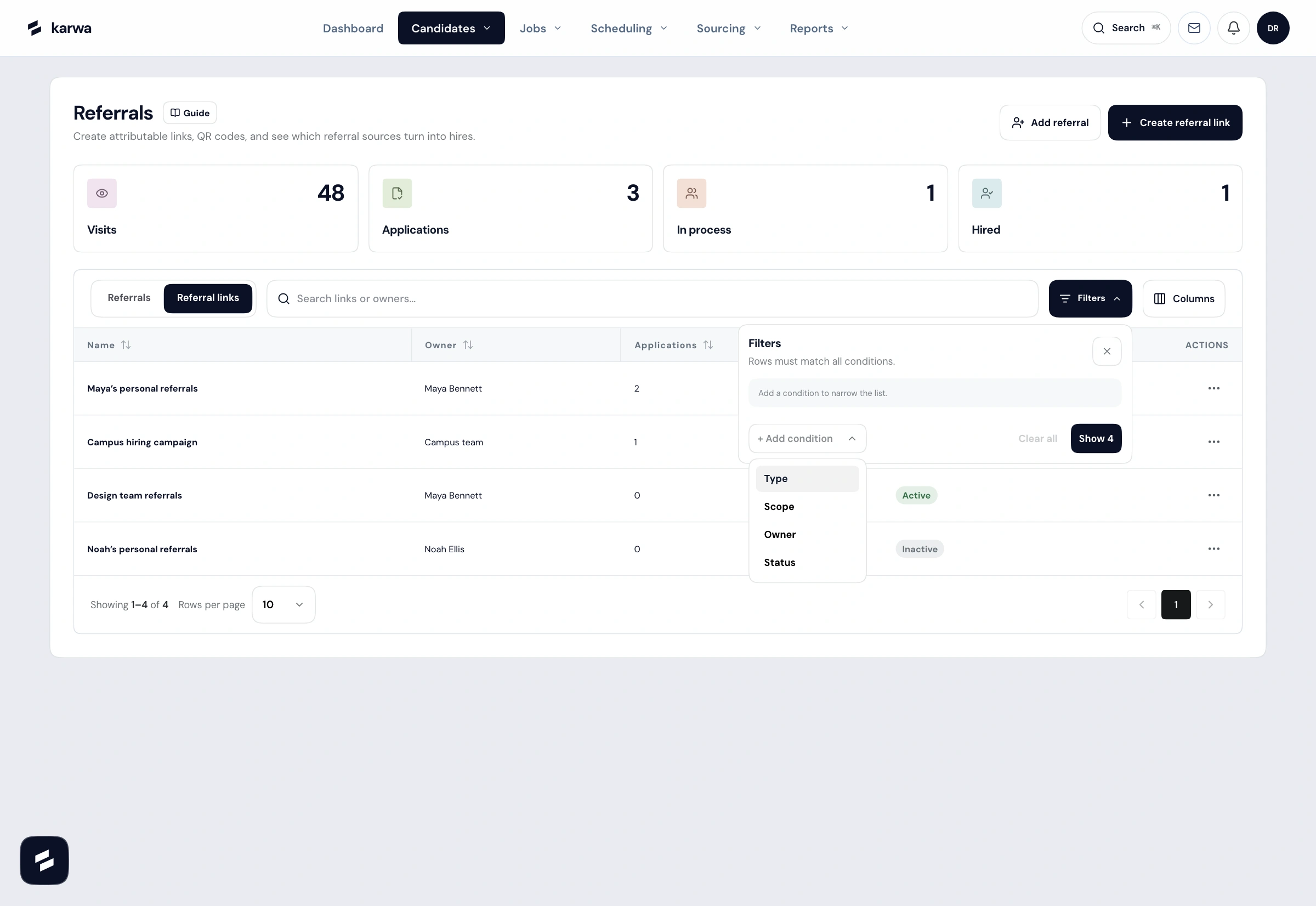
Select Filters, then + Add condition. Choose a field and its value. Rows must match all selected conditions together with your search. Changes narrow the table as you choose them; Show closes the panel and displays the matching-row count. Remove a condition with its trash icon or select Clear all. Clearing filters does not clear a separate text search.
| Condition | Choices and meaning |
|---|---|
| Type | Employee referral, Agency, Campaign or Event: the link's recorded category. An Agency option does not authorize creating agency links here. |
| Scope | One job, A group or All jobs: the configured eligibility scope, rather than a filter for a specific job title. |
| Owner | An owner name present among the loaded links; matches links attributed to that name. |
| Status | Active or Inactive: the link's own switch. This condition does not test expiry, global program settings or destination availability. |
Selecting Any for a condition removes its restriction. Different conditions combine with AND; for example, Type = Employee referral and Status = Active shows links satisfying both. The summary cards above remain workspace totals.
Create a referral link
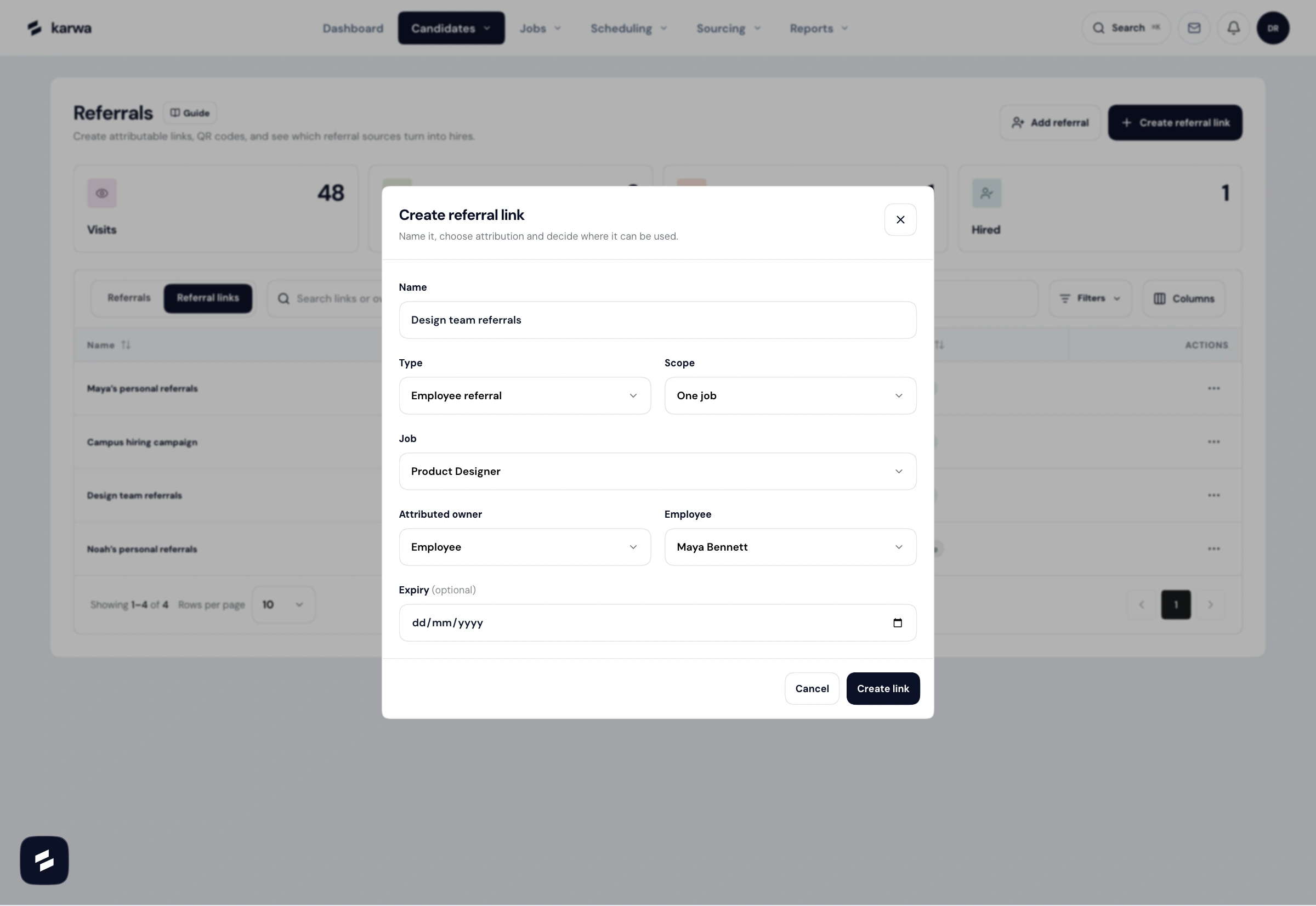
- Select Create referral link. Enter a clear Name, 2–160 characters. Avoid private candidate information; identifiers generated from names can appear in a shared URL.
- Choose Type: Employee referral, Campaign or Event. Agency currently appears in the picker, but the server rejects creating or converting agency links here. Use the assigned agency job in Agencies.
- Choose Scope, using the options below. The form starts on One job; check the selected job rather than relying on the initial choice.
- Set Attributed owner. For Employee, choose a valid active employee. For Campaign label, enter an Owner name. An Agency owner label is not an agency job assignment, contract or commission entitlement; use the agency workflow for agency submissions. Verify the owner before saving.
- Optionally choose Expiry. Leave it blank for a new link with no expiry. The current form submits the selected date at 23:59:59 UTC; date displays in link details use Asia/Riyadh, so check the effective cutoff when sharing across timezones.
- Select Create link. Name, an eligible owner and complete scope are required; the button stays unavailable while required setup is missing or saving. Check any app notification if the server rejects a selection.
- Referral link ready shows the short URL. Select Copy link or Download QR. The QR is a PNG encoding that same URL, not a different application or credit mechanism. Close the dialog to return to the table.
Check required fields and defaults
The empty Name input contains a placeholder, not a saved value. Job and Employee can start with the first loaded option; verify both. A group replaces Job with Group by and Value or Jobs; a non-employee owner replaces Employee with Owner name. Type, Scope and Attributed owner control different things.
An enabled Create link button means client-side required values are present. The server still checks name length, permissions, employee validity, program availability and scope. Nothing is saved until creation succeeds.
Creating or copying a link does not email a candidate, create an application, award a bonus or publish an otherwise unavailable job. Share it through your authorized channel after checking the destination and program rules.
Choose the right scope
| Scope | Setup and effect |
|---|---|
| One job | Select Job. The short link redirects to that job's public career page when available; the job must still be eligible for public access and credit. |
| A group | Choose Group by: Department, Location or Set of jobs. Choose a Value for department/location or select one or more job checkboxes. Group matching determines referral eligibility; it is not a private job-access control or a promise that the destination job list hides other roles. |
| All jobs | Covers eligible jobs for the organization. New custom links can use it only if workspace settings allow; existing All jobs and automatic personal links keep their scope. |
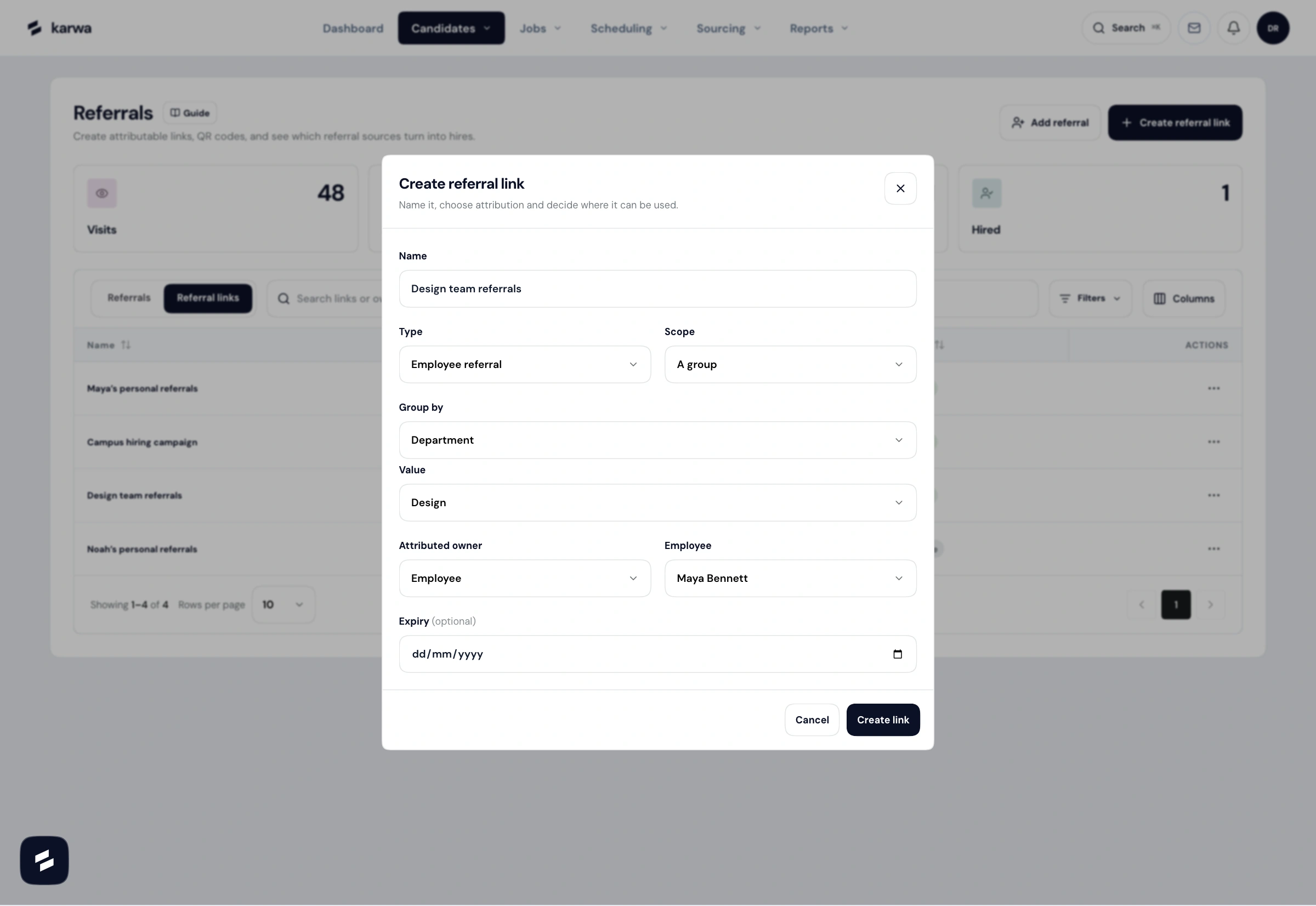
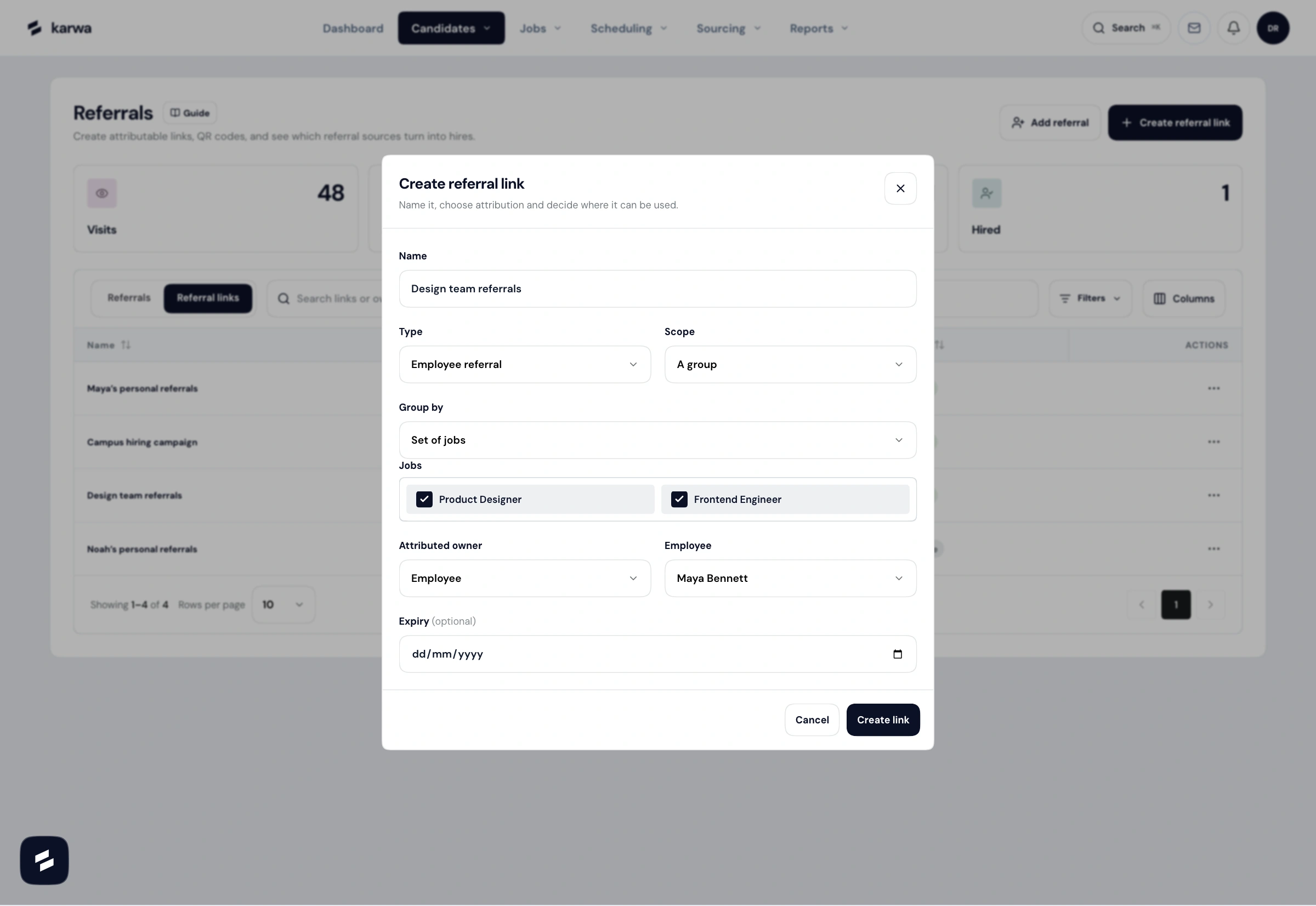
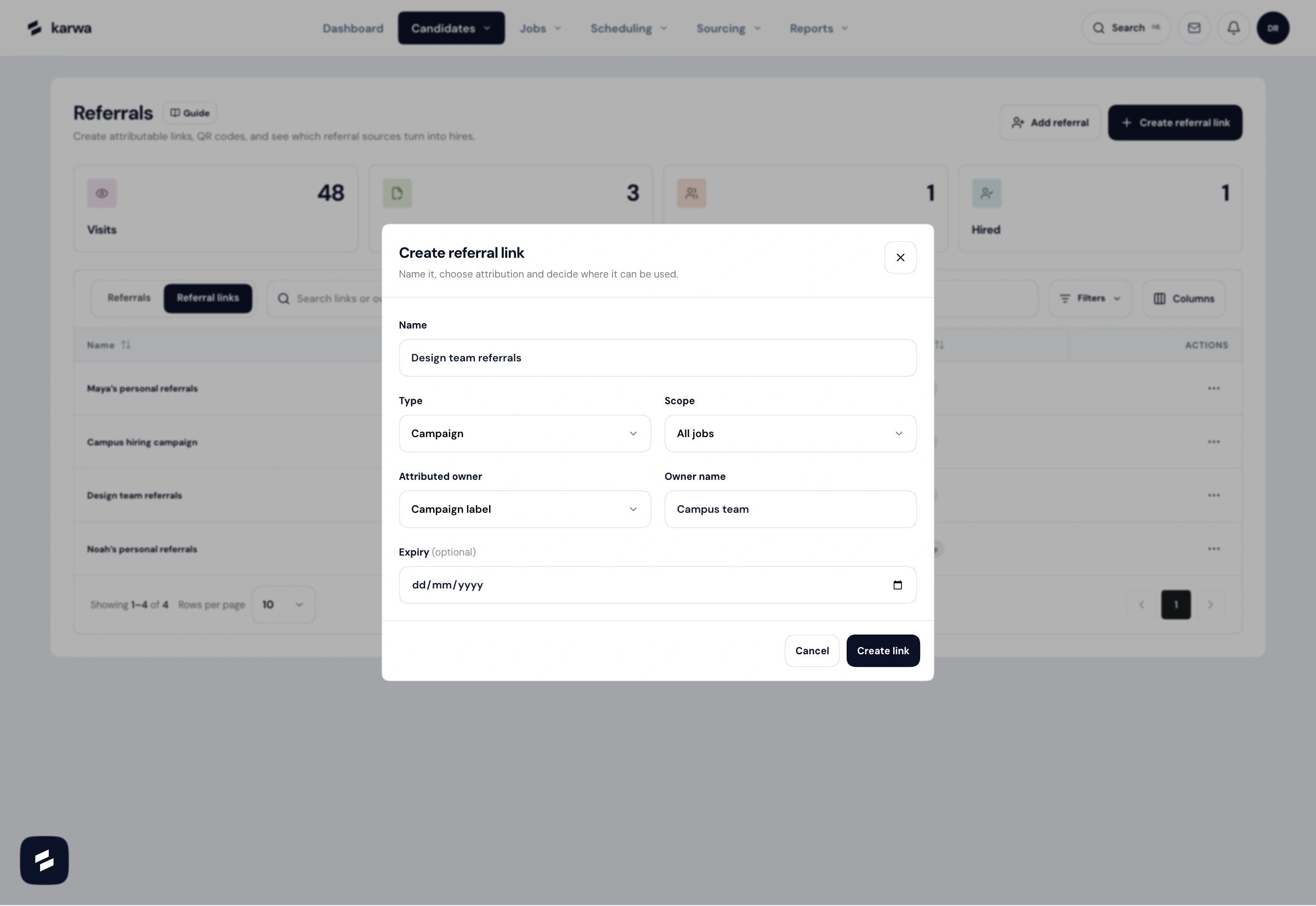
For Set of jobs, check each intended role. For All jobs, there is no individual Job picker. Choosing a non-employee owner replaces Employee with Owner name. Check the combination of Type, Scope and Attributed owner before saving; they control different aspects of the link.
Group and All jobs links normally open the company's career job list. If All jobs is unavailable, Referral settings may require Job or job group only. If a group has no available departments or locations, check the jobs' setup or choose Set of jobs.
Open link details and use Actions
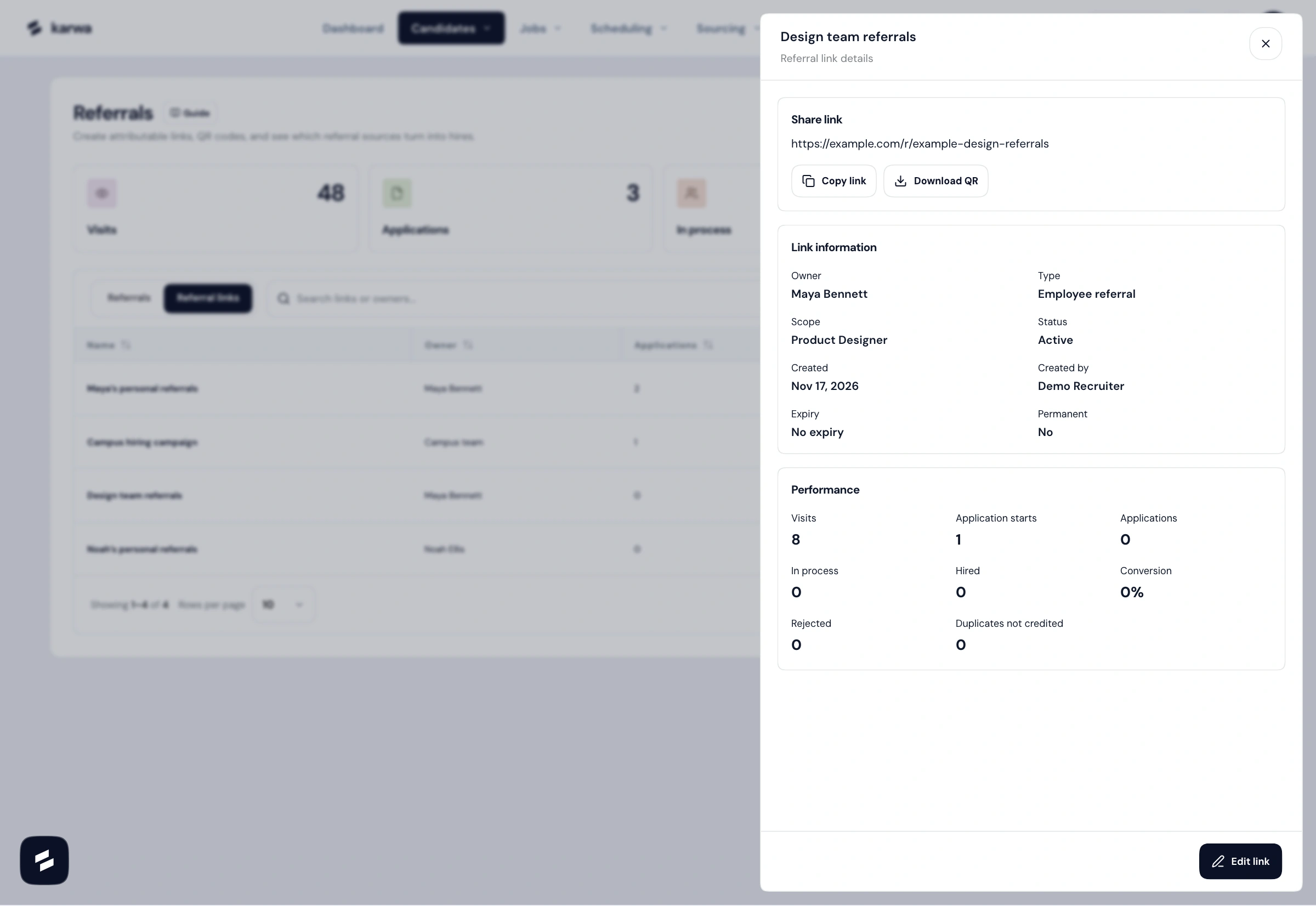
Select a link row or Actions → View details to open the detail drawer. Share link contains the URL, Copy link and Download QR. Link information shows owner, type, scope, status, created date, creator, expiry and whether it is permanent. Performance includes visits, application starts, applications, in process, hired, conversion, rejected and duplicates not credited. Edit link opens the editor.
Application starts are recorded start events, not guaranteed completed applications or unique people. Conversion is counted applications divided by recorded visits, rounded to one decimal; it shows 0% when there are no visits. Rejected includes counted applications in Rejected or Archived. Duplicates not credited counts recorded events of that kind, not every possible duplicate detected anywhere in the product.
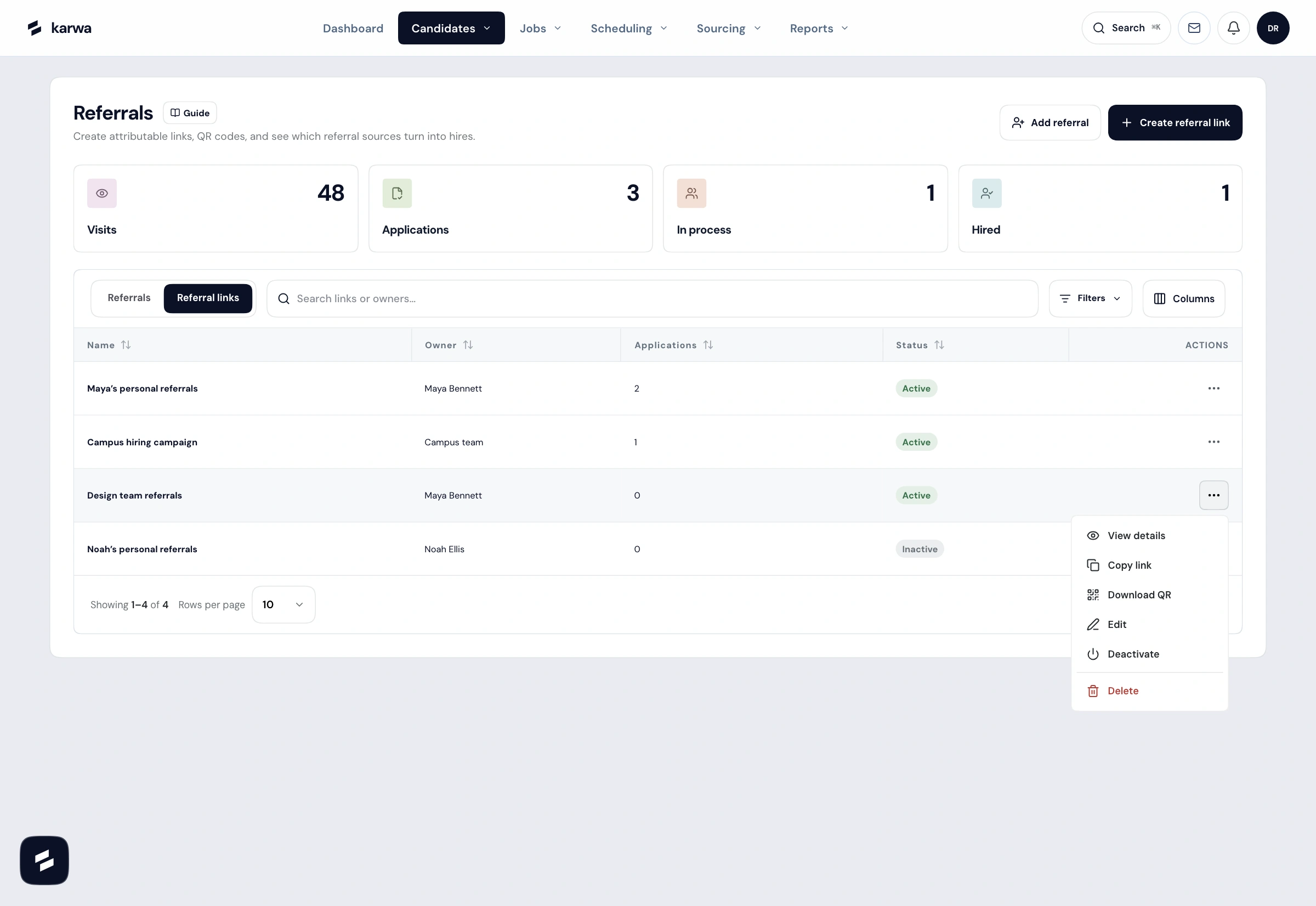
The row's Actions also offers Copy link, Download QR, Edit, Deactivate or Activate, and Delete where eligible. Editing changes the saved link rather than issuing a new URL, so check how a new owner or scope affects future attribution and existing reporting. Save with Save changes. Use the separate Activate/Deactivate action to change the active state. A permanent personal link's expiry field is locked.
Deactivate stops new use while preserving history. A non-permanent link shows Delete only when its credited application count is zero. Confirm deletion only if intended: the server refuses if any application remains linked, including an uncredited one. Permanent personal links cannot be deleted. Agency links must be managed from their agency assignment. Deleted or inactive links, and paused or unavailable destinations, may send a visitor back to the website home rather than showing a job; check the configuration before sharing again.
When editing an existing link, clearing the Expiry field does not currently remove its saved expiry. Set an appropriate replacement date and check the detail drawer after saving; do not assume blank means the previous expiry was removed. Closing or deleting a link is not a request to erase candidate, visit, reward or downloaded records.
Record a reward
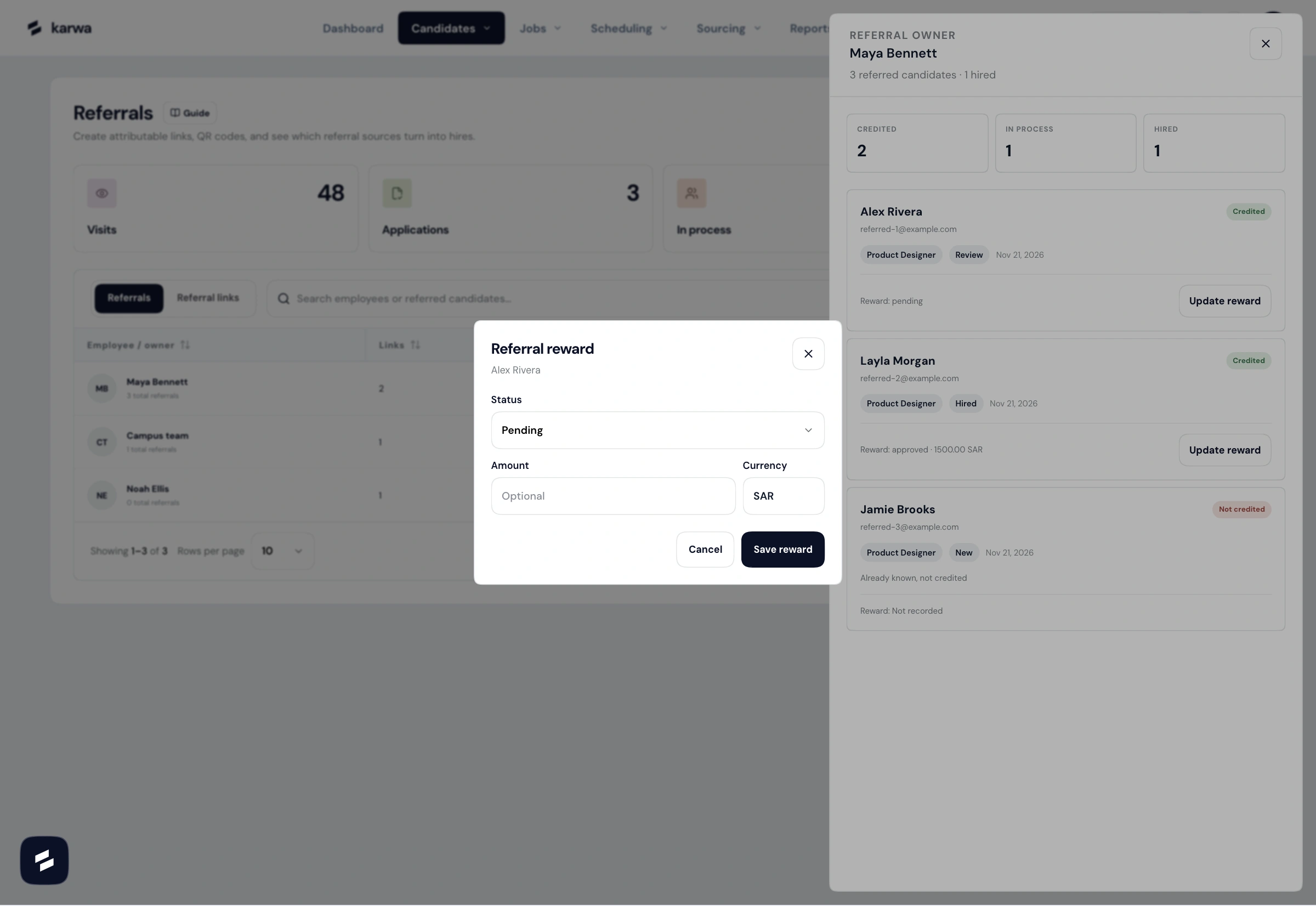
Open the owner's candidate drawer and select Update reward on a credited referral. Choose Pending, Approved, Paid or Not eligible. Optionally enter a nonnegative Amount with up to two decimals and a three-letter Currency, then select Save reward. If no amount is entered, amount and currency are left unrecorded. Reopen the drawer to check the saved status and amount.
These labels record the employer's reward administration. Credited does not itself establish contractual eligibility, and Paid does not initiate or verify a money transfer. The employer must define eligibility, approval, payment timing, tax and dispute rules and handle actual payment separately. This screen does not configure a bonus policy or pay through Stripe.
Personal employee links and visibility
Active employees, including the workspace owner, receive a permanent personal link automatically. Open My referral link to copy your own link, check its availability, Refresh its data, and see your link activity and referred candidates. The page explains when the personal link, program or all links are paused; an authorized administrator can investigate in the workspace or settings.
The personal page shows candidate name, job, credit and referred date. Hiring status can be withheld by the workspace's status-visibility rule for employees who lack candidate-view permission. That rule does not hide every candidate identity or grant access to the full candidate profile, internal notes, assessments or résumé. Authorized candidate viewers can have broader access in the main workspace. Sharing the public recruitment link does not give its visitor access to the owner's internal referral list.
Attribution, access and privacy
The first visited non-agency link within the configured 1–365 day credit window, normally 30 days, keeps attribution when the same identified visitor opens another link. The server also checks first-touch history when the application is submitted. That link must remain active, unexpired, allowed by program settings and valid for the chosen job. A known candidate can be recorded without new credit. Agency attribution follows its separate rules. Browser/device changes or blocked storage can affect attribution; the system is not independent proof of who referred someone.
Opening a short link can record the link, visitor identifier, time and campaign parameters and set referral cookies. Application-start and submission events support attribution. Stored credit and reward records are separate from browser cookies; clearing site data does not erase an employer's record. See the Cookie Policy, referral privacy details and referral terms.
The main workspace needs a current paid workspace and View candidates. Creating or editing links, adding candidates and updating rewards need Manage candidates. The manual intake action also sends its invitation. Deleting a link additionally needs Delete candidates. Workspace program rules need referral-settings view/manage access in Roles & permissions; these are separate from candidate permissions. Employee access to their own personal-link page does not require the full candidate-view permission.
Troubleshooting
Why is a referral shown but not credited?
Read its attribution note. A person already known to the workspace can be associated without new credit. Also check the first link, chosen job, expiry and program settings. Referral credit is separate from an application's hiring stage or reward status.
Why can I add a referral while links are paused?
Pausing controls public referral-link use and new custom links. Manual intake uses a separate candidate-addition and eligibility path; it can still store a referral and send an invitation when authorized.
Why do the summary cards differ from my filtered rows or owner drawer?
Cards total loaded links before table filtering. The owner drawer includes recorded but uncredited candidates, while its Credited count excludes them. Agency applications can appear in link totals but not the employee-owner candidate list.
Why is Create link unavailable or a save rejected?
Check the name, selected employee or owner name, and complete job/group scope. The program and referral links must be enabled. Agency link types, invalid employees and restricted All jobs choices are rejected. Buttons can appear even when your permission does not authorize their request; ask an administrator to check access.
Why did an Active or permanent link stop working?
Permanent means no normal expiry or deletion; it does not override individual deactivation, program pauses, scope or public-job availability. Check settings, expiry and the destination, then reload. Do not repeatedly open the link just to test it if accurate visit metrics matter.
Does changing a reward to Paid pay or notify the employee?
No payment is sent or verified by this action, and it does not promise an employee notification. Save only the status supported by your organization's records and handle payment and communication separately.
Can I hide a candidate or erase their data by deleting the referral link?
No. Link management, access rules, hiring withdrawal and erasure are separate. Follow the employer's retention policy and applicable rights requests through the candidate privacy request route.
Ask Karwa about referrals
Ask about either tab, Add referral versus Create referral link, each scope, disabled creation, attribution or rewards. Detailed intake and résumé processing are in Add a candidate.
Actual links, members, jobs and attribution notes require authorized referrals records; current program rules require referral_settings. Your own personal link uses my_referrals, preserving hidden hiring statuses. Follow pagination/truncation metadata. Screenshots are fictional; unavailable data is not zero.
Help or a prepared review is not a saved candidate, sent invitation, created/shared link or paid reward. Use supported controls and permissions, check saved results, and never invent consent, URLs, credit, clipboard copying, QR downloads or payments.