Loading documentation
Open Scheduling → Requests to see candidate interview work and employee requests for scheduling help. This operational queue is separate from Scheduling request settings, which sets defaults for link expiry and automatic booking follow-ups.
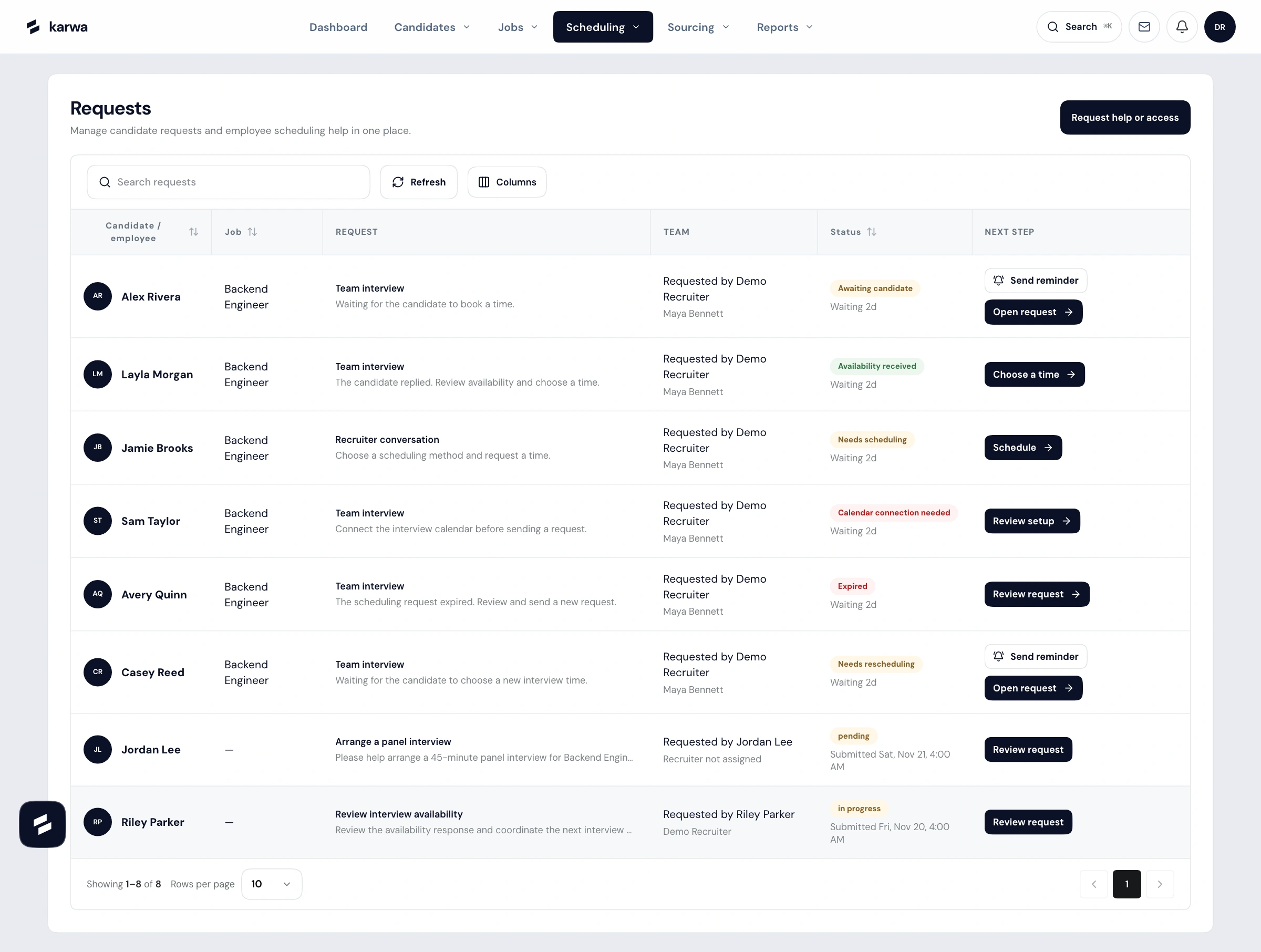
Reviewed November 22, 2026. Screenshots show the actual interface. Populated queue and review examples use fictional records; other screenshots show the empty workspace and unsent request form. No candidate request, reminder or employee help request was sent to prepare these images. Your records and available actions depend on access and current state.
What appears in Requests
Candidate rows represent unresolved interview activities needing attention: initial setup, recruiter review, a candidate response, availability review, rescheduling, expiry or delivery/calendar problems. Confirmed interviews without outstanding scheduling work belong in Interviews and Calendar, rather than this queue. Closed or archived jobs and terminal applications such as hired, rejected, archived, merged or withdrawn are excluded from candidate scheduling work. Interview steps removed or superseded by a plan change are excluded too.
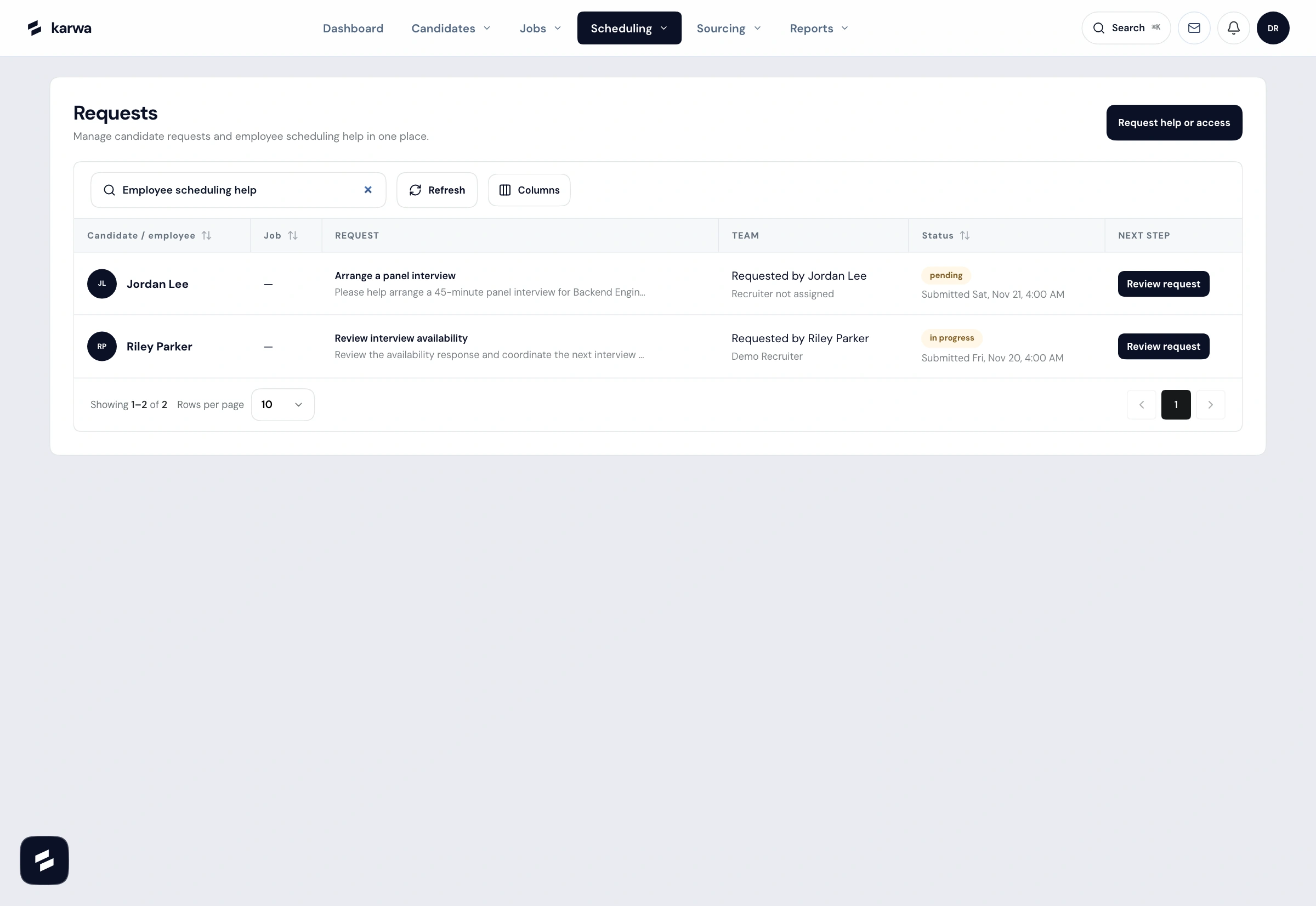
For users with scheduling permission, the queue also includes employee scheduling help requests and their recorded outcomes, including completed, declined and cancelled requests. These are internal tasks; they do not automatically create an interview. Employee access requests and room-booking approvals use My requests and Approvals, rather than the scheduling-help queue.
Read the columns
| Column | Meaning |
|---|---|
| Candidate / employee | The candidate whose interview needs attention, or the employee asking for help. |
| Job | The candidate's role. Employee help requests show a dash because the task is not automatically linked to a job. |
| Request | Interview or task title, followed by the scheduling guidance or the employee's written reason. Long text may be truncated in the table; open the request to review it. |
| Team | Who requested the work and the relevant interviewers or assigned recruiter. Unassigned rows say Interviewer not assigned or Recruiter not assigned. |
| Status | Current scheduling state and approximate waiting time for candidate work; request status and submission date for employee help. |
| Next step | Available reminder, candidate/interview navigation, or employee request review. Controls depend on permissions and the record's current state. |
Waiting is an approximate elapsed age, shown in whole hours or days, with a minimum of one hour. It is not a delivery receipt or a promised response deadline. Employee submission dates and the request drawer's dates use your browser's local time. Confirm the actual interview time zone in the interview workflow before arranging a meeting.
Search, sort and customize the table
Use Search requests to match a candidate or employee, job, title, request description, status, requester or team name. You can also search Candidate scheduling or Employee scheduling help to narrow the row type. Search filters the records you are allowed to see; it does not search every workspace record or change a request.
There are no separate status tabs or status-filter dropdowns on this Requests page. Search for a displayed state such as Awaiting candidate, Expired, pending or in progress. Click the sort arrows on Candidate / employee, Job or Status to change the order. Rows per page offers 10, 25, 50 or 100 rows; the footer arrows move between pages and the count reflects the current results.
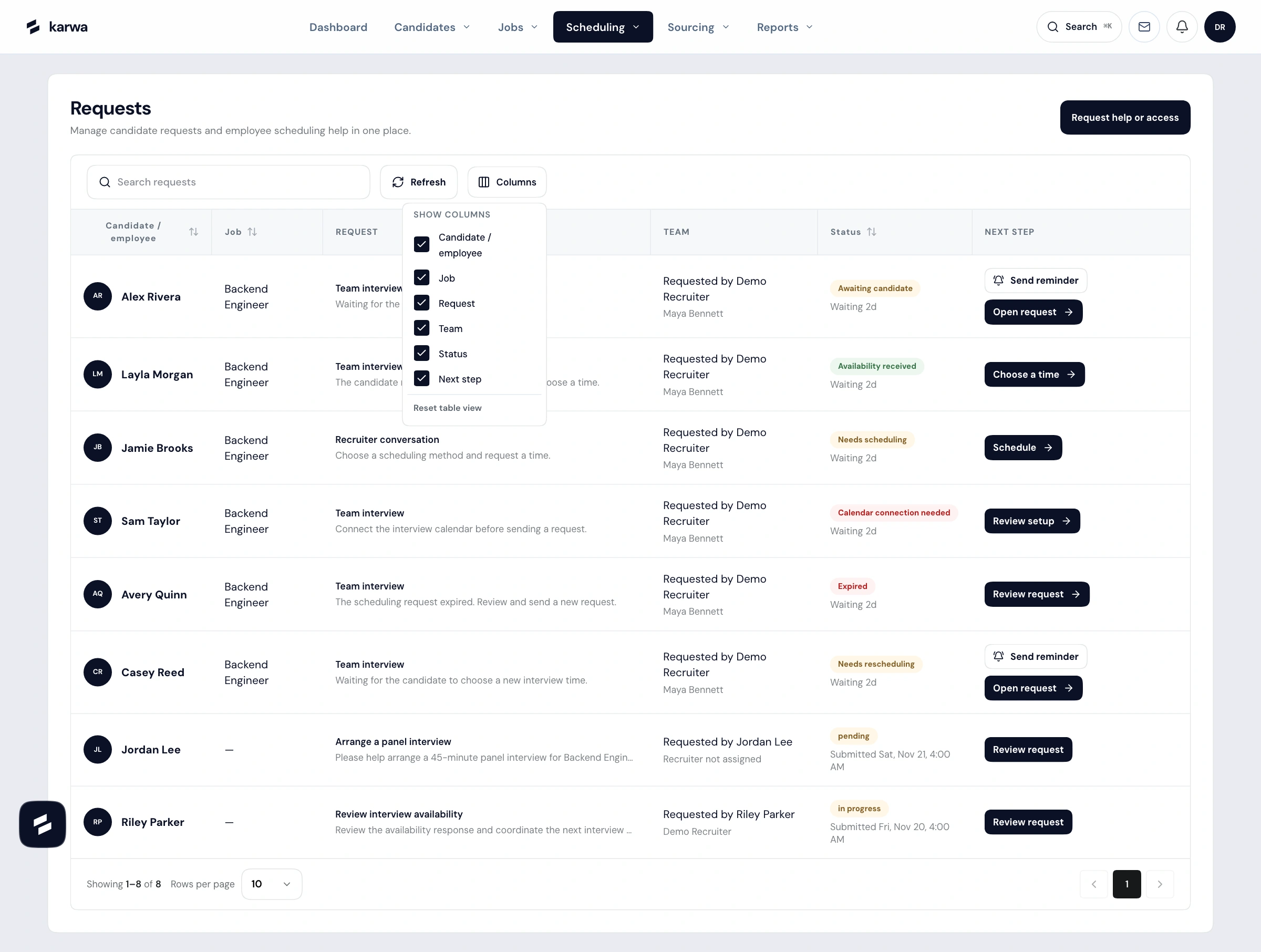
Open Columns to show or hide the six columns. Reset table view restores the table preferences; it does not delete requests. Column choices, sort order, page size and other table preferences are remembered in this browser. Refresh reloads scheduling data without sending anything; returning focus to the page also refreshes it.
Candidate statuses and next steps
| Status | What it means and what to do |
|---|---|
| Needs scheduling | Choose a method and request a time. Select Schedule to continue in the candidate workflow. |
| Needs review | A recruiter must review the interview before sending. Select Review request. |
| Needs configuration | Required setup is incomplete or the selected request method is disabled. Select Review setup and check the interview configuration. |
| Awaiting candidate | A booking or availability request is open. Open request shows the activity; an eligible scheduler can send a reminder. |
| Availability received | The candidate replied with availability. Select Choose a time and arrange the interview; availability alone is not a confirmed booking. |
| Needs rescheduling | A replacement time is needed, or a rescheduling request is awaiting a response. The description distinguishes these cases; use Reschedule or Open request as offered. Certain interviewer/calendar/provider cancellations can return work to this state. |
| Expired | The request's response deadline passed. Review the activity and send a fresh request when appropriate. A reminder cannot revive an expired link. |
The next-step button opens the candidate pipeline or the interview view allowed by your access. A read-only viewer may see View candidate or Interview details instead of a management label. Existing interview-detail links open the candidate's Activity tab when you have candidate access; assigned participants without that access can receive a restricted briefing with the date/time, location, meeting link and permitted material. A briefing does not itself grant the full candidate record. Feedback requires its own assignment, permission and eligible interview state. See Manage interviews and pending feedback for the interview list and Calendar and external busy time for the schedule.
Send a candidate reminder
Send reminder is a live action: selecting it immediately queues a follow-up email; there is no additional confirmation on this page. Review the candidate and request before clicking. It is available only while waiting for a candidate booking, availability response or rescheduling response, with an enabled, unexpired request and the required scheduling and job access.
The page reports Reminder queued for delivery. Queuing does not prove inbox delivery, reading or acceptance. If delivery is reported as failed, open the activity to investigate rather than repeatedly clicking. Wait at least five minutes after the previous reminder before sending another; the service enforces this interval. If another user already changed the state or the link expired, refresh and follow the new next step.
Manual follow-ups here are separate from the automatic booking follow-ups configured in Scheduling request defaults and the job's interview activity. They are also separate from reminders sent before a confirmed interview starts. Review your scheduling sender, email templates and contact details before outreach. Respect objections and avoid unnecessary repeat contact.
Ask a recruiter for scheduling help
Select Request help or access to open My requests, then New request. The form initially selects Request access; change Request type to Ask for scheduling help.
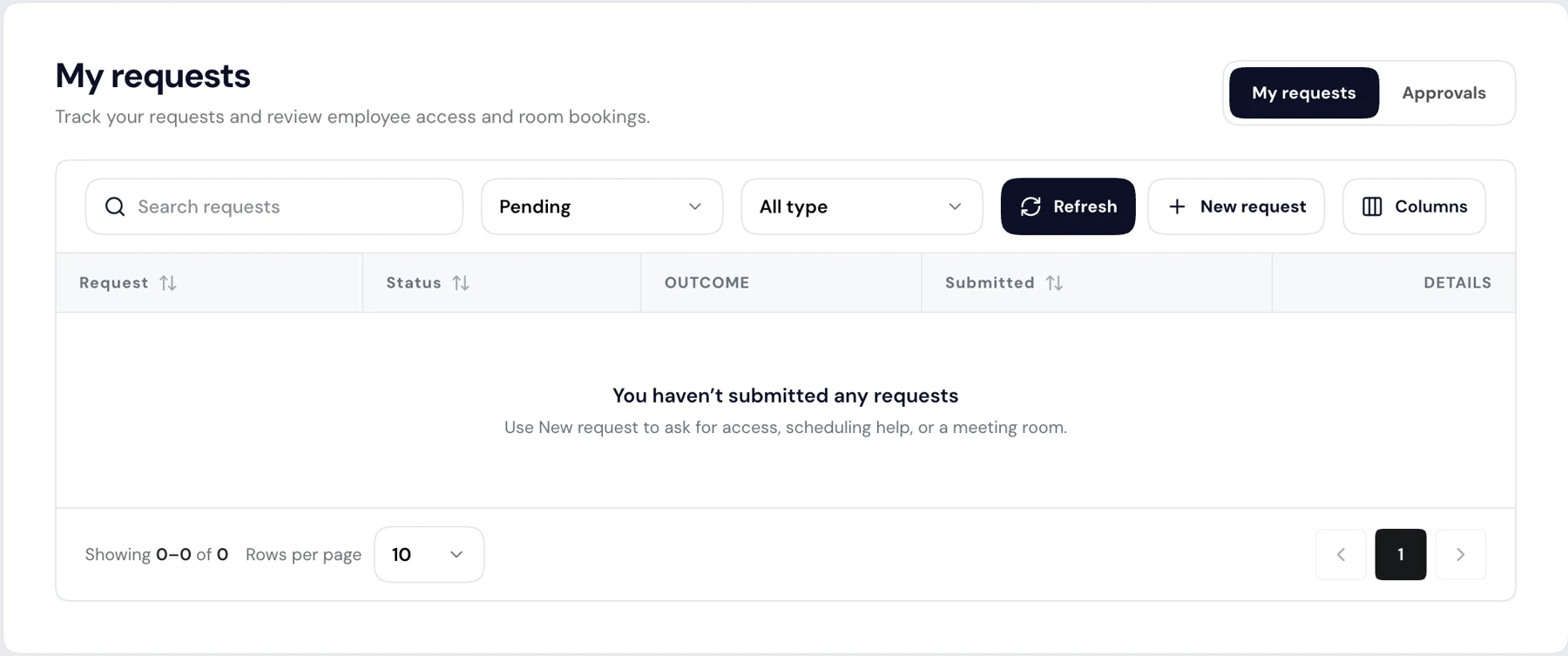
- In Interview or scheduling task, enter a clear title of 5–180 characters.
- In Why do you need this?, enter 10–4,000 characters explaining the work, relevant role, interview length, participants and time zone as needed. Use an authorized internal reference where possible. Do not paste a resume, private booking link, password or unnecessary sensitive details.
- Review the text and select Send request to create the internal task and notify relevant workspace reviewers. Closing the drawer before sending does not submit the task.
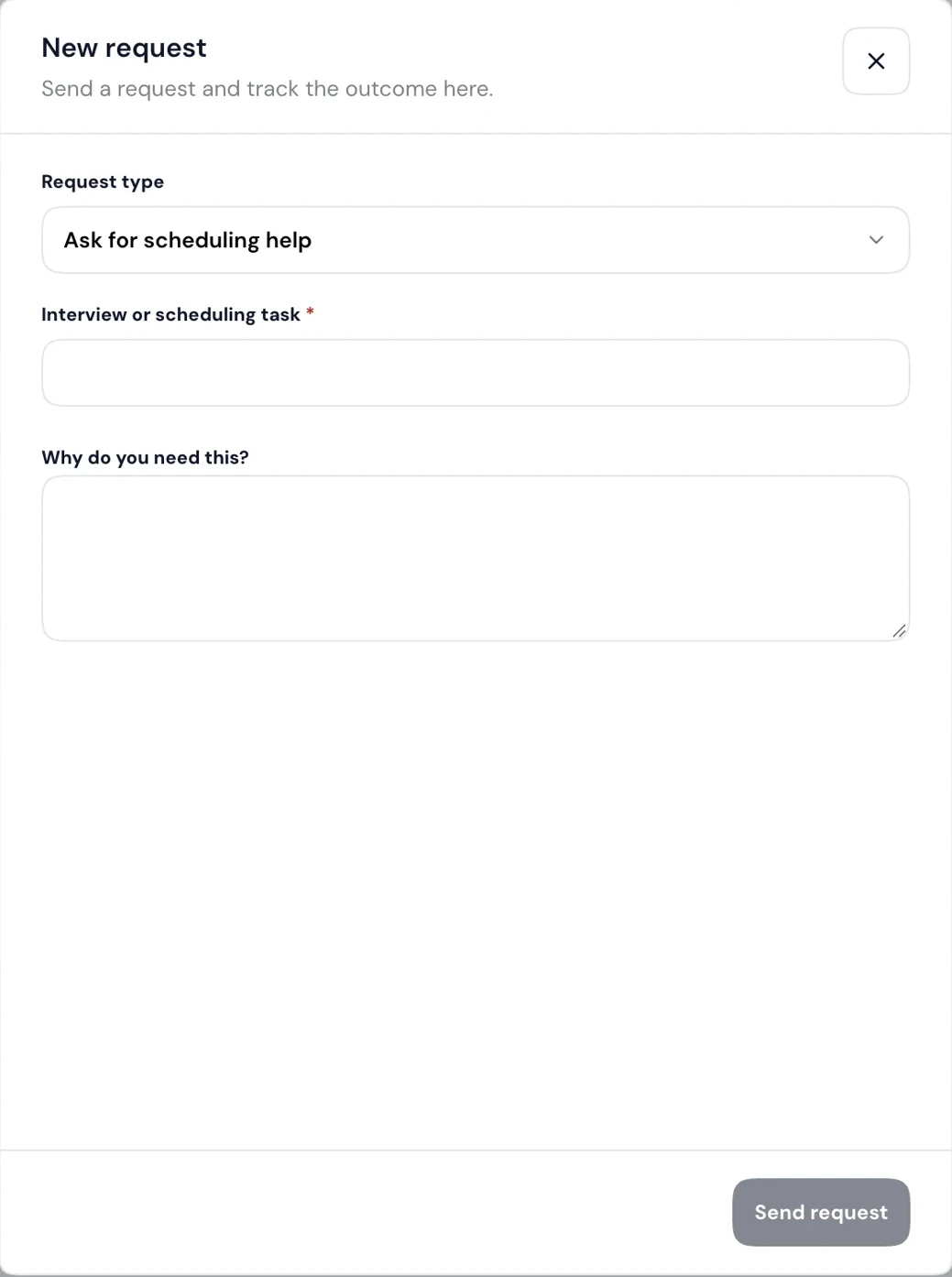
A duplicate open request from the same employee for the same task title is blocked. Review the existing task rather than creating repeated requests. My requests has Status and Type filters; use Scheduling help and the appropriate status to follow your task. Saved filter preferences can hide a request until changed. The Approvals tab is shown only to eligible reviewers and concerns access and room requests, not the scheduling-help review process described below.
Sending a help request does not contact the candidate, book a time, grant candidate access or reserve a room. Select Request access for a role review, or Book a meeting room for a separate room approval. The recruiter must arrange the actual interview in the authorized candidate workflow.
Review and resolve employee help
Open Review request or View request on an employee row to read its reason, status, submission date, assignee, recorded outcome and History. History records the action, actor, time and any note; requesters can see the outcome and history in My requests. Treat decision notes as shared request information, rather than a private recruiter notebook.
| Status | Meaning and available workflow |
|---|---|
| pending | Submitted and not yet claimed. An eligible reviewer other than the requester can select Claim request. The requester can Cancel request while it is pending. |
| in progress | Assigned to a recruiter. That recruiter arranges the interview separately, then records a decision reason or scheduling outcome and selects Mark completed or Decline request. These outcomes require at least five characters. |
| completed | The recruiter recorded that the help task is finished. This does not independently confirm an interview or candidate attendance. |
| rejected | The recruiter declined the task; read Outcome for the reason. This is not an application rejection. |
| cancelled | The requester cancelled the pending help task. This does not automatically cancel a separately booked interview. |
A request assigned to another active scheduler cannot be claimed by you. If that assignee no longer has scheduling access, an eligible reviewer can claim it. You cannot review your own request. Once a recruiter is working on it, contact them to arrange cancellation; the requester cannot use the pending-task cancel action. Updates notify the requester. Resolved requests remain available as task history; resolving a task does not erase recruiting information.
Inside the employee help drawer
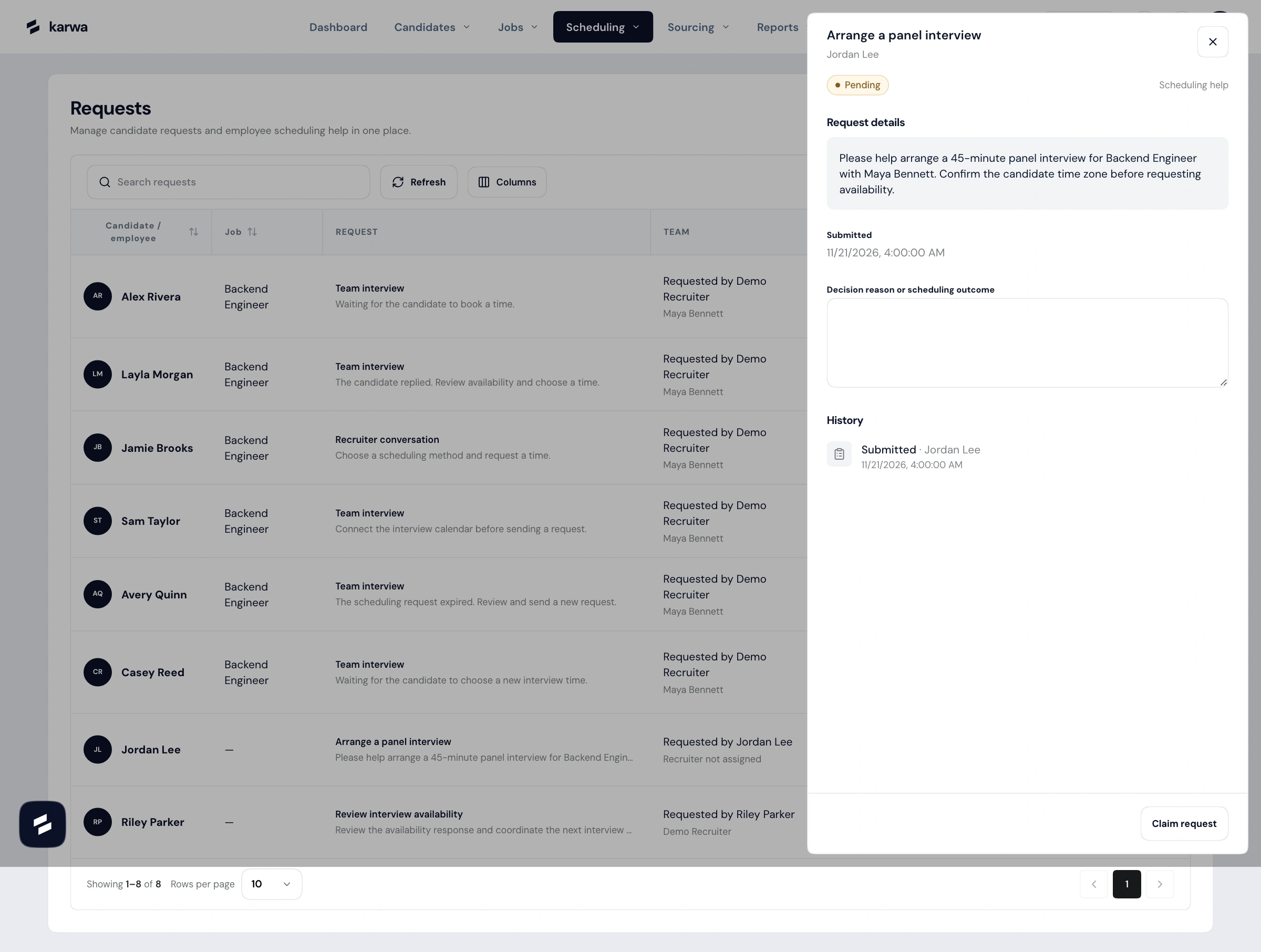
Read Request details before claiming. Claim request immediately assigns an eligible task; opening or closing the drawer does not claim it. The decision-note field may appear before claim, but claiming sends the claim action rather than saving that draft note. Record the final outcome after assignment.
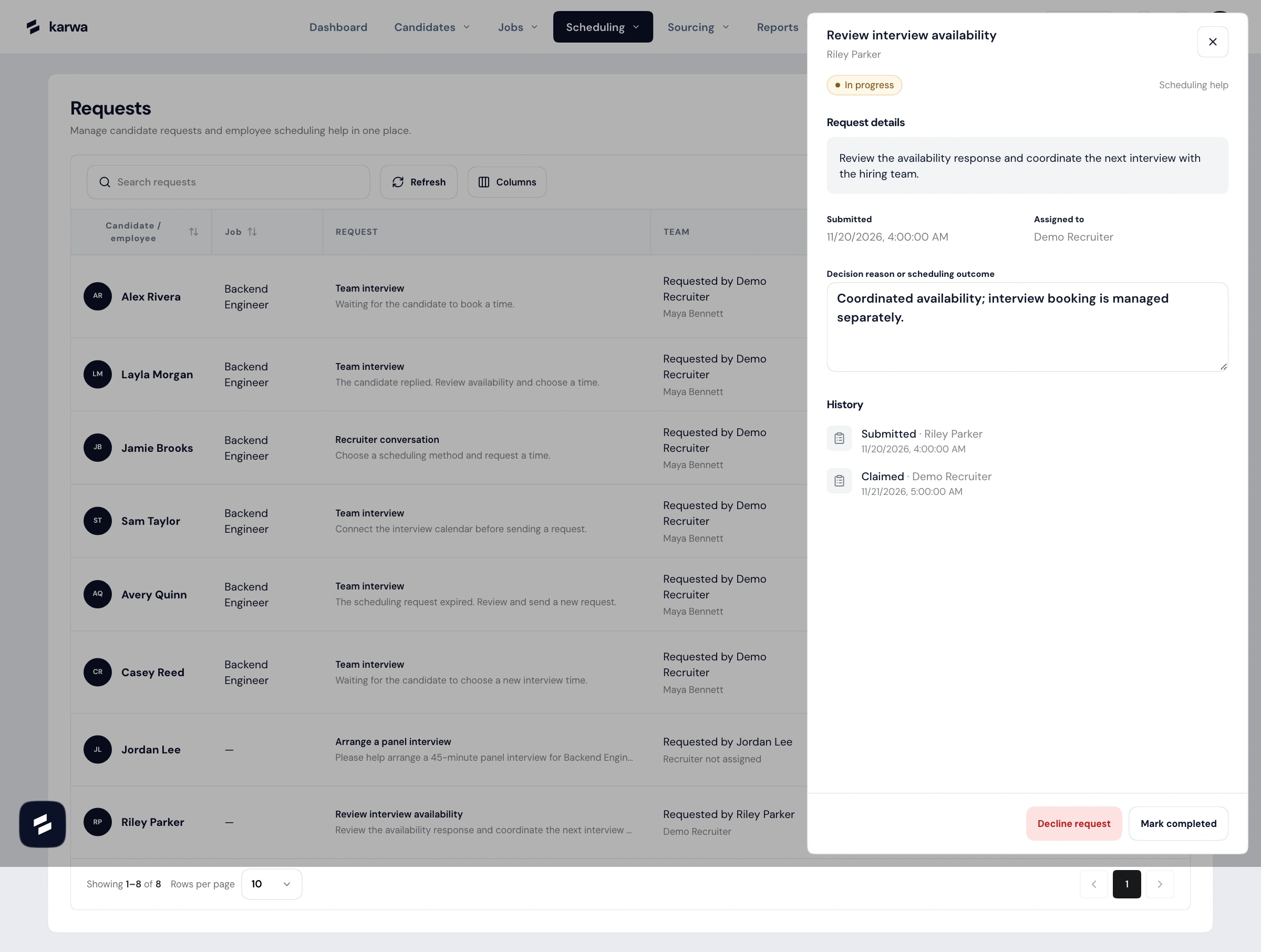
For a task you can resolve, Decision reason or scheduling outcome allows up to 4,000 characters; Mark completed and Decline request require at least five trimmed characters. Each button submits the decision directly, without another confirmation dialog. Closing the drawer leaves an unsent note unsaved. Check History and the resulting status after a successful update. If someone else changed the task, refresh and review the current assignee and controls.
Restricted interview briefing
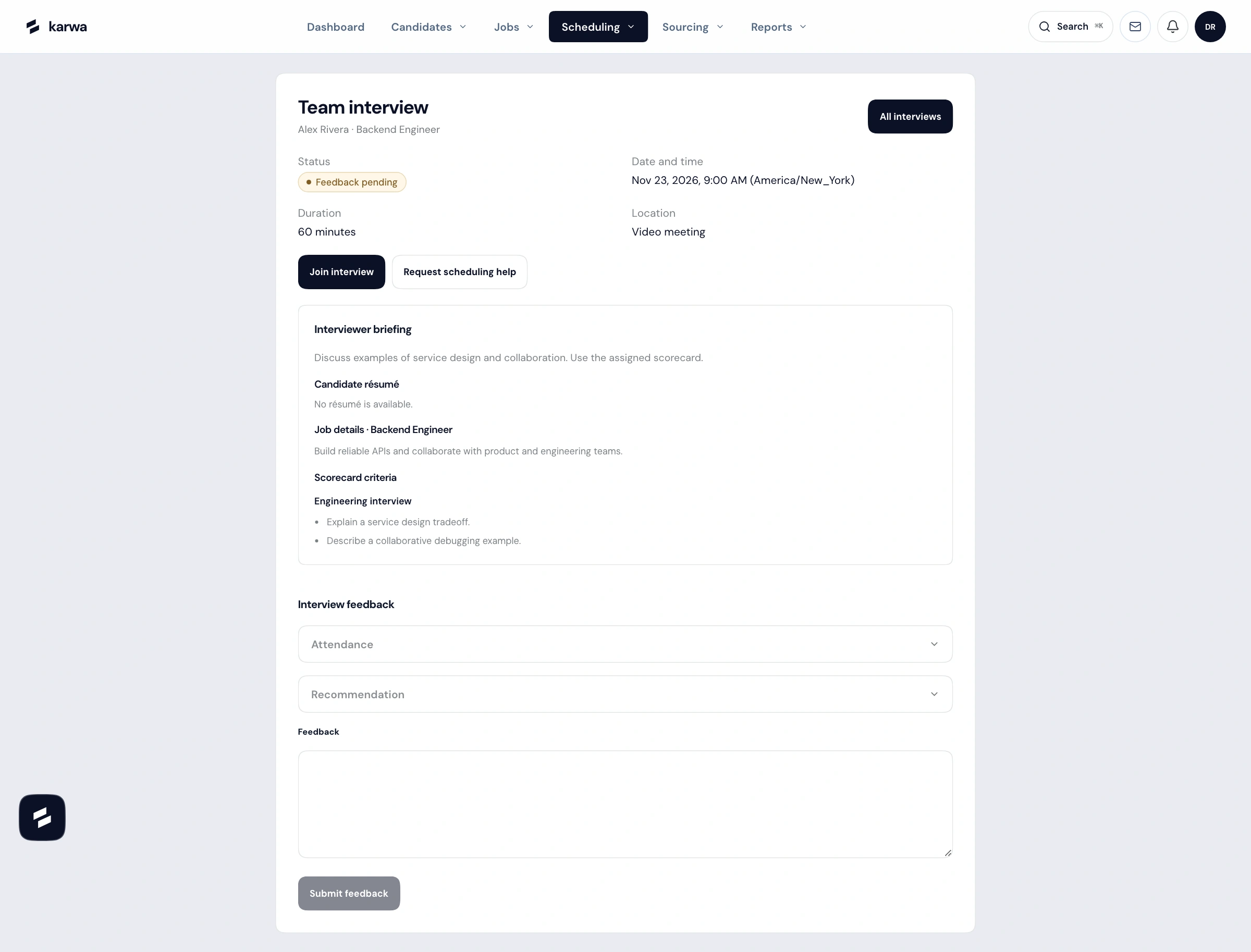
An assigned participant without full candidate access can remain on the interview details page. It shows the returned status, confirmed time in the stated interview time zone (or Time not yet confirmed), duration and location. Join interview appears only for a valid meeting URL; All interviews returns to the list. Request scheduling help opens My requests; select the scheduling-help type when creating the task.
The employer controls whether instructions, résumé, job details and scorecard criteria are included. A résumé section may say No résumé is available; a permitted download is separate from viewing the page. If feedback is enabled for your assignment and the interview is eligible, fill Attendance (Attended, No show or Cancelled), Recommendation (Strong no, No, Yes or Strong yes), required form answers and any required feedback. Without a custom form, feedback requires at least five characters; with a custom form, Additional feedback is optional. Submit feedback saves the review immediately; opening the form does not. Attendance and recommendation are recorded review inputs, separate from the calendar event's type color. Do not submit an invented review to clear a queue.
Ask Karwa about Scheduling requests
Ask Karwa reads this same guide with product_guide(topic=scheduling-requests-page). Ask how each status works, where a next-step button goes, how to search or customize the table, or how to claim and resolve employee help. For actual pending work, it uses authorized scheduling_requests_summary or scheduling reads with the relevant scope and pagination. Current state, permissions and delivery need live records; the fictional examples establish none of those. An explanation alone sends no reminder and records no decision.
Permissions, empty states and troubleshooting
The queue requires an eligible workspace and View interviews or Schedule interviews permission. Candidate rows are scoped by job access, interview participation and permitted team scope. Assigned participants can receive limited interview details even when full candidate/job access is restricted. Viewing is separate from scheduling: read-only users cannot send reminders or review the employee scheduling-help queue. Full candidate navigation needs the relevant job and candidate permissions; a reminder also needs access to the job. Ask an administrator to review Roles & permissions.
No open scheduling requests means there are no returned rows in your permitted view. It does not prove that no interviews exist, and candidate work may have left the queue because it was scheduled, resolved or no longer eligible. No matching requests means the search found no rows; clear it. Check Columns if an expected field or action is hidden. If the page reports a loading failure, select Try again or Refresh; a failed load is not an empty queue.
Related setup and privacy
| Need | Reference |
|---|---|
| Define interview stages, assignments, request methods and reminders | Interview plans and activities |
| Link expiry and automatic follow-up timing | Scheduling request defaults |
| Booking window, notice, buffers and time spacing | Scheduling defaults |
| Sender identity and scheduling messages | Scheduling communication |
| Prepare the panel and candidate | Plan and schedule interviews |
| Confirmed interviews and calendar | Manage interviews · Use the scheduling calendar |
Scheduling links and meeting URLs can give access to private recruiting actions or meeting information. Share only with intended participants. Review recipients, connected accounts, time zones and required notices; accepting an invitation is not consent to interview recording. Keep accommodation details proportionate and arrange a suitable private channel for sensitive information. See Scheduling terms, Privacy Policy, Candidate privacy and Data Processing Terms. Karwa's own privacy and security obligations continue to apply.