Loading documentation
Browse documentation
Use the scheduling calendar and external busy time
Compare schedules, recognize each event type, and understand the limits of connected Google and Outlook availability.
On this page
Open Scheduling → Calendar to compare recruiting activities and available work-calendar busy information. Use the employee selector, event-type filter and Month, Week or Day view to find the schedule you need.
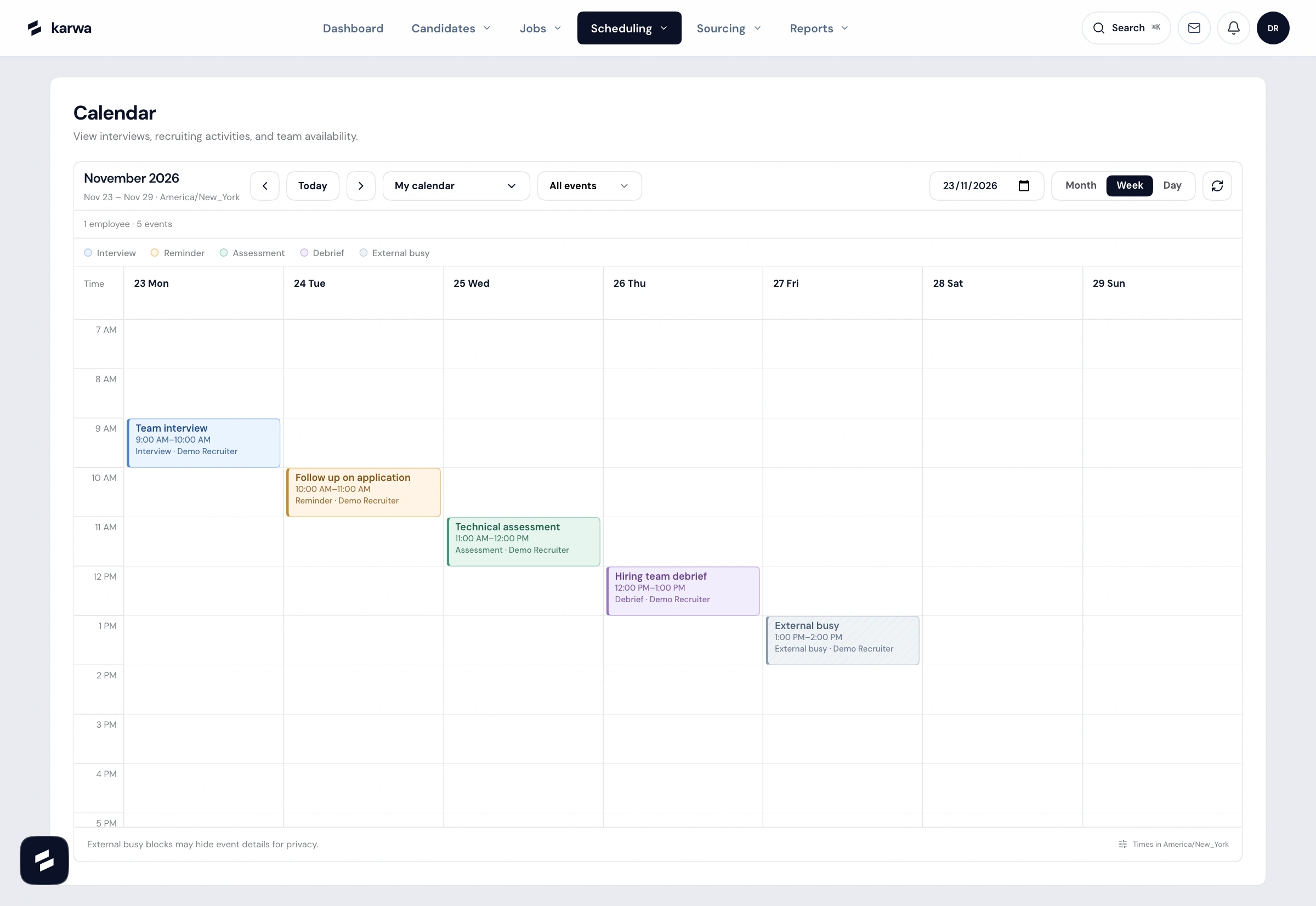
Reviewed November 22, 2026. Screenshots show the actual light-mode interface with fictional employees, recruiting activities and busy intervals. No interview, reminder or provider event was created or changed for these examples. Names, dates, counts and connections are illustrative; your workspace access and data determine what appears.
Choose employees, a date and a view
The calendar initially selects your employee record when available. Use the people selector to choose employees or an interviewer pool. Selecting people changes the schedule being displayed; it does not invite them to a meeting or grant access to their full calendar.
| Control | What it does |
|---|---|
| People or pool selector | Chooses the employees whose permitted schedules are requested. |
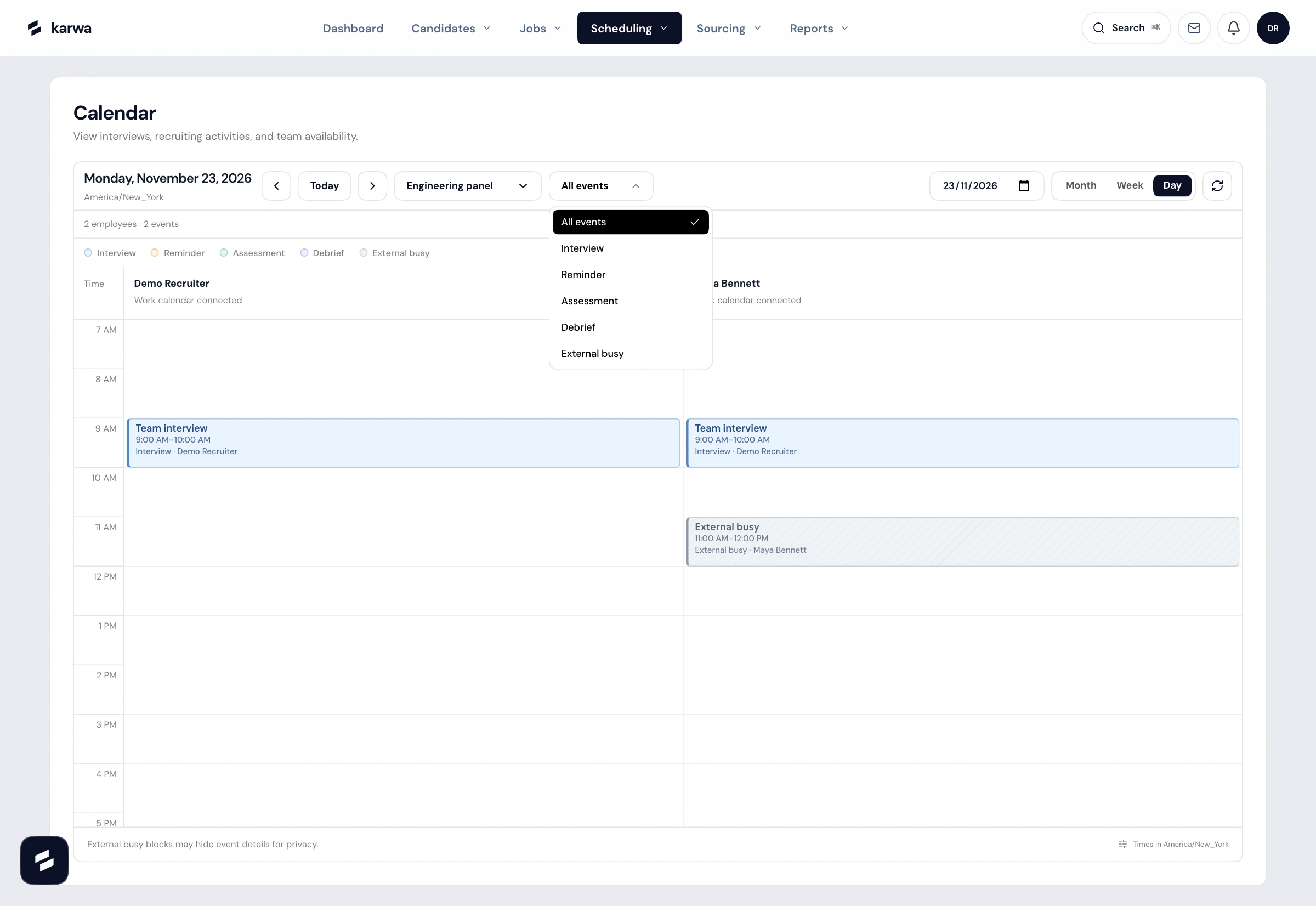
| All events | Shows every returned event type, or filters to Interview, Reminder, Assessment, Debrief or External busy. |
| Previous / next arrows | Moves one month, week or day according to the selected view. |
| Today | Returns to today's date. |
| Date field | Jumps to a chosen calendar date. |
| Month | Shows an overview of dates and event cards. Select a date to open its day view. |
| Week | Shows event placement and time ranges across a week. |
| Day | Compares the selected employees' schedules for one day. Use employee-page controls when there are more employees than fit in the view. |
| Refresh calendars | Requests updated data for the selected date range and employees. It does not send invitations. |
Times use the browser's local time zone, shown above and below the calendar. A candidate or coworker can be in a different zone. Confirm the actual interview time zone and daylight-saving changes before sending an arrangement.
Compare Month, Week and Day
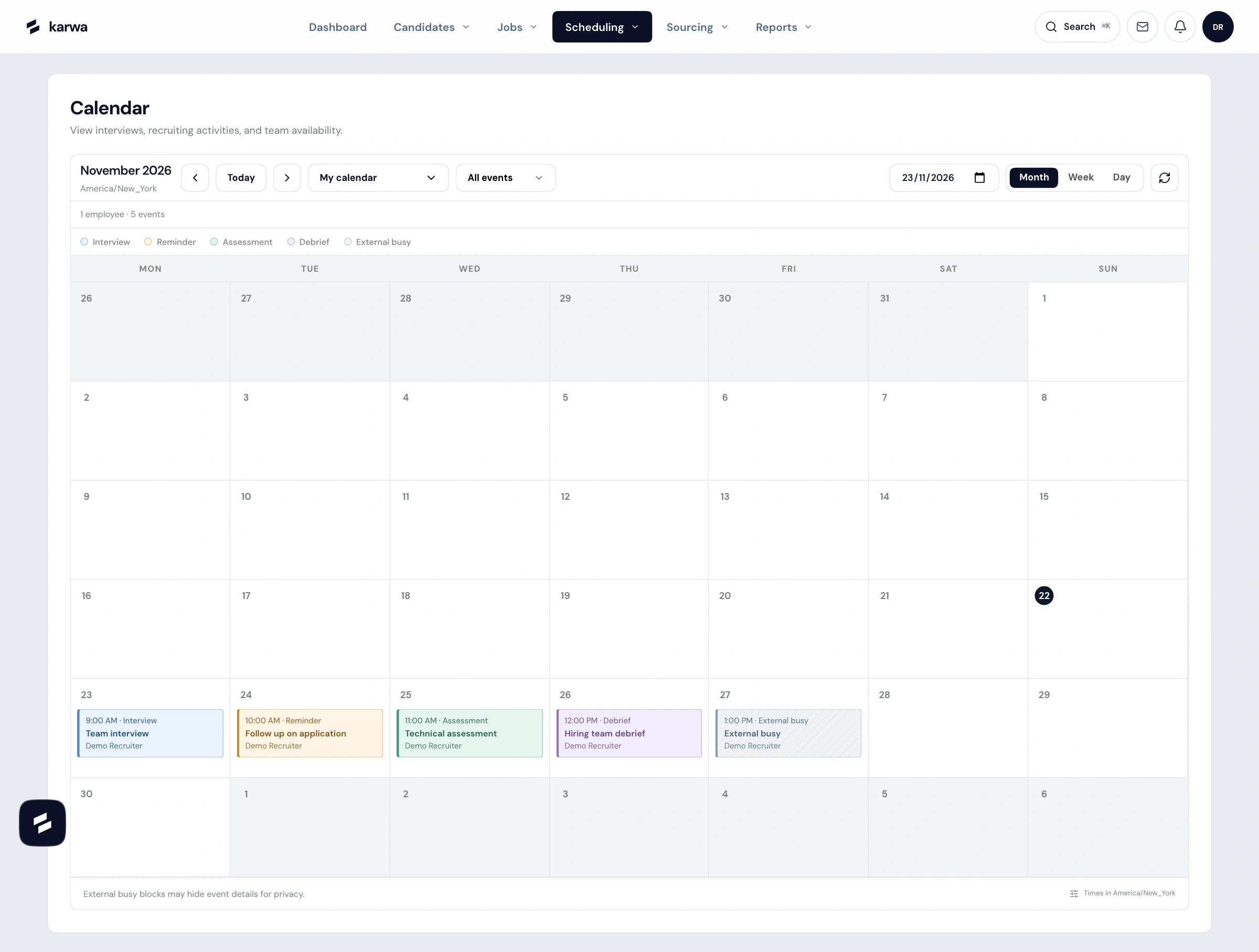
Month runs Monday through Sunday in a six-week grid. Dates outside the current month are muted. Today's date has a filled marker; that marker identifies today, not an interview status. Each date shows up to three event cards; + more opens that day's view, as does selecting a date number. An event card opens its own details.
Week arranges the seven days as time columns. Events appear at their local start time and duration. Overlapping events are laid out next to one another; their presence is a reason to inspect details, not proof that all selected people are required for both meetings.
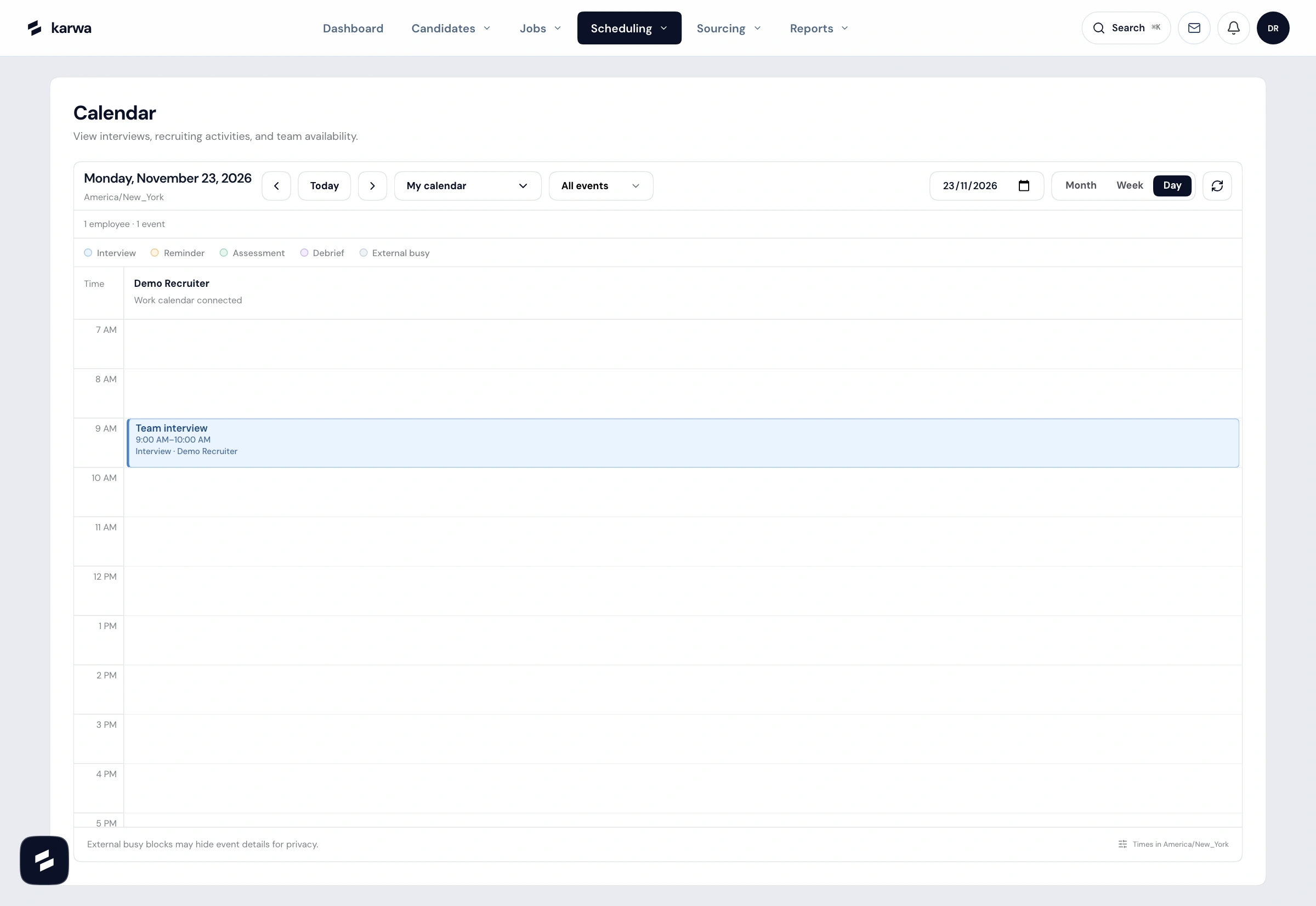
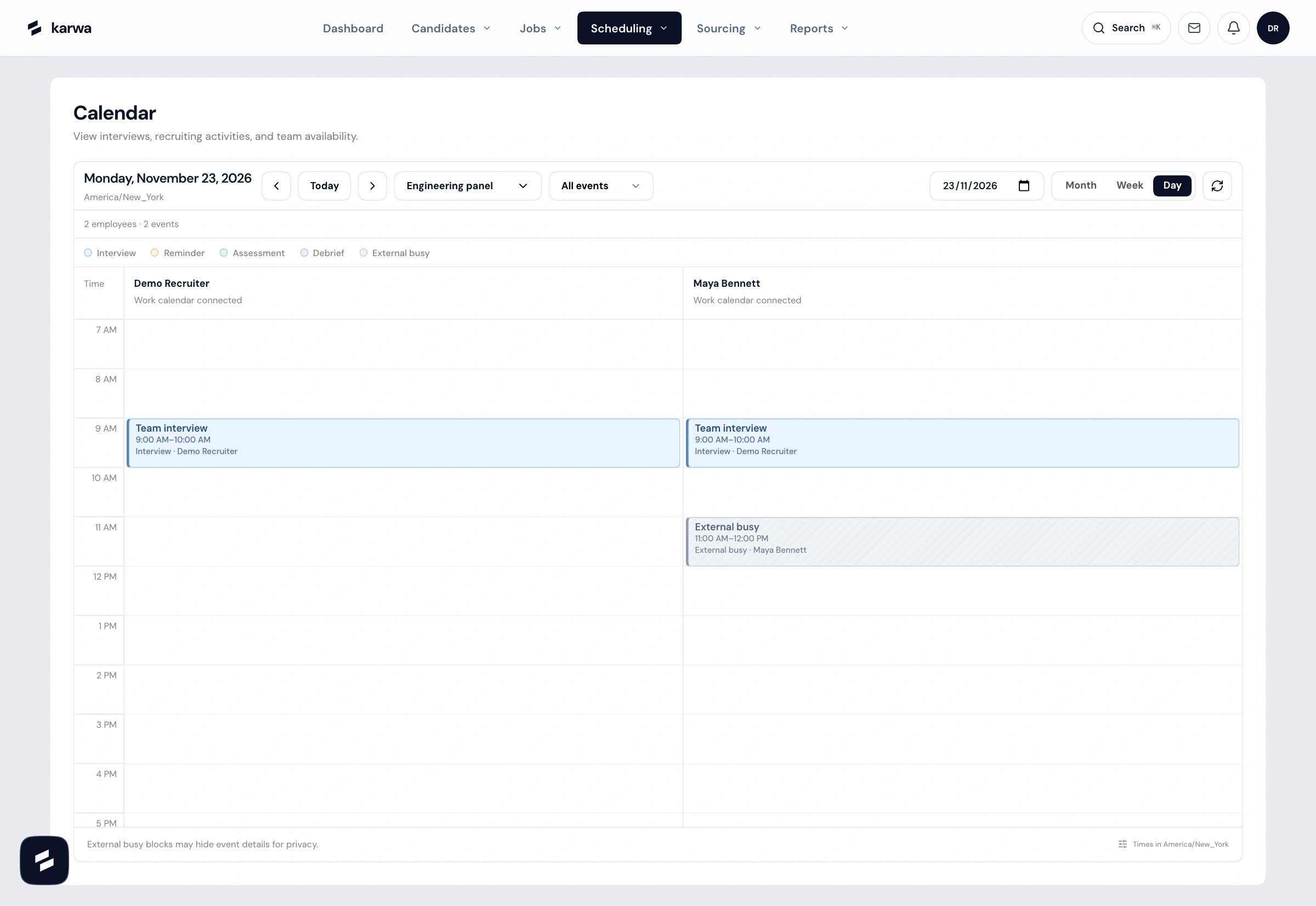
Day uses a separate column for each selected employee. The same shared interview can appear under more than one employee. Do not add those appearances to count unique interviews. Scroll within the calendar to inspect other hours, and horizontally on narrow screens. The status bar's event count describes the returned, type-filtered events for the current employee page and date range, not completed interviews or unique candidates.
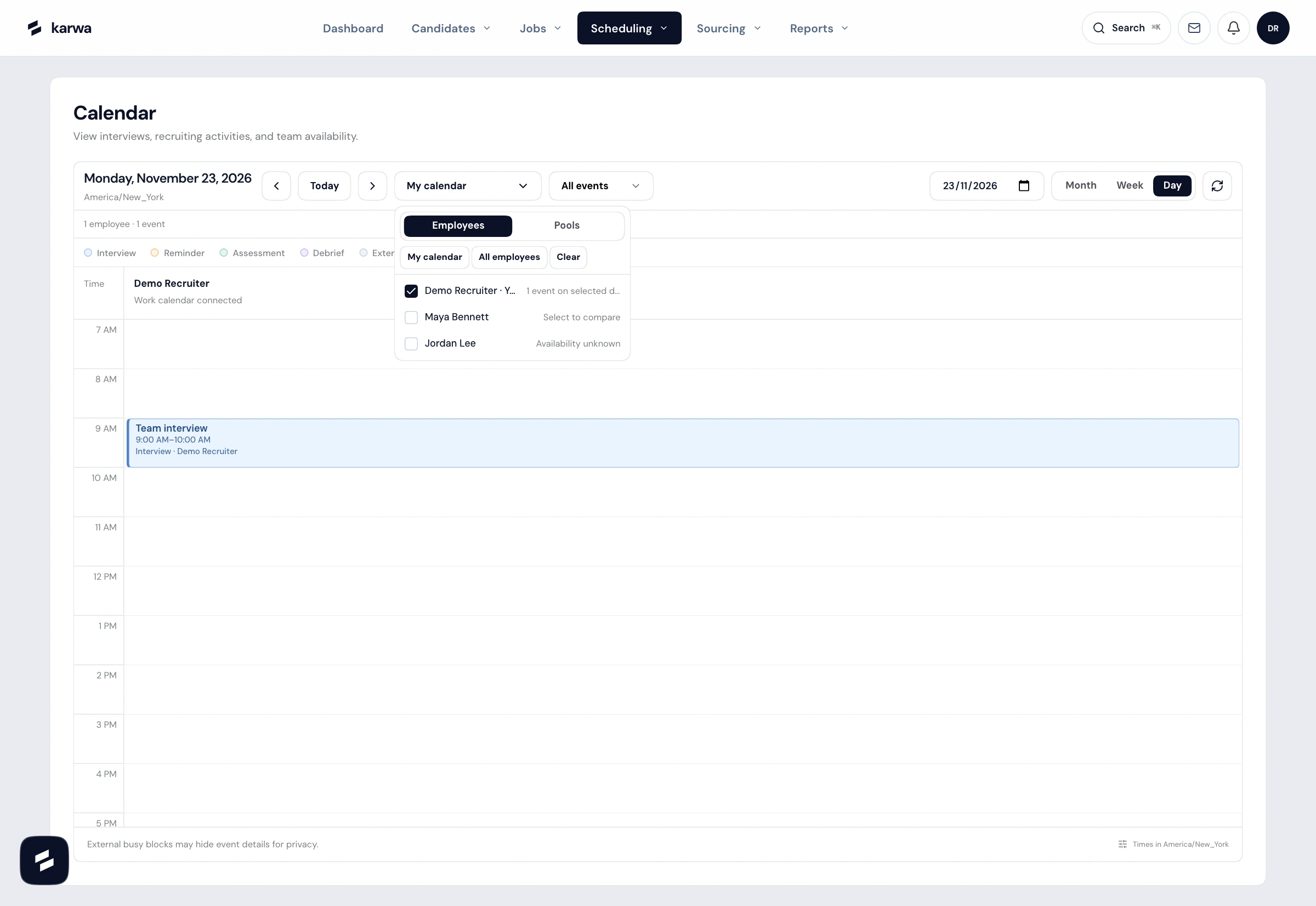
The picker has Employees and Pools tabs. Under Employees, My calendar selects you, All employees selects the available directory and Clear removes the selection. Check or uncheck individual employees to build a comparison. Changes take effect immediately in this view; they do not edit a pool or assign interviewers. With no selected employee, the calendar asks you to choose people instead of implying everyone is free.
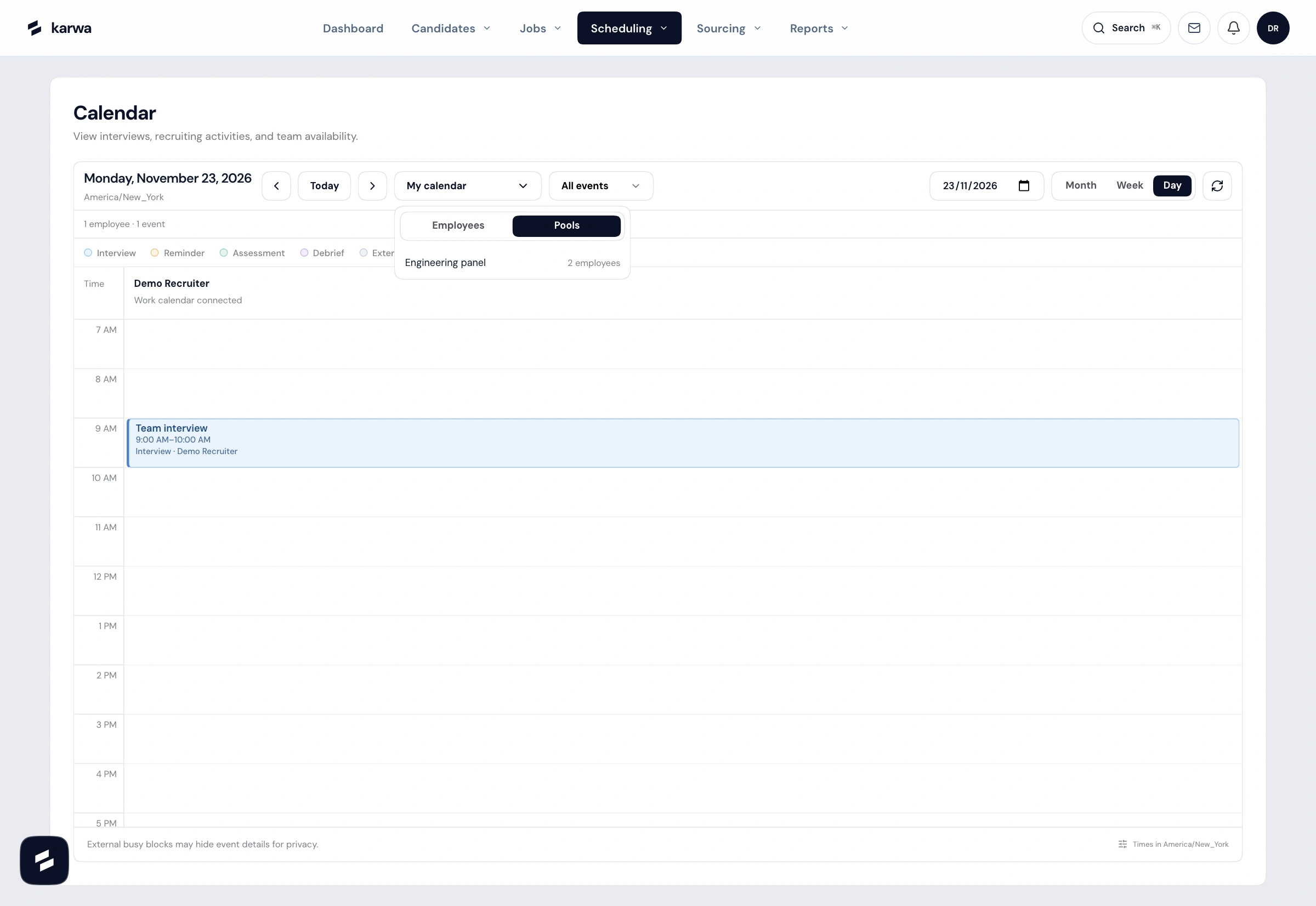
Selecting a pool chooses its employee IDs for comparison. It does not distribute interviews or change the saved pool. Configure membership under Interviewer pools. Pools without eligible members do not establish anyone's availability.
When more than eight employees are selected, Previous employees and Next employees page through groups of up to eight. The visible schedules and event count concern that group; review every group before concluding that a large panel is available.
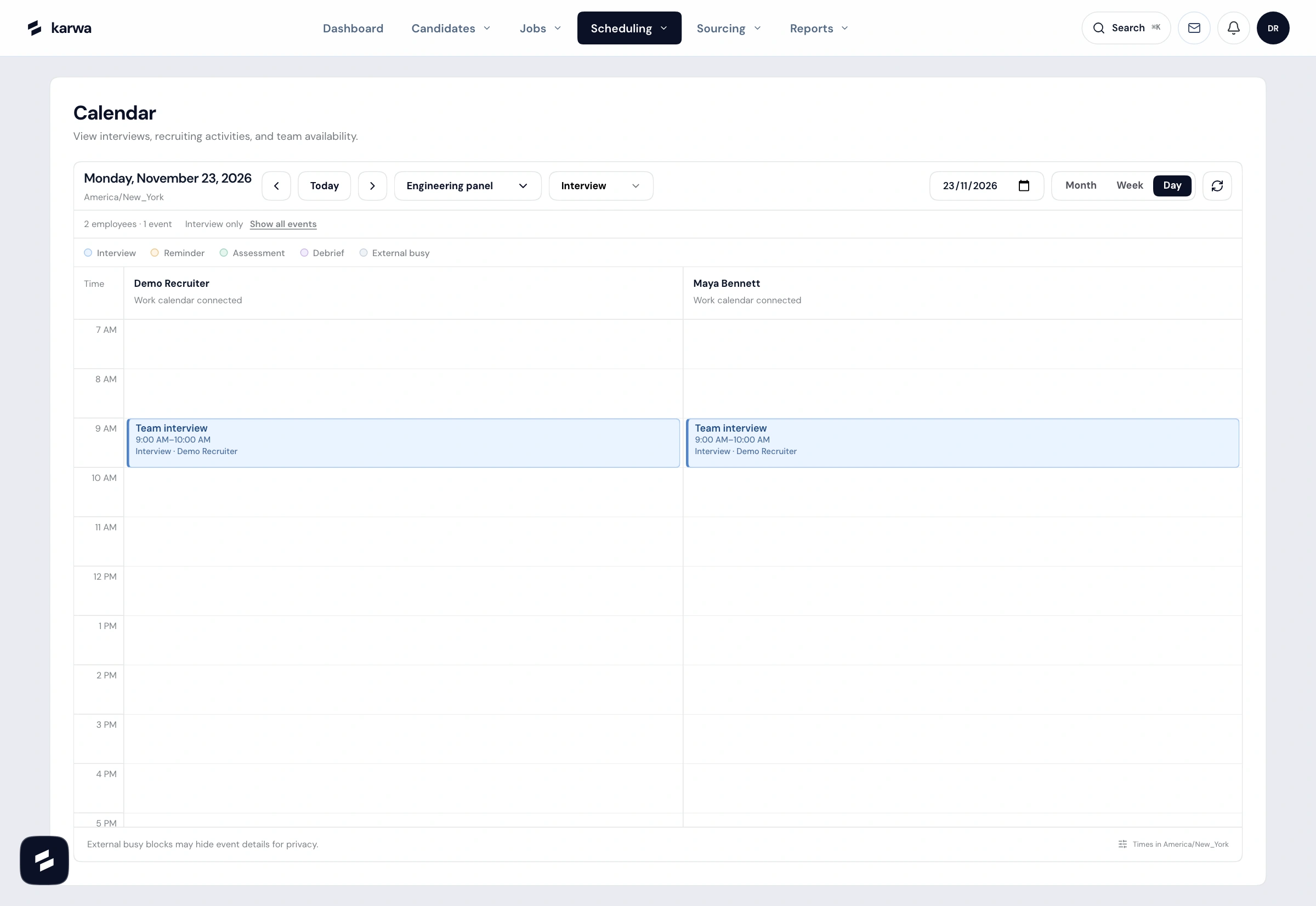
When a type filter is active, the status bar names that type and offers Show all events. If another type hides follow-ups, Show N hidden reminders switches to Reminder. These shortcuts change only the view.
Use All events before checking for conflicts. A filter that shows only Interviews hides external commitments and other activity types. Today changes the date while retaining the chosen view; date arrows move by that view's period. A refresh updates data without changing the chosen date or inviting anyone.
Recognize the event types
| Type | Appearance | Meaning |
|---|---|---|
| Interview | Blue | An interview activity associated with an application. |
| Reminder | Amber | A recruiting follow-up or reminder activity. This is separate from an interview booking. |
| Assessment | Green | An assessment activity with calendar timing. A calendar entry alone does not prove submission or review. |
| Debrief | Purple | A recruiting debrief activity. It does not itself record a hiring decision. |
| External busy | Slate, with a diagonal pattern on event blocks | Busy time supplied by a connected work calendar. It can concern work unrelated to recruiting. |
The legend and event labels identify the type as well as the color. Dark mode uses darker backgrounds and lighter text for the same five meanings. Colors identify event type, not hiring stage, booking delivery, attendance, pass/fail or completion. Amber and red connection/error notices are warnings, separate from the event-type legend. A personal meeting, focus session or other external commitment can appear as External busy. Karwa cannot reliably tell what that commitment concerns from a free/busy interval. Do not interpret a hidden title as an interview or a particular personal task.
Connect the correct work calendar
Open Integrations and choose Google Calendar or Microsoft Outlook to review the relevant connection and complete the authorized provider setup. Check the account and any connection or domain warning. Return to the calendar and refresh after connecting. Opening an integration alone does not connect an account. The Scheduling calendar itself does not show a provider-connection panel.
Google availability checks the primary calendar, the Karwa Interviews calendar and configured meeting rooms. Other Google calendars are not automatically checked. Put commitments that should block interview times on the primary calendar used for scheduling. Review Meetings, holidays & time zone, Scheduling defaults, Interviewer pools and Meeting room pools for the associated setup.
Provider data and recruiting events have different sources. Refreshing or disconnecting a calendar does not independently cancel an interview or erase events already held by a provider.
Understand external busy privacy and limits
Google free/busy results provide intervals rather than personal event titles or descriptions. An own-calendar Microsoft event can retain an available title; coworkers' external event titles remain hidden. Do not assume the same detail is available for every provider or employee.
Calendar unavailable · Recruiting events shown means one or more selected work calendars are disconnected or need attention. Recruiting activities can still appear, but an apparently open period is not reliable proof of availability. A provider error, unselected employee, hidden event type, unchecked secondary calendar or stale data can also explain a missing block.
Use All events, confirm the employees and date, refresh, and address the connection warning before arranging a meeting. A successful refresh cannot guarantee that a provider returned every commitment or that another person will remain available.
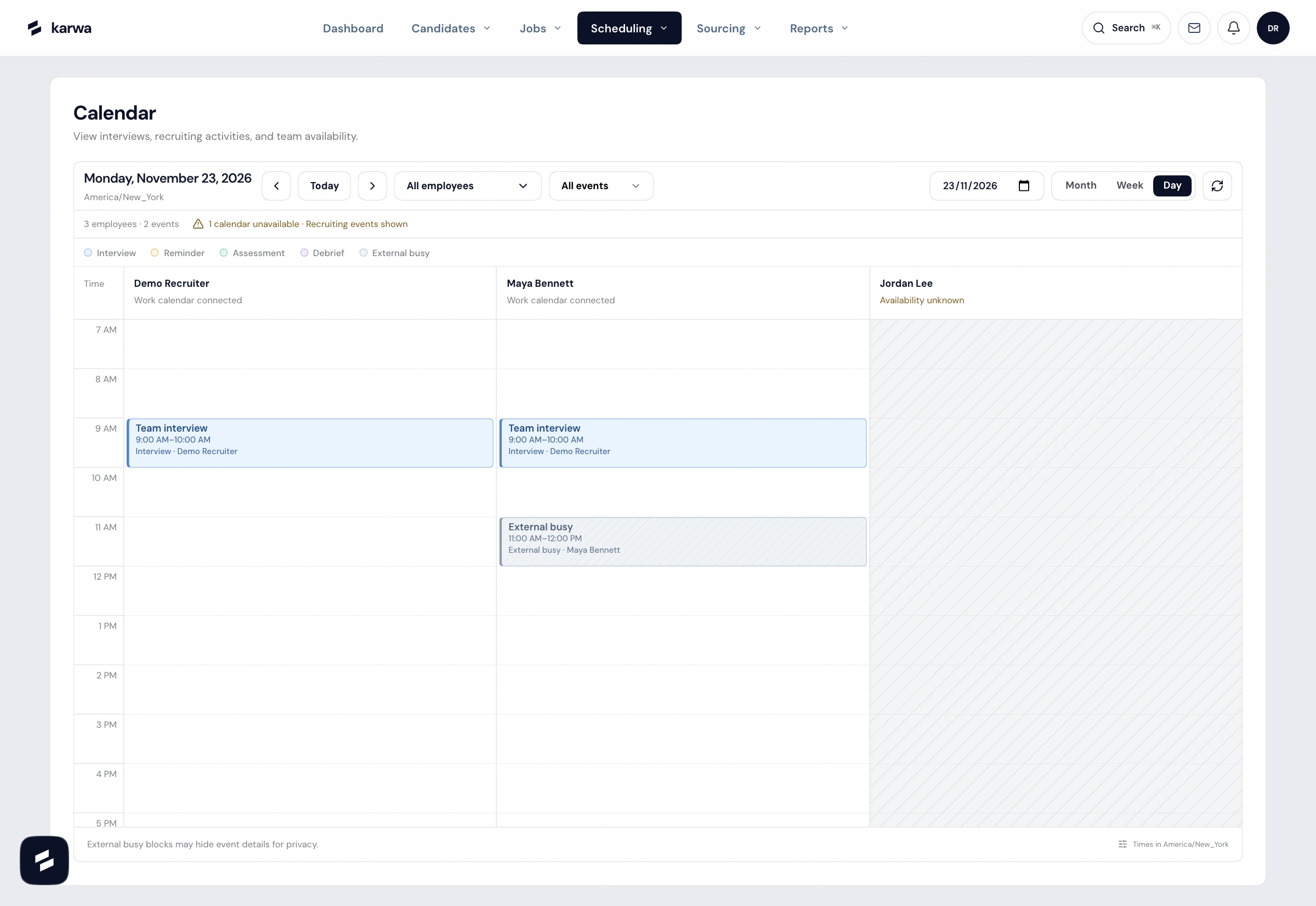
A diagonally shaded entire employee column means availability is unknown, whereas a small patterned External busy event block marks a returned busy interval. Shading the whole column does not mean the employee is busy for the entire day.
A connected-calendar label describes the connection, not a guarantee of complete or current availability. The Day column can explicitly say Availability unknown when disconnected or needing reconnection. Fix that condition before treating an empty time range as free.
Open an event
Select an event to inspect the details available for its type. A recruiting event can link to its candidate profile. Open interview details continues to the candidate's Activity tab for users with candidate access; assigned participants with restricted access can receive their interview briefing instead. See Manage interviews.
External busy blocks do not link to an application. Hidden event information stays hidden. A reminder opens its own detail view; completing it changes that follow-up record rather than confirming an interview or hiring outcome. Review any confirmation before completing it.
Interview details
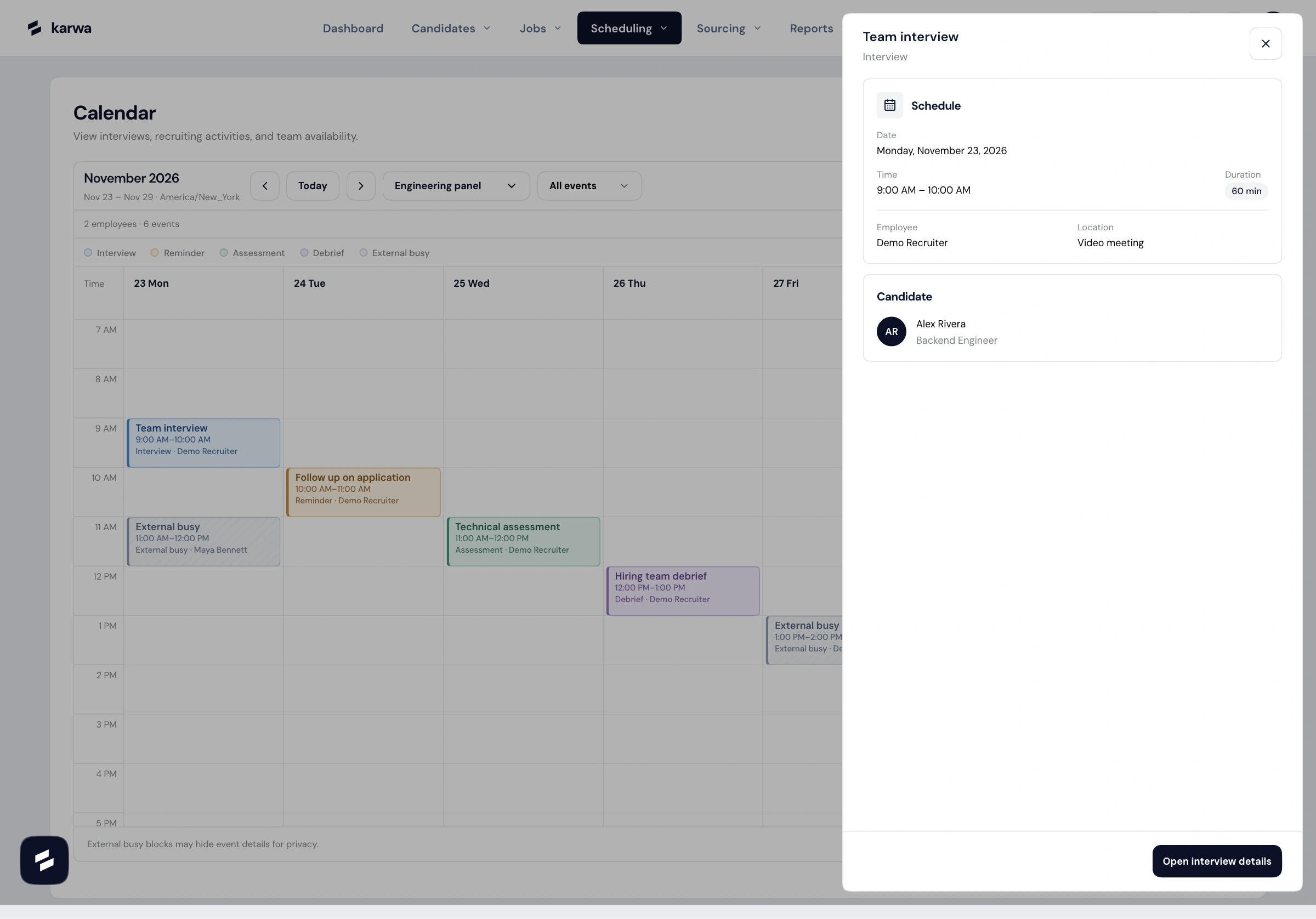
The drawer's Schedule section shows the local date, start/end times and duration, plus employee and location when supplied. The Candidate section identifies the application and role. Open interview details opens the permitted interview route; it does not join the meeting, edit the booking or send an invitation. Check the actual activity for meeting links, request history and permitted scheduling actions.
Restricted interview briefing
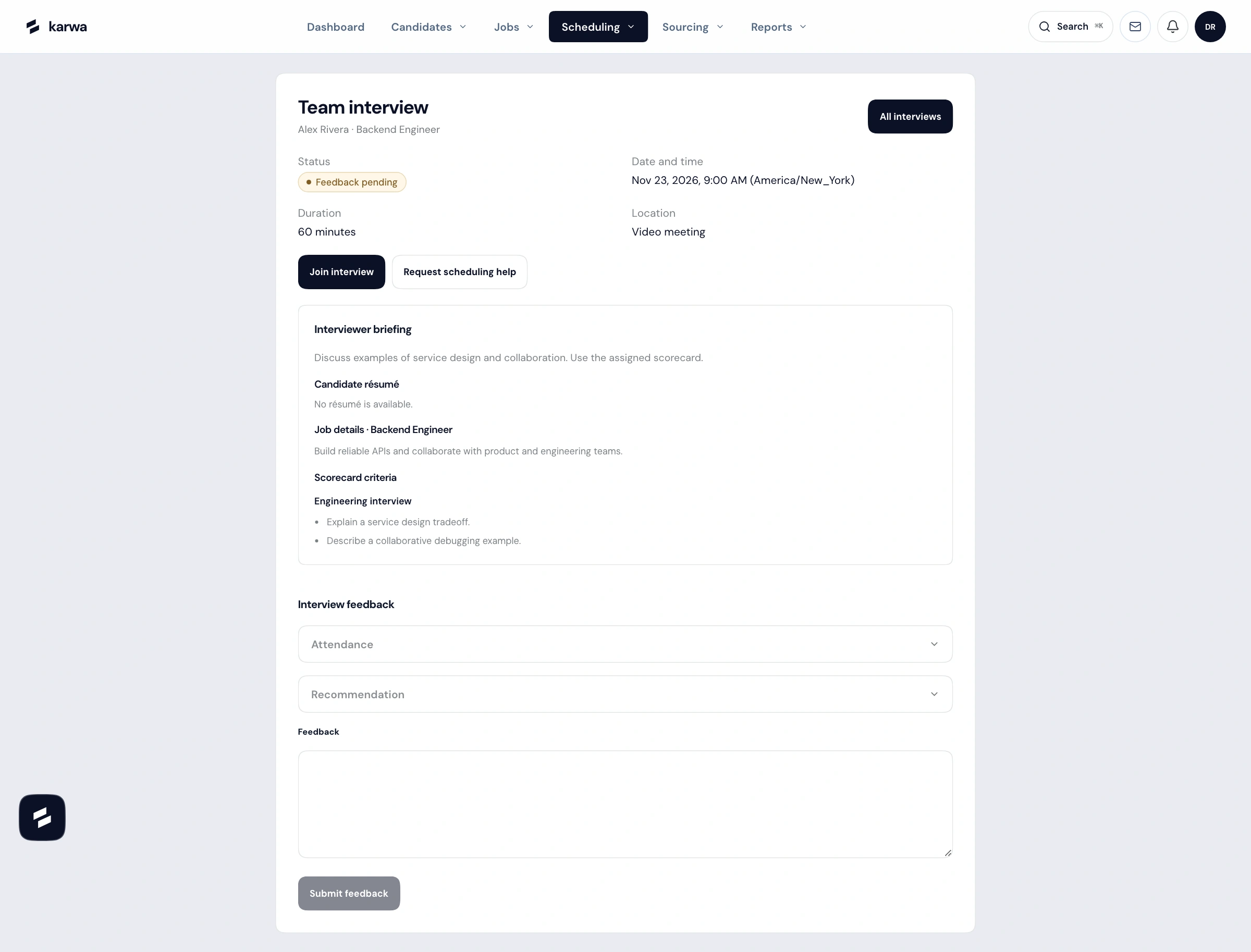
An assigned participant without full candidate access can remain on the interview details page. It shows the returned status, confirmed time in the stated interview time zone (or Time not yet confirmed), duration and location. Join interview appears only for a valid meeting URL; All interviews returns to the list. Request scheduling help opens My requests; select the scheduling-help type when creating the task.
The employer controls whether instructions, résumé, job details and scorecard criteria are included. A résumé section may say No résumé is available; a permitted download is separate from viewing the page. If feedback is enabled for your assignment and the interview is eligible, fill Attendance (Attended, No show or Cancelled), Recommendation (Strong no, No, Yes or Strong yes), required form answers and any required feedback. Without a custom form, feedback requires at least five characters; with a custom form, Additional feedback is optional. Submit feedback saves the review immediately; opening the form does not. Attendance and recommendation are recorded review inputs, separate from the calendar event's type color. Do not submit an invented review to clear a queue.
Assessment and debrief details
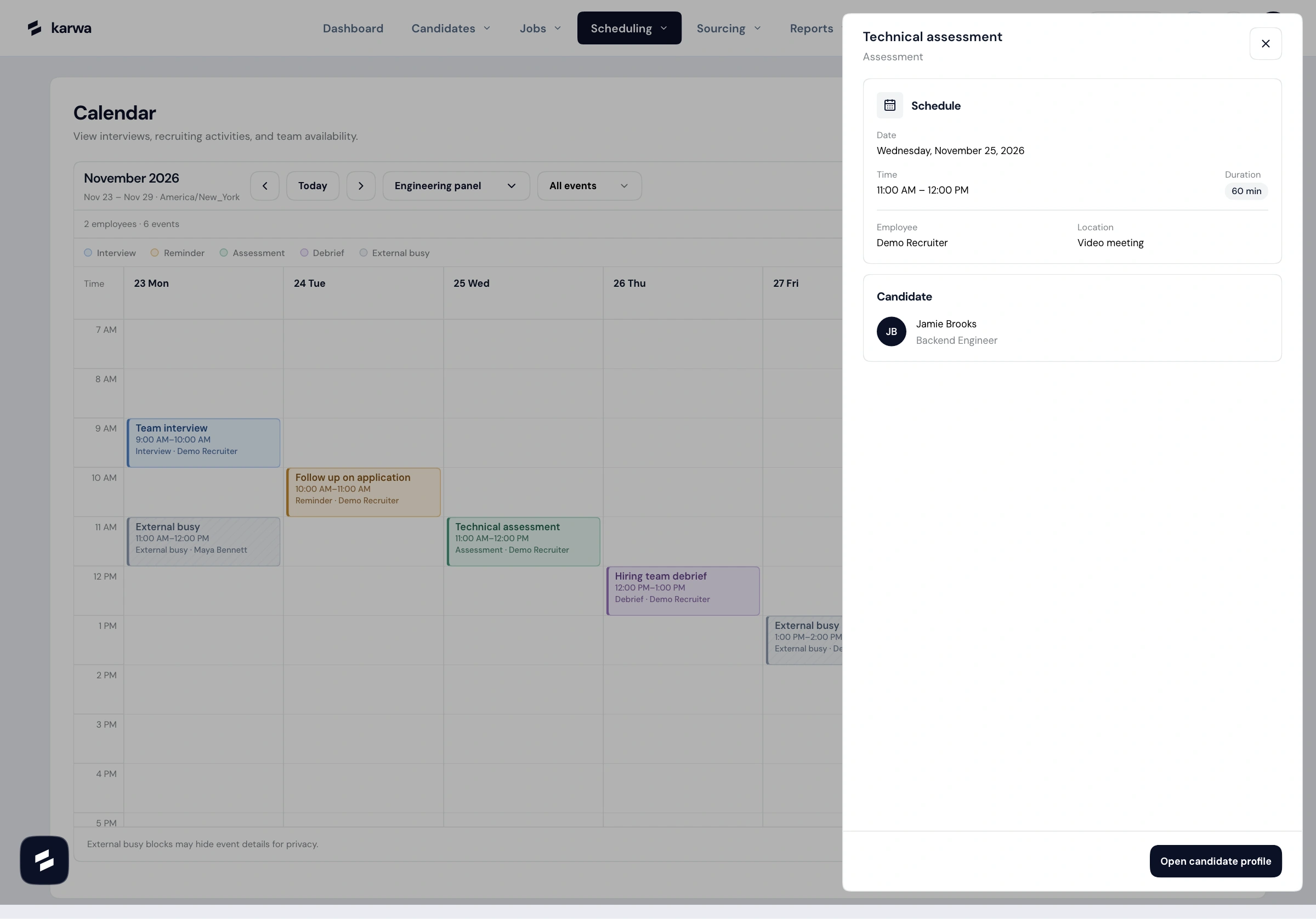
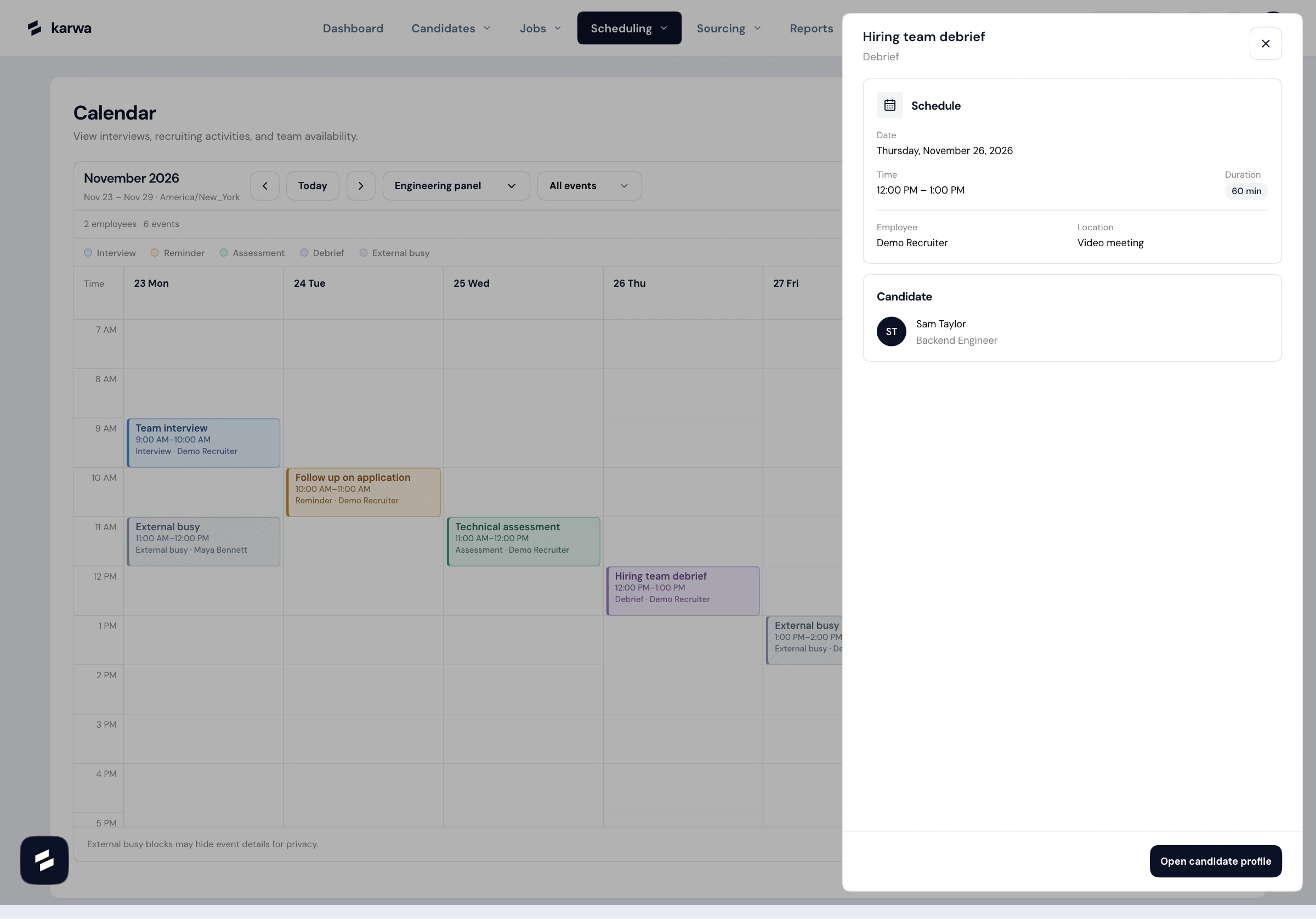
Both expose Open candidate profile. Use that application's activity to review the assessment or debrief. These calendar drawers do not submit a test, save feedback, mark a score or record a hiring decision. An assessment event's green styling means its type is Assessment; it does not mean the candidate passed.
Reminder confirmation
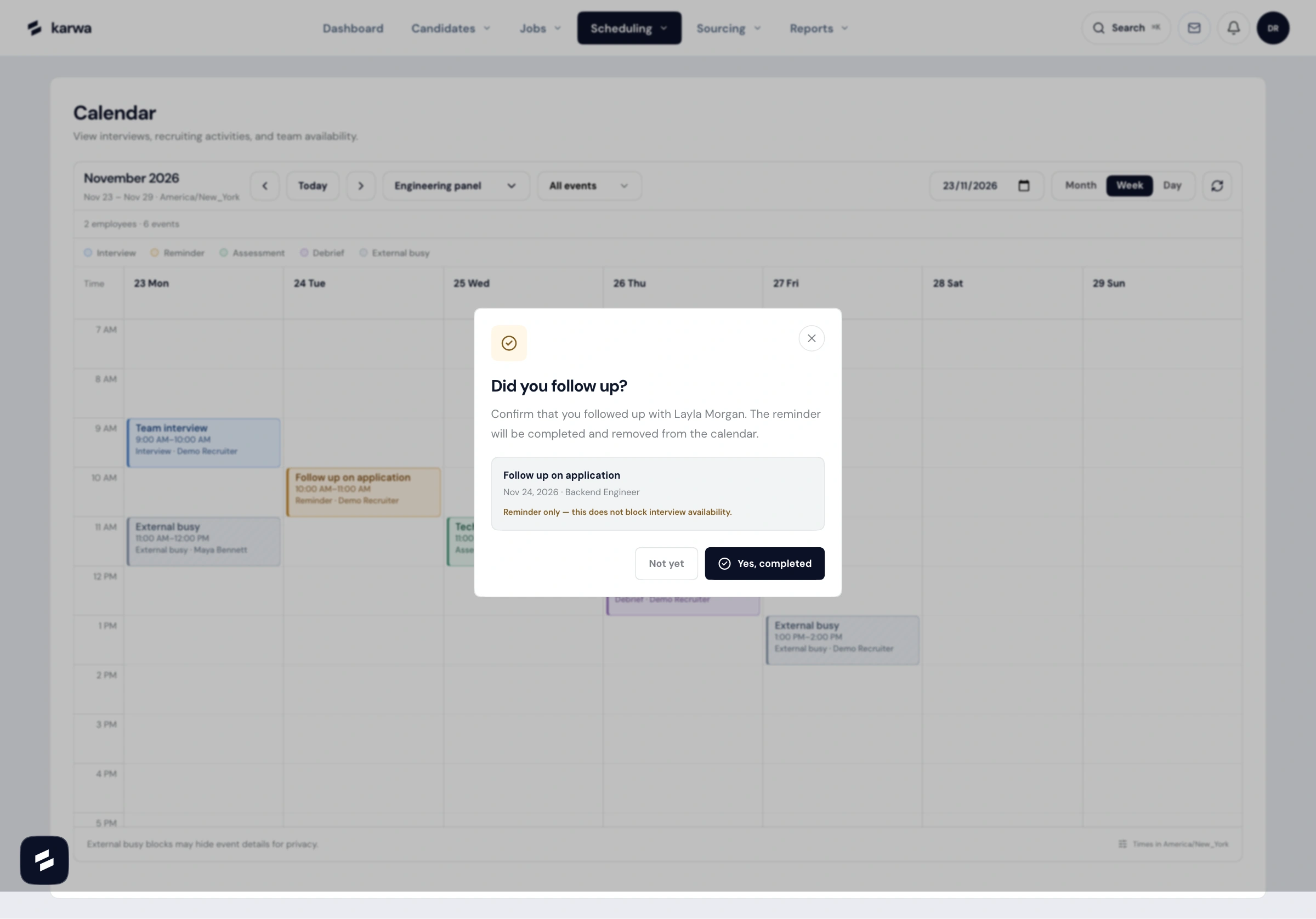
A Reminder opens Did you follow up? rather than the event drawer. Confirm the candidate, title and date. Not yet closes it without changing the reminder. Yes, completed saves completion of that follow-up and removes it from the calendar; it does not send a follow-up message, confirm an interview or change the hiring stage. Only confirm after doing the actual follow-up. If saving fails, read the error; completion has not been established.
External busy details
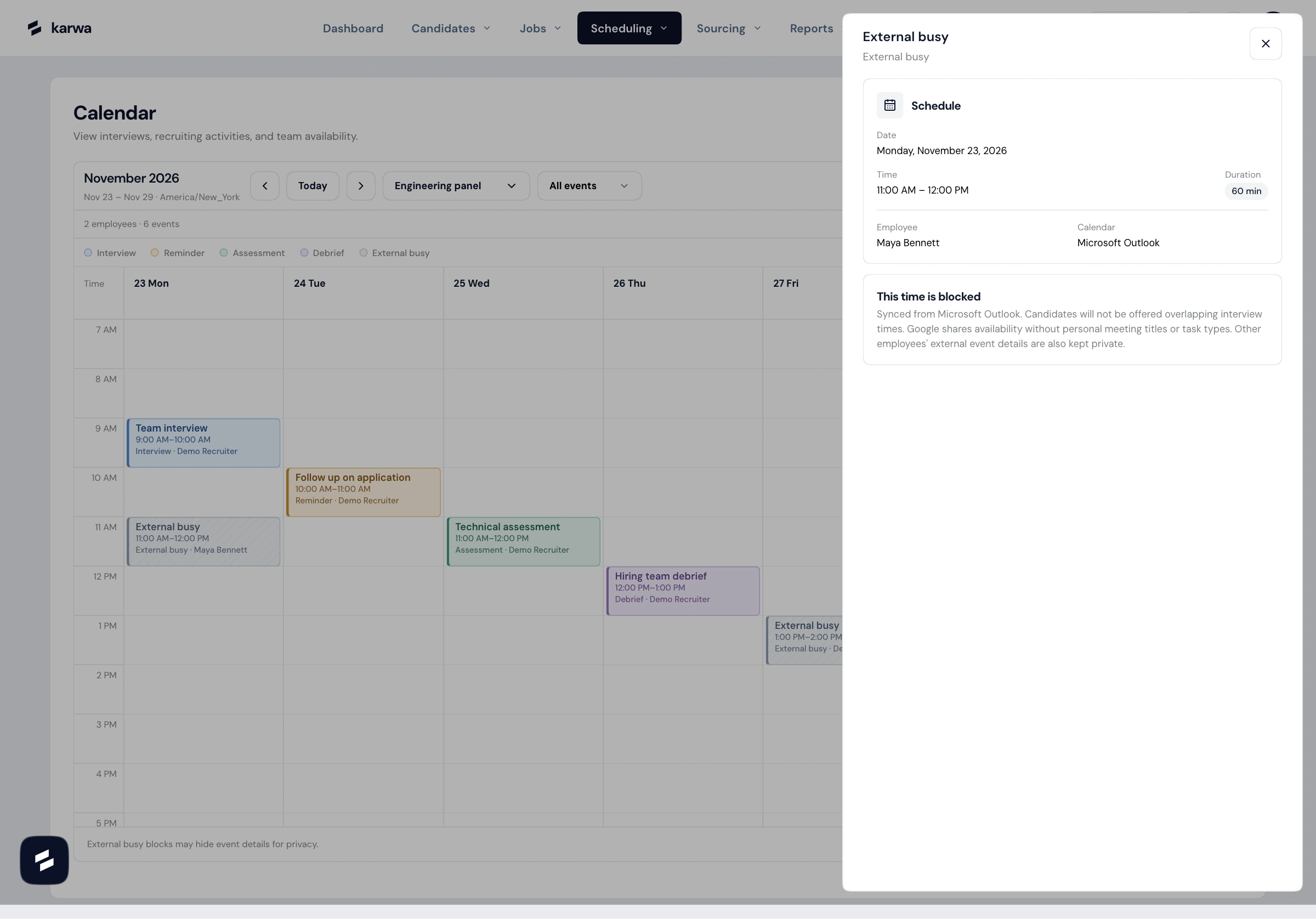
External busy details show permitted timing, owner and provider/calendar information. This time is blocked explains that busy time affects eligible interview slots. Other employees' personal titles and descriptions stay private. There is no candidate-profile button and no edit/delete or provider-disconnect action in this drawer. Close it to return to the calendar; manage a commitment through the appropriate connected calendar.
Arrange an interview from its candidate activity
The current Scheduling calendar is a viewing and comparison workspace. It does not show Add event or Book interview buttons. Open the candidate's Activity tab to create or manage an interview through the available workflow. Follow Interview plans for stage activities, interview configuration, scheduling methods and provider setup.
A booking link lets the candidate choose an eligible time; an availability request asks for possible times; manual scheduling records an arrangement selected by the team. Review the correct candidate, application, interviewers, time zone and meeting provider before submitting. Send actions can contact participants. An availability response is not a confirmed booking.
If an activity was created but its request could not be sent, inspect that existing activity before trying again. Avoid creating a second interview to retry a failed message. Use Scheduling requests to investigate outstanding responses and delivery problems.
Ask Karwa about the calendar
Ask Karwa reads this same guide with product_guide(topic=scheduling-calendar-page), including every color, all three views, employee/pool selection, warnings and the five event detail flows. Ask, for example, “What does the striped grey block mean?”, “Why does a shared interview appear twice in Day?” or “Does completing a reminder send a message?”
For actual calendars and comparisons, Ask Karwa uses authorized calendar_team, calendar_pools, calendar_connections, calendar and calendar_summary reads. Resolve exact employees and the requested date range/time zone. A limited, filtered or failed read is not evidence that someone is free. Guidance grants no access to private event titles and does not create, cancel, reschedule or complete anything. Live scheduling and decision workflows retain their own permissions and review steps.
Related guides and privacy
Use Manage scheduling requests for pending candidate responses and scheduling problems, or Manage interviews and pending feedback for confirmed times and outstanding feedback.
Calendar access, invitations and recording are separate permissions. Keep meeting links private, share scheduling information only with intended recipients, and use a restricted channel for sensitive accommodation information. See the scheduling terms, Privacy Policy, candidate privacy notice and Data Processing Terms.