Loading documentation
Open Take-home submissions from Candidates to track take-home activities across jobs. Each row is one assignment activity, so a person with two exercises can appear twice. This is a work queue, separate from the candidate hiring-stage tabs.
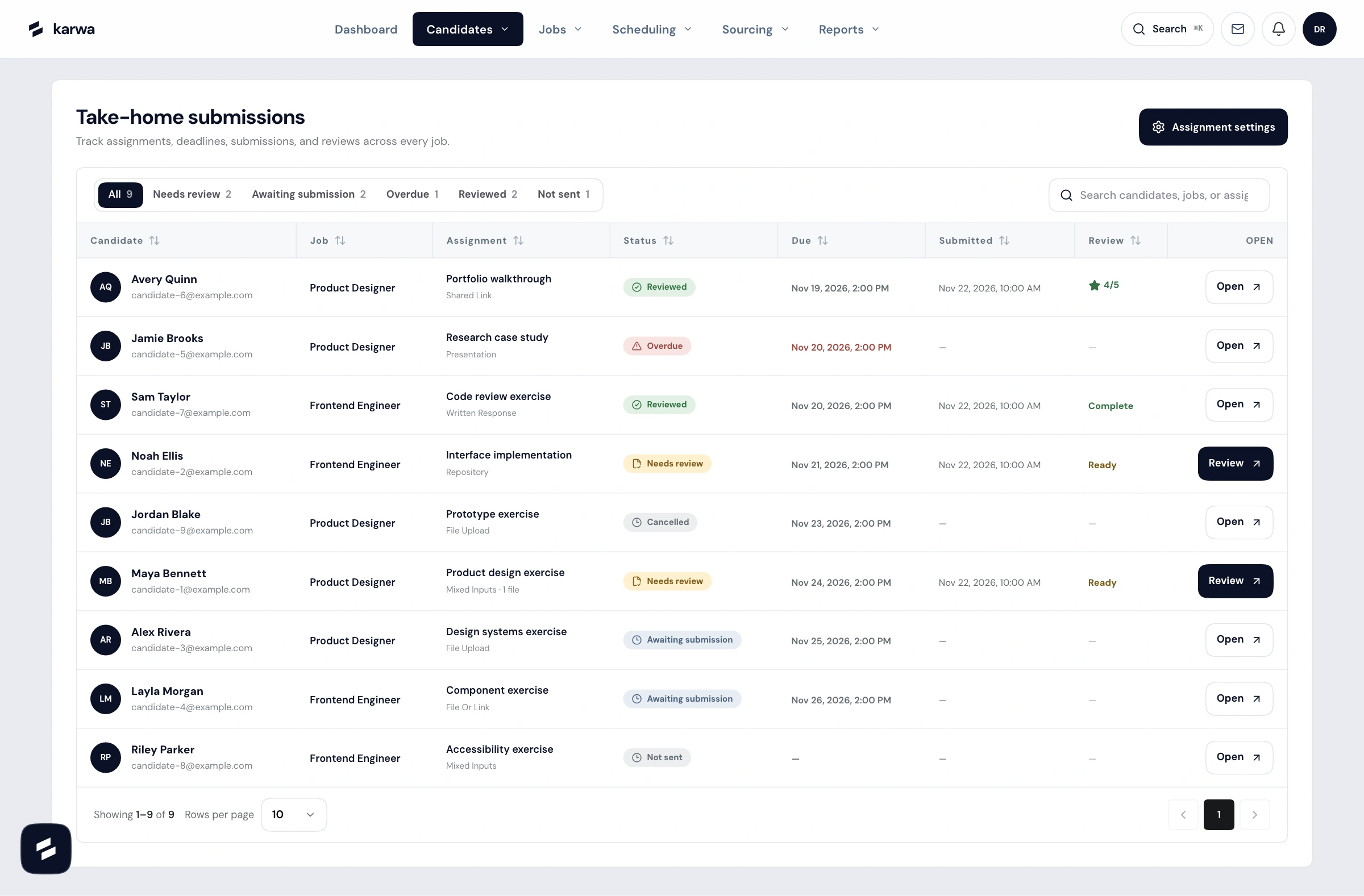
All screenshots in this guide show the actual interface with fictional candidate names, example.com addresses and sample work. Their counts illustrate the workflow; they are not your workspace records.
Understand every status tab
| Tab | What it means | What to do |
|---|---|---|
| All | Every returned take-home activity, including cancelled assignments. | Search across work or open a particular activity. |
| Needs review | Work has been submitted and the required review is not complete. | Select Review, inspect the work and complete your review. |
| Awaiting submission | The invitation is queued or sent and no work has been submitted, reviewed or marked overdue. | Check the activity and communication history when following up. Queued does not prove inbox delivery. |
| Overdue | The due date has passed without a submission or completed review. | Check the late-submission grace period and contact the candidate when appropriate. |
| Reviewed | The required assessment review is complete. | Open the activity to read the review and decide the next hiring step. |
| Not sent | The activity has not reached a queued/sent state and has no higher-priority status. | Inspect delivery settings or the trigger on the candidate activity. |
Cancelled work appears in All, with a Cancelled badge; there is no separate Cancelled tab. Status follows this order: cancelled, reviewed, submitted, overdue, awaiting submission, then not sent. A late submission moves to Needs review, not Overdue. An unsent activity with a past due date can also appear as Overdue.
Tab numbers count assignments in the loaded workspace response, before text search. They are not counts of unique candidates, emails delivered, or rows matching your search. Reload or revisit the page to fetch new submissions and deadline changes; the queue is not a live countdown.
Walk through all six views
All: start with the complete queue
All, shown above, combines every status. In this example it contains nine assignments, including one Cancelled row. The other five tabs total eight because cancelled assignments have no separate tab. One candidate can have more than one assignment.
Needs review: submitted work to assess
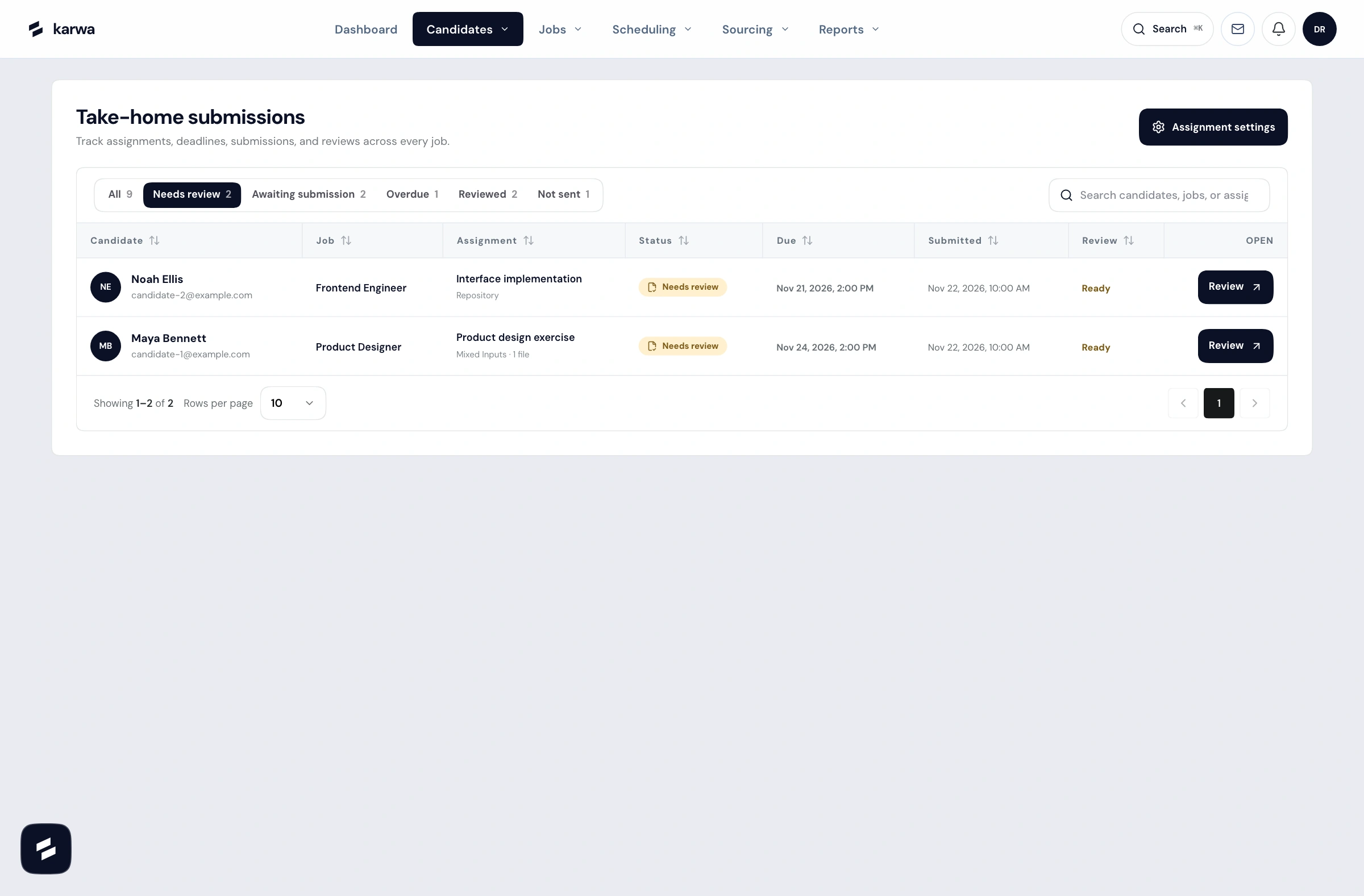
Open Needs review, find the candidate and assignment, then select Review. Ready means the work is available for assessment. It is not a rating. A submission made after its deadline still appears here until the required review is complete.
Awaiting submission: invited work still pending
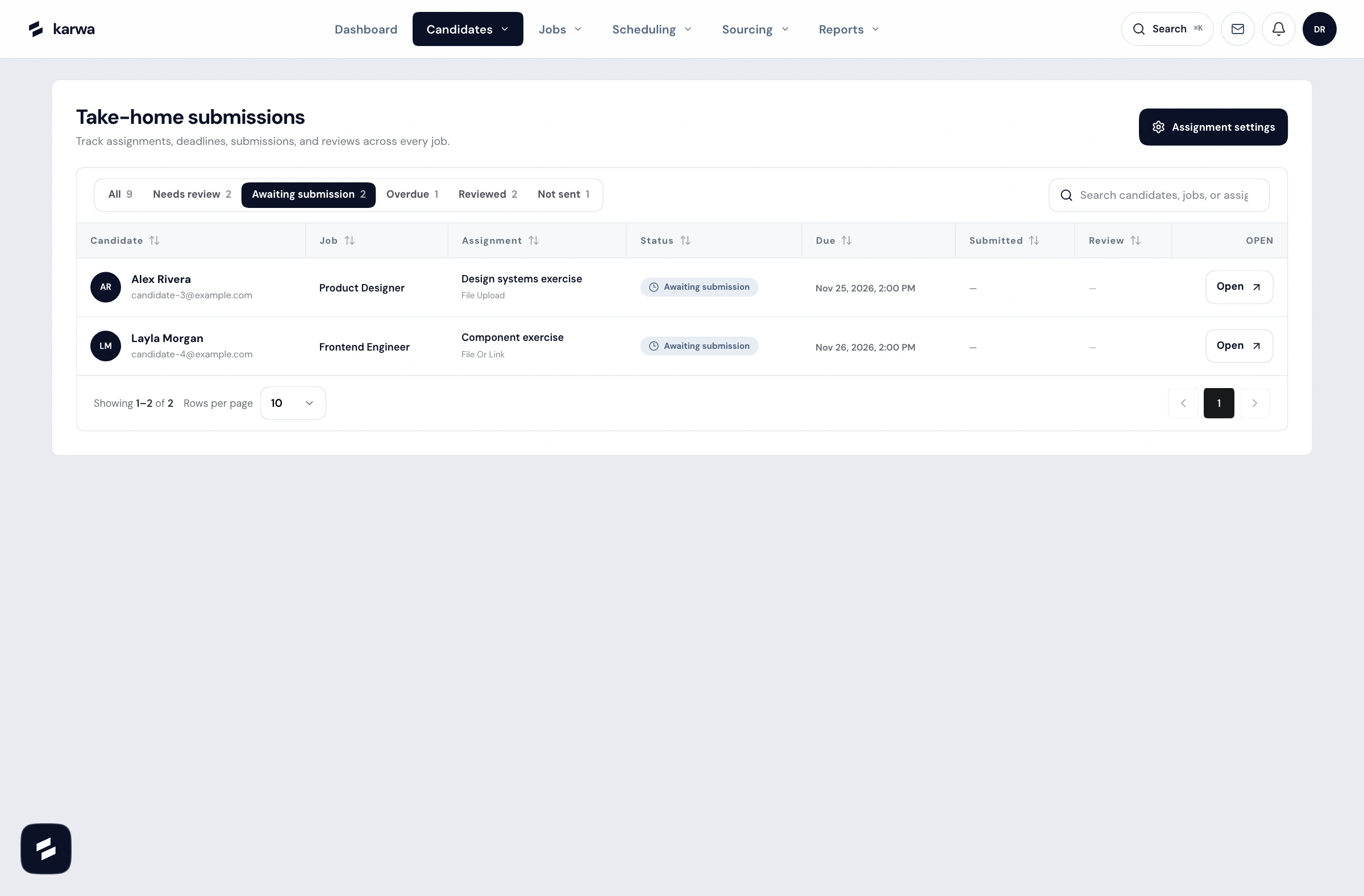
Open Awaiting submission to see queued or sent invitations with no final submission. Check the due date, then Open the activity for its delivery and communication history. This view does not establish that an email reached the candidate or that the candidate opened it.
Overdue: deadline passed without submitted work
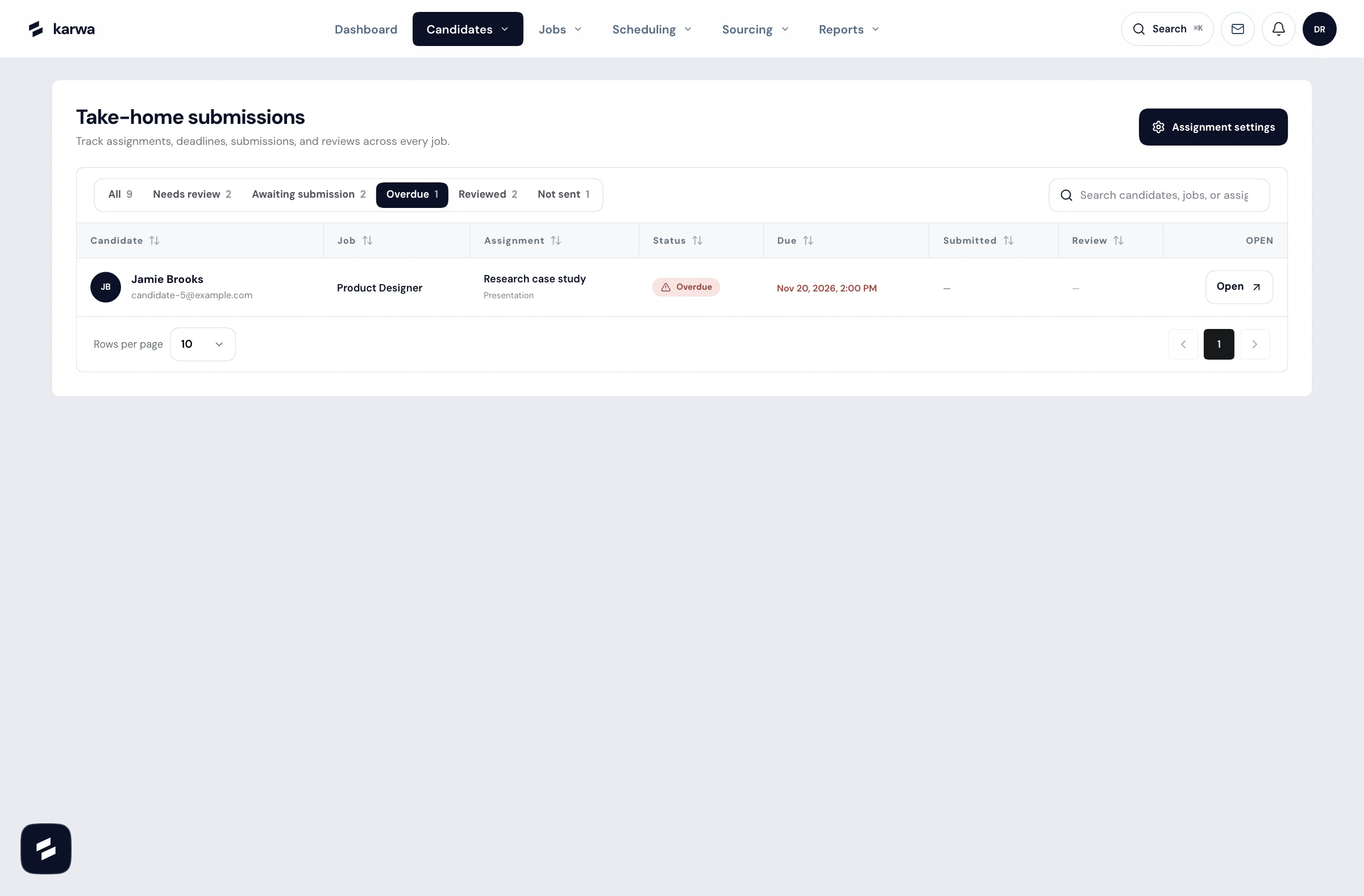
Open Overdue, inspect the assignment and check whether a late-submission grace period is configured. Follow up or agree an extension through the appropriate candidate activity controls. Selecting this tab does not send a reminder or extend the deadline.
Reviewed: assessment review completed
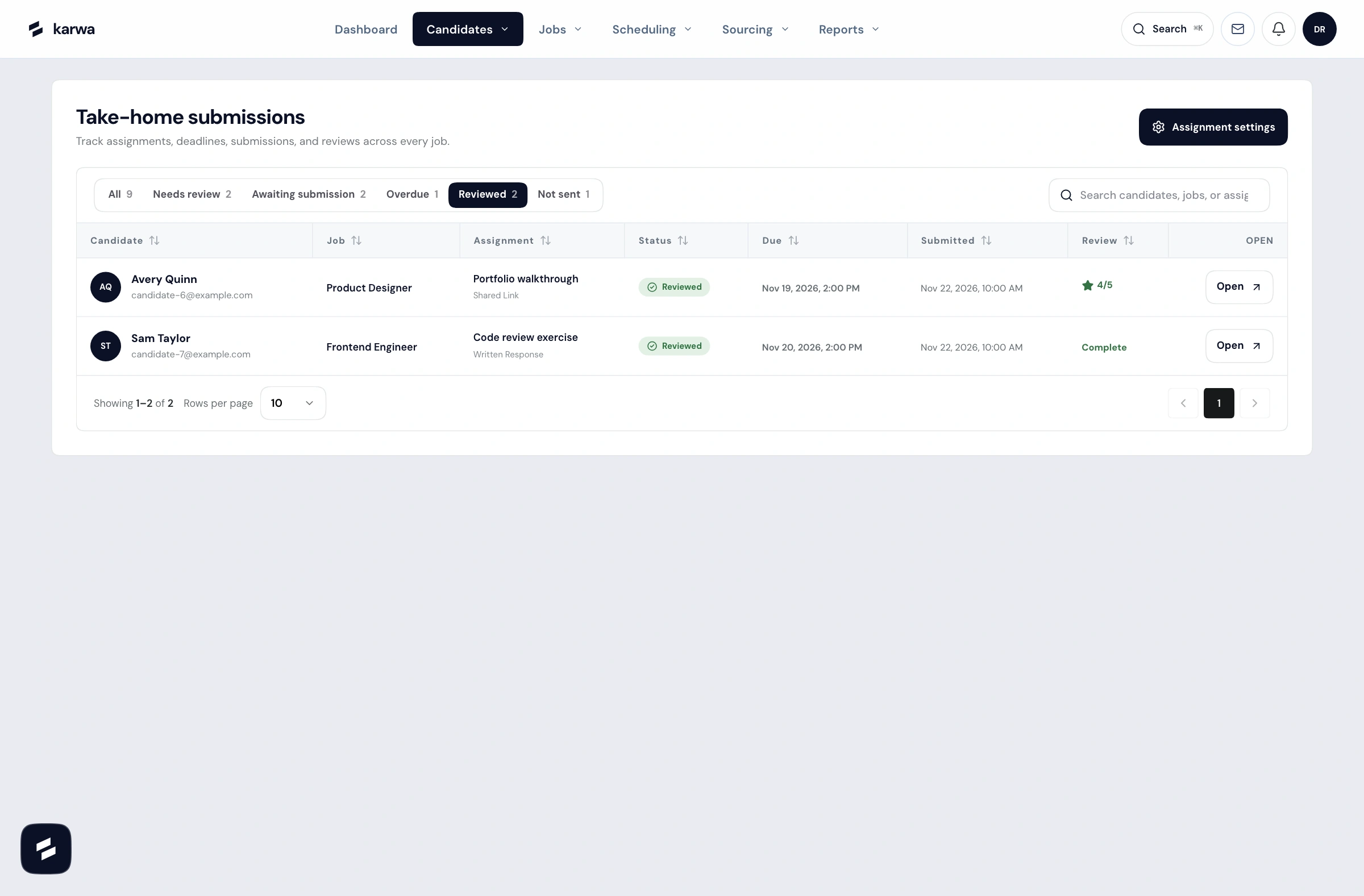
Open Reviewed. The Review column shows a saved rating such as 4/5, or Complete when there is no numeric aggregate rating. Complete does not indicate a missing review or a zero score. Open the activity to inspect the underlying reviews before deciding the next hiring step.
Not sent: work not yet queued or sent
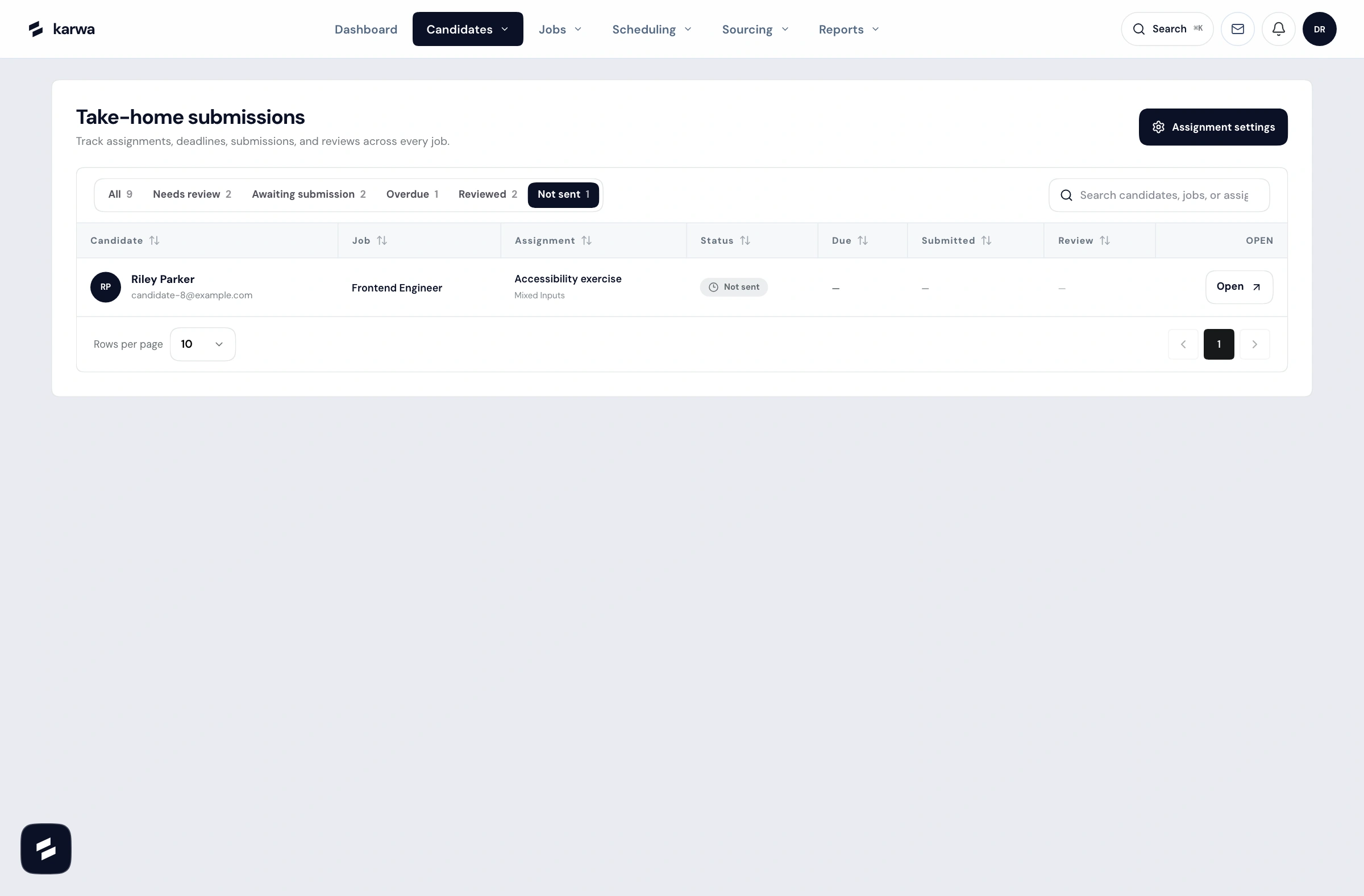
Open Not sent and Open the activity to check its delivery mode, trigger and readiness. This tab does not send the assignment. An unsent assignment with a past due date can instead appear under Overdue because deadline status takes precedence.
Search, sort and read the table
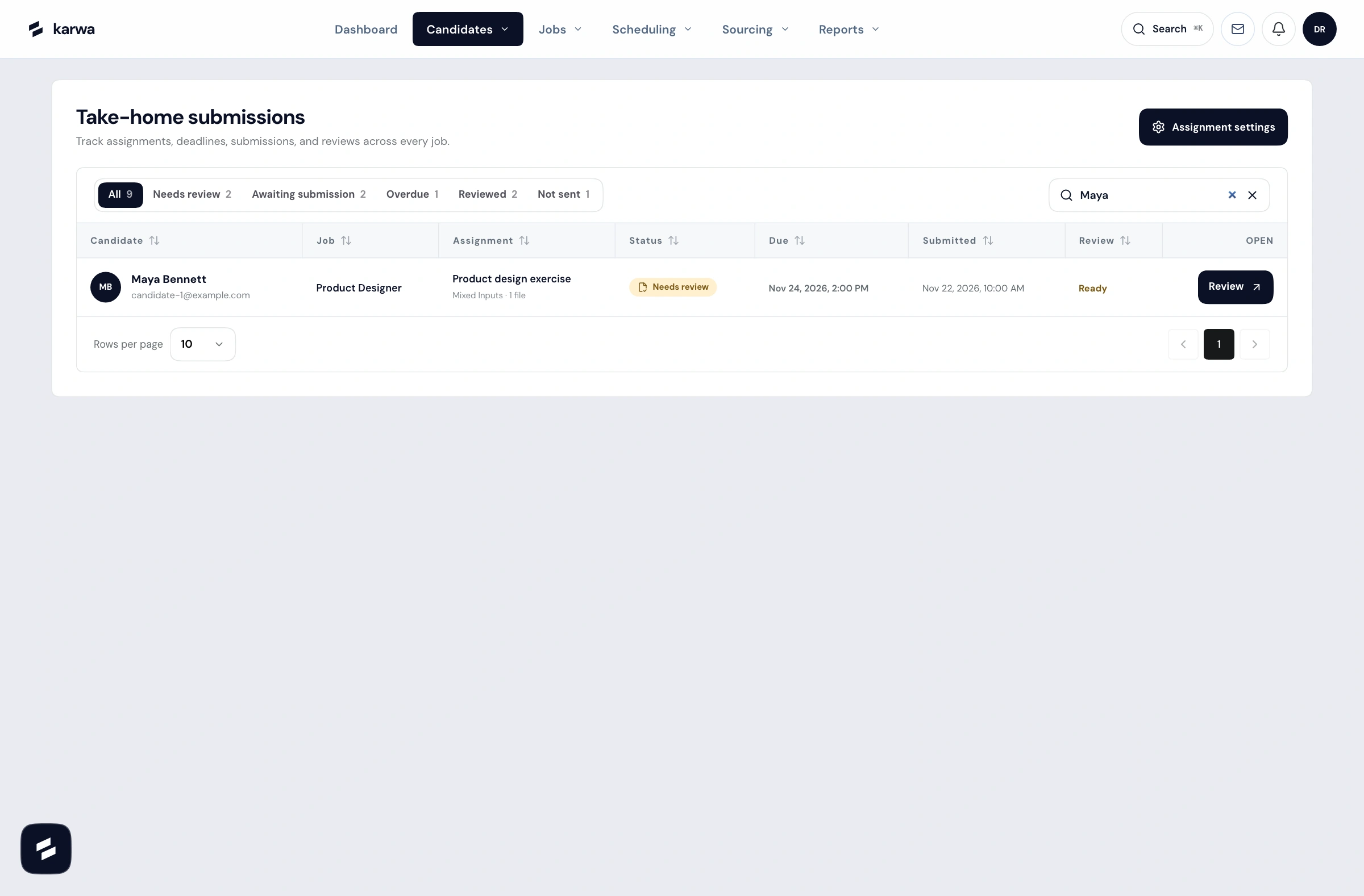
Search candidate name or email, job title, or assignment title. Select a status tab to narrow the queue. The initial order is earliest due date first; assignments without a due date follow dated work. Use sortable column headings, Rows per page, and the page controls to navigate. Use Clear search to remove the text query. Search applies to the current tab. Check the search box and page when switching views; the table can retain its sort and rows-per-page preference in this browser. If a saved sort is active, it overrides the initial due-date ordering. On a narrow screen, scroll the status strip and table horizontally to reach every tab and column. This page has no bulk selection, advanced filter drawer or Columns picker.
| Column | Meaning |
|---|---|
| Candidate | Name, initials and email for the application. |
| Job | The role associated with this assignment. |
| Assignment | Exercise title, submission method, and submitted filename count when present. |
| Status | The assignment state described above, separate from the hiring stage. |
| Due | The assignment deadline; a dash means no date is available. |
| Submitted | When the final submission was received; uploading a file alone does not set this timestamp. |
| Review | Ready for submitted work; a rating out of 5 or Complete once reviewed; otherwise a dash. |
| Open | Review for submitted work; Open for other states. Opens the related candidate activity. |
The queue displays Due and Submitted dates in Asia/Riyadh (UTC+3). The dedicated assessment review page can display browser-local dates. Confirm the timezone when agreeing an extension, particularly if you or the candidate work elsewhere.
A review rating is a human assessment of this exercise. It is separate from AI match, résumé screening or a hiring recommendation. Reviewed means review completion; it does not mean passed, hired or that feedback was sent to the candidate.
Create, send and follow up
Assignment settings opens the reusable template library. It does not create a submission or send an invitation. Follow Take-home assignments to create an exercise, add a Take-home activity to a job interview plan, choose candidate coverage, and configure delivery, reviewers, reminders and late submissions.
In Submission review, choose Employees to assign individual reviewers or Pools to use active employee reviewers from selected interviewer pools. Check the resulting assigned people on the assessment; every assigned reviewer must finish. A pool is not an instruction for only one member to review.
For manual delivery, open the candidate activity and use Send now with the appropriate communication permission. Automatic delivery waits for its configured trigger. Inspect the activity and communication history to understand a delayed or failed invitation; the queue itself has no send or resend action. Verify the recipient before sending and keep the private assignment URL out of public documents.
For a candidate-specific change, use Edit on the candidate's Take-home activity while it remains editable. Changing deadline days uses the original send time, or now if unsent, as its anchor. Check the resulting deadline and tell the candidate about material changes. Do not assume editing a library template or job plan updates assignments already issued.
To stop eligible pending work, use the activity's Cancel action and provide the required reason before confirming. Cancellation closes the assignment, stops its reminders and cancels relevant queued delivery where possible; cancellation notices can go to the candidate and reviewers. Keep the reason professional and free of unnecessary sensitive details. Submitted or otherwise completed activities cannot be cancelled through this pending-work action. Cancellation does not erase the assignment or candidate record.
What the candidate sees and submits
The private link opens the employer, role, assignment instructions, expected effort, deadline and any resource. Candidates can read Details and enter their work under Submission. Depending on the selected method, the page accepts a written response, file, shared link, repository, presentation, or supported combination. External links must use HTTP or HTTPS; candidates should grant only the access needed for review and never share credentials.
Uploads must match the configured accepted types and effective per-file limit, which may be reduced by the workspace plan. Supported types include PDF, DOCX, PPTX, XLSX, CSV, TXT, PNG, JPG/JPEG and ZIP. An activity accepts at most 10 files and 100 MB total; the single-file method requires exactly one file. Storage availability and content validation can also prevent an upload. Follow the specific limits displayed in the assignment.
Selecting a file uploads and stores it before Submit assignment. While the assignment is open and pending, candidates can remove an uploaded file using its remove control and should wait for confirmation. Written text and links are not a guaranteed saved draft; refreshing or leaving can lose unsent inputs. Leaving the page is not an instruction to erase uploaded files.
The candidate selects Submit assignment for the final submission. A successful receipt confirms submission, not a hiring result or review score. Each assignment link accepts one final submission; there is no self-service resubmit or replacement after submission. Ask the employer about corrections or an alternative route. Internal reviews are not a candidate feedback portal.
Without late submissions, the link closes at the deadline. If enabled, the configured grace period extends the submission window by 1–30 days. Overdue can therefore still accept work during that window. Cancelled or expired links cannot receive a new submission. Candidates should contact the employer for extra time, accommodations, technical problems or unclear instructions; a support request does not itself extend a deadline.
Open and complete a review
- Select Needs review, find the assignment and select Review. The linked candidate profile opens the take-home work. An assignment with multiple reviewers opens a dedicated assessment review page.
- Read the instructions and inspect the submitted files, written response and links. Available file records have download actions; a historical filename by itself may not provide a download. Treat external sites and files with appropriate care and avoid forwarding private work.
- Complete the configured 1–5 rating or the connected feedback form. Answer every required question. Add an optional Review note with job-related evidence rather than unsupported assumptions.
- Select Save review. Where available, Update review changes your existing review. Wait for the saved confirmation before leaving.
Rating review screen
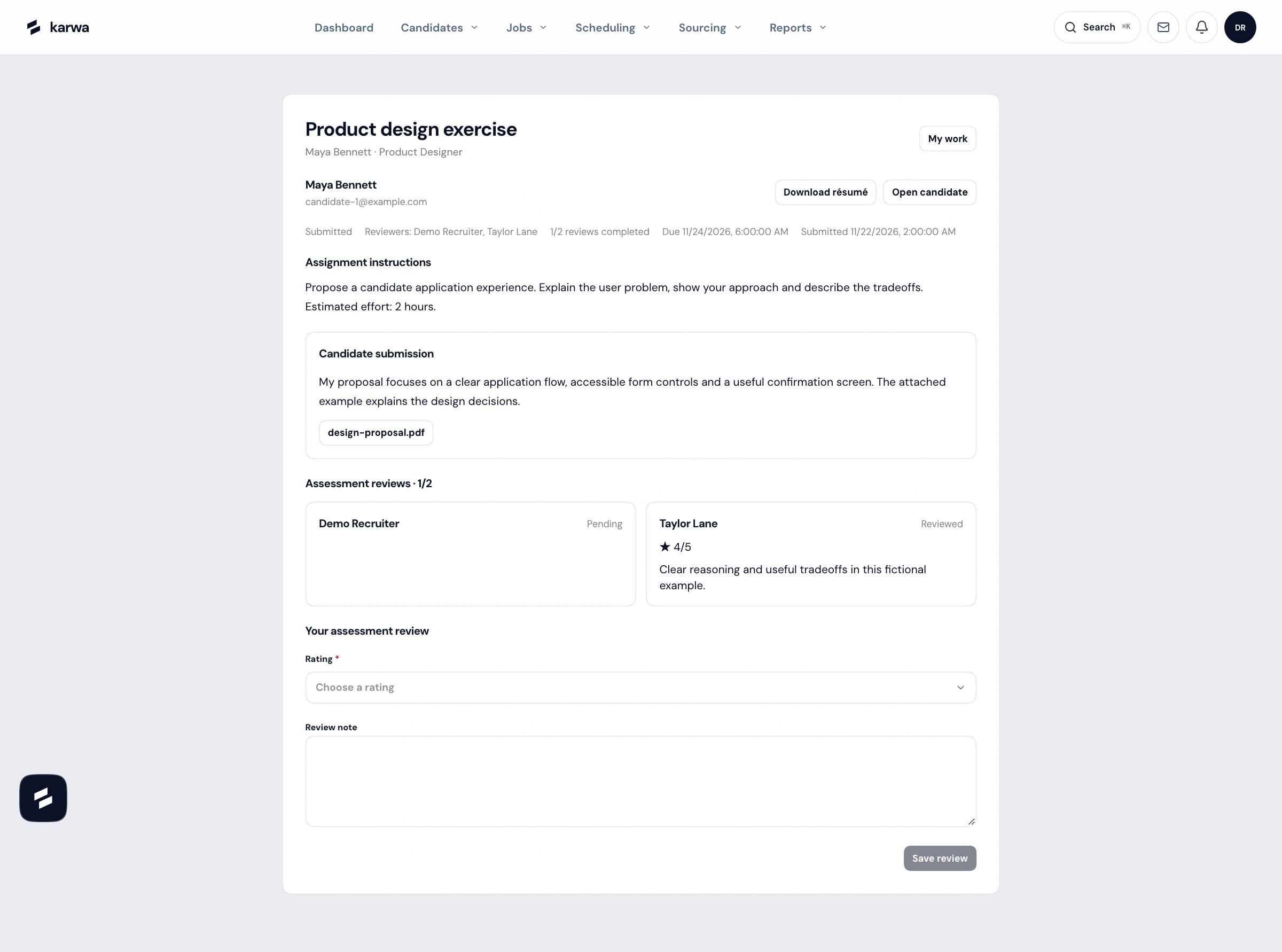
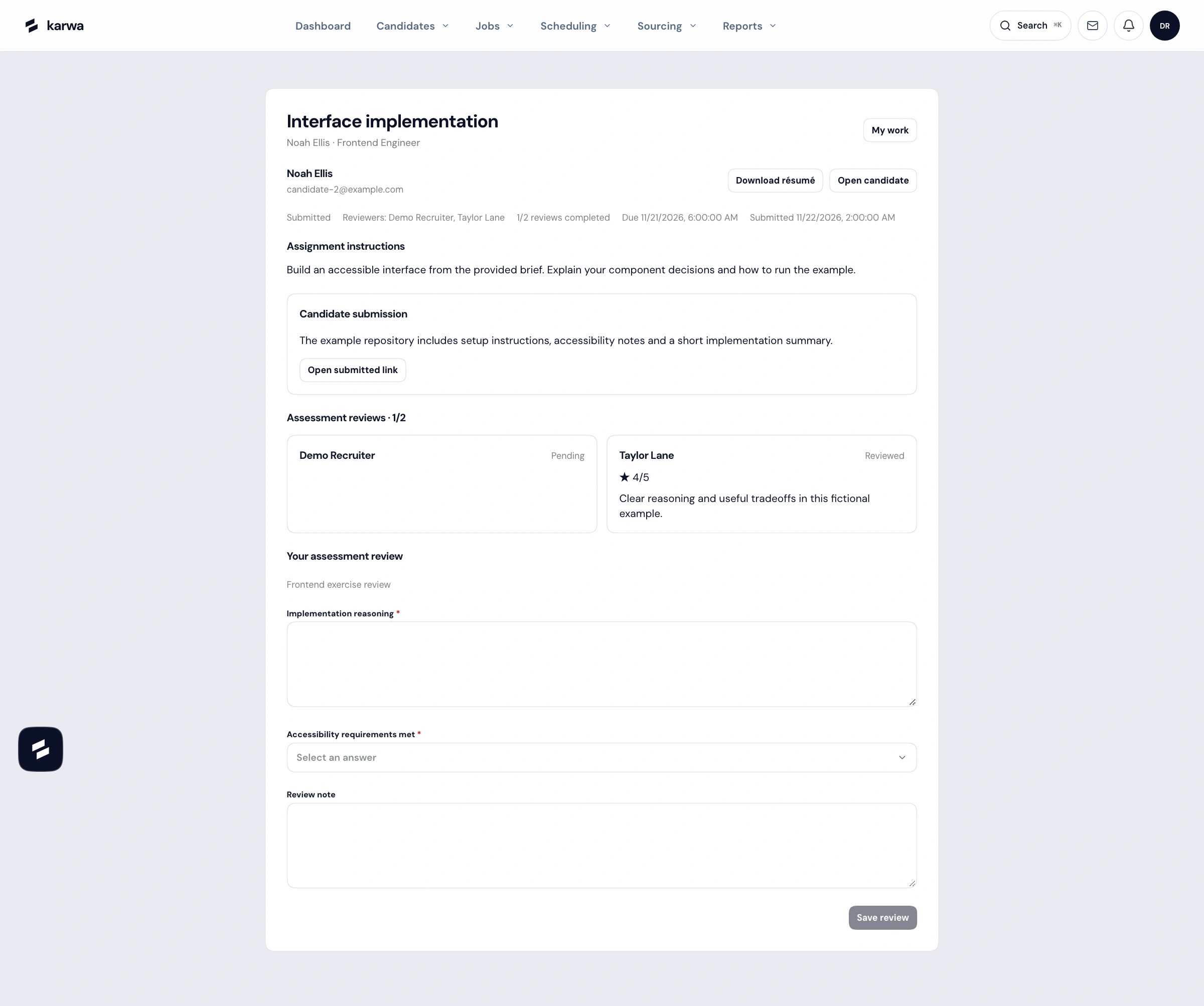
This example shows one of two reviewers finished and your own required rating still empty. Save review stays disabled until the required input is complete. Inspect the work before choosing a score; another reviewer's score is not your saved review.
Feedback form review screen
When the activity uses a feedback form, the configured questions replace the single rating selector. Complete every required answer and select Save review. These screenshots show the dedicated multi-reviewer page; single-reviewer work can open a submission review on the candidate profile instead.
On the dedicated review page, check the reviewer names, completed/total count and individual review cards. Each assigned reviewer submits their own review. One person's saved feedback does not complete another person's task; the overall assignment becomes Reviewed when all required reviews are complete. The page may offer Download résumé and Open candidate according to your access. Assignment access can allow the necessary review information without granting full candidate-profile access.
A connected form that is unavailable or archived can prevent review. Ask an authorized person to select an active form in the activity settings, then reopen the assessment. Review controls also depend on assignment access and whether the work is submitted. Saving a review does not itself move the candidate to a new stage or promise a candidate-facing feedback email. Configured completion automations may run separately; check the activity and job plan.
Permissions and candidate information
The central queue requires a current paid workspace and View candidates permission. It covers workspace take-home activities; do not assume the list is restricted to your personally assigned jobs. Opening a candidate, changing activities, sending messages and submitting a review have their own checks. If reviewers are assigned, only those assigned reviewers can submit the assessment review. Ask an administrator to check Roles & permissions.
Candidate work, filenames, links, review answers, ratings, notes, delivery events and timestamps are recruiting information. Authorized workspace users and assigned reviewers can access the information needed for their role. Downloaded files and material shared with external repositories or services need separate access and retention handling.
When submission security tracking is enabled, the candidate page discloses a protected network fingerprint and country code. The raw IP is not shown to recruiters in this submission audit; network information can still be processed for security and rate limiting. A fingerprint or country is not anonymous data, identity verification or proof of cheating. This workflow does not promise automatic plagiarism detection or AI scoring of the submitted work.
Use job-relevant exercises, clear effort estimates, disclosed assistance rules, fair deadlines and required accommodations. Candidates retain their rights in their work; production or commercial reuse needs separate rights. Closing a link, deleting a library template or reviewing an assignment does not erase submissions or pre-submission uploads. See the candidate privacy notice, take-home terms and privacy request route.
Troubleshooting
Why does All show items but the other tabs show zero?
Cancelled assignments remain in All and have no dedicated tab. Clear text search and inspect their badges. For example, two cancelled assignments give All a count of two while all five status-specific tabs show zero.
Why is a late assignment in Needs review?
Submitted work takes precedence over Overdue. Check the submitted timestamp and the agreed deadline when evaluating timeliness.
Why is the queue empty or a record missing?
Clear search, choose All, and revisit the page. Check that a candidate Take-home activity exists; saving a library template alone creates no candidate work. Check workspace access and any loading error with an administrator.
Why is the assignment still awaiting review after I saved?
Check that the save succeeded and that all assigned reviewers have completed their own reviews. Then reload the queue. Reviewed is the overall completion state, not just your individual progress.
Can I replace a candidate submission or make their link public?
The candidate link accepts one final submission. Arrange corrections with the employer rather than sharing private links or silently changing the candidate's work. A submitted file, internal review and privacy request are distinct records and actions.
Ask Karwa about take-home submissions
Ask “What does each take-home tab mean?”, “Why is a late submission in Needs review?”, “How do I complete a take-home review?” or “Why is an assignment still awaiting review after I saved?”. Ask Karwa uses this guide for the page controls and workflow. For your actual assignments and counts, it must read authorized take_home_submissions records and the specific candidate activity or assessment. Example screenshot counts are not live facts. Missing or denied data is not an empty queue.
Reading the guide or opening a tab does not send an assignment, reminder or candidate feedback, change a deadline, cancel work, submit a review or advance a candidate. Those actions require the applicable permissions and their own supported controls. Ask Karwa must not invent a submission, score, delivery receipt or completed reviewer, and must not treat a review as a hiring decision.