Loading documentation
Open Dashboard to see Your dashboard, the standard home for hiring work that needs attention. Start with the attention cards, work through your queue, and prepare for upcoming interviews.
The full dashboard
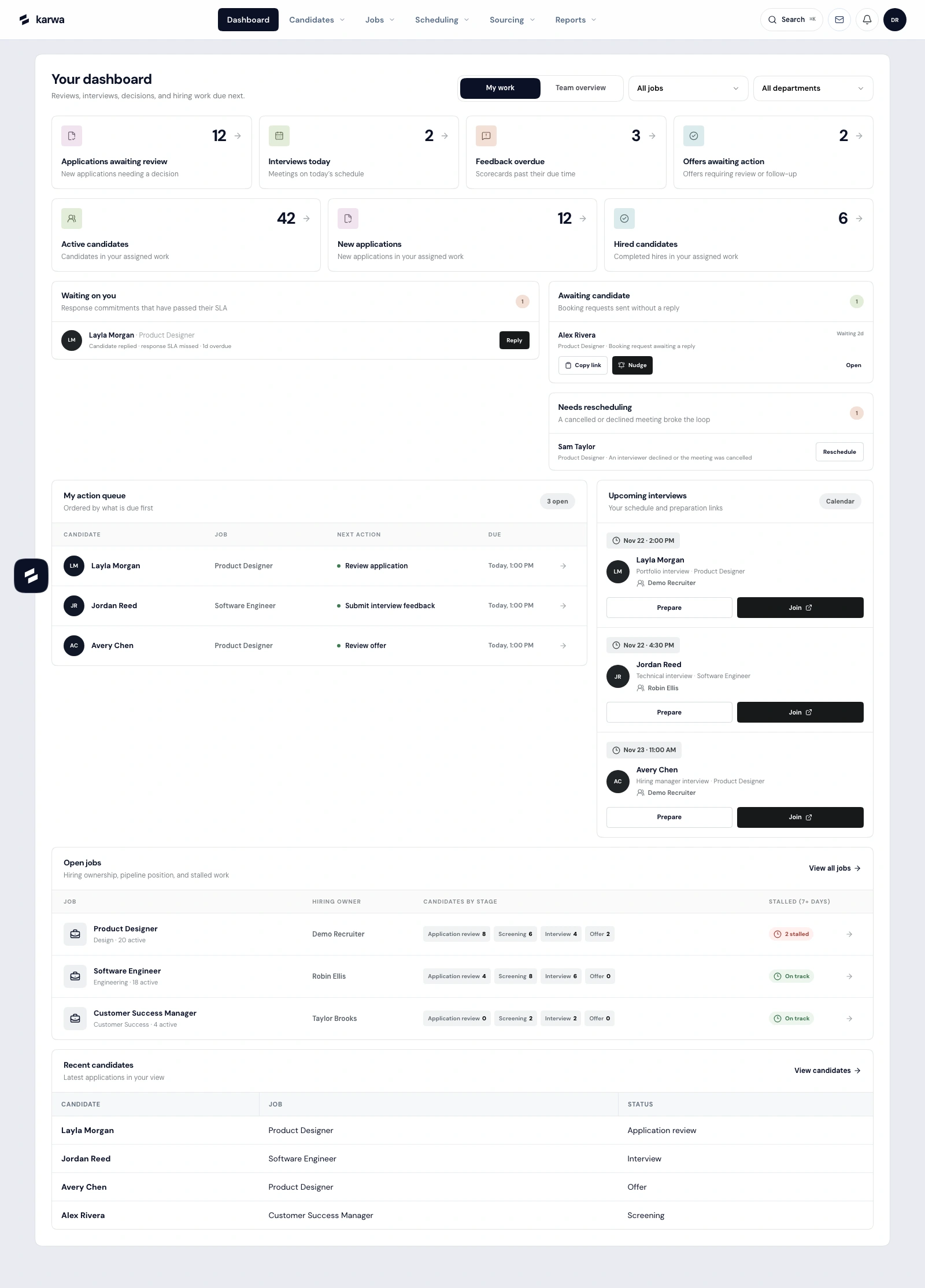
Open the full-size screenshot to inspect the smaller controls. This full-page screenshot uses fictional example data. Your names, numbers, sections and permissions will differ. It shows the standard recruiter view with all five home sections enabled; it is not a promise that every account sees every card.
Choose the work you want to see
| Control | Meaning |
|---|---|
| My work | Priorities connected to your assignments. Job totals use active jobs where you are on the hiring team or have assigned activities. A workspace owner can see all active jobs here. Interview and feedback assignments are evaluated separately. |
| Team overview | A wider view of accessible team work. It appears only with the required job management, reporting or feedback management access. It does not grant access to restricted records. |
| All jobs | Limit the view to one active job, or clear the selection to show all jobs in the current scope. |
| All departments | Limit the view to one department. Job and department filters apply together. Incompatible selections can produce an empty result. |
Job and department selectors appear when job summary access is available. If Team overview is unavailable, Karwa uses My work. A team's counts can differ from your counts because the scope is different.
Read the attention cards
| Card | What it counts | What opens when you select it |
|---|---|---|
| Applications awaiting review | Applications still in the new application status for the current scope. | Candidates filtered for review. |
| Interviews today | Scheduled interviews on today's calendar date in the dashboard's reporting timezone. | Today's interviews on the dashboard. |
| Feedback overdue | Interview scorecards you are eligible to submit whose due time has passed. | The overdue feedback queue. |
| Offers awaiting action | Applications in an offer or pending-offer status. This is a work indicator, not a count of unsigned documents. | Candidates filtered for offers. |
The interviews and feedback cards open focused dashboard views. Use Show all dashboard work to return. The review and offer cards open Candidates; check the filters there before treating its list as identical to a team or department dashboard total.
Understand the candidate counters
| Counter | Definition |
|---|---|
| Active candidates | Job applications whose current status is neither rejected, archived, merged nor hired. |
| New applications | Applications whose current status is new. It is not a last-seven-days metric. |
| Hired candidates | Applications whose current status is hired. It is not a hires-this-month metric. |
These are application counts, even where the label says candidates. One person applying to two jobs can count twice. These counters use the selected scope, active jobs and filters; they are not automatically the total size of your candidate database. For date ranges, trends and conversion rates, use Reports.
Act on follow-ups
Follow-up panels appear when there are matching items. An absent panel can simply mean there is no matching work in this view.
| Panel | Meaning | Actions |
|---|---|---|
| Waiting on you | Work whose response commitment or service-level agreement (SLA) has passed, including candidate replies awaiting a response. | Open the application or use the named action, such as Reply. |
| Awaiting candidate | Interview booking requests sent without a reply. The age shows how long the request has been waiting. | Copy link copies the booking URL when available and may record that it was copied. Nudge sends a real reminder. Open shows the application. |
| Needs rescheduling | An interview loop needs a replacement time after a decline, cancellation or scheduling issue. | Reschedule opens the affected application so you can arrange a new time. It does not pick a new time automatically. |
Review the candidate and job before sending a reminder or changing an interview. Learn more in Scheduling requests and Candidate interviews.
Work through the action queue
My action queue or Team action queue brings together application reviews, offer follow-ups, feedback and assigned collaboration work. Each row identifies the candidate, job, next action and due time. Overdue items are flagged; work is ordered by due time. Select a row to open that exact job application.
The normal queue is a preview of up to 12 items. Each follow-up panel previews up to eight items. A small list does not establish that there is no additional work. Selecting Feedback overdue requests the full filtered overdue-feedback queue rather than the normal 12-item preview.
Due times depend on the activity. A pending feedback request can use its configured due time or a 24-hour fallback. Review priorities can use a two-day due time. These dashboard priorities do not establish one universal company SLA. Check the underlying activity for its actual deadline and workflow.
Prepare for interviews
Upcoming interviews lists scheduled meetings from today through the next 180 days, ordered by start time. The today view narrows this to today's meetings. Rows show the candidate, interview title, job, interviewer and time.
- Prepare opens the candidate's interview context.
- Join opens the meeting URL when one exists. No meeting link means no URL is available on that row; check the interview details.
- Calendar opens Scheduling → Calendar.
The current dashboard groups today using Asia/Riyadh. Displayed meeting times follow your browser's locale and timezone, so a meeting near midnight can show a different local date. Check meetings and time zones when coordinating across regions. Upcoming can include a scheduled meeting from earlier today until its recorded status changes.
Read open jobs and recent candidates
Open jobs shows active jobs in scope, their department, active application count, hiring owner, pipeline stages and stalled work. Each stage badge counts active applications mapped to that stage. If an application cannot be matched to a configured stage, the summary can place it in the first stage; inspect the pipeline before making a decision.
Stalled (7+ days) means active applications with no recorded activity for more than seven days, using application creation when there is no activity. On track means no applications meet that stalled rule; it is not a forecast or a guarantee of hiring performance. A hiring owner of Unassigned means the summary found no matching recruiter or hiring-manager entry. Select a job to open its dashboard, or use View all jobs. On a narrow screen, scroll inside the jobs table to see every column.
Recent candidates previews the eight newest applications in scope with candidate, job and current status. Its status is a stage label when Karwa can resolve one. Unknown stage means a stage label could not be resolved; inspect the application rather than guessing. Select a row to open its application or candidate search, depending on your access. Use All candidates for a complete search.
Why your dashboard can look different
| Default role | Home sections |
|---|---|
| Owner, admin or recruiter | Tasks, interviews, feedback, pipeline and recent candidates. |
| Hiring manager | Tasks, interviews, feedback and pipeline. |
| Interviewer | Interviews, feedback and tasks, with emphasis on assigned interviews and outstanding feedback. |
| Viewer | Pipeline and recent candidates. |
Saved home-section preferences and actual widget permissions further control visibility. Custom roles use the recruiter section fallback, with permission checks still applied. Agency recruiters use their separate agency portal. A hidden card does not mean its count is zero.
If a saved reporting dashboard has been selected as your home, /dashboard can show that saved layout. Open the standard dashboard to see Your dashboard directly. For saved reports, sharing and home selection, read Build a reporting dashboard.
Refresh, empty states and troubleshooting
The visible dashboard refreshes approximately every 60 seconds and when you return to the window. A dash while loading or after a failed request is not zero. Dashboard unavailable or an error message means the data could not be loaded; do not interpret it as being caught up.
If work seems missing, check My work versus Team overview, the job and department filters, active job status, your assignments, home sections and role permissions. Then open the source application or calendar. A successful empty state describes only the current view. See Roles & permissions if access needs review.
Ask Karwa about the dashboard
Try “What does Feedback overdue mean?”, “Why are my candidate counts different from the team view?” or “Where do I reschedule an interview?” Ask Karwa can use this published guide for product explanations. Questions such as “How many interviews do I have today?” require a current authorized workspace read; the example screenshot is never evidence for your live numbers.
Continue with Navigate your workspace for the other dashboard pages.