Loading documentation
After verifying your account email, open workspace setup. The onboarding page has five steps: About you, Company, Registration, Address, and Hiring setup. Complete these to create your organization's workspace, then choose whether to add a passkey.
The screenshots below show the actual onboarding interface with fictional personal and company details. Example registration numbers and addresses are not real legal records. Use your own authorized organization information when completing setup.
Before you start
Have your company logo, legal company name, registration details, registered address, and hiring preferences ready. You must be authorized to create and administer the workspace for your organization. If your company already has a workspace, ask its administrator for an invitation instead of creating another one.
Sign in with the verified account you intend to use. If setup has already been completed, /onboarding redirects to your dashboard or the requested app page; edit your details later in Profile & account and Company profile.
Step 1: About you
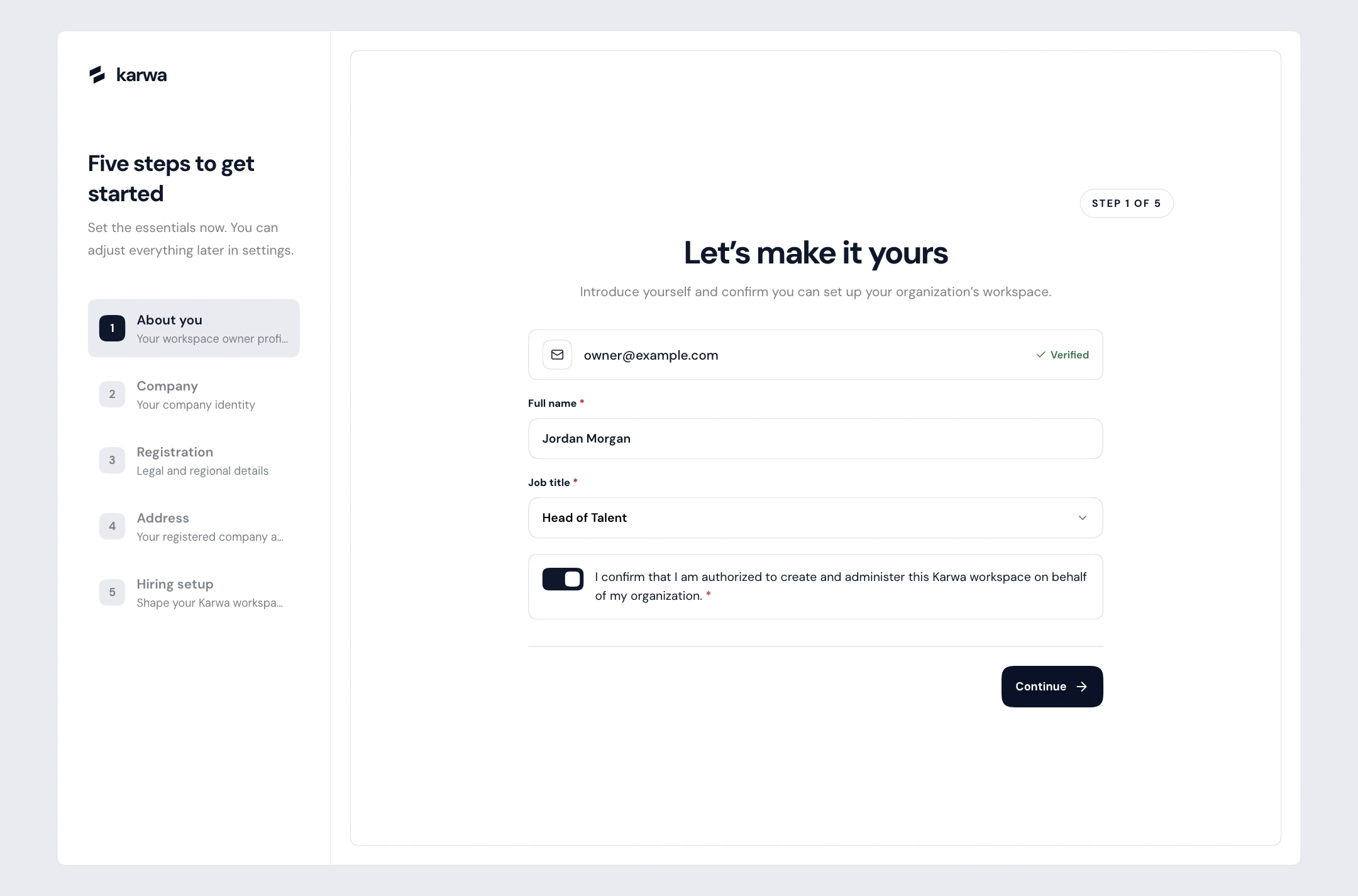
The page title is Let’s make it yours. Check the verified email shown at the top. This screen does not change your account email.
| Field or control | What to enter |
|---|---|
| Full name | Your first and last name, between 2 and 160 characters. |
| Job title | Select your role, such as Head of Talent, Recruiter, or Hiring Manager. |
| Organization authorization | Confirm that you are authorized to create and administer this Karwa workspace on behalf of your organization. This is required; do not confirm it on someone else's behalf. |
Select Continue when the required details and authorization are complete. This advances the form; it does not create the workspace yet.
Step 2: Company
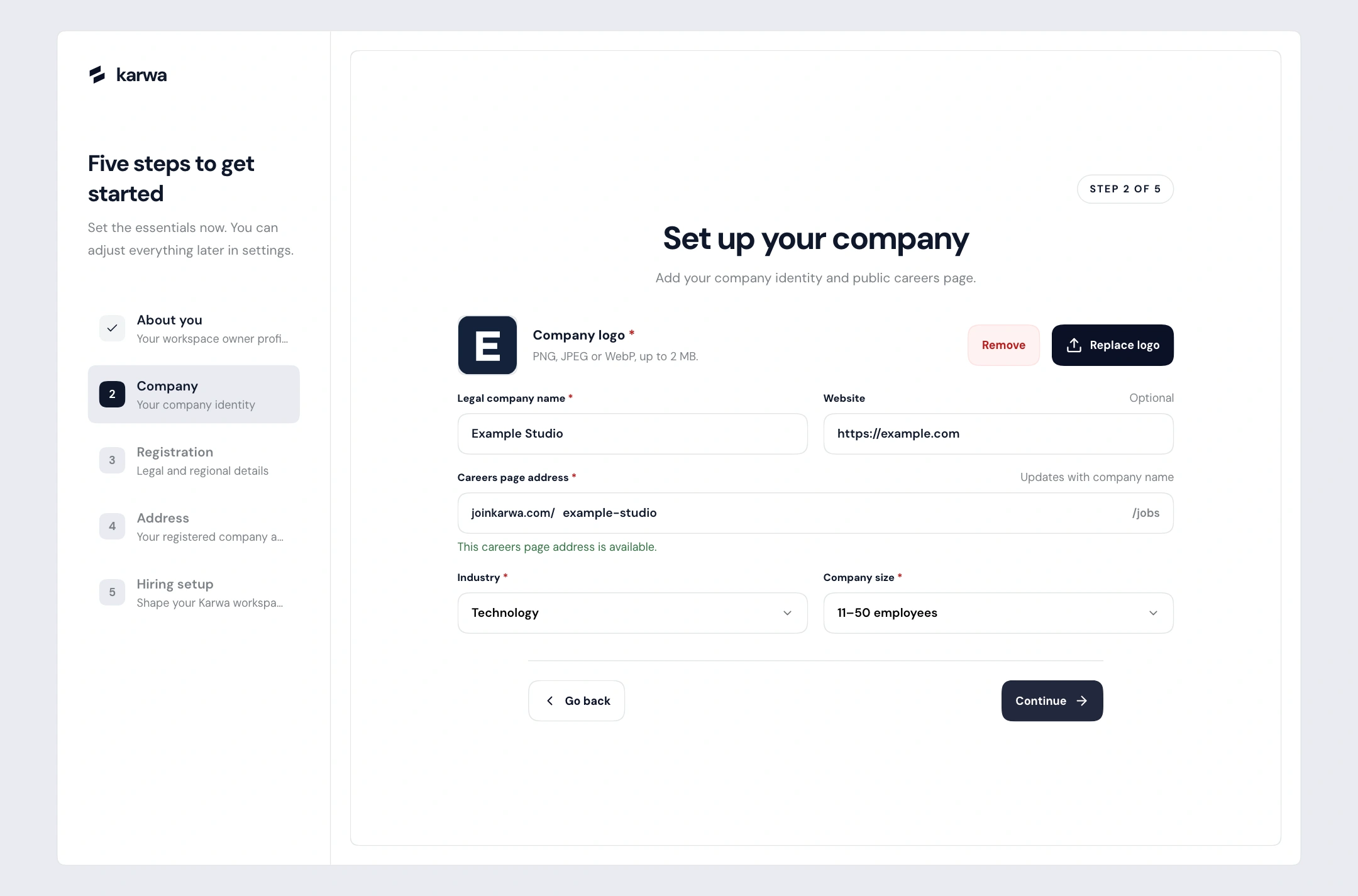
The page title is Set up your company.
| Field or control | What to enter |
|---|---|
| Company logo | Upload a PNG, JPEG or WebP image, up to 2 MB. A logo is required. Use Replace to choose a different image or Remove to clear it. |
| Legal company name | The official name on registration documents, between 2 and 200 characters. |
| Website | Optional company website. |
| Careers page address | A unique address for your public careers page. Review the displayed URL before continuing. |
| Industry | Select your company's industry. |
| Company size | Select the employee range that fits your company. |
Karwa proposes a careers address from the company name. It continues updating with the name while you are using the proposed address; a manually chosen address is preserved. Use 3–80 lowercase letters, numbers, or hyphens, without a leading, trailing, or repeated hyphen. The page normalizes what you type.
Wait for This careers page address is available. If the address is in use, choose another. If availability cannot be checked, select Try again. Continue remains unavailable until the address is confirmed available and the required company details, including a logo, are complete. Availability is checked again when saving, so an address can become unavailable before submission.
A careers address or uploaded logo does not publish a job, verify ownership of a sending domain, or start a subscription.
Step 3: Registration
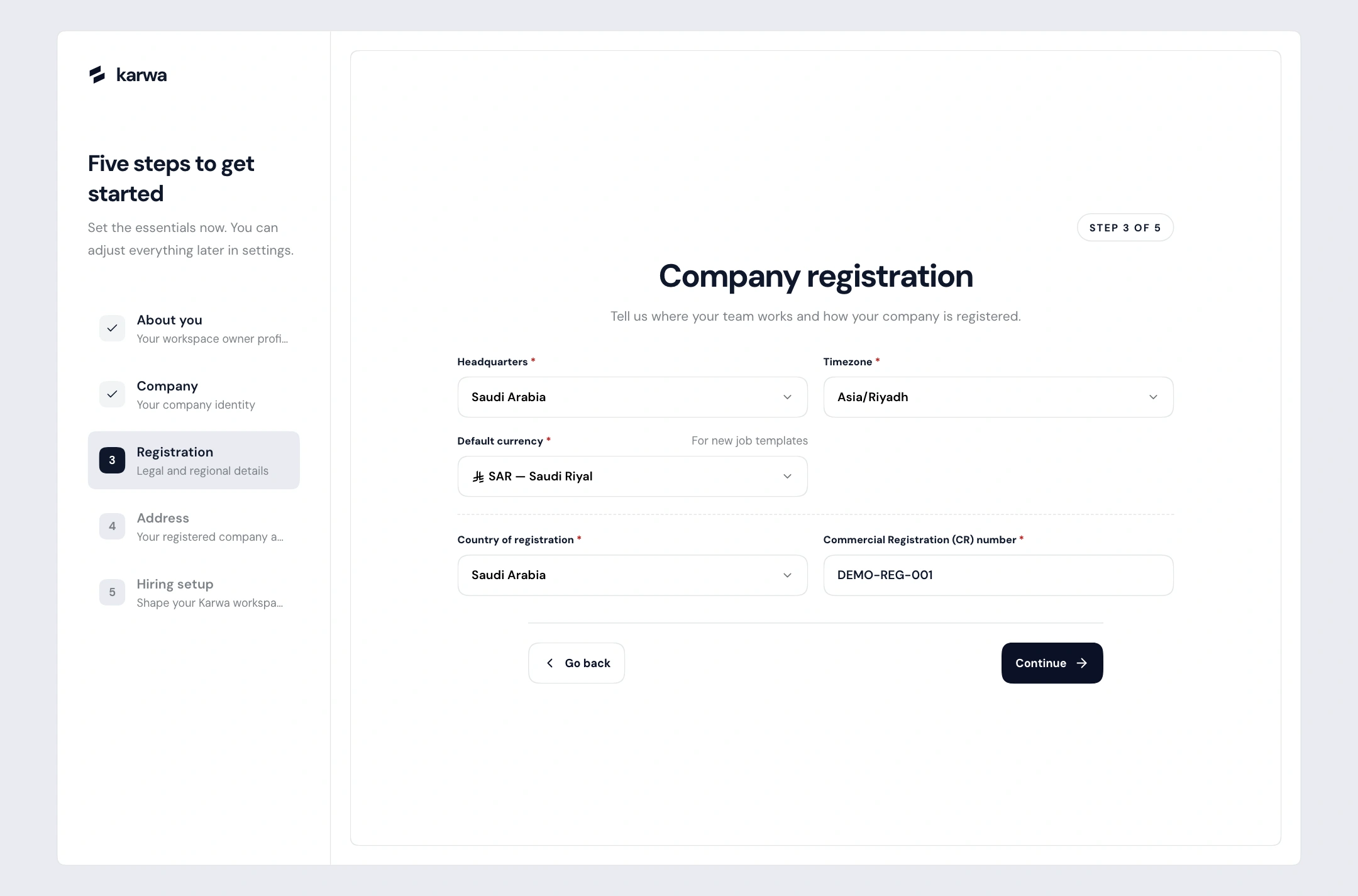
The page title is Company registration.
| Field | What it means |
|---|---|
| Headquarters | The country where your company is based. |
| Timezone | The company timezone. It initially uses the browser's timezone; check it for your organization. |
| Default currency | The default for new job templates. Choosing a currency does not convert existing compensation or invoices. |
| Country of registration | The country where the legal company is registered. This can differ from headquarters. |
| Registration number | Your actual company registration identifier. The field label changes by country, for example Commercial Registration (CR) number or Companies House number. |
All five fields are required in this step. Selecting headquarters can propose a currency; a currency you have deliberately changed is preserved. Use the correct legal registration details rather than copying the screenshot's demonstration number.
Step 4: Address
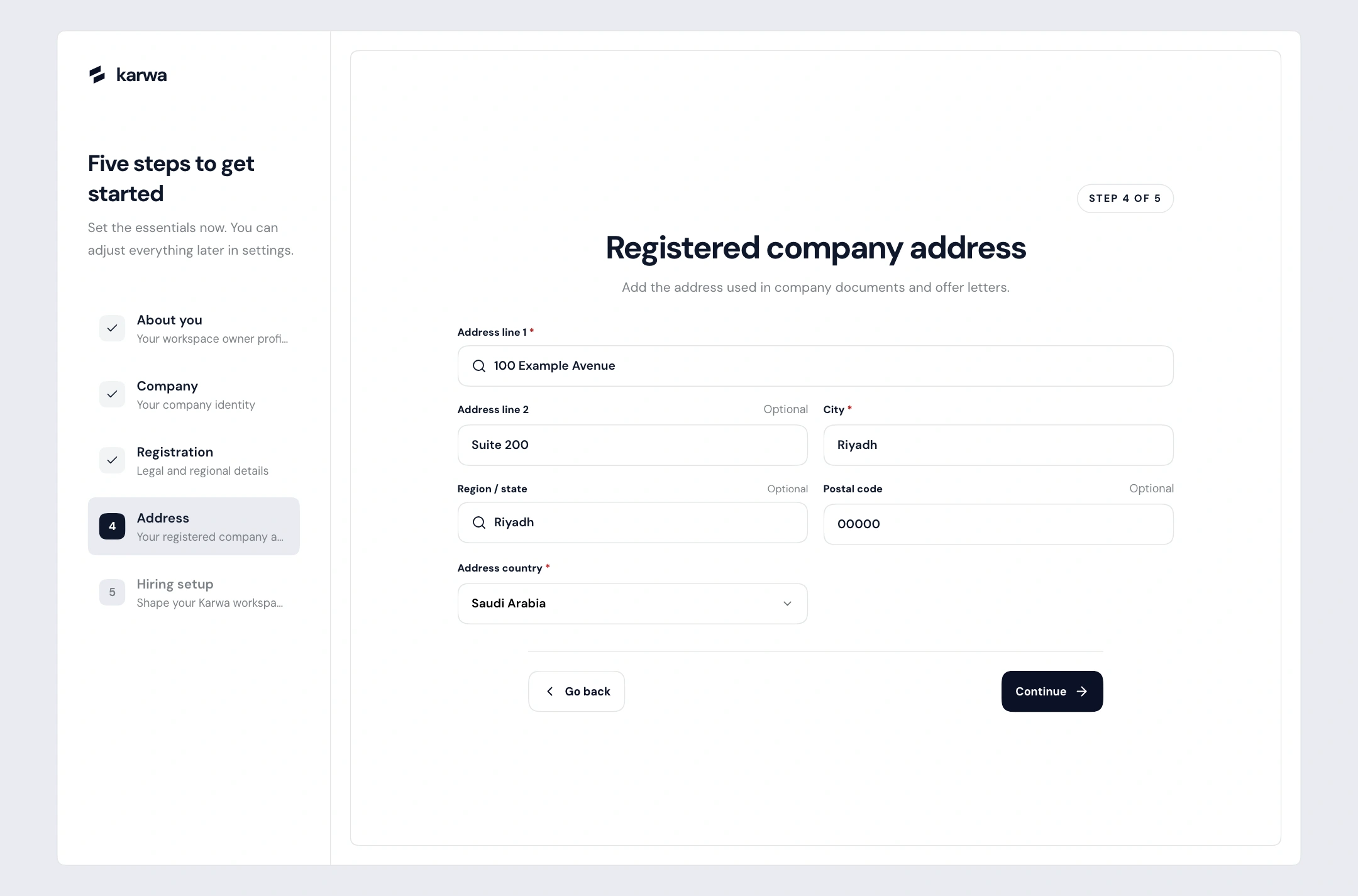
The page title is Registered company address. This is the address used in company documents and offer letters.
| Field | Required? |
|---|---|
| Address line 1 | Required. Enter the registered street address. |
| Address line 2 | Optional, such as a suite, floor, or district. |
| City | Required. |
| Region / state | Optional. |
| Postal code | Optional. |
| Address country | Required. It initially follows the registration country, but can be changed separately. |
You can type the address or select a search suggestion when available. A selected address can populate the city, region, postal code and country. Review every populated field; an address suggestion is not a legal registration check. If no suggestion is suitable, complete the required fields manually.
Step 5: Hiring setup
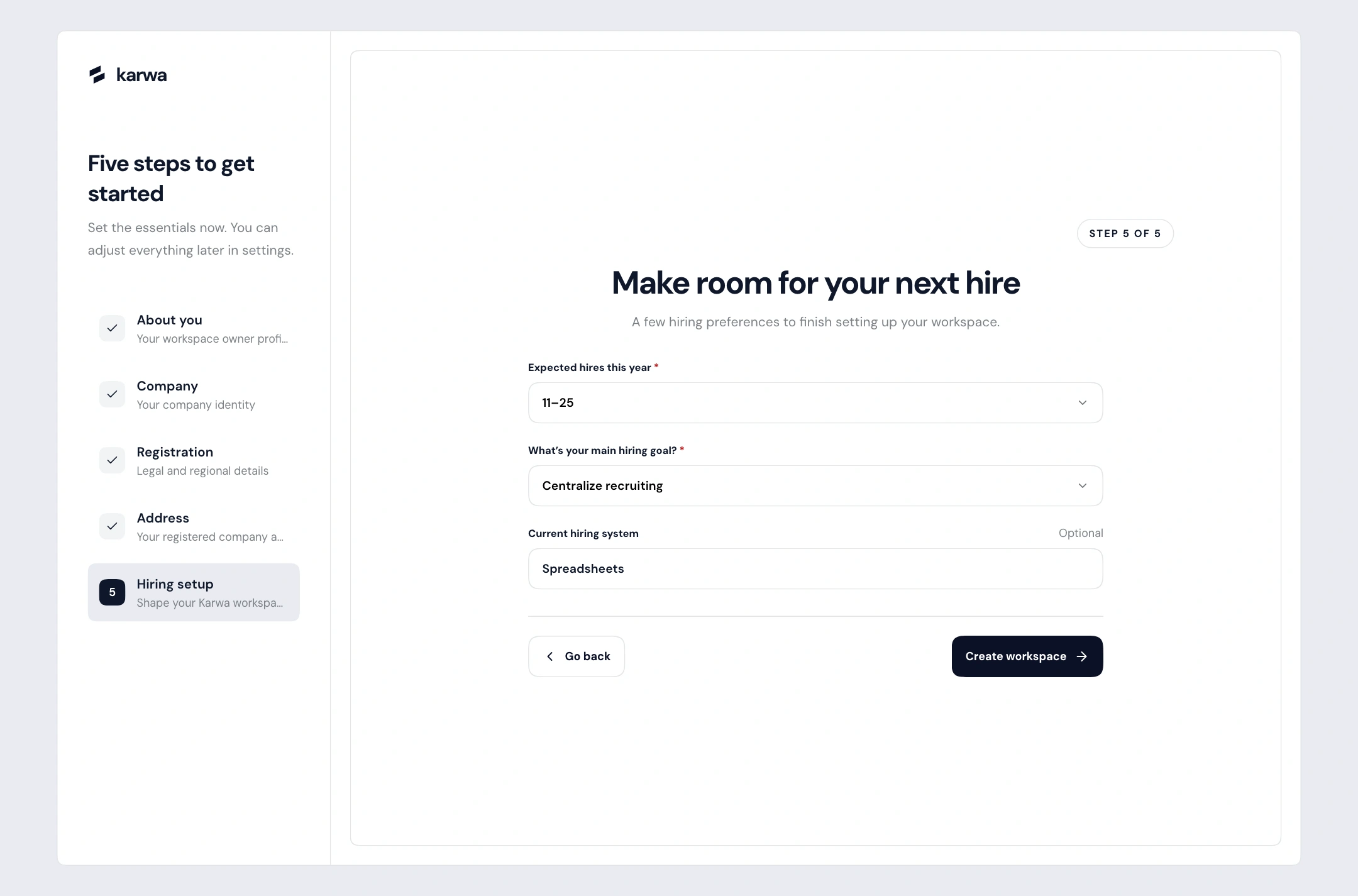
The page title is Make room for your next hire.
| Field | What to choose |
|---|---|
| Expected hires this year | Required hiring range. This describes your hiring plans; it does not create jobs or purchase seats. |
| What’s your main hiring goal? | Required goal, such as Centralize recruiting or Improve hiring speed. |
| Current hiring system | Optional description, such as Spreadsheets or your current ATS. Entering a system name does not connect or import it. |
Review your choices before selecting Create workspace. Unlike the earlier Continue buttons, this submits all five steps. Karwa rechecks required fields and returns you to an incomplete step if needed. While saving, the button reads Creating… and the form is disabled.
A successful save records the workspace details and your organization authorization and requests a welcome email for the first completion. It does not prove that the email reached your inbox, create a job, publish an opening, invite teammates, or set up billing.
Go back, refresh, or return later
Use Go back to revisit the previous step. On desktop, you can also select an earlier step in the left navigation; future steps cannot be skipped. On small screens, the step navigation appears as numbered buttons above the form.
The form keeps a draft for your account in the current browser tab's session. Refreshing that tab can restore your details, authorization selection and current step. This is not a saved workspace or a promise that progress follows you to another browser, device, or a closed tab. Draft storage may be unavailable in some browsers. The draft is cleared after successful completion.
After creation: optional account security
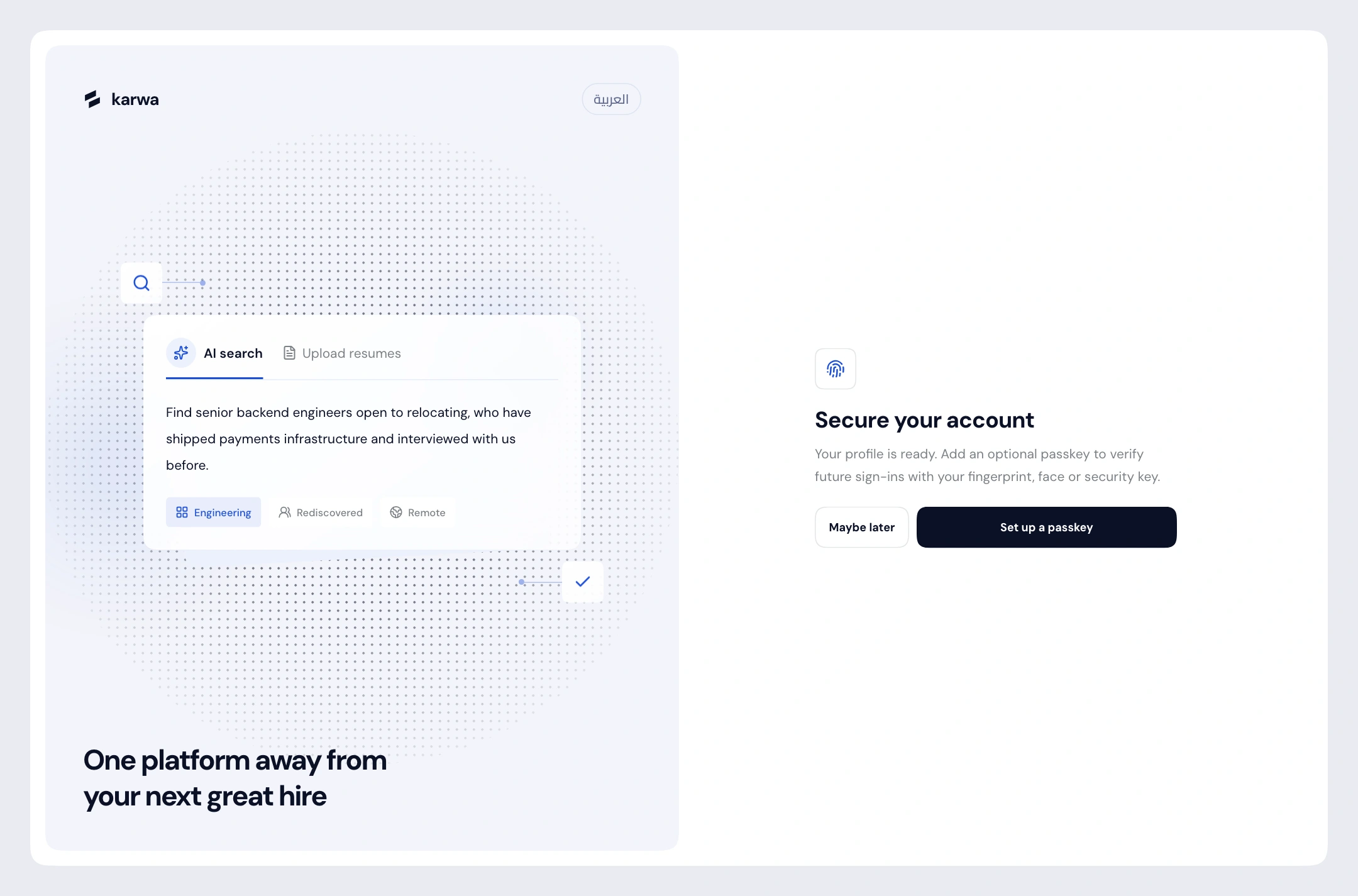
After a successful save, Karwa opens Secure your account. The workspace setup and passkey enrollment are separate actions.
- Set up a passkey starts an optional verification and enrollment flow. Follow the real browser or device prompt. Starting this flow does not mean a passkey has been saved.
- Maybe later skips optional enrollment and opens the dashboard. You can configure security later under Two-step verification.
- If recovery codes are shown after enrollment, save them privately before continuing. They are shown once and each code can be used once. Never send a passkey challenge, verification code or recovery code to Ask Karwa or another person.
A returning account with security already enabled is sent onward without registering a replacement method. Normal continuation uses the welcome page or requested app destination; choosing Maybe later goes directly to the dashboard.
If setup cannot continue
Continue is disabled: check every required field in the current step. About you requires the organization authorization switch; Company requires a logo and a confirmed available careers address. Registration needs headquarters, timezone, currency, registration country and registration number. Address needs line 1, city and country. Hiring setup needs a hiring range and goal.
The careers address became unavailable: choose a different address and wait for the availability confirmation. A save conflict can return you to Company.
A workspace already exists: do not alter your legal registration details to bypass the conflict. Ask the existing administrator for access, or use the Contact us link if it is shown and you need help resolving the company identity.
Setup will not load or save: use Try again where offered, or refresh and review the restored draft. Correct the specific error displayed above the navigation buttons. Do not assume the workspace was created until saving succeeds.
Next: prepare your first job
You can adjust personal and organization information later in Profile & account and Company profile. See Complete your profiles for publishing requirements; a current subscription is also required to make a job live.
Invite teammates with the access they need, agree on hiring stages and ownership, then follow Create and publish a job. Read Your dashboard for the workspace you reach after setup.
Ask Karwa about onboarding
Ask “What are the five workspace setup steps?”, “Why is Continue disabled?”, “How do I choose a careers page address?” or “Can I skip the passkey?”. Ask Karwa uses this guide to explain the onboarding screens. It must not invent company registration details, confirm organization authority for you, treat a draft as saved, or claim that a passkey, job, invitation, subscription or integration was created from setup guidance. Complete onboarding and optional security through their own page controls.